Documentation

Development

User Acquisition

Monetization

Industry

LevelPlay SDK - Android

Unity SDK

Android SDK

iOS SDK

Adobe AIR SDK

Flutter SDK

React Native SDK

LevelPlay SDK - Android

Unity LevelPlay
​
​
Android SDK
  • Get started
  • Regulations and settings
  • Ad formats
  • Mediated networks
    • Mediation Networks for Android
    • Mediation Network Guides
      • AppLovin
      • APS
      • BidMachine
      • BIGO Ads
      • Chartboost
      • DT Exchange
      • Google Ad Manager
      • Google AdMob
      • Google bidding
      • HyprMX
      • InMobi
      • Liftoff Monetize
      • LY Ads Network
      • Meta Audience Network
      • Mintegral
      • MobileFuse
      • Moloco
      • Ogury
      • Pangle
      • PubMatic
      • Smaato
      • SuperAwesome
      • Unity Ads
      • Verve
      • VK Ad Network
      • Voodoo
      • Yandex Ads
    • Ad Quality supported ad sources
  • Test your integration
  1. Grow your game
  2. Unity LevelPlay
  3. LevelPlay SDK
  4. LevelPlay SDK for Android developers

Yandex Ads integration

Implement Yandex Ads in Unity LevelPlay by setting up your Yandex Ads account, configuring ad units, and integrating the Yandex Ads adapter for seamless ad delivery.
Read time 1 minute
Last updated 4 months ago

Important
The following documentation discusses products or services (“Third-party Products”) not developed, owned, or operated by Unity. This information might be outdated or incomplete and is provided for your convenience. Your use of any Third-party Product is subject to its own terms. Unity makes no warranties regarding these products and isn't liable for any damages or losses arising from their use, including issues related to content, advertising, or materials from Third-party providers.
Note
To view the adapter changelog for this mediation network, refer to Mediation Networks for Android.
This guide will instruct you step-by-step on how to set Yandex Ads live as an Ad Network on Unity LevelPlay.

Prerequisites

Ensure that you correctly integrate Rewarded ads, Interstitial ads, or Banner ads into your application. Refer to the following platform-specific guides for integration instructions:

  • Unity
  • Android
  • iOS
  • Adobe Air
  • Flutter
  • React Native

  • Unity
  • Android
  • iOS
  • Adobe Air
  • Flutter
  • React Native

  • Unity
  • Android
  • iOS
  • Adobe Air
  • Flutter
  • React Native

Step 1. Create a Yandex Ads account

Create an account with Yandex Ads. You can do so here.

Step 2. Add your app in Yandex Ads

Add an app to your Yandex Ads account. Learn how here
Note
After you’ve added your app, take note of the App ID. You’ll need this for setup on the LevelPlay platform later.

Step 3. Create an ad unit

Set up the ad units (rewarded, interstitial, or banners ads) you want to monetize with on the Yandex Ads platform. Learn how
Note
After you’ve added your ad units, take note of the Ad Unit ID. You’ll need this for setup on the LevelPlay platform later.

Step 4. Activate Yandex Ads on the LevelPlay SDK Networks Module

  • Log into your LevelPlay account and go to the LevelPlay side nav bar > Setup > SDK Networks
  • Select Manage Networks
  • Select Yandex Ads from the list of available ad networks
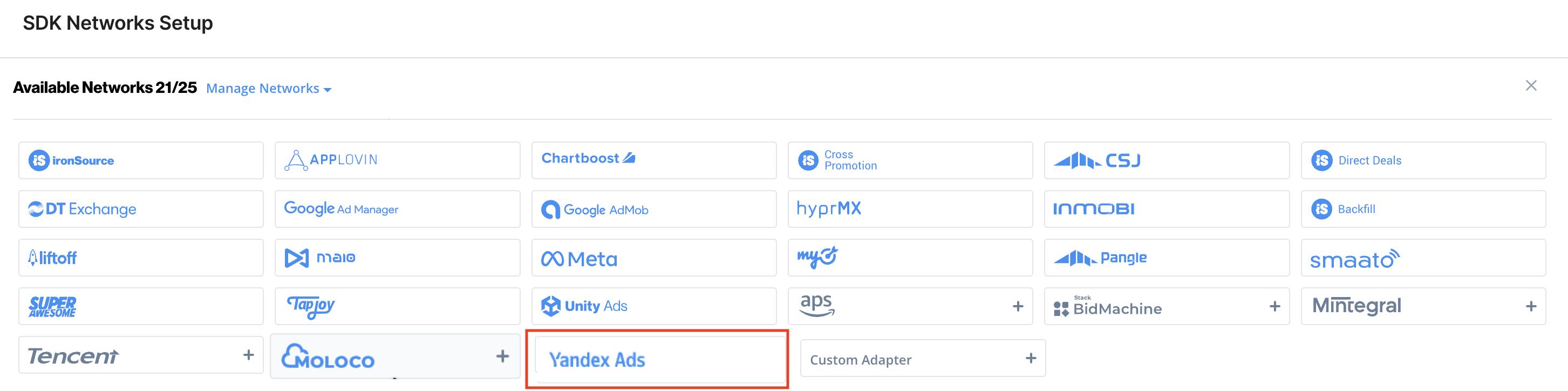
    Yandex Ads SDK Networks
  • Select Activate to turn on the network
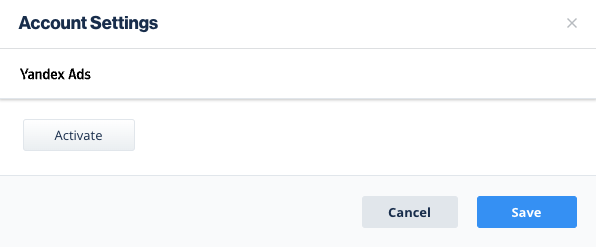
    Yandex Ads activate
  • Next, select the app on which you'd like to run Unity LevelPlay's Mediation with Yandex Ads bidding.
  • Select Yandex Ads from the list of ad networks and select the tool Setup icon.
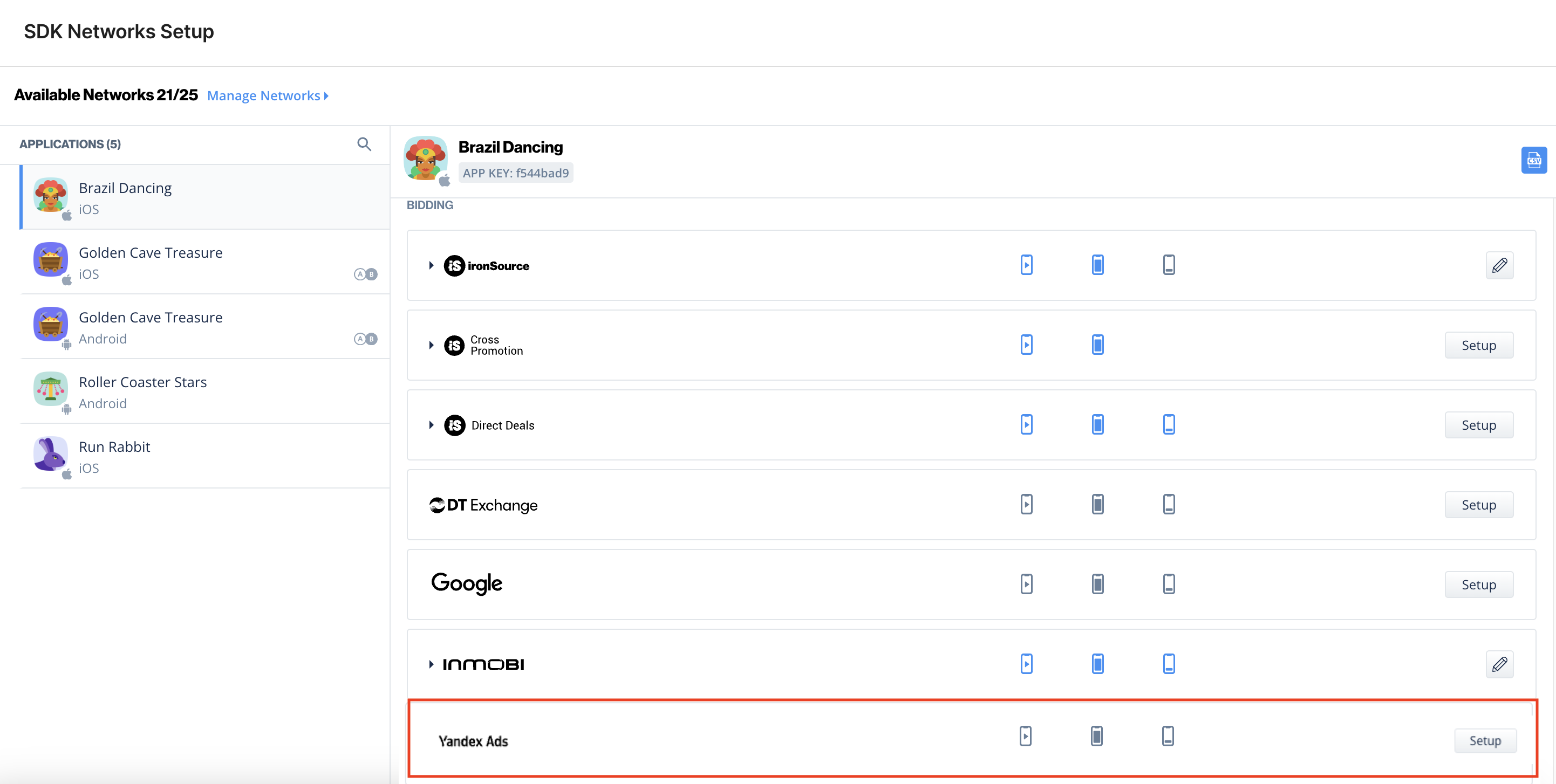
    Yandex Ads setup icon
  • Then insert the Application Key (step 2) and Ad Unit ID (step 3) under Interstitial, Rewarded ads, or Banner Settings. Select Save.
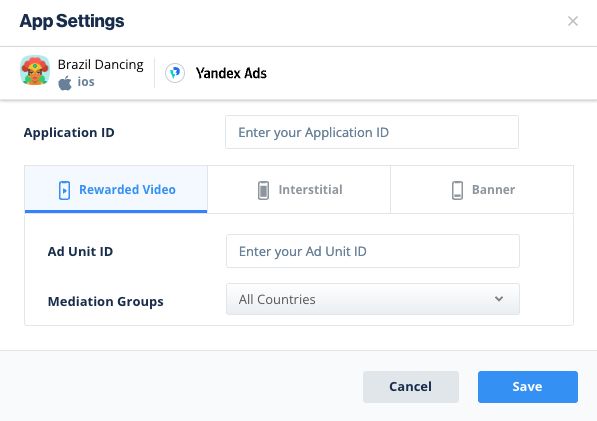
    Yandex Ads configuration

Step 5. Add the Yandex Ads Adapter to Your Build

Unity LevelPlay supports both Gradle dependencies and manual download mechanisms.

Gradle

  1. Make sure the following Maven URL exists in your build.gradle script of your app module.
repositories { mavenCentral()}
  1. Add the adapter's Maven name to your build.gradle script of your app module.
dependencies { implementation 'com.unity3d.ads-mediation:yandex-adapter:5.4.0' implementation 'com.yandex.android:mobileads:7.18.2'}

Step 6. Yandex Ads Additional Settings

User-level COPPA

Unity LevelPlay lets publishers communicate Yandex Ads User-level COPPA settings directly to the Yandex Ads network. This feature is enabled using LevelPlay SDK 8.1.0+, Yandex Ads Adapter 4.3.1+.
Use the following syntax, to update Yandex Ads COPPA User Status with true:
LevelPlay.setMetaData("Yandex_COPPA","true");
Use the following syntax, to update Yandex Ads COPPA User Status with false:
LevelPlay.setMetaData("Yandex_COPPA","false");
You can now deliver Yandex Ads within your application.

Copyright © 2026 Unity Technologies
LegalPrivacy PolicyCookiesDocumentation Terms of UseDo Not Sell or Share My Personal InformationYour Privacy Choices (Cookie Settings)

"Unity", Unity logos, and other Unity trademarks are trademarks or registered trademarks of Unity Technologies or its affiliates in the U.S and elsewhere (more info here). Other names or brands are trademarks of their respective owners.

Some pages are machine-translated for convenience, and may contain inaccuracies. In the event of conflicting information, the English version is authoritative.

  • On this page
    • Prerequisites

    • Step 1. Create a Yandex Ads account

    • Step 2. Add your app in Yandex Ads

    • Step 3. Create an ad unit

    • Step 4. Activate Yandex Ads on the LevelPlay SDK Networks Module

    • Step 5. Add the Yandex Ads Adapter to Your Build

      • Gradle

    • Step 6. Yandex Ads Additional Settings

      • User-level COPPA


Report a problem with this page
​
​