SuperAwesome integration
Incorporate SuperAwesome’s child-safe ads with Unity LevelPlay to ensure COPPA compliance and create a safe ad environment for younger audiences.
Read time 1 minuteLast updated a day ago
Prerequisites
SuperAwesome network supports Rewarded ads, Interstitial and Banner ads.
The supported banner sizes are: Banner, MREC and Leaderboards. You can use "Smart" banner size, to support both Banner and Leaderboards.
SuperAwesome required minimum Xcode version 14.3+
Step 1. Create a SuperAwesome account
- To create an account with SuperAwesome Network, reach out
Step 2. Create an application in SuperAwesome Network
Follow these steps to create your SuperAwesome application:
-
In your SuperAwesome account go to apps and sites
-
Select Create
-
Fill all configurations and save applications
-
Create at least one placement
-
Get all essentials credentials:
- App Id
- Placement Id
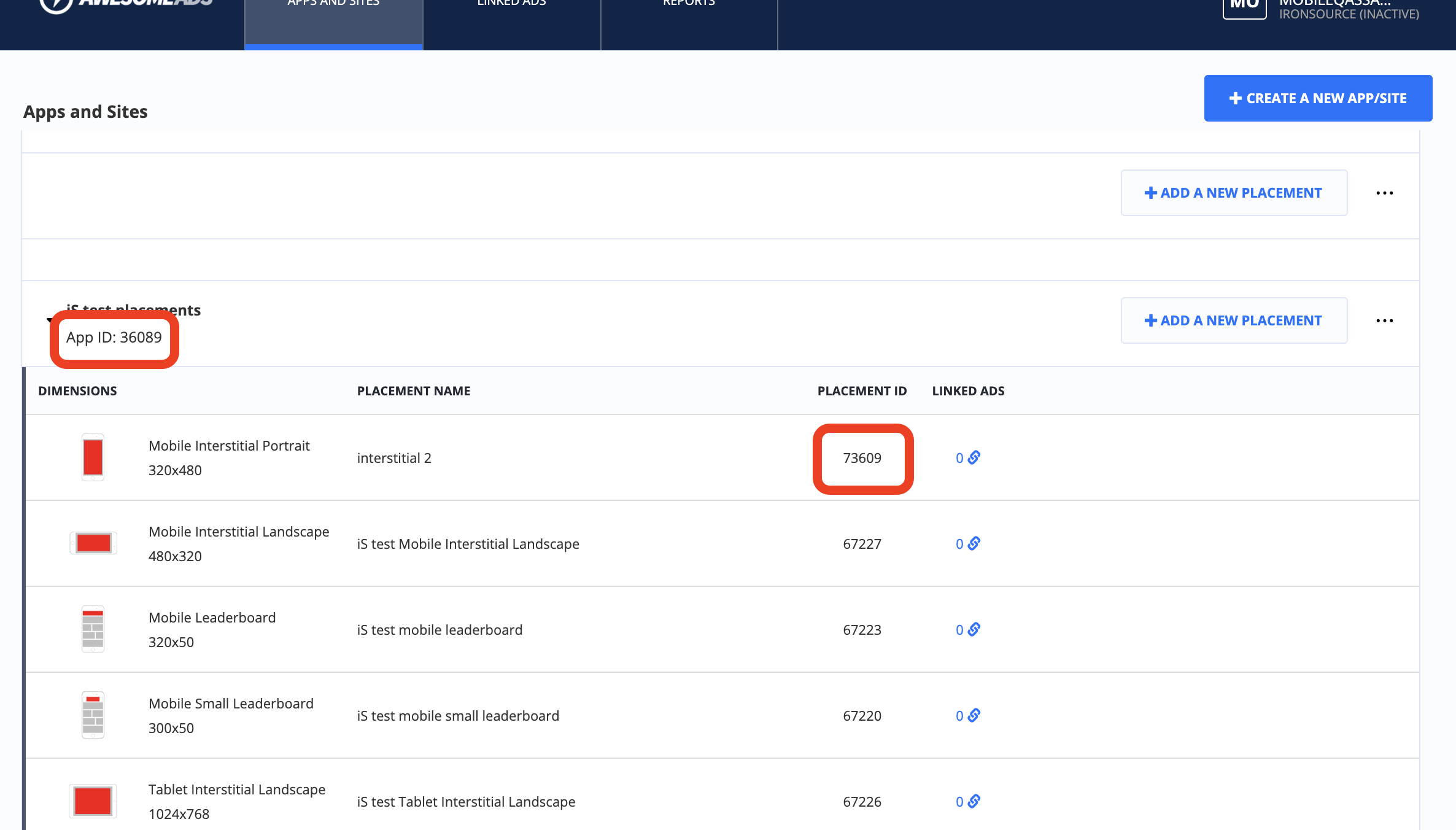
-
- App key - contact your SuperAwesome account manager
Step 3. Activate SuperAwesome Network
Inside the ironSource platform, access the SDK Networks setup to configure SuperAwesome parameters into your LevelPlay account.
-
After you have the credentials mention above, log in to your LevelPlay account and go to Monetize > Setup > SDK Networks.
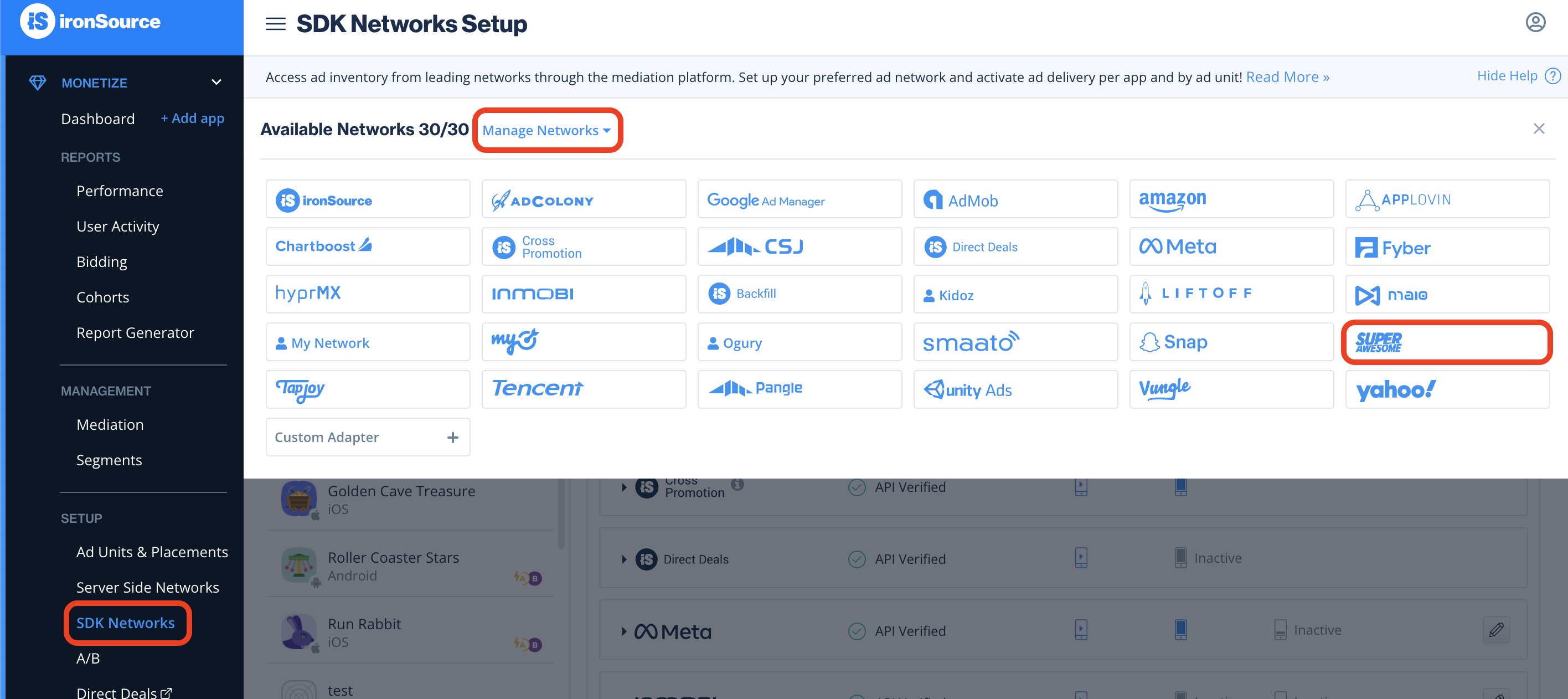
-
Select SuperAwesome from the table of Available Networks and select Activate. Insert all credentials, then select Save.
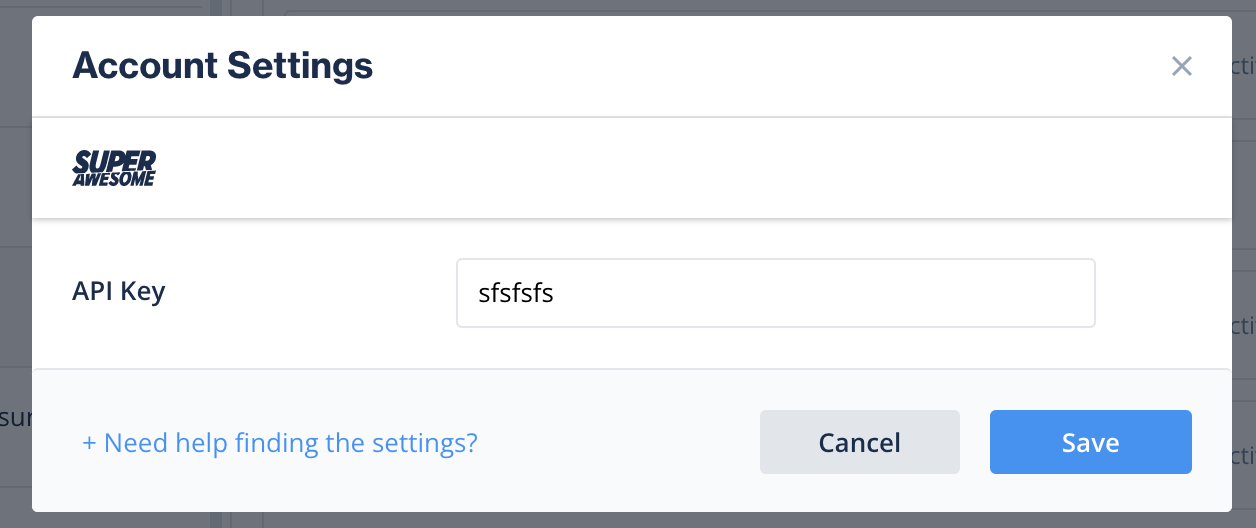
-
Select SuperAwesome from the list of ad networks and select Setup.
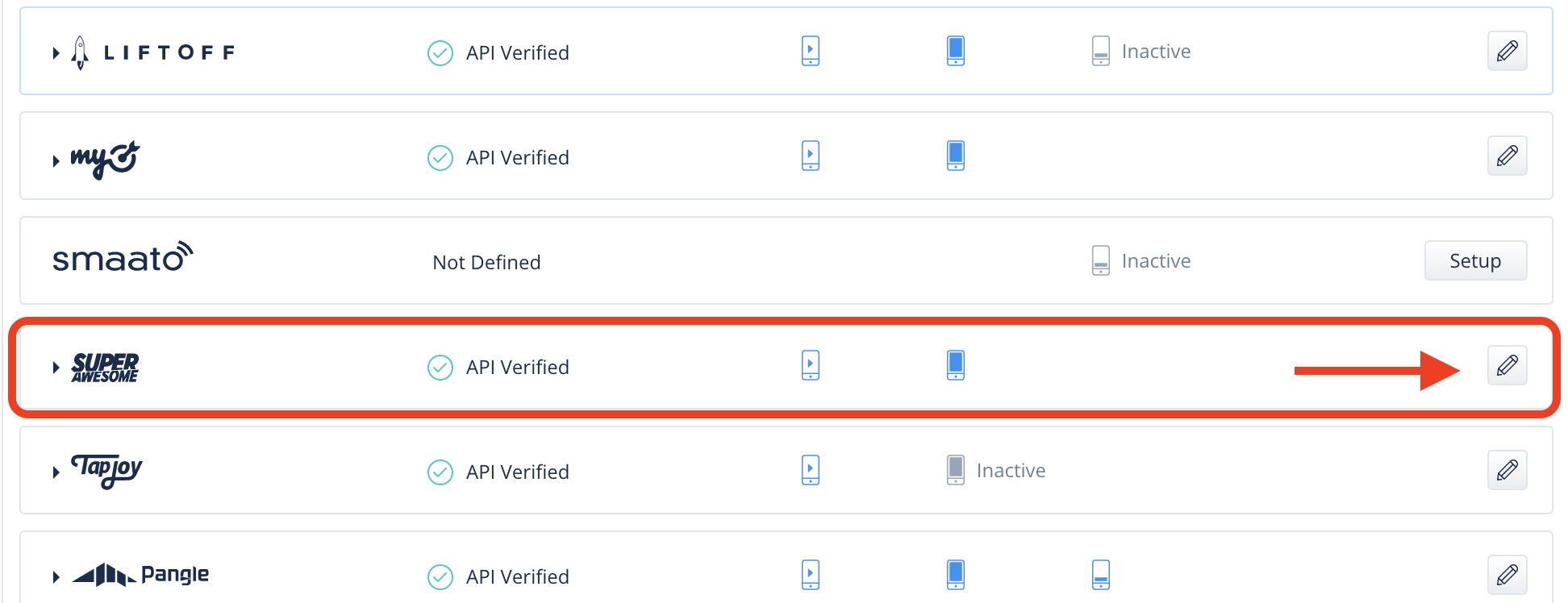
-
Enter your SuperAwesome App ID and Placement ID. Set the status to Active and select Save.
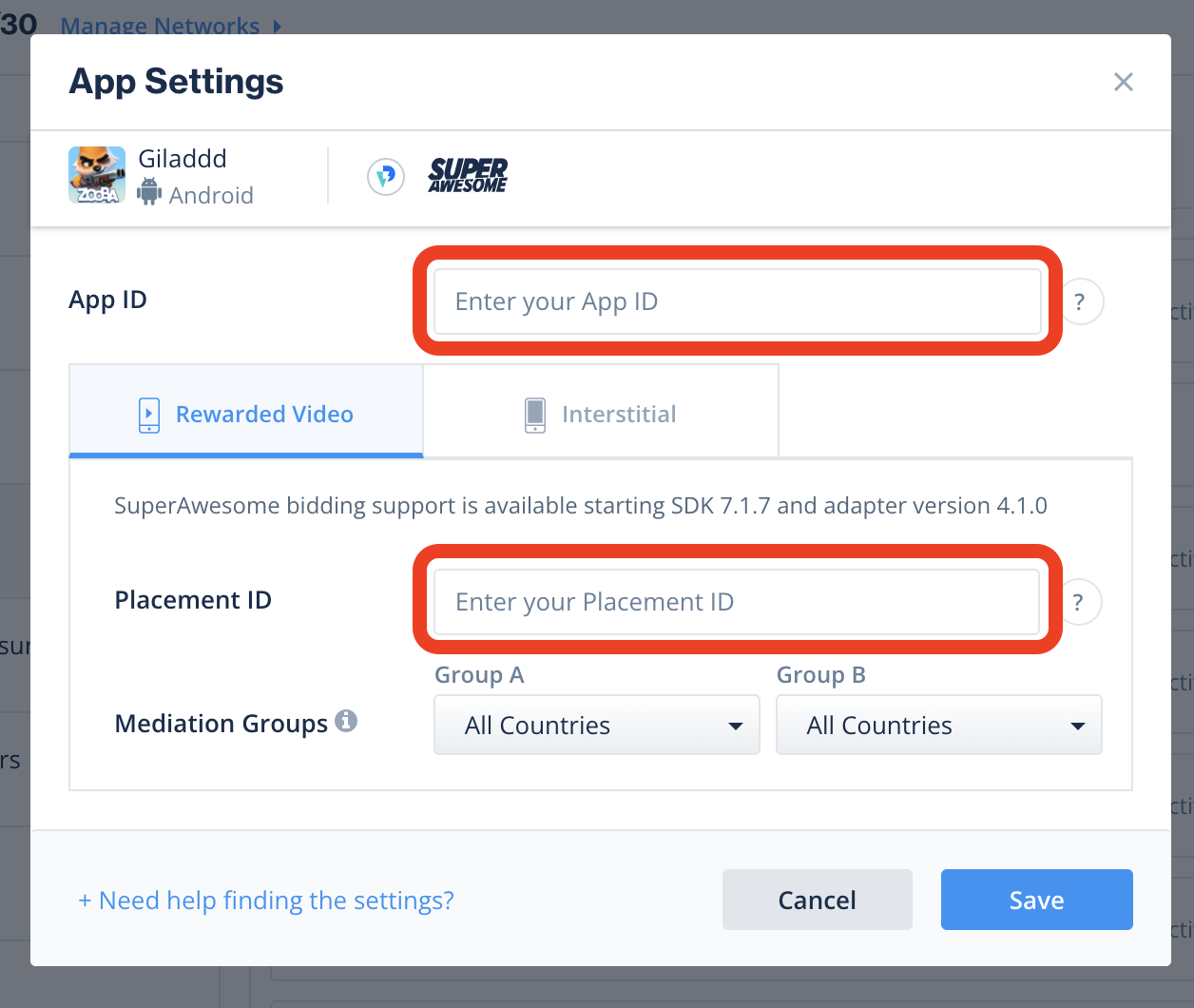
You'll see SuperAwesome listed as Active for Mediation on your Setup dashboard.
Step 4. Add the SuperAwesome adapter to your build
We recommend to perform integration using Gradle mechanism.
- Make sure the following Maven URL exist in your build.gradle script of your app module.
repositories { mavenCentral() maven { url 'https://aa-sdk.s3-eu-west-1.amazonaws.com/android_repo' content { includeGroup "tv.superawesome.sdk.publisher" } }}
We recommend limiting this repository to the SuperAwesome group with , as shown above. The repository returns an error for artifacts it doesn't host, which can fail Gradle dependency resolution for other libraries.
includeGroup- Add the adapter's Maven name to your build.gradle script of your app module.
dependencies { implementation 'com.unity3d.ads-mediation:superawesome-adapter:5.8.0'}
You can now deliver SuperAwesome within your application.
To leverage additional ad networks through Unity LevelPlay, integrate the adapters and follow our integration guides.