Get started
Understand how the Triggers service works and how you can use it.
Read time 4 minutesLast updated a month ago
Triggers enable the automation of server-side actions at a set moment in time or as the result of another server event from Unity Gaming Services (UGS). When an event fires, a trigger can run a Cloud Code script or module, or send an HTTP request to an external URL (a webhook action) - without the need for a client to make a request to the server.
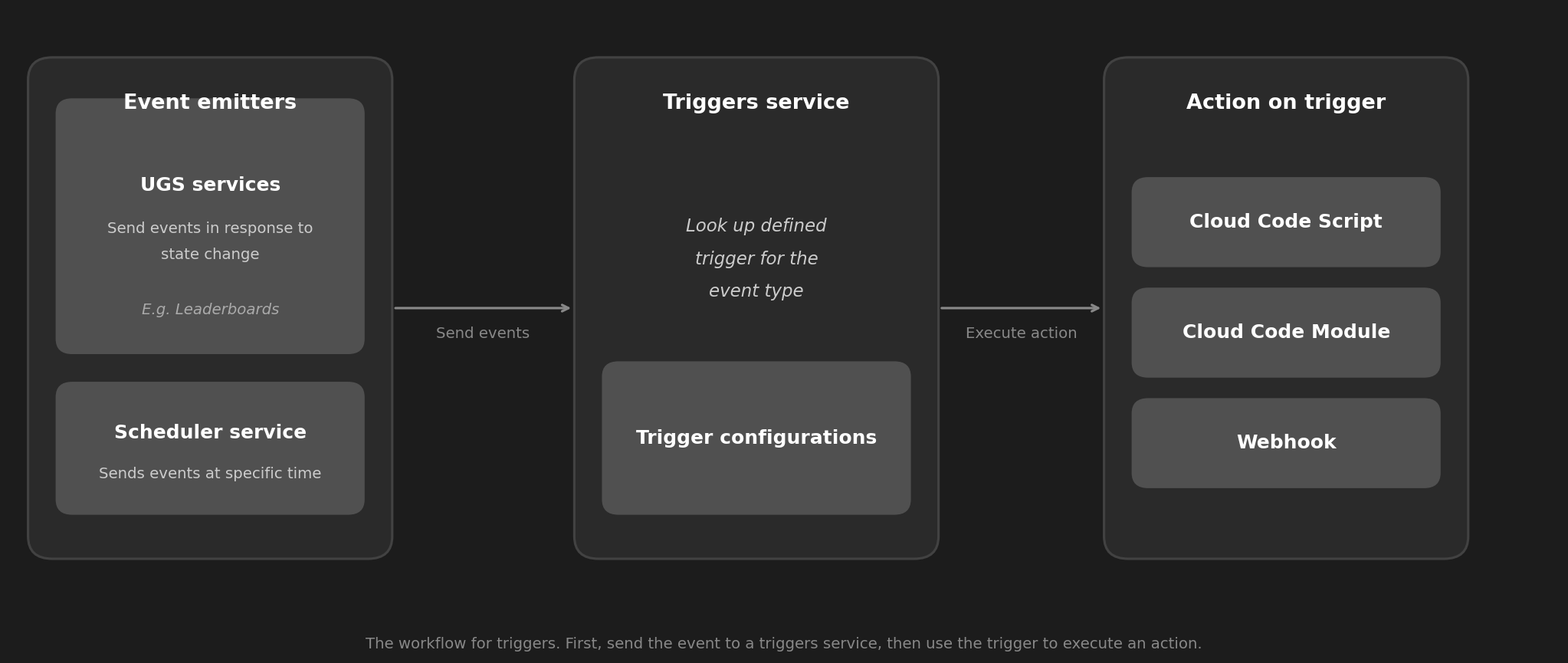
The workflow for triggers. First, send the event to a triggers service, then use the trigger to execute an action.
Events
An event defines a change in state that has occurred in the server. Events can be emitted by internal Unity Gaming Services, such as the Authentication service, or by the Scheduler service.
For example, every time a player signs in, the Authentication service emits an event.
Refer to Events and Supported UGS events for more information.
Scheduler
Use the Scheduler service to emit events at a set or recurring moment in time.
For example, a scheduler enables you to do the following:
- Send an announcement to all users wishing them a happy new year at 00:00:00 UTC on January 1st.
- Change a game theme at 00:00:00 UTC on the first day of every month.
- Reward top players at the end of every month.
Timers in Stateful Cloud Code
The Scheduler service emits events at moments you define in advance for a whole environment. To run logic a set time after a specific player interaction instead, use timers in Stateful Cloud Code. A timer registers a one-off callback that calls a Cloud Code function after a time span you specify elapses.
For example, you can use timers for the following tasks:
- Turn timers: Enforce time limits for player turns in multiplayer games.
- Cooldowns: Restrict how frequently players can perform certain actions.
- Delayed events: Trigger in-game events after a specified duration.
- Idle mechanics: Process offline progression or resource generation at intervals.
Refer to Timers in Stateful Cloud Code for more information.
Triggers
Triggers allow you to define rules to automatically perform a chosen action when UGS emits a particular event. The action can be running a Cloud Code script or module, or sending an HTTP request to an external URL (webhook).
A trigger can enable use cases such as:
Use case | Event emitted by | Triggered by | Action |
|---|---|---|---|
| Initialize player data in Cloud Save every time a new player signs up | Authentication | Signed up event | Run a Cloud Code module or script. |
| Sends a push message to all users wishing them a happy new year | Scheduler | Scheduled event | Run a Cloud Code module. |
| Reward top players with in-game currency at the end of season | Leaderboards | Reset event | Run a Cloud Code module or script. |
| Send a push message to the player whose score was beaten | Leaderboards | Score submitted event | Run a Cloud Code module. |
| Announce a level up to all players in joined lobbies | Cloud Save | Key saved event | Run a Cloud Code module. |
| Moderate player actions | Moderation | Moderation event | Run a Cloud Code moderation script. |
Webhooks
You can configure a trigger to send an HTTP request to an external URL when an event occurs. This is called a webhook action. Webhooks let you integrate UGS events with your own backend, third-party APIs, or notification services such as Slack or Discord, without using Cloud Code.
For example, you can use webhooks for the following tasks:
- Notify an external system when something happens (for example player signed up, score submitted, or a scheduled time).
- Forward event data to your server or a third-party API in a custom format.
- Avoid the use of Cloud Code if you only need to call an external URL.
You define the destination URL, HTTP method, headers, and payload (including optional template syntax for secrets and event data). If delivery fails after retries, events appear in the dead letter queue, where you can replay or remove them from the Unity Dashboard. Refer to Webhooks and the dead letter queue for details.
Filters
Filters are optional conditions that you can add to a trigger to define when the trigger fires.
For example, you can define a filter to only fire a trigger for a Leaderboard event when a player submits a score of 100 or more.
Refer to Filters for more information.
Next steps
Take a look at the following guides to learn more about Triggers:
Guide | Description |
|---|---|
| Events | Learn how events work, how they are emitted, and their structure. |
| Trigger structure | Explore the structure of a trigger and how to associate it with an event. |
| Supported UGS events | Find the event types that UGS services can emit. |
| Webhooks | Discover how webhook actions send event payloads to an external URL when a trigger fires. |
| Dead letter queue | Understand when events enter the dead letter queue (DLQ) and how to manage them. |
| Manage the dead letter queue | View, filter, replay, and discard failed events using the Dashboard, CLI, or REST API. |
| Schedule events using the dashboard, CLI, or API | Follow the steps to create scheduled events. |
| Define triggers using the CLI, API or Unity Dashboard | Learn how to define triggers to run Cloud Code or send webhooks when an event is emitted. |
| Access control | Understand the access control model for Triggers. |