Game Overrides and Settings
Configure Game Overrides and settings in Remote Config.
Read time 10 minutesLast updated 7 months ago
Unity Remote Config uses Game Overrides to target specific user groups and deliver different settings for each group. Game Overrides are linked to Settings, which you map to variables in your game code to override their default values when the audience criteria for a Game Override is met.
Plan Remote Config settings early, when you design your game or before a new deployment. Unity recommends including inert Remote Config settings with your initial deployment, which you can later apply once you understand how your audience uses your game, and how it performs on different devices.
In the Unity Editor, select Window > Remote Config to begin working with Settings.
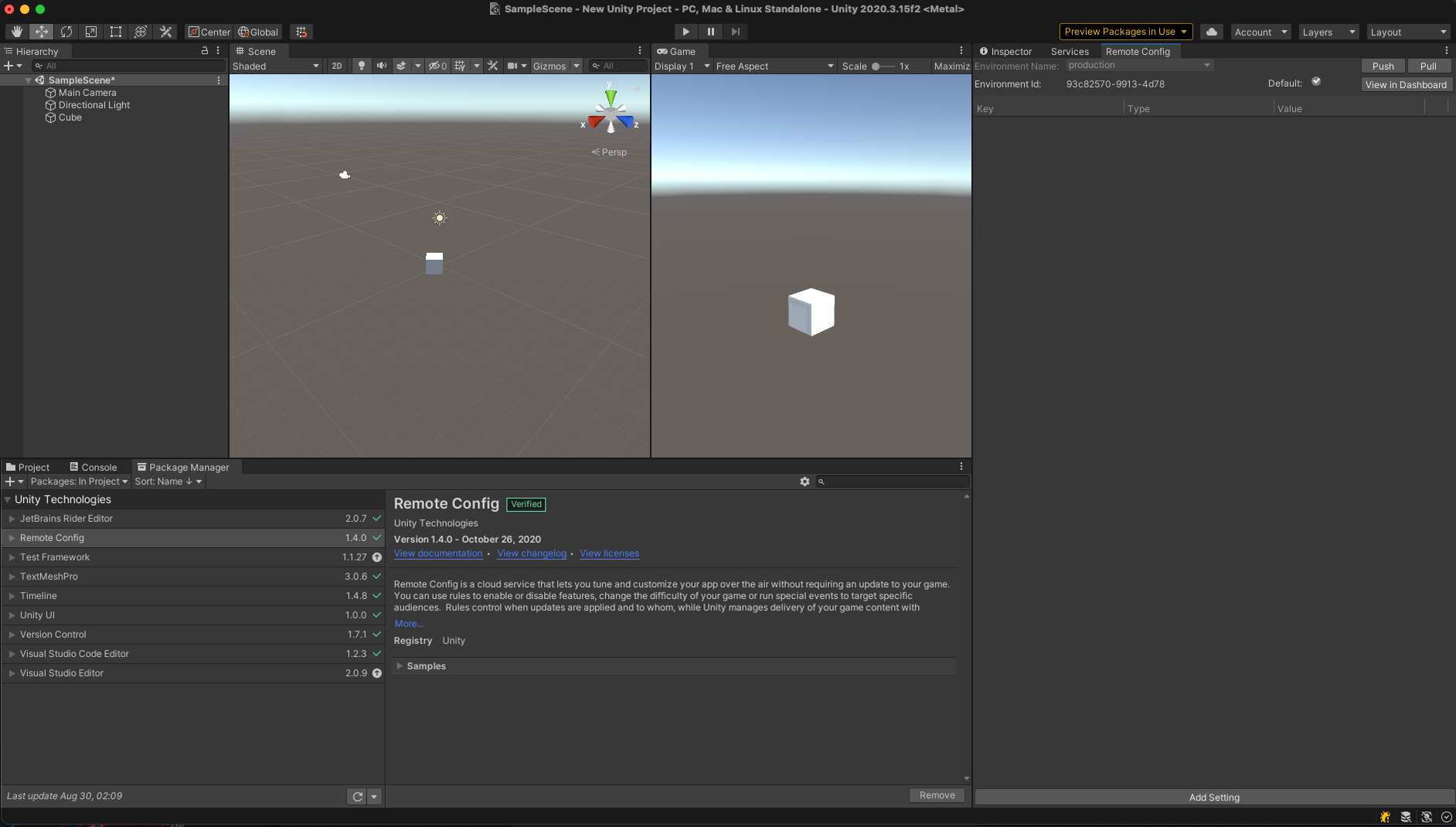
Use the Remote Config window to configure your Remote Config Settings. You can configure Game Overrides in the Unity Dashboard which you can access with the View in Dashboard button. Game Overrides dictate conditions or player segments to surface Settings. By default, you start with one config: Settings Config. This config contains the default Settings that all users receive unless an active Game Override with higher priority applies.
A Setting is a key/value pair. Map the key name to a variable in your game code, so you can dynamically change its value without changing your code.
Adding new Settings
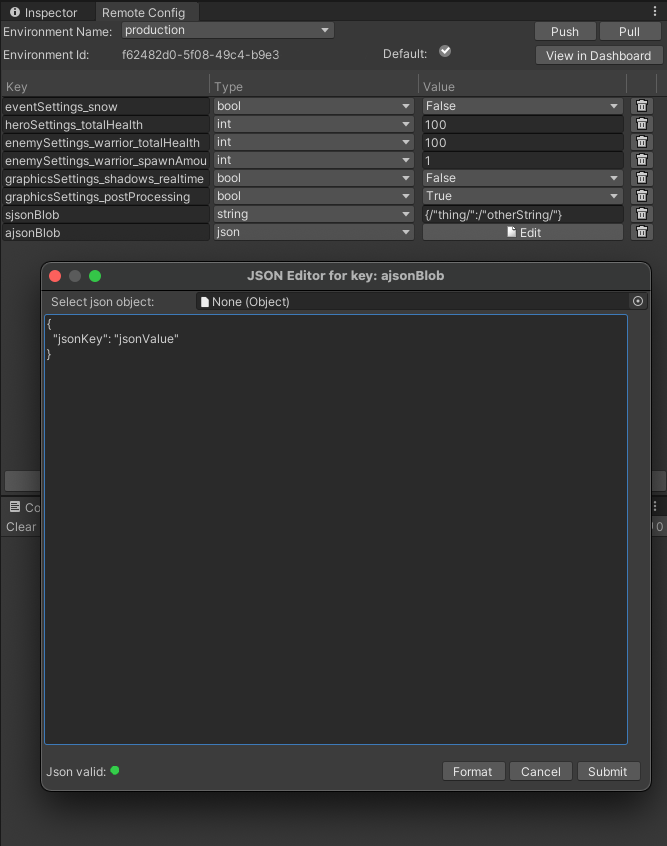
The default Settings Config config contains every Setting you create for a given environment. To create a new Setting, highlight the Settings Config config, then select the Add Setting button at the bottom of the right panel.
Each Setting consists of a Key, Type, and Value:
Parameter | Description | Example |
|---|---|---|
| Key | The name of the Setting, which must adhere to the following Game Overrides:
|
|
| Type | The C# variable data type of the Setting value. |
|
| Value | The value for this Setting, which applies to the following Game Overrides:
|
|
Adding new Game Overrides
To create a new Remote Config Game Override, select View in Dashboard > View Overrides > Create Override. Each Game Override has five parameters, which are detailed below:
- Name
- Targeting Strategy
- Condition
- Rollout Percentage
- Content Type
- Start Date and Time
- End Date and Time
Name
The Name is the name for your Game Override. For example, you might name a difficulty curve for Game Override , or a seasonal event .
level_1_enemieshalloween_eventTargeting Strategy
The Targeting Strategy defines the kind of audience for your Game Override. It can be , where you pick audiences such as 'All Spenders' or 'Existing Players' etc, or where you can define target audience based on the
StatefulStatelessConditionCondition
The Condition is a JEXL expression (see JEXL support section below) of contextual data attributes used to define the audience to apply to a Game Override. You can use multiple criteria to define this segment. Remote Config currently supports three attribute categories:
-
The user category contains custom developer-defined attributes that describe the user (for example, subscriber status, name, age), which you must pass to RemoteConfigService.Instance.FetchConfigs<T, T2>(T userAttributes, T2 appAttributes).
-
The app category contains custom developer-defined attributes that describe the application (for example, connectivity status, app version, current level), which you must pass to RemoteConfigService.Instance.FetchConfigs<T, T2>(T userAttributes, T2 appAttributes).
-
The unity category contains predefined attributes, detailed in the table below:
Attribute | Description | Example |
|---|---|---|
| The build number your application is running (set this in the Editor by navigating to Edit > Project Settings > Player). | |
| The version your application is running (set this in the Editor by navigating to Edit > Project Settings > Player). | |
| The name of the cpu processor. | |
| The processor frequency in MHz of the device running your app. | |
| The applicable country. This attribute uses ISO 3166-1 alpha2 country codes. See documentation on Code integration for information on defining custom attributes. | |
| The applicable language. This attribute uses ISO 639-1 language codes. See documentation on Code integration for information on defining custom attributes. | |
| The operating system version of the device running your app. | |
| The applicable device or platform. The following values are valid:
| |
| The time in milliseconds since a session of your app has begun. | |
| Vendor of the user’s graphic card. | |
| Amount of ram memory in MB on the device. | |
| The model of the device. | |
For example, if you want to define a Game Override that targets users with a score greater than 10, you can define a property from the context using dot notation:
scoreappapp.score >= 10
You can also reference multiple attributes within the same Game Override:
user.score >= 10 && app.level == 5
To define a Game Override that matches all conditions and always applies, simply enter .
trueJEXL support
Remote Config supports the Java Expression Language (JEXL) spec, with some exceptions:
- Remote Config only supports Expressions.
- Remote Config does not support Scripts.
- Remote Config does not support functions or conditionals at this time.
- Though Remote Config supports multiple criteria using and
&&statements, the JEXL string cannot exceed 500 characters.||
Rollout Percentage
The Rollout Percentage dictates the percentage of your user base that adheres to this Game Override. For values less than 100, Unity randomly assigns the Game Override to that percent of your players on a user ID basis. While experiences might differ from player to player, each individual player has a consistent experience across play sessions. This parameter is particularly useful when combined with analytics to parse results.
Content type
Depending on services, you use, there is many types of content which might be chosen for a particular Game Override, being utilized from Remote Config, or some other content like or utilized by Economy Services.
Config OverridesCurrencyInventor ItemStart date and time
You can optionally specify a start date and time, which dictates when the Game Override takes effect. Timestamps are represented as strings in the ISO 8601 UTC format (). If you don't specify a value, the Game Override immediately takes effect upon activation.
YYYY-MM-DDThh:mm:ssZEnd date and time
You can optionally specify an end date and time, which dictates when the Game Override ceases to be active. Timestamps are represented as strings in the ISO 8601 UTC format (). If you don't specify a value, the Game Override remains in effect until you deactivate it.
YYYY-MM-DDThh:mm:ssZApplying Settings to a Game Override
To apply a Setting to a Game Override, navigate to the desired Game Override and edit the Content block to view a list of all the available Settings.
Enabling and Disabling Game Overrides
Use the button at the top of the Game Override page to enable or disable it.
Editing Settings in the Editor Window
For editing of Settings Keys and Values in the Remote Config Window in the Editor, make sure you save and Push your changes.
Until you do so, your configurations are only stored locally. Make sure you push your changes to save them before switching Remote Config environments.
Select the trashcan next to the Setting to delete it. Note that you should not delete a Setting if an active Game Override is currently using it.
Prioritizing Game Overrides
You can assign each Game Override a weighted priority value , or . If you want to numerically assign priority values that functionality is available via the Advanced Editor between (highest priority) and (lowest priority). To do so, Select the Edit Schedule -> Scheduling field in the Game Override, select Use Advanced Editor and enter an integer value.
LowMediumHigh11000- New Game Overrides and the Settings Config config default to .
medium - In the event of a conflict, priority is awarded to the Game Override that was created first.
Updating Game Overrides and Settings
To edit a Game Override and save your changes:
- Disable the Game Override.
- Edit the desired key value fields in the Editor Window or WebUI.
- Select the Push button to save your changes to the remote service.
- Select the Pull button to retrieve your latest remote settings from the service.
- Verify that the update applied.
- Enable the Game Override.
- Pull again to confirm that the Game Override is properly updated and active.
Json setting value
If you're using settings of type JSON, the Remote Config window displays the JSON Editor dialog.
This lets you format and validate the JSON value.
To open this window, select Edit for the JSON setting:
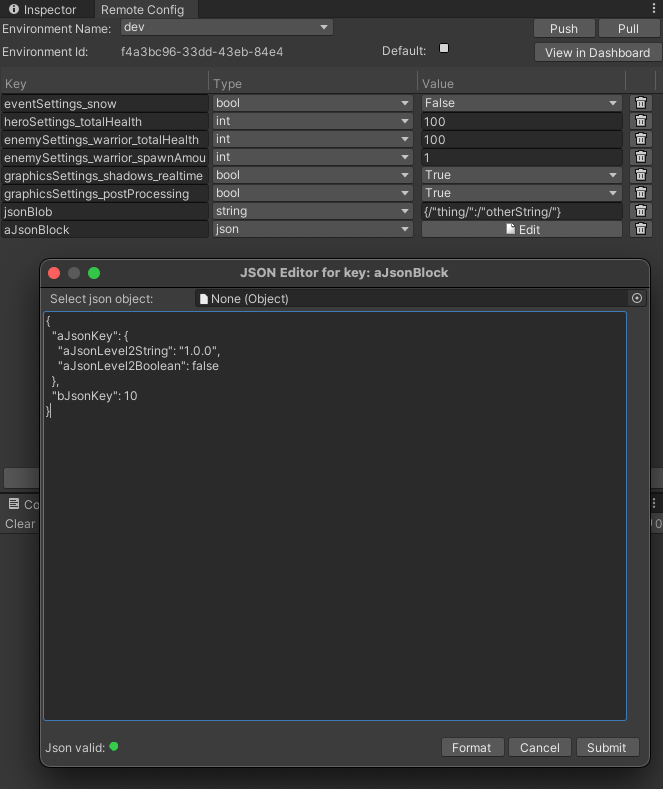
If you enter a valid but unformatted JSON value, the validation indicator is green. Use the Format button to reformat the JSON object.
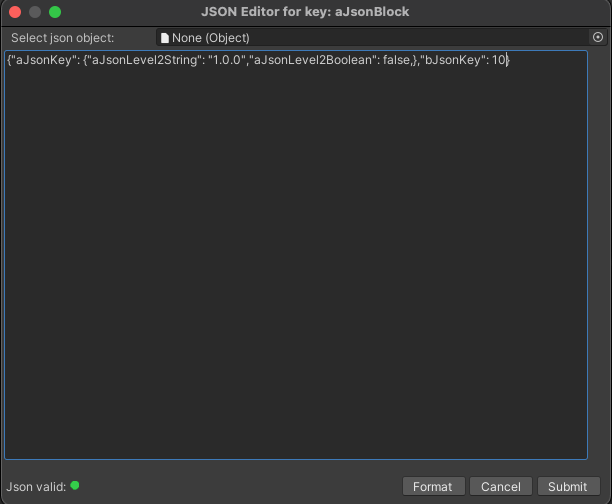
If the json value is invalid, the validation indicator is red and you cannot submit the JSON object.
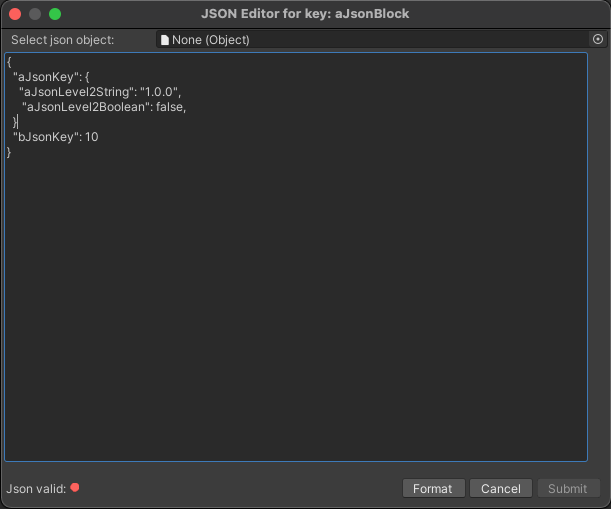
The Select json object field lets you load a JSON file (if available from your folder). To choose a file, select the button to the right of the field.
/Assets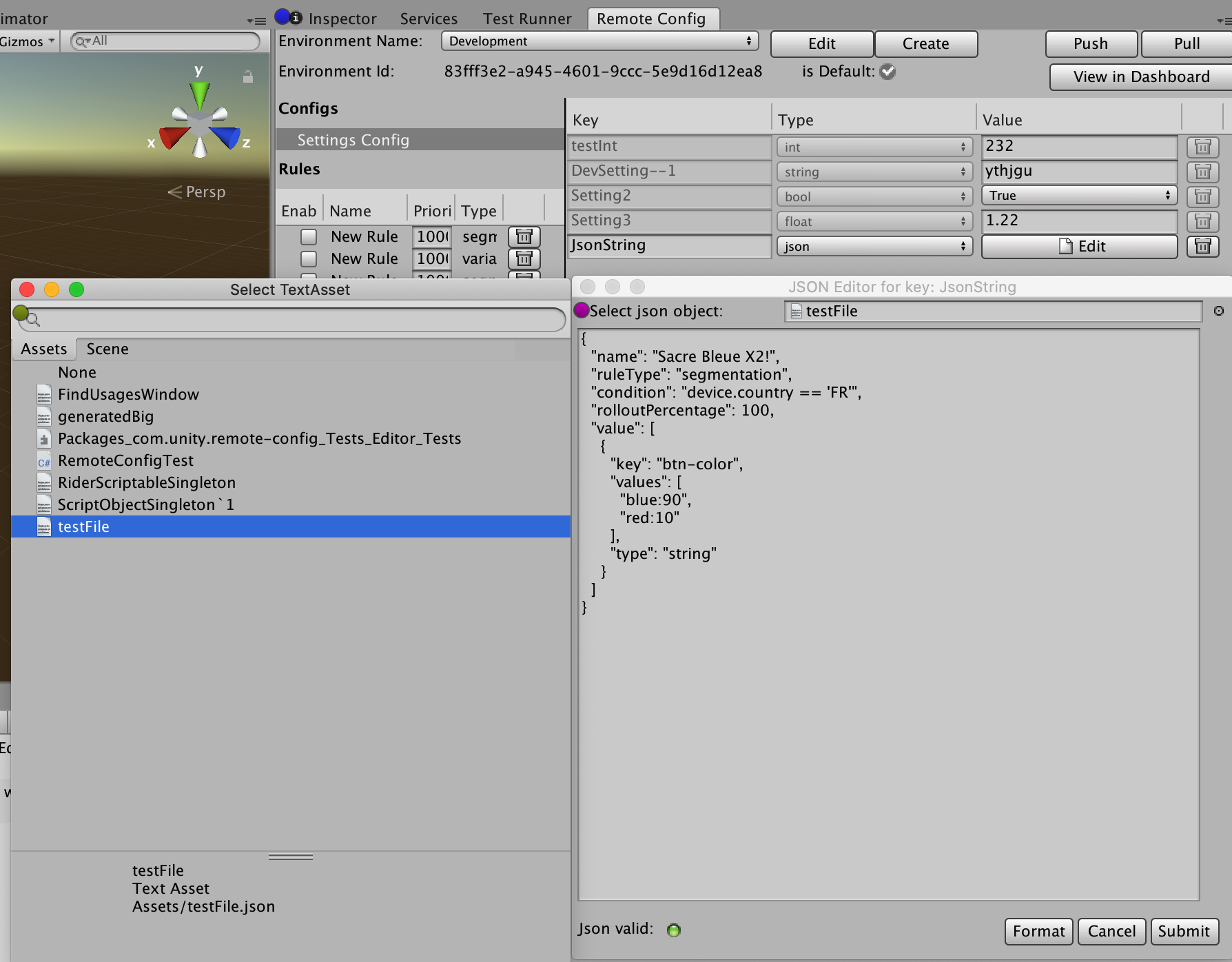
Updates and client sessions
You don't need to deploy a new version of your application to propagate changes to your configuration. Client devices request a refresh of your Remote Config settings whenever players initiate a new session of your application. Remote Config defines a new session when the user launches the application, or returns to the application after it has been in the background for at least 30 minutes.
If the client has no internet connection and cannot communicate with the Remote Config service, the application uses the last settings it received and cached.
Code integration
Once you’ve configured your Game Overrides and Settings, integrate Remote Config with your game code.