Get started
Install and configure the Unity Gaming Services Software Development Kit plug-in for Unreal Engine.
Read time 2 minutesLast updated 2 days ago
Use the following instructions to learn how to install and configure the Unity Gaming Services SDK plug-in. After you’ve installed and configured the Unity Gaming Services SDK for your project, you can use C++ or Blueprints for Unity Matchmaker.
What's included
The Unity Gaming Services SDK includes three of Unity’s services built into one plugin:Understand the requirements
The Matchmaker SDK plug-in for Unreal Engine supports the Unreal Engine versions 4.27 to 5.3.Download the Matchmaker SDK
From the Unreal Engine Marketplace website
- Sign in to the Unreal Engine Marketplace.
-
Access the Unity Gaming Services SDK for Unreal Engine Marketplace page.
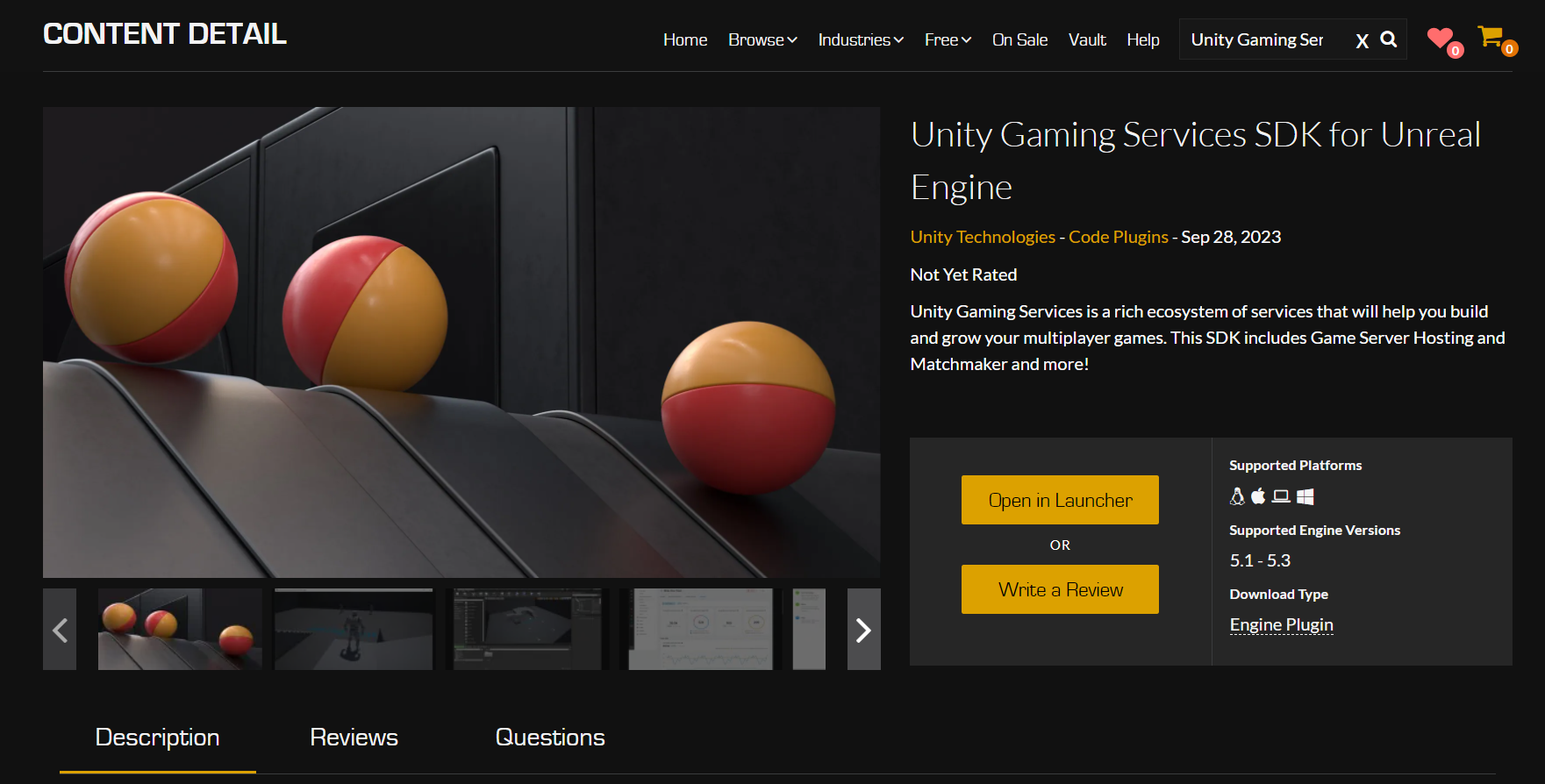
- Select Open in Launcher.
- Skip to Step 4 in From the Epic Games Launcher.
From the Epic Games Launcher
- Sign in to your Epic Games Launcher.
-
Search for Unity Gaming Services SDK for Unreal Engine in your Epic Games Launcher.
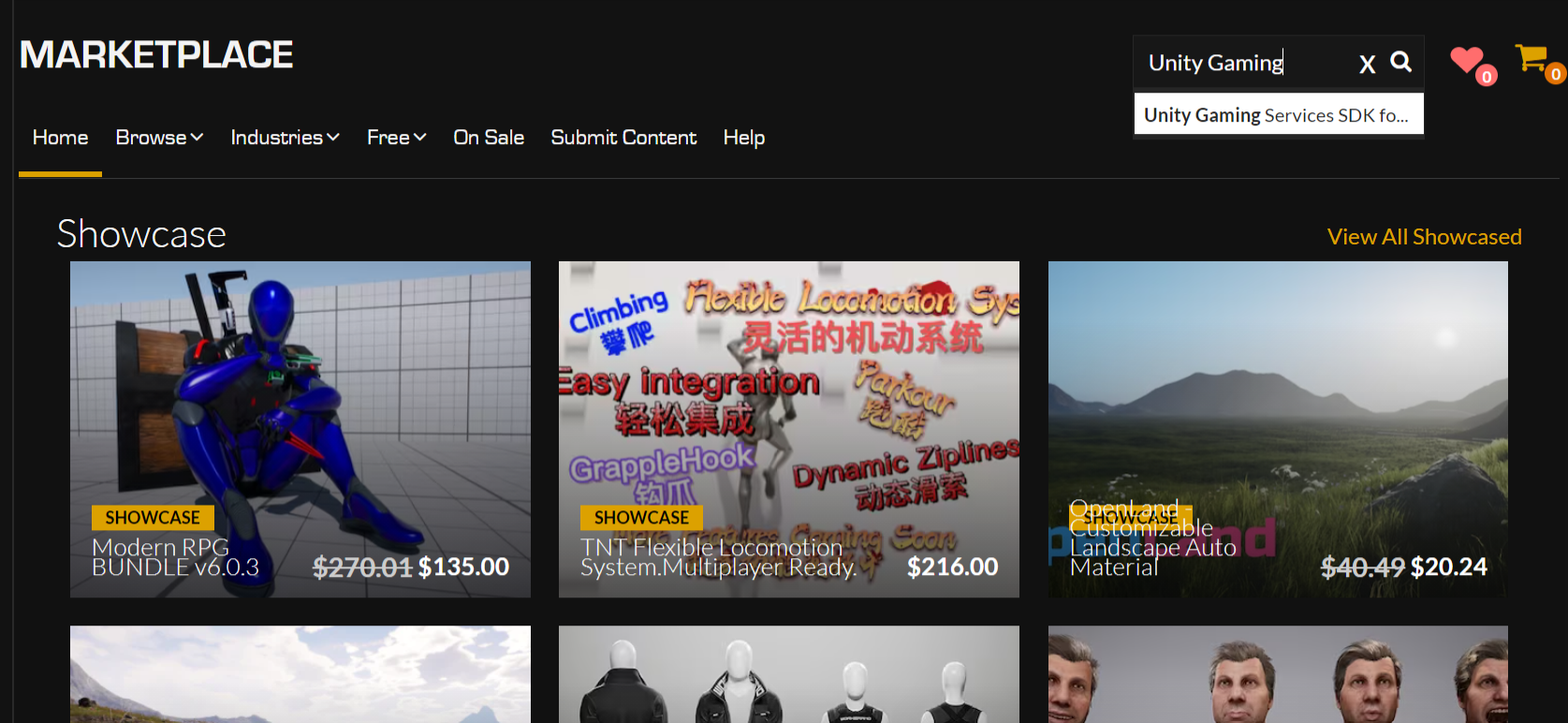
-
Access the Unity Gaming Services SDK for Unreal Engine page and select Free.
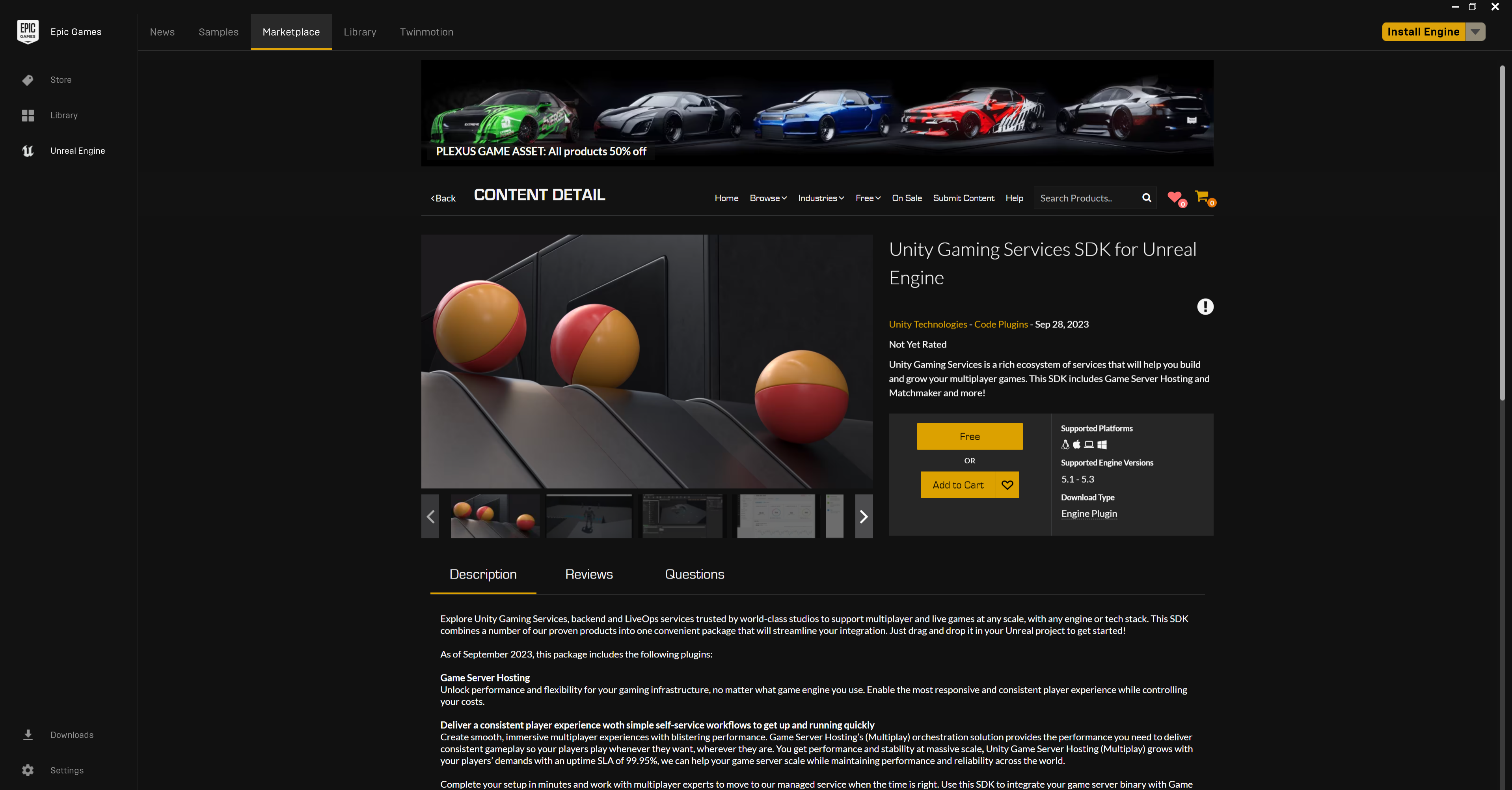
-
Select Install to Engine in your Epic Games Launcher.
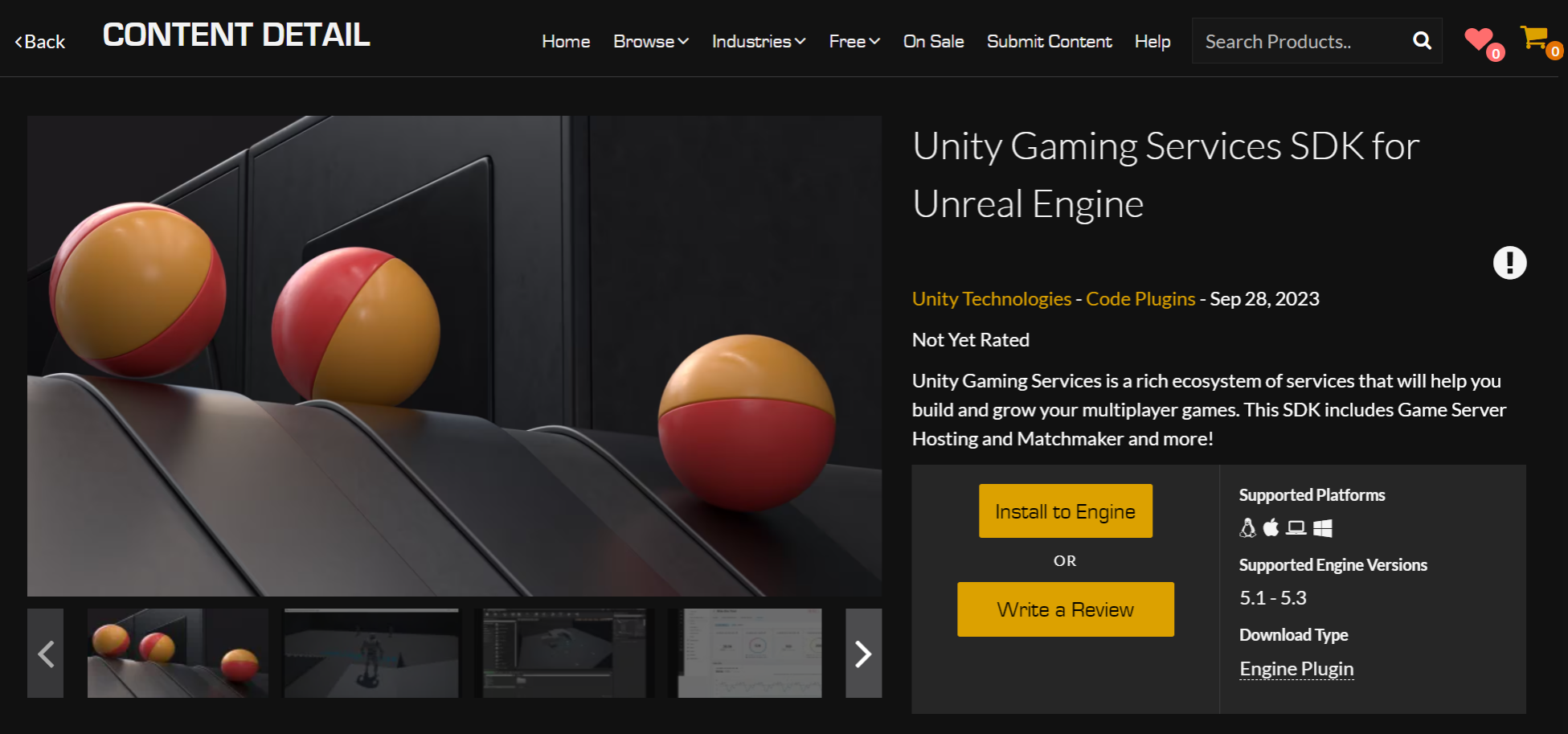
- Open a new project or an existing one.
-
Navigate to the Plugins window and check the box next to the Unity Gaming Services SDK for Unreal Engine.

- Restart Unreal Engine.
Configure the Matchmaker SDK
Unity Matchmaker relies on the Unity Authentication service, which is included in the Unity Gaming Services SDK. Before you start calling the Matchmaker APIs and start allocating players using the Matchmaker, configure your Unity Matchmaker settings on the Unity Dashboard. Otherwise, all matchmaking requests fail. Unity Matchmaker requires a minimum of one queue with a default pool.Configure backfill
Backfill enables you to place players into an existing match that’s below the maximum player count. See backfill documentation to learn more. Before using backfill, ensure you enable backfill on the Unity Dashboard for your queue.- Visit the Unity Dashboard and select your project.
- Go to the Multiplayer tab.
- Go to the Matchmaker tab and select Queues.
- Select your Queue. See Create Pools and Queues.
- Go to the Pools tab and select the Pool to use within the Queue.
- Go to the Rules tab, find the field for Backfill enabled, and make sure it’s set to True.