Integrate using Blueprints
Use the Matchmaker Blueprint API to add matchmaking functionality to your Unreal Engine game without writing code.
Read time 6 minutesLast updated 2 days ago
The following section shows how to integrate with the Matchmaker SDK using Blueprints in the Unreal Engine.
The two Matchmaker interfaces you can interact with within the Unity Gaming Services SDK are the:
Install the Matchmaker SDK plugin
Before continuing, add theMatchmakerSDKMatchmakerServerMatchmakerClientYourProjectName.Build.csPublicDependencyModuleNames.AddRange(new string[] { "Core", "CoreUObject", "Engine", "InputCore" });PublicDependencyModuleNames.AddRange(new string[] { "MatchmakerClient", "MatchmakerServer" });PublicDependencyModuleNames.AddRange(new string[] { "Json", "JsonUtilities" });
Matchmaker Client Blueprint API
The Matchmaker client subsystem controls the client portion of matchmaking and finding matches. This includes creating, deleting, and polling matchmaking tickets. Use the static functions fromUMatchmakerClientBlueprintApiCreateTicket
To useCreateTicketFStringTicketId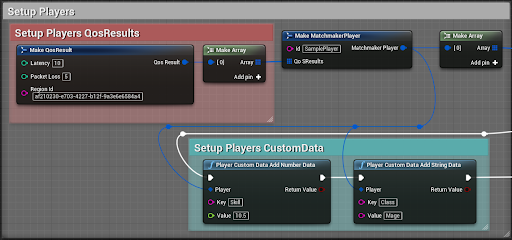
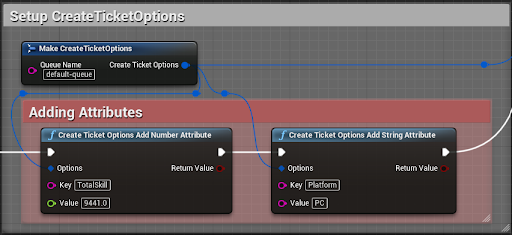
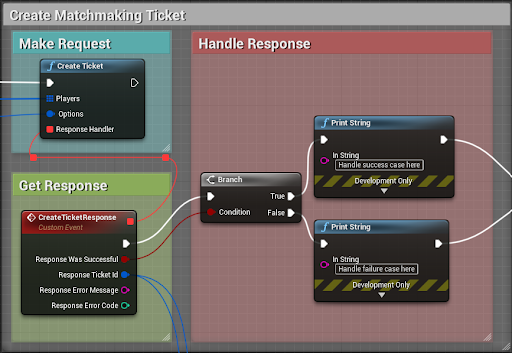
ResponseSplit Struct PinCreateTicketResponseDeleteTicket
Use theDeleteTicket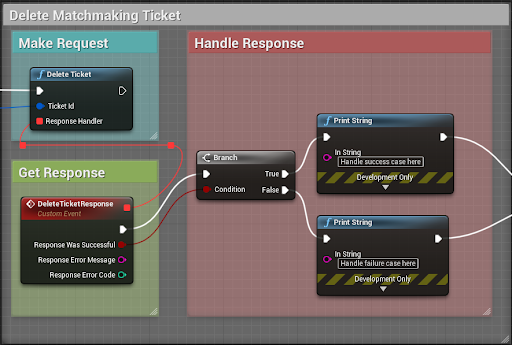
ResponseSplit Struct PinDeleteTicketResponseGetTicketStatus
UseGetTicketStatusTicketIdDeleteTicket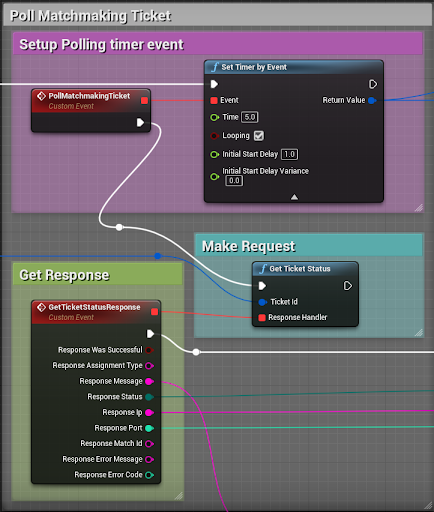
ResponseSplit Struct PinGetTicketStatusResponse]Set Timer by EventClear and Invalidate Timer by Handle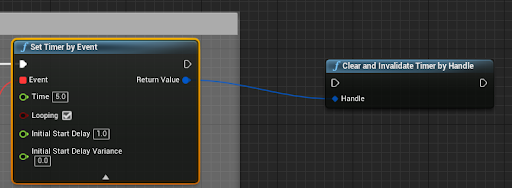
GetTicketStatus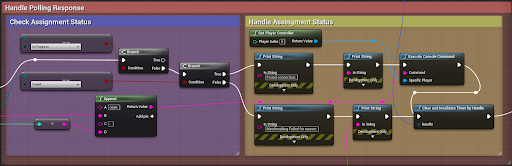
Matchmaker Server Blueprint API
The Matchmaker Server Subsystem controls the server portion of matchmaking. This includes creating, approving, deleting, and updating backfill tickets. You can use theUMatchmakerServerBlueprintApi- Create a backfill ticket to begin backfill on the server.
- Approve a backfill ticket to let new players into the server.
- Update a backfill ticket to notify the matchmaker as players leave and join outside of the matchmaking process.
- Delete a backfill ticket after the server stops accepting new players.
CreateBackfillTicket
You need to create a new backfill ticket after a player (or players) leaves a full match, and the server needs to fill the empty slots. Use the Create Backfill Ticket blueprint to create a new backfill ticket for the server.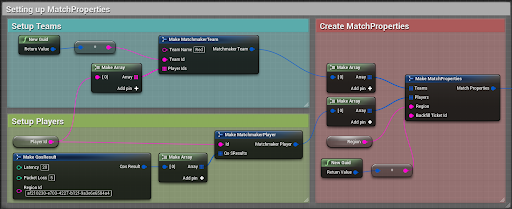
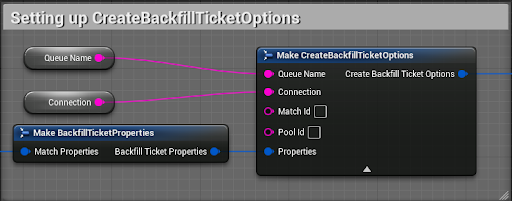
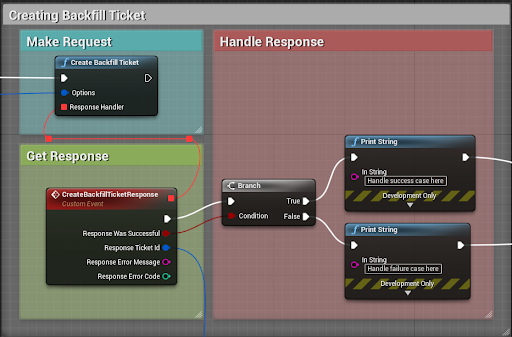
ResponseSplit Struct PinCreateBackfillTicketResponseApproveBackfillTicket
Use the Approve Backfill Ticket blueprint to periodically approve your backfill ticket to let new players into the server. It's recommended to approve backfill tickets no faster than once a second. If a ticket goes for 20 seconds without approval, the Matchmaker service deletes it.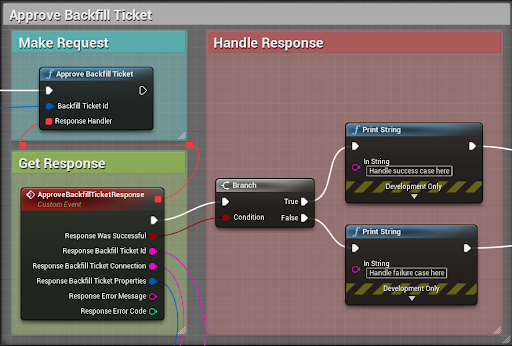
ResponseSplit Struct PinApproveBackfillTicketResponseBackfillTicketUpdateBackfillTicketUpdateBackfillTicket
Update the backfill ticket whenever:- A player leaves the server
- A player joins the server from outside of matchmaking logic
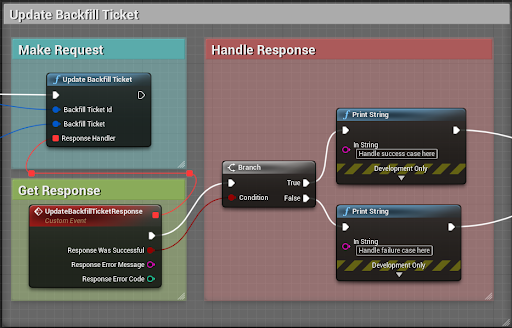
ResponseSplit Struct PinUpdateBackfillTicketResponseApproveBackfillTicket
Unity recommends calling
ApproveBackfillTicketBackfillTicketApproveBackfillTicketUpdateBackfillTicketDeleteBackfillTicket
You can delete a backfill ticket after a match becomes full and the server no longer needs to accept new players. You should also do this after a match ends. Use the Delete Backfill Ticket blueprint to stop backfill on a server.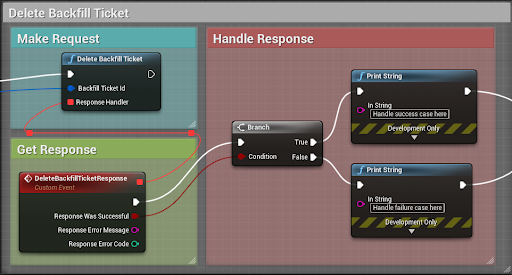
ResponseSplit Struct PinDeleteBackfillTicketResponseBlueprint utility functions
Due to limitations in Blueprints, JSON data types (such asFJsonObjectFJsonValue- as part of
MatchmakerServerBlueprintUtilMatchmakerServer - as part of
MatchmakerClientBlueprintUtilMatchmakerClient
MatchmakerCoreMatchmakerClientMatchmakerServerMatchmakerClient
Player custom data
In theMatchmakerClientMatchmakerClientBlueprintUtilYou can use this blueprint to add a string data field to a player’s CustomData object. This returns true if the data is set successfully; otherwise, it returns false.PlayerCustomDataAddStringData(FMatchmakerPlayer& Player, FString Key, FString Value)
You can use this blueprint to add a number data field to a player's CustomData object. This returns true if the data is set successfully; otherwise, it returns false.PlayerCustomDataAddNumberData(FMatchmakerPlayer& Player, FString Key, float Value)
You can use this blueprint to remove a data field from a player’s CustomData object. This returns true if the player’s CustomData contains aPlayerCustomDataRemoveData(FMatchmakerPlayer& Player, FString Key)
KeyKeyAttributes
In theMatchmakerClientMatchmakerClientBlueprintUtilUse this blueprint to add a string-based attribute to aCreateTicketOptionsAddStringAttribute(FCreateTicketOptions& Options, FString Key, FString Value)
CreateTicketOptionsUse this blueprint to add a number-based attribute to aCreateTicketOptionsAddNumberAttribute(FCreateTicketOptions& Options, FString Key, float Value)
CreateTicketOptionsUse this blueprint to remove an attribute from aCreateTicketOptionsRemoveAttribute(FCreateTicketOptions& Options, FString Key)
CreateTicketOptionsCreateTicketOptionsMatchmakerServer
In theMatchmakerServerMatchmakerServerBlueprintUtilYou can use this blueprint to add a string-based attribute to aCreateBackfillTicketOptionsAddStringAttribute(FCreateBackfillTicketOptions Options, FString Key, FString Value)
CreateBackfillTicketOptionsThis blueprint is used to add a number-based attribute to aCreateBackfillTicketOptionsAddNumberAttribute(FCreateBackfillTicketOptions& Options, FString Key, float Value)
CreateBackfillTicketOptionsUse this blueprint to remove an attribute from aCreateBackfillTicketOptionsRemoveAttribute(FCreateBackfillTicketOptions Options, FString Key)
CreateBackfillTicketOptionsCreateBackfillTicketOptions