Troubleshoot common Mobile Measurement Partner (MMP) integration errors.
Read time 5 minutesLast updated 5 months ago
When you integrate a Mobile Measurement Partner (MMP) with your User Acquisition campaign, the dashboard checks that your campaign is successfully receiving data. The dashboard validates the following data-sharing indicators:
Your campaign receives install data within two days of launch.
Your campaign receives post-install event data within seven days of launch.
If your campaign fails either of these validation checks, the dashboard flags your campaign with an integration error message. Refer to the following sections for information on how to resolve these errors.
Important
This troubleshooting guide covers integration issues for the following MMPs:
If your campaign doesn't receive install data within two days of launch, it can negatively impact performance, and attribution. The dashboard flags this issue with the following error message:
Integration-blocking issues detected for one or more campaigns. These issues can severely impact performance. Resolve this issue to ensure accurate tracking and delivery: Within 2 days of launch, campaigns must receive at least one install postback.
Cause
Your campaign can fail to accrue install data if you misconfigure your MMP integration. Refer to your MMP-specific integration guide for step-by-step integration instructions.
Resolutions
Consider both of the following resolutions to ensure your campaign receives install data.
Share install data from all sources
When you share install data with Unity, ensure that you include data from your entire user base, including Unity-attributed, unattributed, and organic installs. Refer to the Introduction to Attribution for definitions of each attribution type.
Each MMP has unique terminology for this setting. Refer to the following examples of how to share install data from all sources in supported MMP dashboards:
To share install data for all of your user base follow these steps in the Adjust dashboard:
Go to the Campaign Lab tab > Partners page.
From the What sources of data do you want to share options, select Data from all attribution sources.
To share install data for all of your user base, follow these steps in the Airbridge dashboard:
Select Organization from the top menu bar.
On the Organization settings page, go to User Management > Agency.
Find your app in the App list and select Details. If you haven't granted App access for your app, refer to the Airbridge Organization-level User Management documentation.
From the App Access Settings, select Edit to open the access settings dialog.
Go to the Unattributed Event Data section of the dialog.
Enable the Unattributed Event Data toggle.
Select Save.
Use these steps to share data from all sources in the AppsFlyer dashboard:
Go to the Integration tab > Default postbacks section.
From the for users from dropdown, select All media sources, including organic.
To share install data for all of your user base, follow these steps in the ByteBrew dashboard:
In the Install Settings tab of the ByteBrew integration setup, go to the Send all install events from section.
Select All Partners and Organics.
To share install data for all of your user base, follow these steps in the Singular dashboard:
Go to the Attribution Postbacks & Settings tab > Attribution Postbacks table.
Enable the Send All checkbox.
To share install data for all of your user base, follow these steps in the Tenjin dashboard:
Go to the Callbacks tab for your app.
From the User filter dropdown, select all users.
Review integration setup
Review the integration guide for your preferred MMP to ensure it's configured correctly. Review the integration activation, advertiser credentials, and data-sharing settings in your partner's integration guide:
Complete the following steps to correctly integrate Adjust and share data with your User Acquisition campaign:
1
Activate Unity Ads in the Adjust dashboard
To activate the integration with Unity Ads, follow these steps:
In the AppsFlyer dashboard, go to Collaborate > Partner Marketplace.
Search for Unity Ads and select Set up integration to open in the Integration tab.
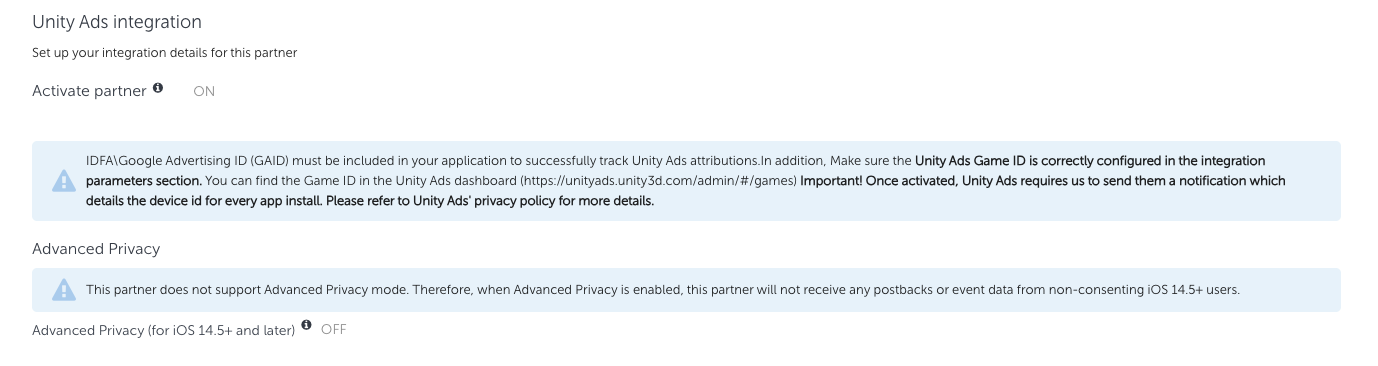
Activate the Activate Partner toggle.
Some advertisers might have an Advanced Privacy toggle in the Integration tab. If your dashboard contains this toggle, ensure that you deactivate it.
Important
If Advanced Privacy is active in your integration setup, AppsFlyer can't share any event data with your campaign.
Deactivate Advanced Privacy
2
Configure general integration settings
To configure your general integration settings, follow these steps in the Integration tab > General settings section:
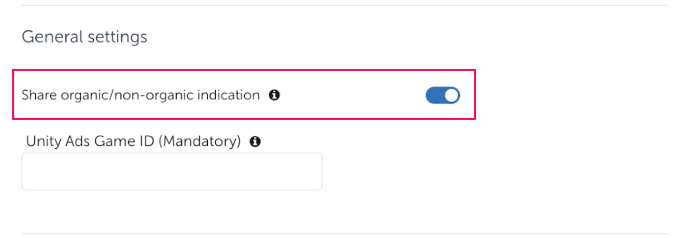
Activate the Share organic/non-organic indication toggle.
Share organic and non organic
Enter your Unity Game ID in the Unity Ads Game ID field. To copy your Game ID from the Unity Dashboard, refer to the following steps:
To retrieve your Game ID from the Apps page of the Unity Dashboard, follow these steps:
Go to Apps from the left navigation menu. The provided table lists each of your organization's apps. Following each app name, the dashboard displays the app platform and Game ID.
Select Copy () next to the ID to copy it to your clipboard.
Note
Enter your Game ID exactly as shown in the User Acquisition dashboard. Mismatched Game IDs prevent Unity from receiving events correctly.
3
Configure attribution settings
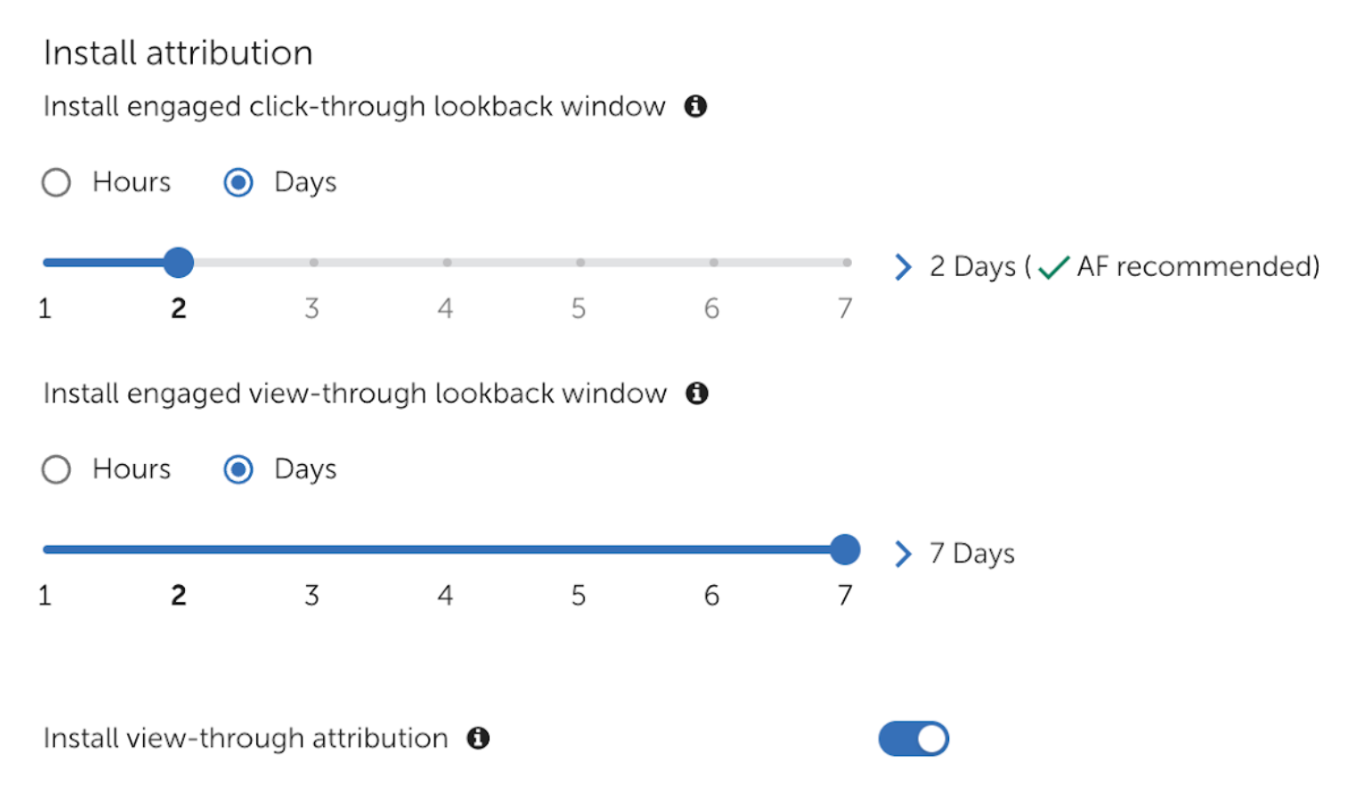
To set up attribution for your integration, follow these steps in the Integration tab of your AppsFlyer integration:
Go to the Install attribution section.
Set the Install engaged click-through lookback window to Days.
Using the slider, set the click-through window to 2 Days.
Activate the Install view-through attribution toggle.
Set the Install engaged view-through lookback window to Days.
Using the slider, set the view-through window to 7 Days.
Lookback windows
To set the users for Install events, go to the Default postbacks section.
Select for users from > All media sources, including organic
4
Configure data-sharing settings
To set up secondary postbacks for post-install events, follow these steps in the Integration tab:
Go to the In-app event settings section
Enter your Game ID in the game_id field. To copy your Game ID from the Unity Dashboard, refer to the following steps:
To retrieve your Game ID from the Apps page of the Unity Dashboard, follow these steps:
Go to Apps from the left navigation menu. The provided table lists each of your organization's apps. Following each app name, the dashboard displays the app platform and Game ID.
Select Copy () next to the ID to copy it to your clipboard.
Note
Enter your Game ID exactly as shown in the User Acquisition dashboard. Mismatched Game IDs prevent Unity from receiving events correctly.
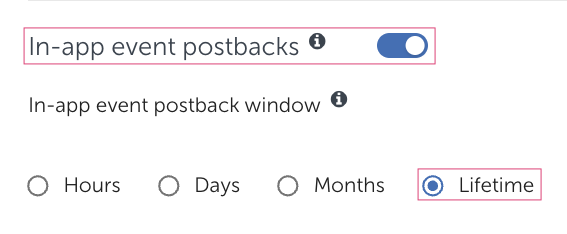
Activate the In-app event postbacks toggle.
Set the In-app event postback window to Lifetime
Lifetime in-app event postbacks
Map your post-install events to Unity Ads events in the mapped to partner event column as follows:
Session events to
session
Level Complete events to
level_complete
Ad Revenue events to
ad_revenue
In-app Purchase events to
purchase
Refer to the following table for suggested AppsFlyer event names and required Unity Ads event names:
Event type
Suggested AppsFlyer event
Required Unity Ads partner event
Mapping notes
Session
af_app_opened
session
-
Ad revenue
af_ad_revenue
ad_revenue
If your AppsFlyer account supports ad revenue data-sharing, enable ad revenue sharing with the Get ad revenue data toggle in the Ad revenue tab.
Otherwise, don't send ad revenue events. Mapping ad revenue events as other event types can cause campaign optimization to stop working. Refer to the AppsFlyer Ad revenue attribution documentation for details and instructions.
In-app purchase
af_purchase
purchase
Don't map revenue events to purchase events.
Milestone completion
af_level_achieved
{custom_milestone_event_name}
level_complete
You must enter
level_complete
in the mapped to partner event field. You can enter custom SDK event names in the AppsFlyer event field.
You must enter the required Unity Ads event name in the mapped to partner event field. You can enter custom SDK event names in the AppsFlyer event field. However, the recommended best practice is to use the Suggested AppsFlyer event names provided here.
If you want to send ad revenue data for Return on Ad Spend (ROAS) Ad revenue or Hybrid campaigns, you must enable ad revenue data-sharing in your integration.
To share ad revenue event data with your campaign, follow these steps:
To share ad revenue event data with your campaign, follow these steps:
1
Activate ad revenue sharing
To activate ad revenue data-sharing, follow these steps in the AppsFlyer dashboard:
Go to Collaborate > Partner Marketplace and search for
Unity Ads
to open your Unity Ads integration.
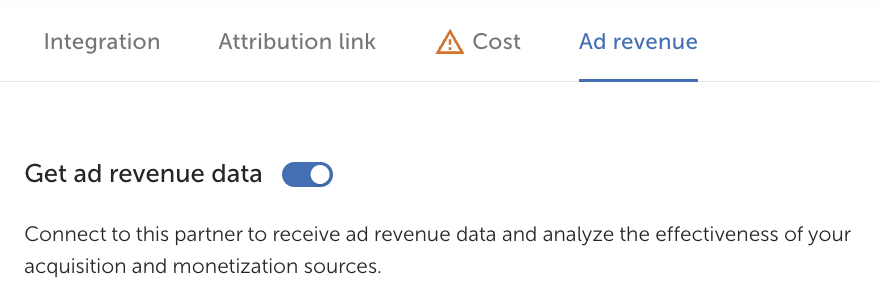
In the Ad revenue tab, activate the Get ad revenue data toggle.
Get ad revenue toggle
2
Configure ad revenue data-sharing
To configure your ad revenue data-sharing settings, follow these steps in the AppsFlyer dashboard:
From the AppsFlyer dashboard side menu, go to Settings > Revenue Settings.
Important
To access the Revenue Settings menu, you need an AppsFlyer ROI360 subscription. Refer to the AppsFlyer Ad revenue attribution documentation for details and instructions.
In the Revenue settings > Ad revenue tab, select New ad revenue integration.
Select Unity Ads from the list of revenue partners.
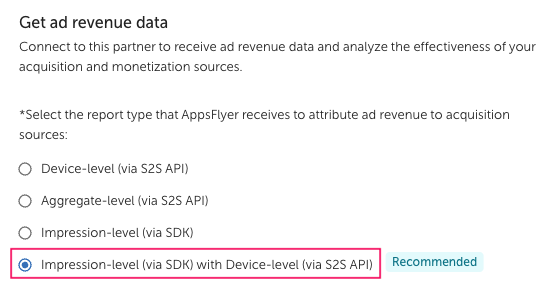
In the partner configuration, select Impression-level (via SDK) with Device-level (via S2S API) as the report type.
AppsFlyer Revenue settings configuration
3
Enter your API credentials
To finish your ad revenue data-sharing setup, follow these steps in the AppsFlyer dashboard Revenue Settings:
Enter your Unity Game ID in the App key field. To retrieve your Game ID from the Unity Dashboard, refer to the following steps:
To retrieve your Game ID from the Apps page of the Unity Dashboard, follow these steps:
Go to Apps from the left navigation menu. The provided table lists each of your organization's apps. Following each app name, the dashboard displays the app platform and Game ID.
Select Copy () next to the ID to copy it to your clipboard.
Enter your Unity API Service account secret key in the Secret key field. To retrieve your secret key from the Unity Dashboard, refer to the following steps:
To retrieve your API service account secret key from the Unity Dashboard, follow these steps:
From the left navigation menu, go to API Management.
Select Advertising Public API > Service account.
Advertising Public API Service account
If you don't have a service account, select + New. If you have a service account already, select it from the table.
In the service account page, go to the Keys section.
Select + Add key to generate a new key.
Select the copy buttons following the Secret key to copy the ID.
5
Set partner permissions
In the Permissions tab, configure the following permissions settings:
Activate the Toggle Ad Network Permissions toggle to enable all other toggles.
Activate the following toggles:
Configure integration
Configure in-app event postbacks
Access retention report
Access aggregate conversions and in-app event data
Access aggregate revenue data
View validation rules
Access Protect360 dashboard and raw data
Access ad revenue raw data (UA signals)
For descriptions of each permission, refer to the Permissions tab documentation in the AppsFlyer Help Center.
Complete the following steps to correctly integrate ByteBrew and share data with your User Acquisition campaign:
1
Activate Unity Ads in the ByteBrew dashboard
Do the following in the ByteBrew dashboard to activate the Unity Ads integration:
Select your app from the dashboard navigation menu.
Go to Attribution > Network Settings and find UnityAds from the list of networks.
Next to UnityAds, select Setup to open the Add Ad Network dialog.
Complete the Network Settings fields. Refer to the following instructions for help locating these values in the User Acquisition dashboard:
To retrieve your API Key from the User Acquisition dashboard, do the following:
Go to the API Management page.
Copy the API Key in the Stats API v1.0 section.
To retrieve your Game ID from the Apps page of the User Acquisition dashboard, follow these steps:
From the dashboard left navigation menu, go to Apps. The provided table lists each of your organization's apps. Following each app name, the dashboard displays the app platform and Game ID.
Select the Copy symbol next to the ID to copy it to your clipboard.
To retrieve your Organization ID from the User Acquisition dashboard, follow these steps:
Go to the Settings page.
Copy the Organization ID from the Organization section of your settings.
To retrieve your Organization core ID from the Settings page of the User Acquisition dashboard, follow these steps:
Go to the Organization section of the Settings page.
Copy the numeric ID next to Organization core ID.
2
Configure data-sharing settings
To configure data-sharing settings with ByteBrew, do the following in the Install Settings tab of the integration flow:
To enable view-through attribution, select the Enable view through tracking checkbox and configure the view-through lookback window. ByteBrew generates Click-through attribution links by default.
Configure your attribution lookback windows in the following Install Settings fields:
Install setting
Required
Configuration
Notes
Click-Through Window
Yes
Use the Days selector to set the number of days an install can be attributed after a user clicks on your ad.
The maximum click-through lookback period is 30 days. The recommended best practice is to set the click-through setting to seven days or more for accurate attribution.
View-Through Window
No
Use the Days selector to set the number of days an install can be attributed after a user watches your ad.
The maximum view-through lookback period is seven days. The recommended best practice is to set the view-through setting to one day or more for accurate attribution.
For more information about attribution lookback options, refer to the Attribution lookback settings section of the ByteBrew data-sharing reference.
In the Send all install events from section, choose whether to pass engagement data from all of your app's installs (including unattributed install data) or just those attributed to Unity. Choose from the following options:
Only this partner
All Partners and Organics
This Partner and Organics
For more information about the install data source options, refer to the Attribution data sources section of the ByteBrew data-sharing reference.
3
Map events
To map post-install events with ByteBrew, do the following in the Postback Settings tab of the integration flow:
To add a post-install event you want to pass to Unity, select + Add Postback Event and choose from the following options:
Don’t define a new user event in your app code. ByteBrew tracks new user events by default using the User App Open Event option. For more information, refer to the ByteBrew Developer Hub Attribution documentation.
In the Postback Events Settings section, choose whether to pass post-install event data from all your app's installs (including unattributed install data) or just those attributed to Unity. Choose from the following options:
Send only from this partner
Send from all Networks and Organics
Send only from this Partner and Organics
For more information about the post-install event data source options, refer to the Postback data sources section of the ByteBrew data-sharing reference.
On the final tab of the network setup dialog, you can copy your attribution links. For instructions on how to integrate these URLs in the User Acquisition dashboard, refer to Integrate attribution links with Unity.
Select Finish to complete the integration.
Complete the following steps to correctly integrate Singular and share data with your User Acquisition campaign:
1
Activate Unity Ads in the Singular dashboard
Go to Attribution Setup > Partner Configuration.
Select Add a Partner. Search for and select Unity Ads.
Enter your advertiser Game ID in the Unity Ads Game ID field.
Note
Enter your Game ID exactly as shown in the User Acquisition dashboard. Mismatched Game IDs prevent Unity from receiving events correctly.
2
Configure data-sharing settings
To configure data-sharing settings, follow these steps:
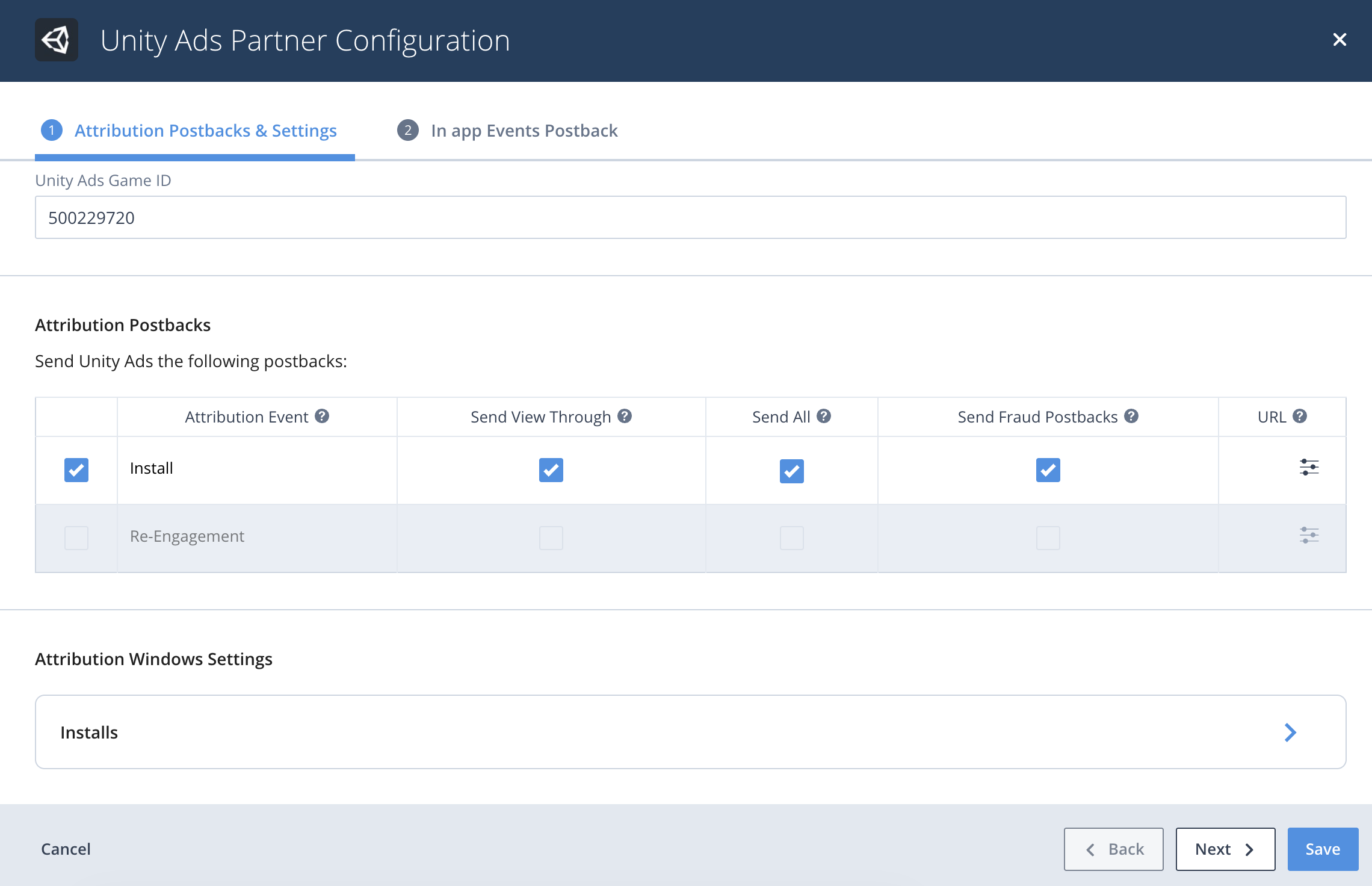
In the Attribution Postbacks & Settings tab, go to the Attribution Postbacks table.
Select the Install checkbox in the Attribution Event column.
In the same row, select the following checkboxes:
Send View Through
Send All
Send Fraud Postbacks
Send View Through, All, and Fraud Postbacks
3
Map post-install events
To map events, follow these steps:
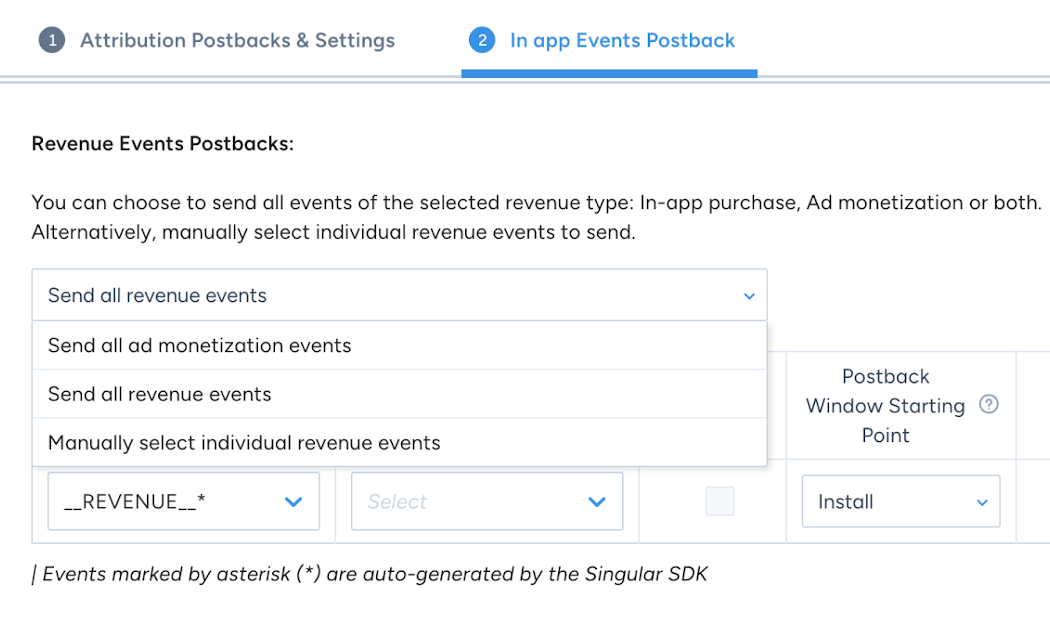
In the In app Events Postback tab, select Send all ad monetization events from the Revenue Events Postbacks dropdown.
Important
Singular is the only MMP that supports sending all monetization events together. To send ad revenue events with Singular, ensure that you select Send all ad monetization events from the Revenue Events Postbacks dropdown and select
__REVENUE__*
from the SDK Event Name dropdown.
Send all ad monetization events
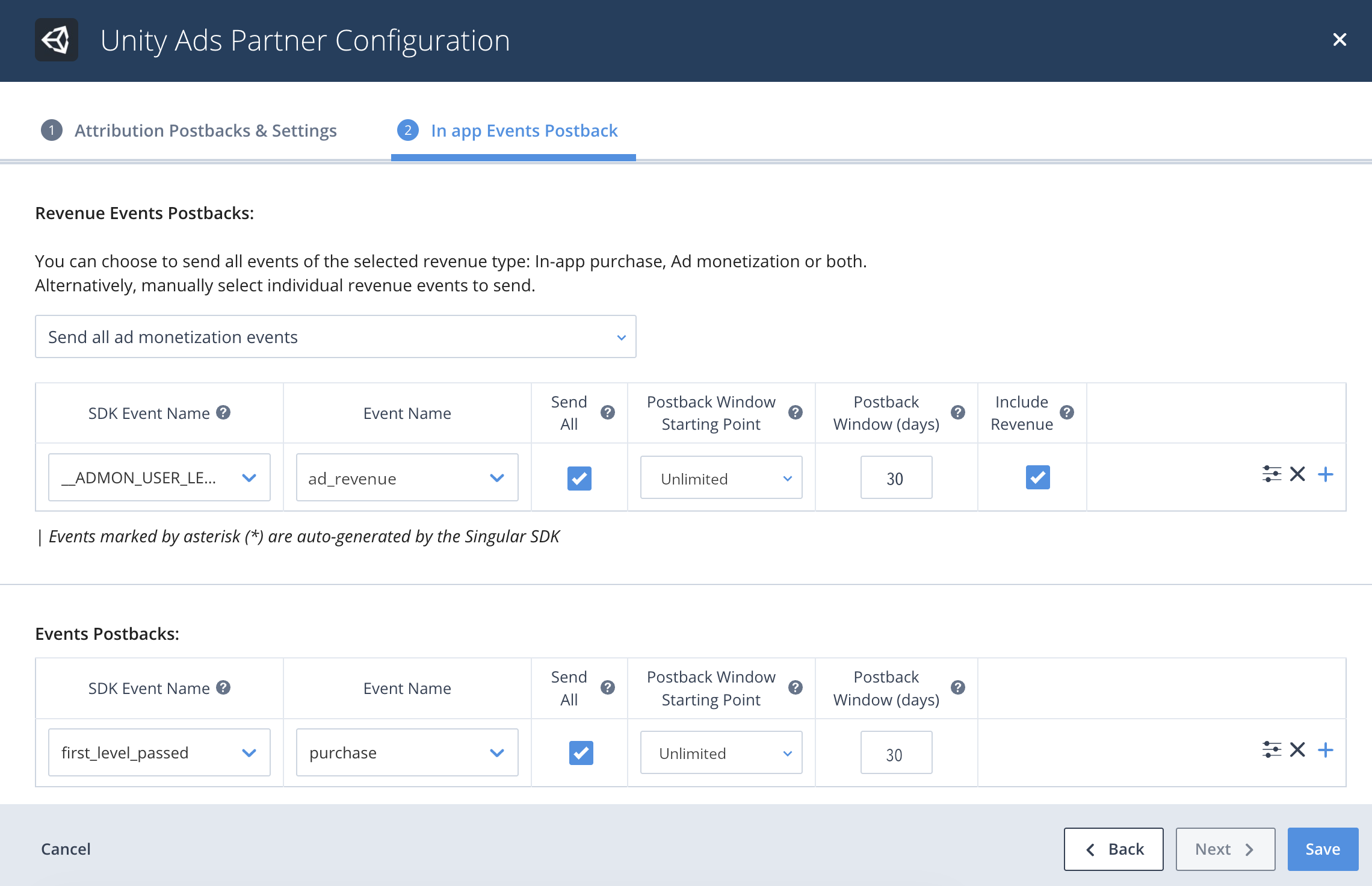
To map events, select your Singular events in the SDK Event Name column and map them to Unity Ads events in the Event Name column as follows:
Singular SDK Event name
Unity Ads Event Name
Notes
__iap__
custom_purchase_event_name
purchase
__REVENUE__*
ad_revenue
Important
To send ad revenue events with Singular, ensure that you select Send all ad monetization events from the Revenue Events Postbacks dropdown above the event table.
__SESSION__
session
To share data from your entire user base, select the Send all checkbox for each event.
In the Postback Window Starting Point column, select Unlimited for each event.
If you have a Singular Enterprise account, set the Postback Window (days) to Unlimited. Otherwise, set the window to
30
days.
Select the Include Revenue checkbox for each row.
Include revenue
Complete the following steps to correctly integrate Tenjin and share data with your User Acquisition campaign:
1
Copy credentials from the Unity Dashboard
You need the following Unity account credentials to complete your Tenjin integration:
To retrieve your Game ID from the Apps page of the User Acquisition dashboard, follow these steps:
From the dashboard left navigation menu, go to Apps. The provided table lists each of your organization's apps. Following each app name, the dashboard displays the app platform and Game ID.
Select the Copy symbol next to the ID to copy it to your clipboard.
Optionally, hover over the app name to copy the Campaign Set ID and Store ID as well.
Note
Enter your Game ID exactly as shown in the User Acquisition dashboard. Mismatched Game IDs prevent Unity from receiving events correctly.
Note
Only Organization Owners or Organization Managers can create service accounts and secret keys. Refer to User types, roles and permissions for more information.
To retrieve your Secret Key and Key ID from the User Acquisition dashboard, follow these steps:
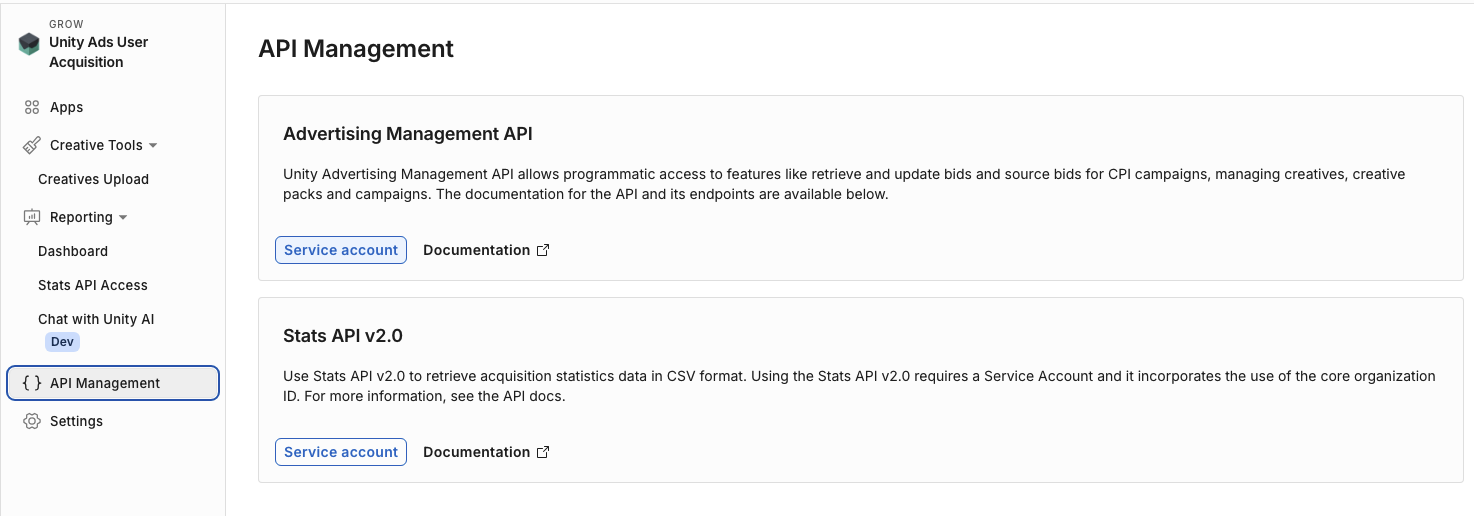
From the left navigation menu, go to API Management.
Select Advertising Management API > Service account.
API Management
If you don't have a service account, select + New. If you have a service account already, select it from the table.
In the service account page, go to the Keys section.
Select + Add key to generate both keys.
Select the copy buttons following the Key ID and the Secret key to copy both credentials.
To retrieve your Organization core ID from the Settings page of the User Acquisition dashboard, follow these steps:
Go to the Organization section of the Settings page.
Copy the numeric ID next to Organization core ID.
Note
Ensure that you copy the numeric Organization core ID, not the alphanumeric Organization ID.
2
Activate Unity Ads in the Tenjin dashboard
To integrate Unity with Tenjin, follow these steps in the Tenjin dashboard:
Go to the Configure tab and select Channels.
Search for Unity Ads in the Marketing Channel Name field.
In the New Marketing Channel setup for Unity Ads, enter the Unity account credentials you copied from the Unity dashboard and give your account a name.
In the Tenjin navigation menu, go to the Campaigns tab and select Create Campaign.
Select Unity Ads from the Marketing Account dropdown.
Choose your app from the App dropdown and give your campaign a descriptive Name.
When the system prompts you with a Callback to be created message, follow the provided link to continue and generate an attribution link.
3
Configure data-sharing settings
With Tenjin, configuring the data-sharing settings also maps your in-app events. To configure data-sharing settings and map events with Tenjin, do the following as you finish the activation workflow:
After you follow the link in the Callback to be created message, select Unity Ads from the Channels and Partners dropdown.
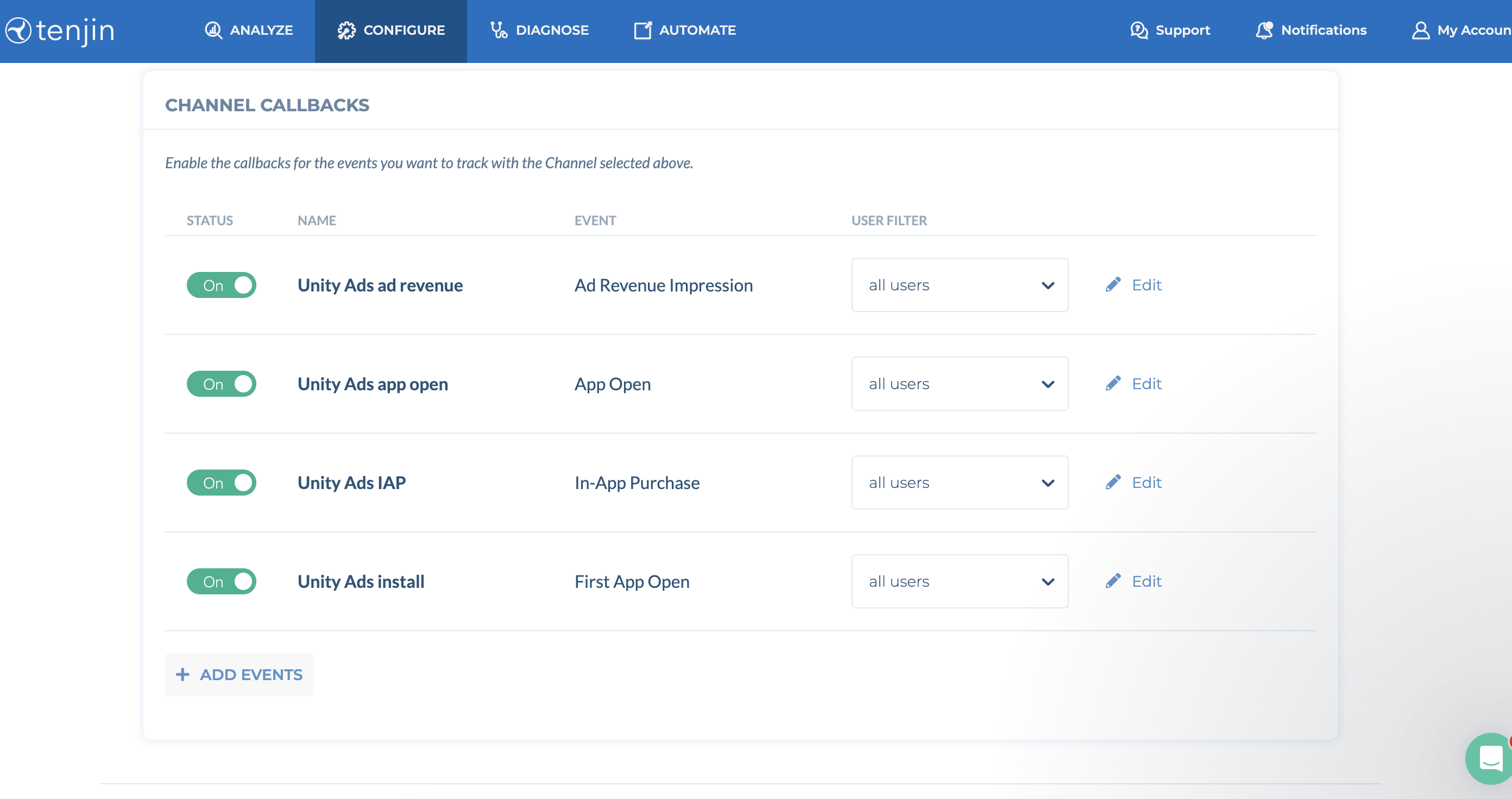
In the Channel callbacks section, activate the following toggles:
Unity Ads ad revenue
Unity Ads app open
Unity Ads IAP
Unity Ads install
Important
Don't map ad revenue events as In-App Purchase events. If your Tenjin account supports ad revenue data-sharing, send this data as a dedicated Ad Revenue Impression event.
If your account doesn't support ad revenue data-sharing, don't send ad revenue as a different event type, as this event mismatching can cause campaign optimization to stop working.
For each event callback, select all users from the User filter dropdown.
Channel Callbacks for all users
No post-install event data in seven days
If your campaign isn't receiving post-install event data within seven days of launch, it can negatively impact performance and optimization. The dashboard flags this issue with the following error message:
Integration-blocking issues detected for one or more campaigns. These issues can severely impact performance. Resolve this issue to ensure accurate tracking and delivery: Within 7 days of launch, campaigns must receive at least one post-install event postback.
Causes
Several integration settings can disrupt your MMP sending post-install event data to your campaign, such as the following:
Attribution configured incorrectly
When you configure your attribution links incorrectly, your MMP can't share post-install event data with Unity.
Ad revenue reporting disabled
If you don't enable your MMP to send both values and revenue for Purchase and Ad Revenue events, the dashboard doesn't have the data it needs for the following optimized campaign goals:
Consider the following resolutions to ensure your campaign receives post-install event data.
Map post-install events correctly
When you share post-install event data with your campaign, ensure that you correctly map the post-install events. Correct mapping means that you align the Unity Ads event name with the correct MMP event name.
Warning
If you use any MMP other than Singular, don't combine ad revenue events with in-app purchase (IAP) events.
Refer to the following examples of correctly mapped event names:
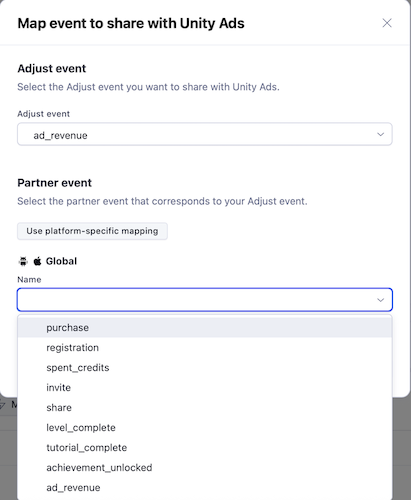
Map your post-install events in the Map events to share with Unity Ads section of the Adjust integration setup as follows:
Event type
Adjust App event
Unity Ads Partner event
Mapping notes
In-app purchase (IAP)
purchase
purchase
-
Ad revenue
ad_revenue
ad_revenue
If your Adjust account supports ad revenue data-sharing, send this data as a dedicated
ad_revenue
event.
Otherwise, don't send ad revenue events. Mapping ad revenue events as other event types can cause campaign optimization to stop working.
Milestone completion
{milestone_event}
level_complete_{NameOfEvent}
You can use any custom defined event name for the Adjust App event.
Ensure that you use the provided formatting for the partner event Name. The
NameOfEvent
must not contain spaces.
Session
session
launch
session
Session events for Retention campaigns don't require event mapping.
Map your post-install events in the Postback tab > Postback event setup page of the Airbridge integration setup as follows:
Event type
Unity Ads Partner event
Airbridge App Event
In-app purchase (IAP)
purchase
Order complete (App)
Ad revenue
ad_revenue
Ad Impression (App)
Session
session
Open (App)
Map your post-install events in the In-app event postbacks table of the AppsFlyer integration setup as follows:
Event type
Suggested AppsFlyer event
Required Unity Ads partner event
Mapping notes
Session
af_app_opened
session
-
Ad revenue
af_ad_revenue
ad_revenue
If your AppsFlyer account supports ad revenue data-sharing, enable ad revenue sharing with the Get ad revenue data toggle in the Ad revenue tab.
Otherwise, don't send ad revenue events. Mapping ad revenue events as other event types can cause campaign optimization to stop working. Refer to the AppsFlyer Ad revenue attribution documentation for details and instructions.
In-app purchase
af_purchase
purchase
Don't map revenue events to purchase events.
Milestone completion
af_level_achieved
{custom_milestone_event_name}
level_complete
You must enter
level_complete
in the mapped to partner event field. You can enter custom SDK event names in the AppsFlyer event field.
You must enter the required Unity Ads event name in the mapped to partner event field. You can enter custom SDK event names in the AppsFlyer event field. However, the recommended best practice is to use the Suggested AppsFlyer event names provided here.
Map your post-install events in the Postback Settings tab of the ByteBrew integration setup as follows:
Event type
Unity Ads event name
ByteBrew event name
In-app purchase (IAP)
purchase
In-App Purchase event
Ad revenue
ad_revenue
Ad Watched event
Session
session
User App Open Event
Map Singular events based on whether they include revenue.
Map your post-install events that include revenue in the Revenue Events Postbacks section in the Singular integration setup:
Event type
Unity Ads Event Name
Singular SDK Event Name
Mapping notes
In-app purchase (IAP)
purchase
__iap__
{custom_purchase_event_name}
You can use either the default purchase name, __iap__, or enter a custom-defined name in the SDK Event Name field for in-app purchase events.
Ad revenue
ad_revenue
__ADMON_USER_LEVEL_REVENUE__
Don't map revenue events to __REVENUE__.
Map your post-install events that don't include revenue in the Events Postbacks section in the Singular integration setup:
Event type
Unity Ads Event Name
Singular SDK Event Name
Mapping notes
Milestone completion
level_complete
{custom_milestone_event_name}
You can use any custom-defined SDK event name in the SDK Event Name field for milestone completion events.
Session
session
__SESSION__
-
Activate your post-install events in the Channel Callbacks page of the Tenjin integration setup as follows:
Important
If your Tenjin account supports ad revenue data-sharing, send this data as a dedicated Ad Revenue Impression event.
Otherwise, don't send ad revenue events. Mapping ad revenue as other event types, such as In-app Purchase, can cause campaign optimization to stop working.
Event type
Unity Ads event name
Tenjin event name
In-app purchase (IAP)
purchase
In-app Purchase
Ad revenue
ad_revenue
Ad Revenue Impression
Session
session
Unity ads app open
Configure data-sharing correctly
When you share post-install event data with your campaign, ensure that you configure your data sharing settings correctly.
To send install and post-install event data to Unity, refer to the Configure data-sharing settings sections of the following partner-specific instructions:
Complete the following steps to correctly integrate Adjust and share data with your User Acquisition campaign:
1
Activate Unity Ads in the Adjust dashboard
To activate the integration with Unity Ads, follow these steps:
In the AppsFlyer dashboard, go to Collaborate > Partner Marketplace.
Search for Unity Ads and select Set up integration to open in the Integration tab.
Activate the Activate Partner toggle.
Some advertisers might have an Advanced Privacy toggle in the Integration tab. If your dashboard contains this toggle, ensure that you deactivate it.
Important
If Advanced Privacy is active in your integration setup, AppsFlyer can't share any event data with your campaign.
Deactivate Advanced Privacy
2
Configure general integration settings
To configure your general integration settings, follow these steps in the Integration tab > General settings section:
Activate the Share organic/non-organic indication toggle.
Share organic and non organic
Enter your Unity Game ID in the Unity Ads Game ID field. To copy your Game ID from the Unity Dashboard, refer to the following steps:
To retrieve your Game ID from the Apps page of the Unity Dashboard, follow these steps:
Go to Apps from the left navigation menu. The provided table lists each of your organization's apps. Following each app name, the dashboard displays the app platform and Game ID.
Select Copy () next to the ID to copy it to your clipboard.
Note
Enter your Game ID exactly as shown in the User Acquisition dashboard. Mismatched Game IDs prevent Unity from receiving events correctly.
3
Configure attribution settings
To set up attribution for your integration, follow these steps in the Integration tab of your AppsFlyer integration:
Go to the Install attribution section.
Set the Install engaged click-through lookback window to Days.
Using the slider, set the click-through window to 2 Days.
Activate the Install view-through attribution toggle.
Set the Install engaged view-through lookback window to Days.
Using the slider, set the view-through window to 7 Days.
Lookback windows
To set the users for Install events, go to the Default postbacks section.
Select for users from > All media sources, including organic
4
Configure data-sharing settings
To set up secondary postbacks for post-install events, follow these steps in the Integration tab:
Go to the In-app event settings section
Enter your Game ID in the game_id field. To copy your Game ID from the Unity Dashboard, refer to the following steps:
To retrieve your Game ID from the Apps page of the Unity Dashboard, follow these steps:
Go to Apps from the left navigation menu. The provided table lists each of your organization's apps. Following each app name, the dashboard displays the app platform and Game ID.
Select Copy () next to the ID to copy it to your clipboard.
Note
Enter your Game ID exactly as shown in the User Acquisition dashboard. Mismatched Game IDs prevent Unity from receiving events correctly.
Activate the In-app event postbacks toggle.
Set the In-app event postback window to Lifetime
Lifetime in-app event postbacks
Map your post-install events to Unity Ads events in the mapped to partner event column as follows:
Session events to
session
Level Complete events to
level_complete
Ad Revenue events to
ad_revenue
In-app Purchase events to
purchase
Refer to the following table for suggested AppsFlyer event names and required Unity Ads event names:
Event type
Suggested AppsFlyer event
Required Unity Ads partner event
Mapping notes
Session
af_app_opened
session
-
Ad revenue
af_ad_revenue
ad_revenue
If your AppsFlyer account supports ad revenue data-sharing, enable ad revenue sharing with the Get ad revenue data toggle in the Ad revenue tab.
Otherwise, don't send ad revenue events. Mapping ad revenue events as other event types can cause campaign optimization to stop working. Refer to the AppsFlyer Ad revenue attribution documentation for details and instructions.
In-app purchase
af_purchase
purchase
Don't map revenue events to purchase events.
Milestone completion
af_level_achieved
{custom_milestone_event_name}
level_complete
You must enter
level_complete
in the mapped to partner event field. You can enter custom SDK event names in the AppsFlyer event field.
You must enter the required Unity Ads event name in the mapped to partner event field. You can enter custom SDK event names in the AppsFlyer event field. However, the recommended best practice is to use the Suggested AppsFlyer event names provided here.
If you want to send ad revenue data for Return on Ad Spend (ROAS) Ad revenue or Hybrid campaigns, you must enable ad revenue data-sharing in your integration.
To share ad revenue event data with your campaign, follow these steps:
To share ad revenue event data with your campaign, follow these steps:
1
Activate ad revenue sharing
To activate ad revenue data-sharing, follow these steps in the AppsFlyer dashboard:
Go to Collaborate > Partner Marketplace and search for
Unity Ads
to open your Unity Ads integration.
In the Ad revenue tab, activate the Get ad revenue data toggle.
Get ad revenue toggle
2
Configure ad revenue data-sharing
To configure your ad revenue data-sharing settings, follow these steps in the AppsFlyer dashboard:
From the AppsFlyer dashboard side menu, go to Settings > Revenue Settings.
Important
To access the Revenue Settings menu, you need an AppsFlyer ROI360 subscription. Refer to the AppsFlyer Ad revenue attribution documentation for details and instructions.
In the Revenue settings > Ad revenue tab, select New ad revenue integration.
Select Unity Ads from the list of revenue partners.
In the partner configuration, select Impression-level (via SDK) with Device-level (via S2S API) as the report type.
AppsFlyer Revenue settings configuration
3
Enter your API credentials
To finish your ad revenue data-sharing setup, follow these steps in the AppsFlyer dashboard Revenue Settings:
Enter your Unity Game ID in the App key field. To retrieve your Game ID from the Unity Dashboard, refer to the following steps:
To retrieve your Game ID from the Apps page of the Unity Dashboard, follow these steps:
Go to Apps from the left navigation menu. The provided table lists each of your organization's apps. Following each app name, the dashboard displays the app platform and Game ID.
Select Copy () next to the ID to copy it to your clipboard.
Enter your Unity API Service account secret key in the Secret key field. To retrieve your secret key from the Unity Dashboard, refer to the following steps:
To retrieve your API service account secret key from the Unity Dashboard, follow these steps:
From the left navigation menu, go to API Management.
Select Advertising Public API > Service account.
Advertising Public API Service account
If you don't have a service account, select + New. If you have a service account already, select it from the table.
In the service account page, go to the Keys section.
Select + Add key to generate a new key.
Select the copy buttons following the Secret key to copy the ID.
5
Set partner permissions
In the Permissions tab, configure the following permissions settings:
Activate the Toggle Ad Network Permissions toggle to enable all other toggles.
Activate the following toggles:
Configure integration
Configure in-app event postbacks
Access retention report
Access aggregate conversions and in-app event data
Access aggregate revenue data
View validation rules
Access Protect360 dashboard and raw data
Access ad revenue raw data (UA signals)
For descriptions of each permission, refer to the Permissions tab documentation in the AppsFlyer Help Center.
Complete the following steps to correctly integrate ByteBrew and share data with your User Acquisition campaign:
1
Activate Unity Ads in the ByteBrew dashboard
Do the following in the ByteBrew dashboard to activate the Unity Ads integration:
Select your app from the dashboard navigation menu.
Go to Attribution > Network Settings and find UnityAds from the list of networks.
Next to UnityAds, select Setup to open the Add Ad Network dialog.
Complete the Network Settings fields. Refer to the following instructions for help locating these values in the User Acquisition dashboard:
To retrieve your API Key from the User Acquisition dashboard, do the following:
Go to the API Management page.
Copy the API Key in the Stats API v1.0 section.
To retrieve your Game ID from the Apps page of the User Acquisition dashboard, follow these steps:
From the dashboard left navigation menu, go to Apps. The provided table lists each of your organization's apps. Following each app name, the dashboard displays the app platform and Game ID.
Select the Copy symbol next to the ID to copy it to your clipboard.
To retrieve your Organization ID from the User Acquisition dashboard, follow these steps:
Go to the Settings page.
Copy the Organization ID from the Organization section of your settings.
To retrieve your Organization core ID from the Settings page of the User Acquisition dashboard, follow these steps:
Go to the Organization section of the Settings page.
Copy the numeric ID next to Organization core ID.
2
Configure data-sharing settings
To configure data-sharing settings with ByteBrew, do the following in the Install Settings tab of the integration flow:
To enable view-through attribution, select the Enable view through tracking checkbox and configure the view-through lookback window. ByteBrew generates Click-through attribution links by default.
Configure your attribution lookback windows in the following Install Settings fields:
Install setting
Required
Configuration
Notes
Click-Through Window
Yes
Use the Days selector to set the number of days an install can be attributed after a user clicks on your ad.
The maximum click-through lookback period is 30 days. The recommended best practice is to set the click-through setting to seven days or more for accurate attribution.
View-Through Window
No
Use the Days selector to set the number of days an install can be attributed after a user watches your ad.
The maximum view-through lookback period is seven days. The recommended best practice is to set the view-through setting to one day or more for accurate attribution.
For more information about attribution lookback options, refer to the Attribution lookback settings section of the ByteBrew data-sharing reference.
In the Send all install events from section, choose whether to pass engagement data from all of your app's installs (including unattributed install data) or just those attributed to Unity. Choose from the following options:
Only this partner
All Partners and Organics
This Partner and Organics
For more information about the install data source options, refer to the Attribution data sources section of the ByteBrew data-sharing reference.
3
Map events
To map post-install events with ByteBrew, do the following in the Postback Settings tab of the integration flow:
To add a post-install event you want to pass to Unity, select + Add Postback Event and choose from the following options:
Don’t define a new user event in your app code. ByteBrew tracks new user events by default using the User App Open Event option. For more information, refer to the ByteBrew Developer Hub Attribution documentation.
In the Postback Events Settings section, choose whether to pass post-install event data from all your app's installs (including unattributed install data) or just those attributed to Unity. Choose from the following options:
Send only from this partner
Send from all Networks and Organics
Send only from this Partner and Organics
For more information about the post-install event data source options, refer to the Postback data sources section of the ByteBrew data-sharing reference.
On the final tab of the network setup dialog, you can copy your attribution links. For instructions on how to integrate these URLs in the User Acquisition dashboard, refer to Integrate attribution links with Unity.
Select Finish to complete the integration.
Complete the following steps to correctly integrate Singular and share data with your User Acquisition campaign:
1
Activate Unity Ads in the Singular dashboard
Go to Attribution Setup > Partner Configuration.
Select Add a Partner. Search for and select Unity Ads.
Enter your advertiser Game ID in the Unity Ads Game ID field.
Note
Enter your Game ID exactly as shown in the User Acquisition dashboard. Mismatched Game IDs prevent Unity from receiving events correctly.
2
Configure data-sharing settings
To configure data-sharing settings, follow these steps:
In the Attribution Postbacks & Settings tab, go to the Attribution Postbacks table.
Select the Install checkbox in the Attribution Event column.
In the same row, select the following checkboxes:
Send View Through
Send All
Send Fraud Postbacks
Send View Through, All, and Fraud Postbacks
3
Map post-install events
To map events, follow these steps:
In the In app Events Postback tab, select Send all ad monetization events from the Revenue Events Postbacks dropdown.
Important
Singular is the only MMP that supports sending all monetization events together. To send ad revenue events with Singular, ensure that you select Send all ad monetization events from the Revenue Events Postbacks dropdown and select
__REVENUE__*
from the SDK Event Name dropdown.
Send all ad monetization events
To map events, select your Singular events in the SDK Event Name column and map them to Unity Ads events in the Event Name column as follows:
Singular SDK Event name
Unity Ads Event Name
Notes
__iap__
custom_purchase_event_name
purchase
__REVENUE__*
ad_revenue
Important
To send ad revenue events with Singular, ensure that you select Send all ad monetization events from the Revenue Events Postbacks dropdown above the event table.
__SESSION__
session
To share data from your entire user base, select the Send all checkbox for each event.
In the Postback Window Starting Point column, select Unlimited for each event.
If you have a Singular Enterprise account, set the Postback Window (days) to Unlimited. Otherwise, set the window to
30
days.
Select the Include Revenue checkbox for each row.
Include revenue
Complete the following steps to correctly integrate Tenjin and share data with your User Acquisition campaign:
1
Copy credentials from the Unity Dashboard
You need the following Unity account credentials to complete your Tenjin integration:
To retrieve your Game ID from the Apps page of the User Acquisition dashboard, follow these steps:
From the dashboard left navigation menu, go to Apps. The provided table lists each of your organization's apps. Following each app name, the dashboard displays the app platform and Game ID.
Select the Copy symbol next to the ID to copy it to your clipboard.
Optionally, hover over the app name to copy the Campaign Set ID and Store ID as well.
Note
Enter your Game ID exactly as shown in the User Acquisition dashboard. Mismatched Game IDs prevent Unity from receiving events correctly.
Note
Only Organization Owners or Organization Managers can create service accounts and secret keys. Refer to User types, roles and permissions for more information.
To retrieve your Secret Key and Key ID from the User Acquisition dashboard, follow these steps:
From the left navigation menu, go to API Management.
Select Advertising Management API > Service account.
API Management
If you don't have a service account, select + New. If you have a service account already, select it from the table.
In the service account page, go to the Keys section.
Select + Add key to generate both keys.
Select the copy buttons following the Key ID and the Secret key to copy both credentials.
To retrieve your Organization core ID from the Settings page of the User Acquisition dashboard, follow these steps:
Go to the Organization section of the Settings page.
Copy the numeric ID next to Organization core ID.
Note
Ensure that you copy the numeric Organization core ID, not the alphanumeric Organization ID.
2
Activate Unity Ads in the Tenjin dashboard
To integrate Unity with Tenjin, follow these steps in the Tenjin dashboard:
Go to the Configure tab and select Channels.
Search for Unity Ads in the Marketing Channel Name field.
In the New Marketing Channel setup for Unity Ads, enter the Unity account credentials you copied from the Unity dashboard and give your account a name.
In the Tenjin navigation menu, go to the Campaigns tab and select Create Campaign.
Select Unity Ads from the Marketing Account dropdown.
Choose your app from the App dropdown and give your campaign a descriptive Name.
When the system prompts you with a Callback to be created message, follow the provided link to continue and generate an attribution link.
3
Configure data-sharing settings
With Tenjin, configuring the data-sharing settings also maps your in-app events. To configure data-sharing settings and map events with Tenjin, do the following as you finish the activation workflow:
After you follow the link in the Callback to be created message, select Unity Ads from the Channels and Partners dropdown.
In the Channel callbacks section, activate the following toggles:
Unity Ads ad revenue
Unity Ads app open
Unity Ads IAP
Unity Ads install
Important
Don't map ad revenue events as In-App Purchase events. If your Tenjin account supports ad revenue data-sharing, send this data as a dedicated Ad Revenue Impression event.
If your account doesn't support ad revenue data-sharing, don't send ad revenue as a different event type, as this event mismatching can cause campaign optimization to stop working.
For each event callback, select all users from the User filter dropdown.
 ) next to the ID to copy it to your clipboard.