Plugin for Unreal

release
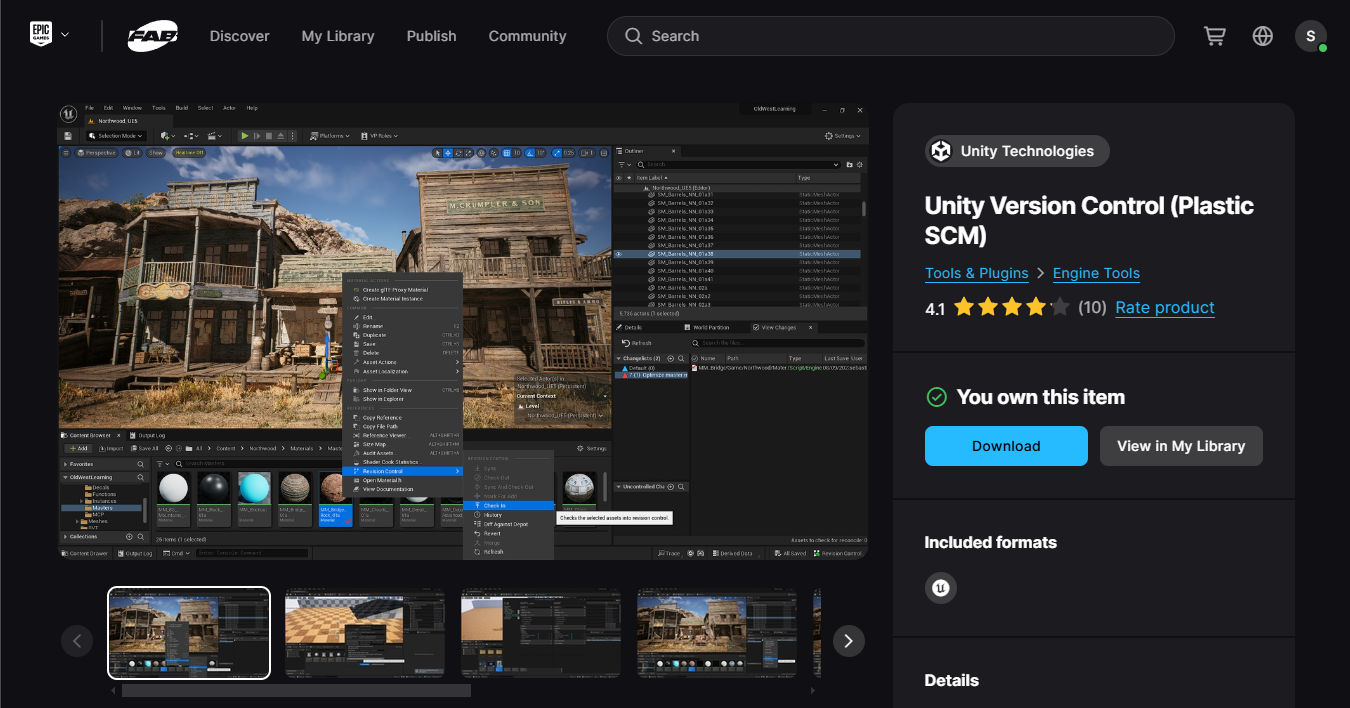
Unity Version Control in Fab
Table of Contents
User Guide
Plugin Setup
In-Engine version of the plugin
- UE4.24 to 4.27 shipped with an old version 1.4.6 of this plugin
- UE5.0 shipped with the same outdated version 1.4.6, not performing well overall with UE5, especially on OFPA
- UE5.1 shipped with the version 1.6.2 with support for the new View Changelists window
- UE5.2 & 5.3 shipped with the version 1.8.0 with support for the Shelves in the renamed View Changes window
- UE5.4 & 5.5 shipped with the version 1.9.0 with a new View Branches window to create, switch to and merge branches.
Install from Fab
- Click on the "Add to My Library" button in the Fab page and complete the checkout process. https://www.fab.com/listings/42f9c431-d7a7-4e09-af55-fb4b896e9c97
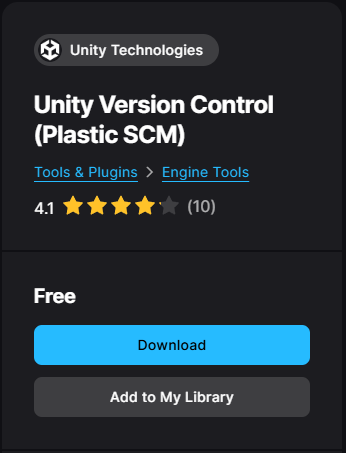
Add to My Library button in Fab
- Click on the "Download" button below (or just open the Epic Games Launcher directly). https://www.fab.com/listings/42f9c431-d7a7-4e09-af55-fb4b896e9c97
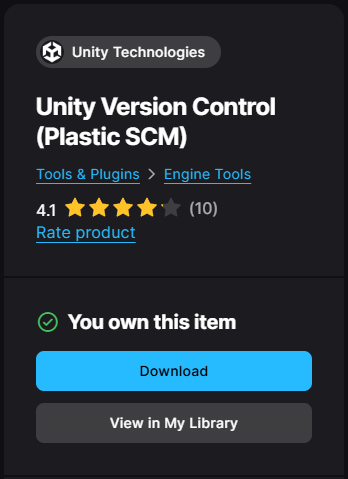
Download button
- Click the on "Epic Games Launcher" link at the bottom of the "Download" popup. https://www.fab.com/listings/42f9c431-d7a7-4e09-af55-fb4b896e9c97
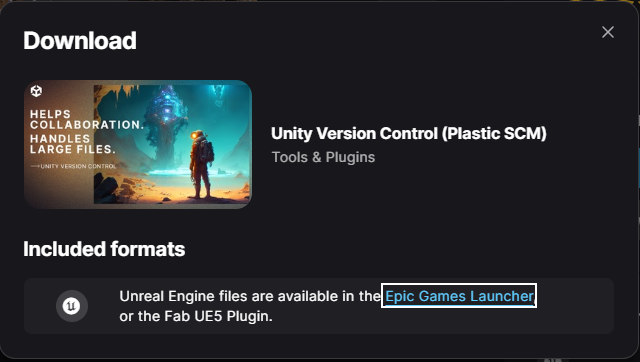
Download window
- In the Epic Games Launcher, in Unreal Engine -> Library -> "Fab Library" search "Unity Version Control" or "Plastic SCM". https://www.fab.com/listings/42f9c431-d7a7-4e09-af55-fb4b896e9c97
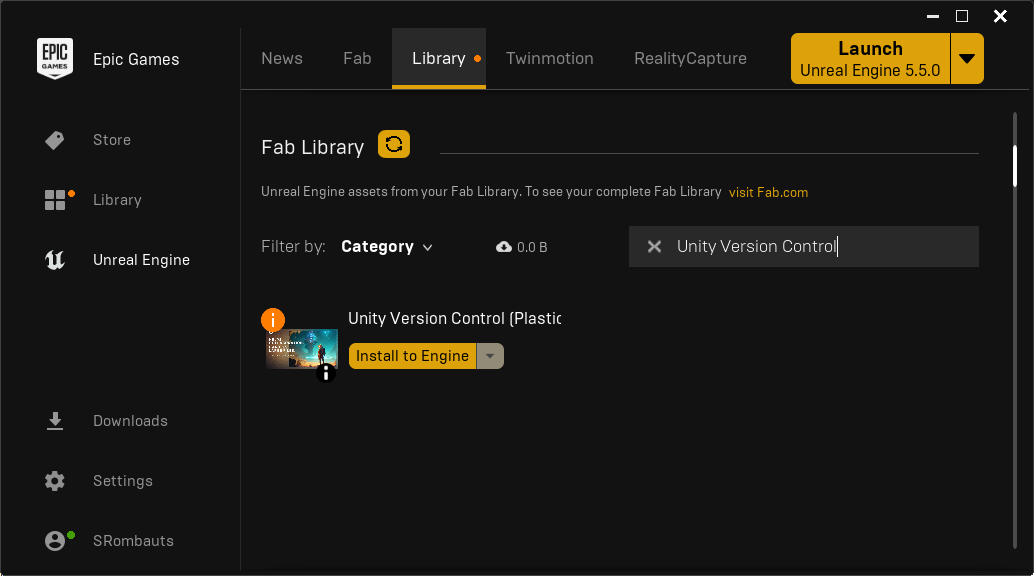
Fab Library in the Launcher
- Click the "Install to Engine" button, select the Engine version for your project, then install.
https://www.fab.com/listings/42f9c431-d7a7-4e09-af55-fb4b896e9c97
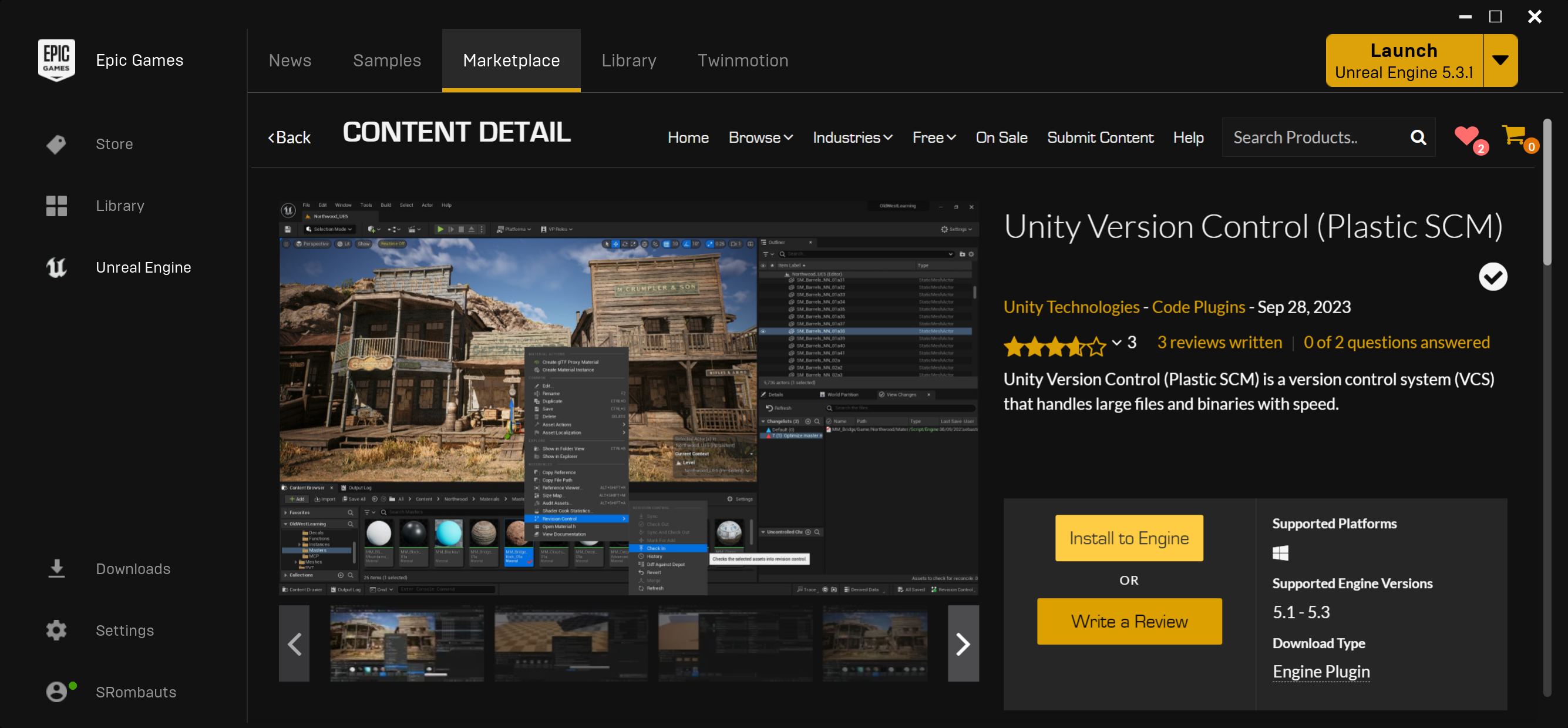
Install to Engine button
- Open your project in Unreal, navigate to "Edit -> Plugins" and in "Installed" plugins, tick to enable "Unity Version Control", and restart the Editor
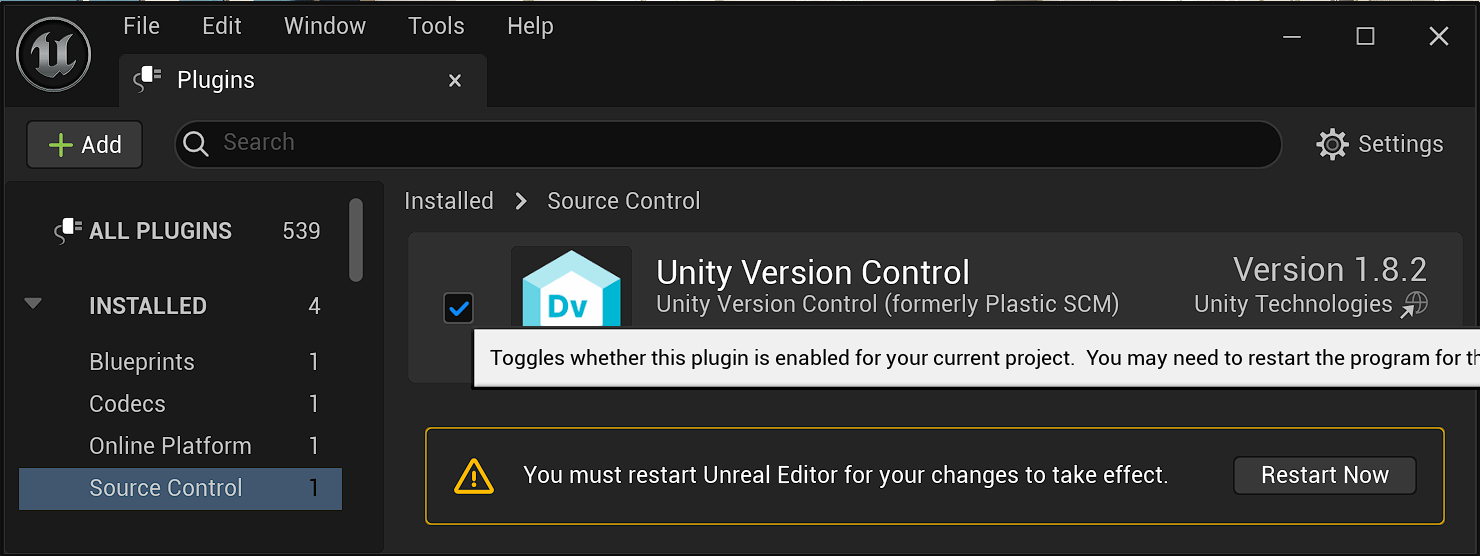
Enable the plugin in the Plugins Manager
- Navigate to "Revision Control -> Connect to Revision Control"
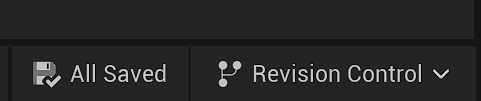
Source Control Connect
- And for the "Provider" select "UnityVersionControl" to override the older "Plastic SCM" integration
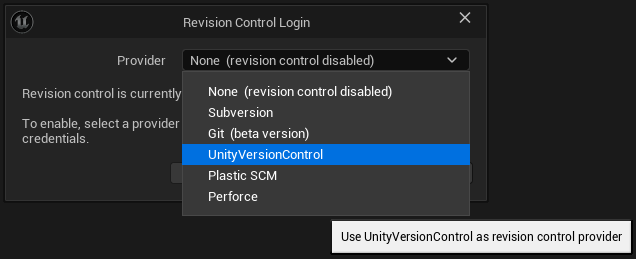
Source Control Connect - Select Provider - UnityVersionControl
Install from releases in Github
release
- Download the latest binary release UE5PlasticPlugin-x.x.x.zip targeting your UE5 version.
- Either:
- Unzip the content of the ZIP directly at the root of your project folder. This creates a "Plugins\UEPlasticPlugin" subdirectory into your project. This is the way to go to use Unity Version Control on a specific project, and to share the plugin with other team members by adding it to source control. Some users reported they also had to remove the integrated plugin from "Engine\Plugins\Developer\PlasticSourceControl" to avoid a collision. This is only needed for some specific use case I have not yet identified (eg. on CI/CD, or on Unix OSes).
- Unzip the content of the ZIP in the Engine\ directory of UEX.Y directly for all your projects (for instance "C:\Program Files\Epic Games\5.1\Engine") This creates a "UEPlasticPlugin" folder into the "Plugins" subdirectory. Then remove the integrated plugin from "Engine\Plugins\Developer\PlasticSourceControl" to avoid the collision. This is the way to enable Unity Version Control for all Unreal Engine projects on the machine.
- Then, launch your Unreal project, click on the Source Control icon "Connect to Source", select "Plastic SCM".
Build from sources
- You need Visual Studio 2015 or 2017 with C++ language support (free Community Edition is fine).
- Launch the Unreal Engine Editor, create a new C++ Basic Code Project (No Starter Content), for instance ProjectName. This should launch Visual Studio, build the game project, and open it into the Editor.
- Close the Editor, then using the file explorer, create a new Plugins directory at the root of your project.
- Clone the source code of the plugin into this Plugins directory (for instance Plugins\UEPlasticPlugin).
- Right-click on your project's .uproject file, Generate Visual Studio project files.
- In Visual Studio, Reload All and Build Solution in Development Editor mode. That's it, the plugin is built (resulting dlls are located in Plugins\UEPlasticPlugin\Binaries\Win64).
Project Setup
Enable Source Control
Source Control Connect

Source Control Connect
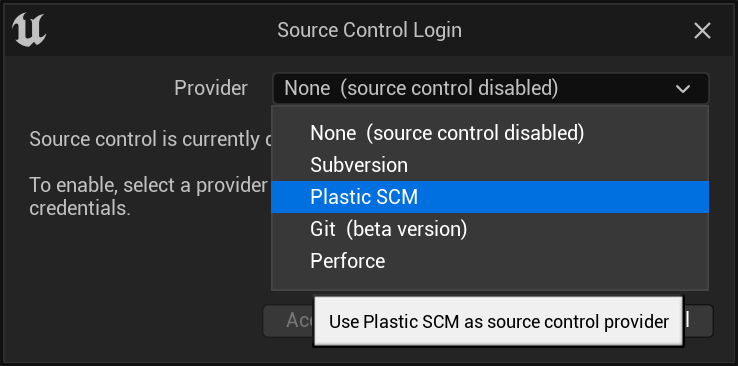
Source Control Connect - Select Provider
Create a new workspace & repository directly from Unreal
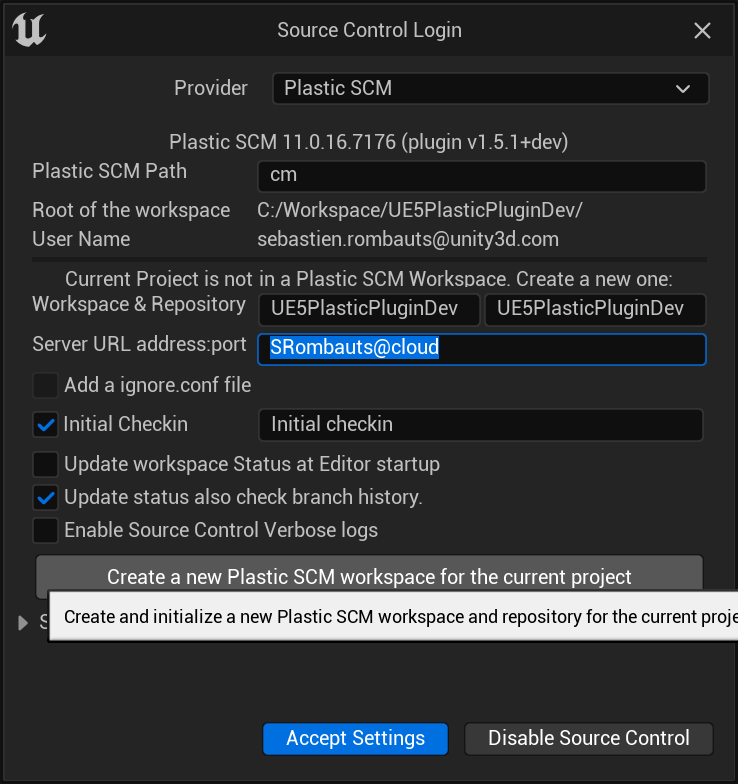
Source Control Login window - create a new workspace on cloud
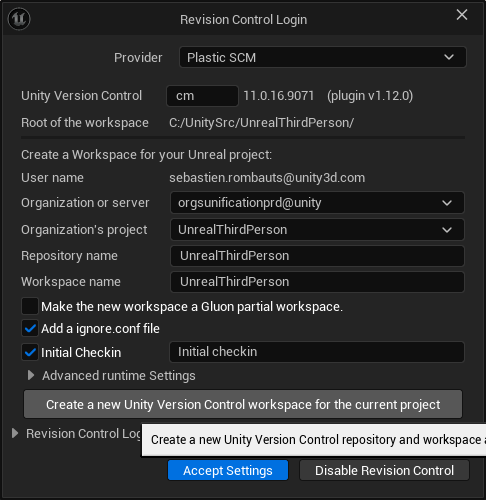
Source Control Login window - create a new workspace on cloud
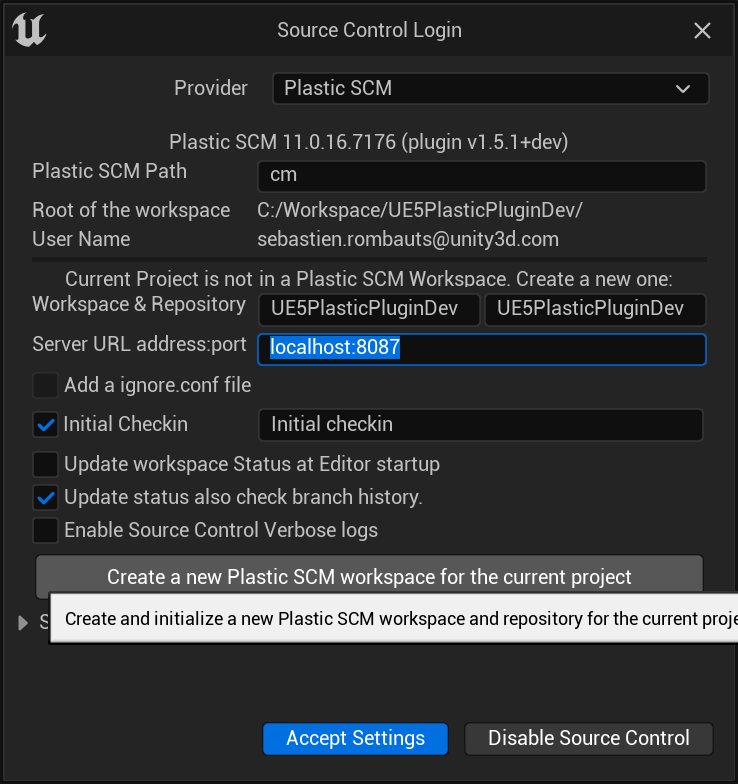
Source Control Login window - create a new workspace on localhost

Source Control Login window - checking files in source control
Source Control settings
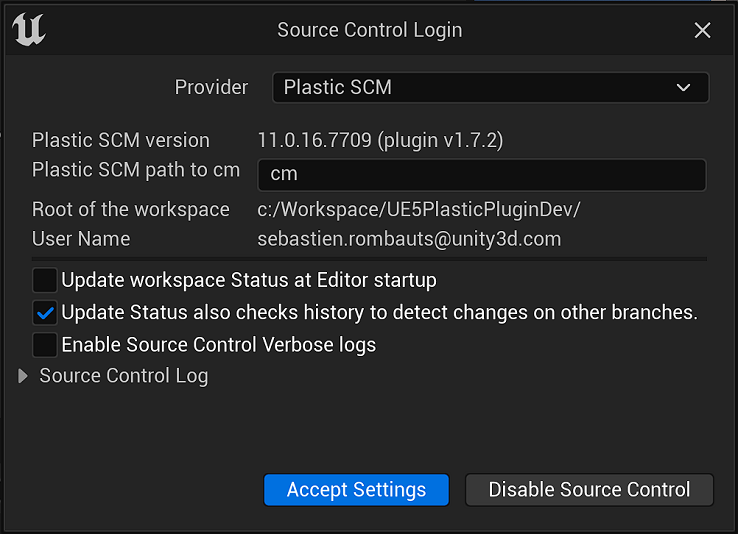
Source Control Settings
Saved\Config\WindowsEditor\SourceControlSettings.ini- BinaryPath: Path to the Unity Version Control Command Line tool 'cm' binary. Default is good if the cli is in the PATH. Can be changed to an absolute path to the cm executable if needed.
- UpdateStatusAtStartup: Triggers an asynchronous "Update Status" operation at Editor startup. Can take quite some time on big projects, with no source control status available in the meantime.
- UpdateStatusOtherBranches: Enable Update status to detect more recent changes on other branches in order to display the "Changed In Other Branch" warnings and icon.
- EnableVerboseLogs: Override LogSourceControl default verbosity level to Verbose (except if already set to VeryVerbose).
Add an ignore.conf file
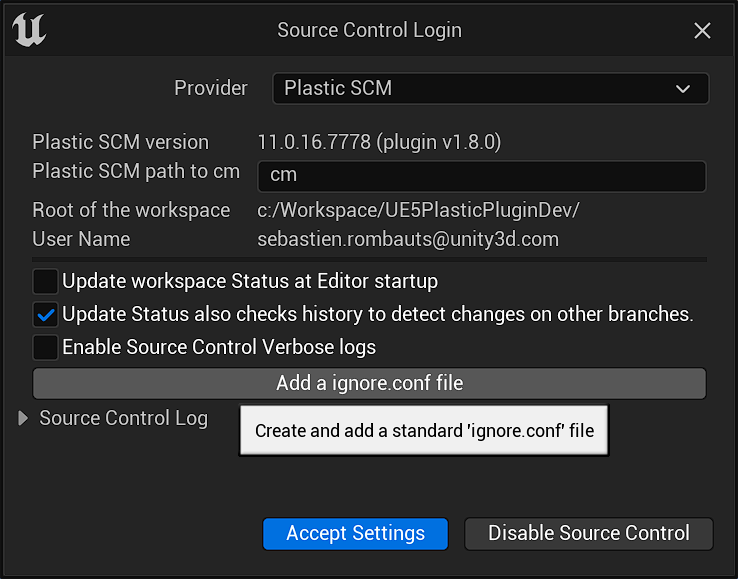
Source Control Login window - Add a ignore.conf file
ignore.conf
BinariesDerivedDataCacheIntermediateSavedScriptenc_temp_folder.idea.vscode.vs.ignore*.VC.db*.opensdf*.opendb*.sdf*.sln*.suo*.code-workspace*.xcodeproj*.xcworkspace*.private.*
Sharing settings
Config\DefaultSourceControlSettings.ini[SourceControl.SourceControlSettings]Provider=Plastic SCM[PlasticSourceControl.PlasticSourceControlSettings]BinaryPath=cmUpdateStatusAtStartup=FalseUpdateStatusOtherBranches=TrueEnableVerboseLogs=False
Project Settings
Source Control
- Should Delete New Files on Revert (true by default)
- If enabled, when you revert a file that was added to the project, it will be deleted from disk instead of being left untracked (Private). This is the expected behavior when shelving files and reverting the local changes.
- Enable Uncontrolled Changelists (true by default)
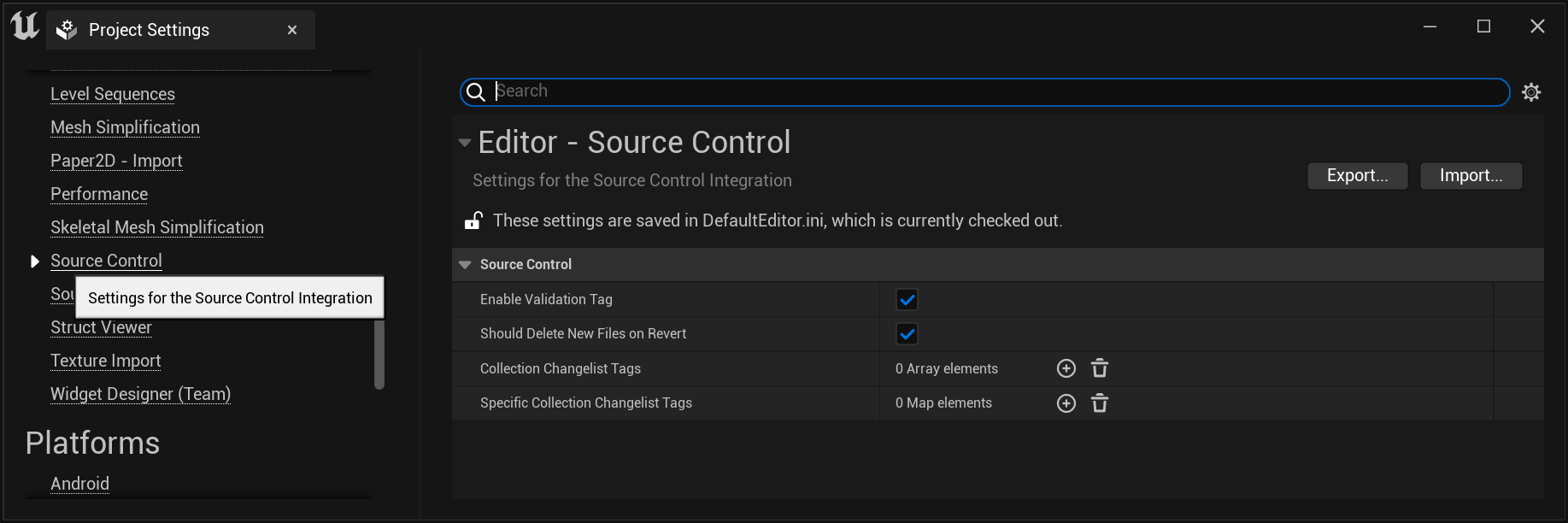
Project Settings - Source Control
Source Control - Unity Version Control
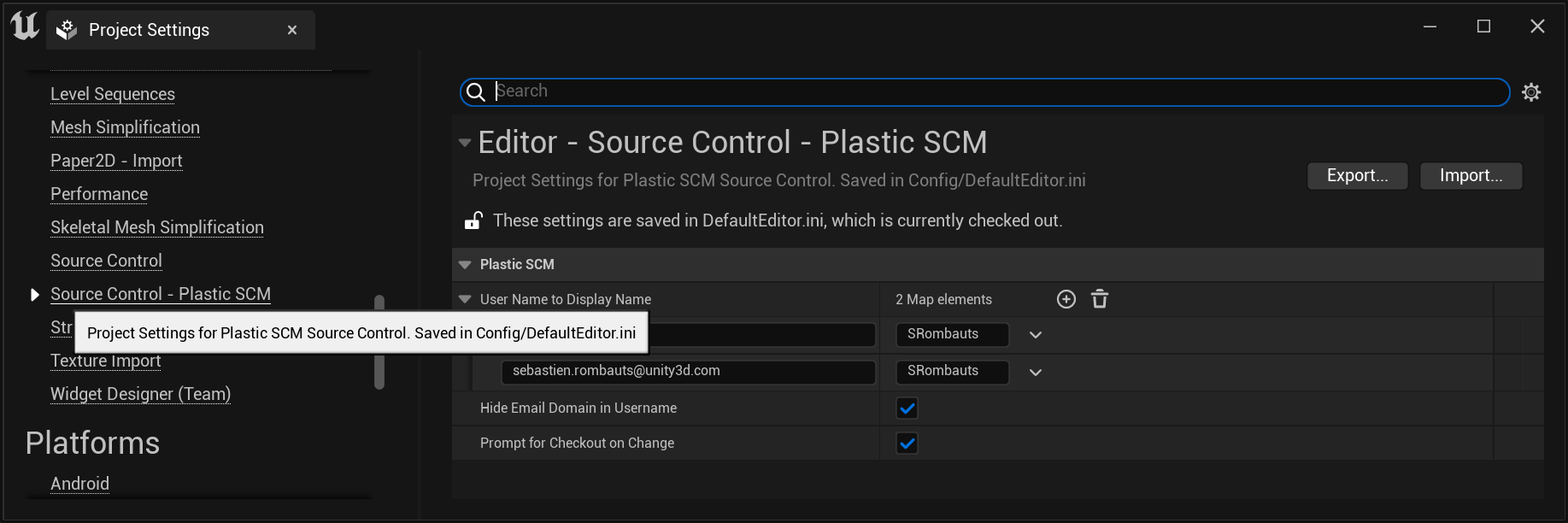
Project Settings - Source Control - Unity Version Control
- User Name to Display Name
- For each entry in this dictionary, the Editor will replace the user name in the key with the display value you specify.
- Hide Email Domain in Username (true by default)
- This setting toggles the visibility of domain names in user names, if the user name is an email.
- Prompt for Checkout on Change (true by default)
- Un-checking this setting will make the Editor consider all files as already checked out. In that case, you won't get any notifications when you modify assets, and the "Checkout Assets" dialog won't show when you save those changes. This mimics how Git works, i.e. allowing the user to perform changes without worrying about checking out items. Note: Changelists don't currently support locally changed assets (ie not checked-out)
- Limit Number Of Revisions in History (50 by default)
- If a non-null value is set, limit the maximum number of revisions requested to Unity Version Control to display in the "History" window.
- Requires Unity Version Control 11.0.16.7608 that added support for history --limit
Editor Preferences
Source Control
- Tools for diffing text
- Configure the external diff tool needed to compare revisions of assets that are not Blueprints (eg Materials)
- Prompt for Checkout on Asset Modification
- Trigger a notification "N files need Checkout" with a link to checkout the asset(s) as soon as a change is made to an asset (without even saving it).
- Automatically Checkout on Asset Modification
- Checkout an asset as soon as a change is made to it (without even saving it). Will not show the "checkout" notification.
- Add New Files when Modified
- Automatically add "private" assets to source control when saving them.
- Use Global Settings
- Share the Source Control Settings ini files between all projects.
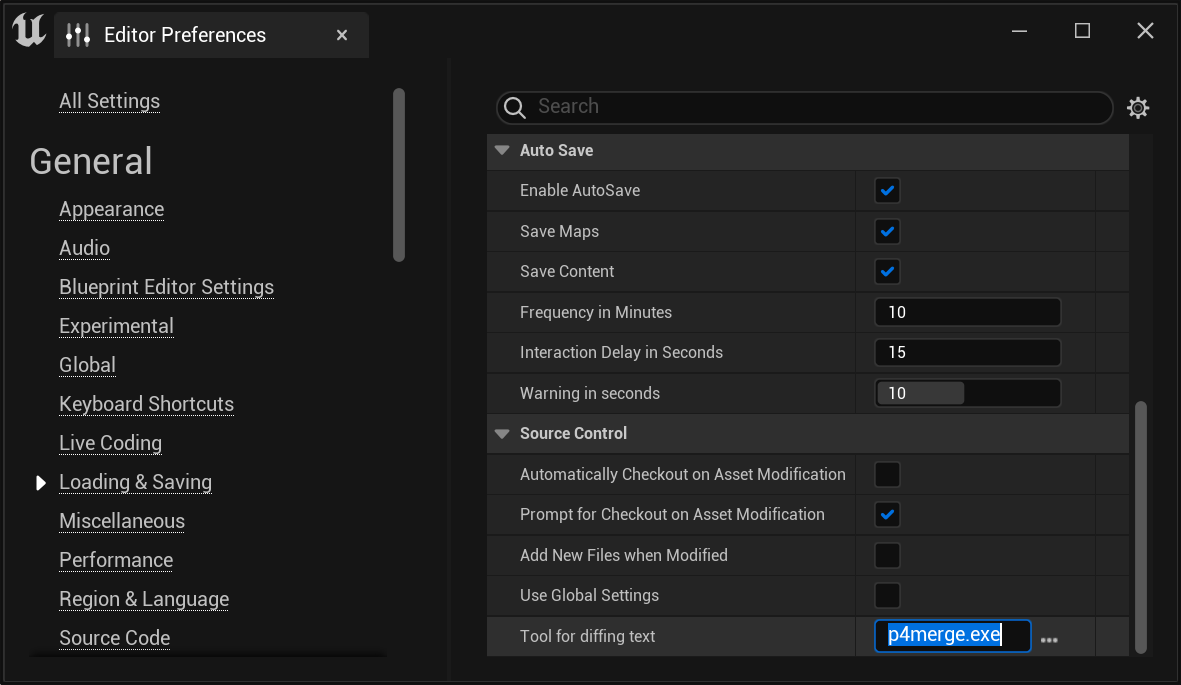
Editor Preferences - Source Control
Working in Editor
Unreal Documentation
Status Icons
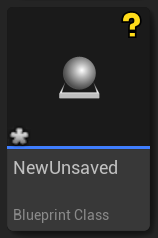
New Unsaved
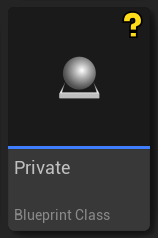
Private/Not in source controlled
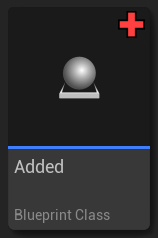
Added to Source Control
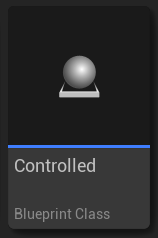
Controlled/Unchanged
- New, unsaved asset (not yet present on disk).
- Private, the asset is not in source control.
- Added to source control.
- Source Controlled but not checked-out nor locally changed
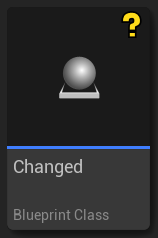
Changed Locally but not Checked-Out
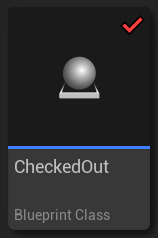
Checked-Out
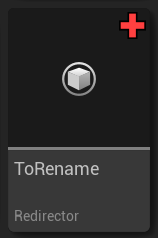
Redirector added by a Move
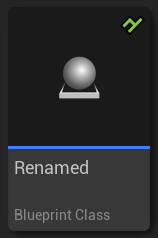
Moved/Renamed
- Locally Changed without checkout, or Private ie not source controlled
- Checked-out exclusively to prevent others from making modifications (if Locks are enabled on the server)
- Redirector added by a Move
- Moved or Renamed
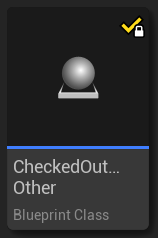
Checked-Out/Locked by someone else
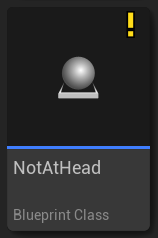
Not up-to-date/new revision in repository
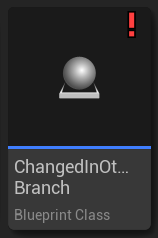
Newer change in another branch
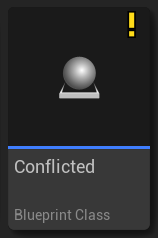
Merge Conflict
- Locked somewhere else, by someone else or in another workspace (if Locks are enabled on the server)
- Not at head revision, the asset has been submitted with a newer revision on the same branch
- Changed in another branch, the asset has been changed in a newer changeset in another branch
- Merge conflict, the asset has been changed in two separate branches and is pending merge resolution
Revision Control Menu
Unreal Engine 5 Revision Control Menu
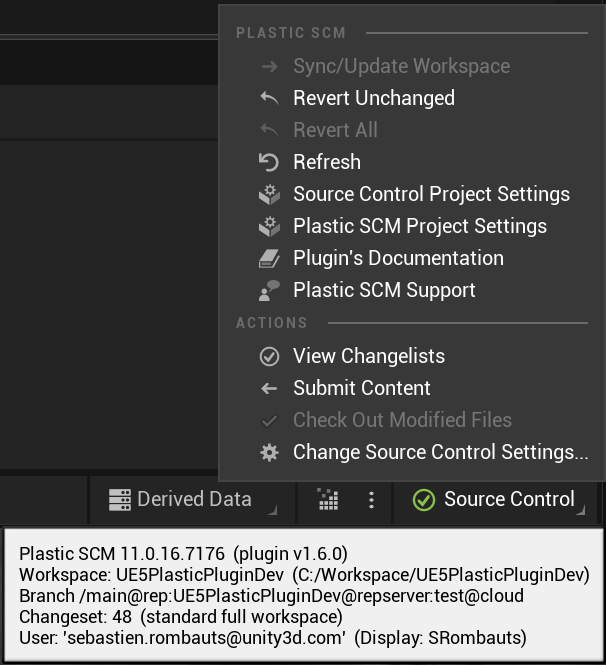
Source Control Menu
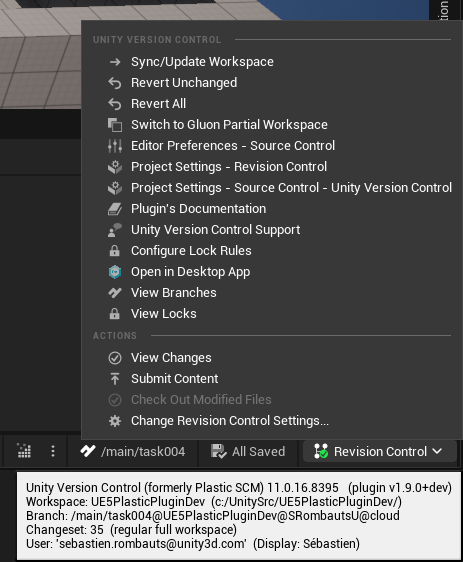
Revision Control Menu
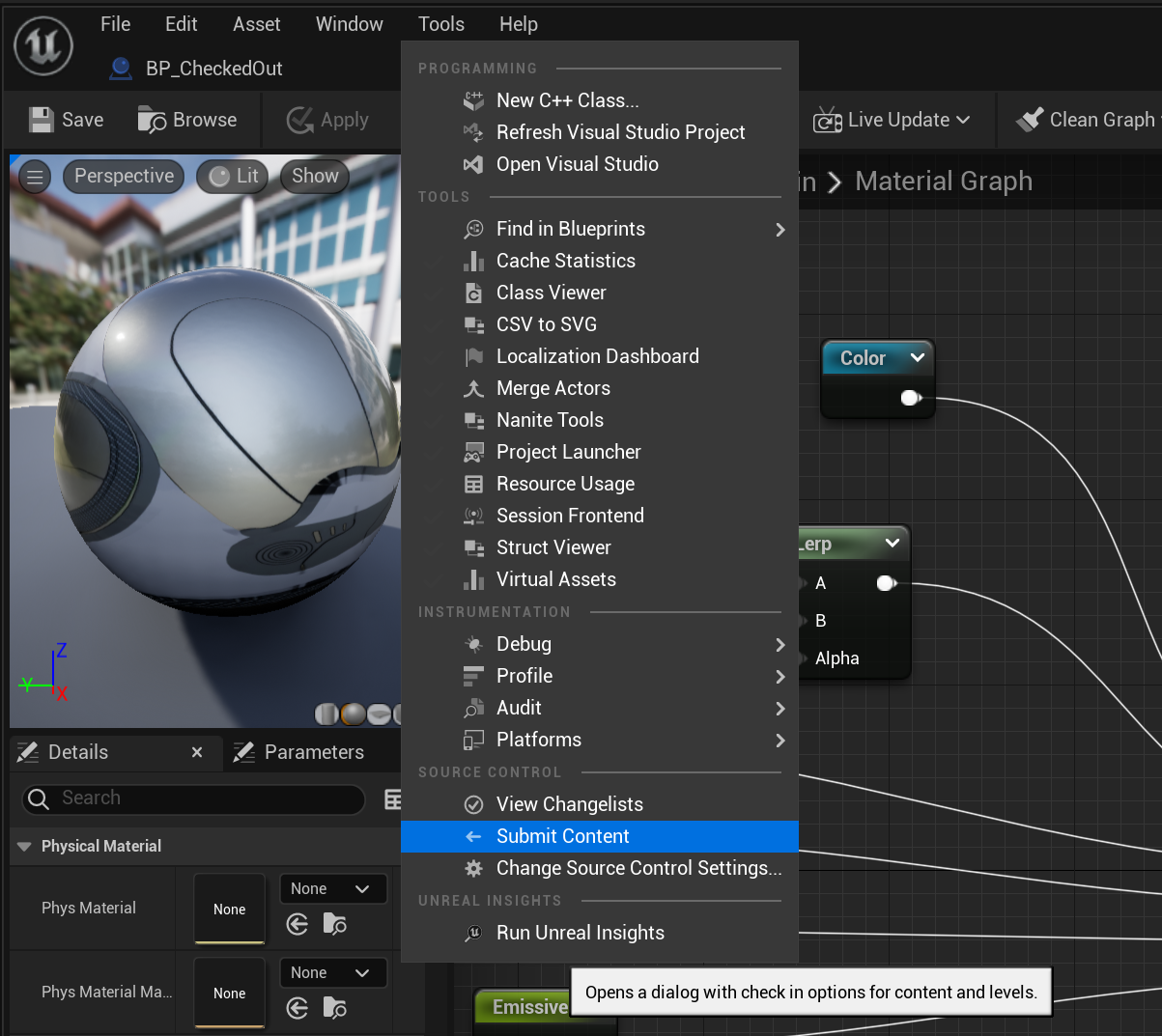
Asset Tools Menu
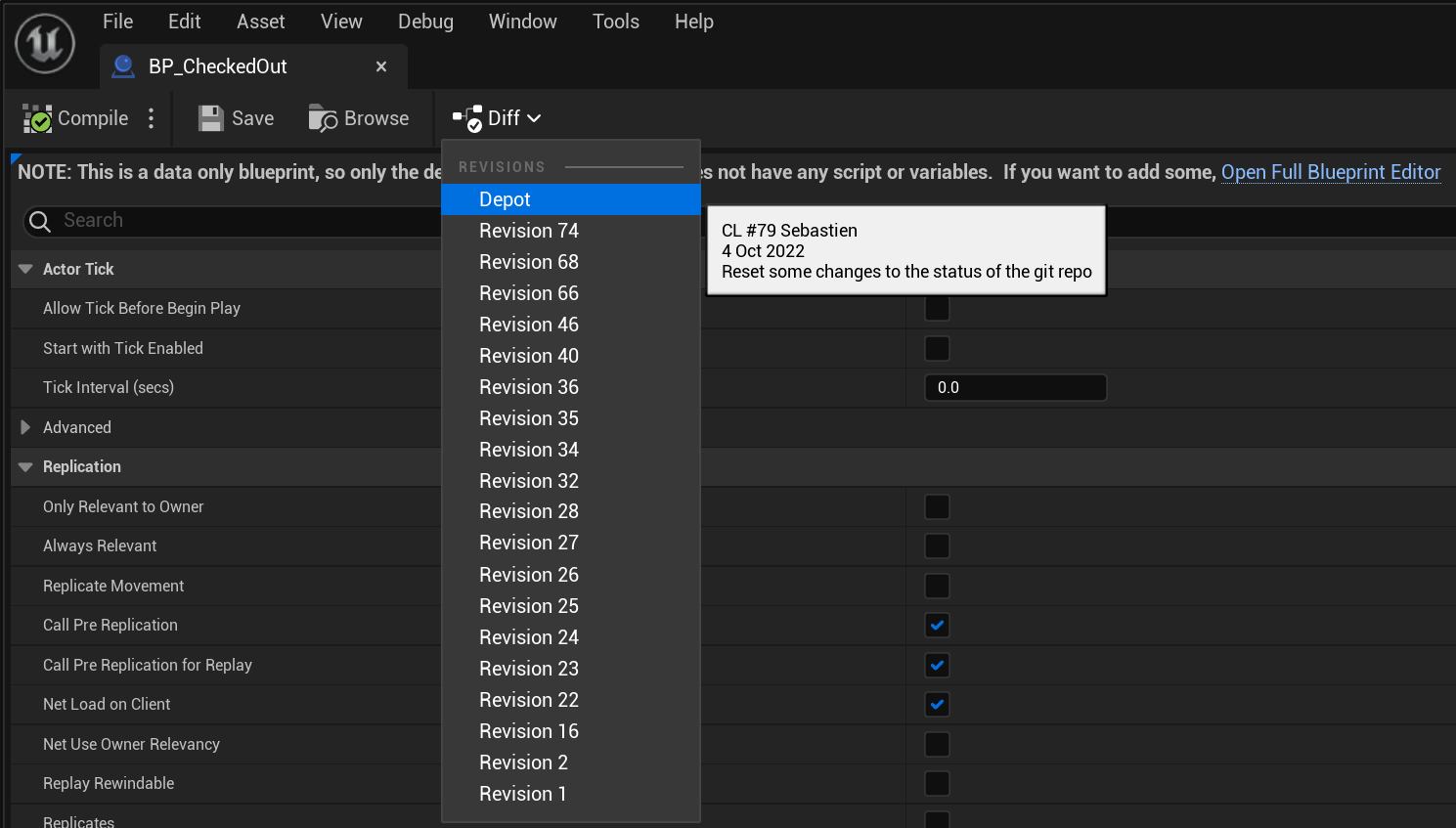
Blueprint Toolbar Diff drop-down
Revision Control Windows
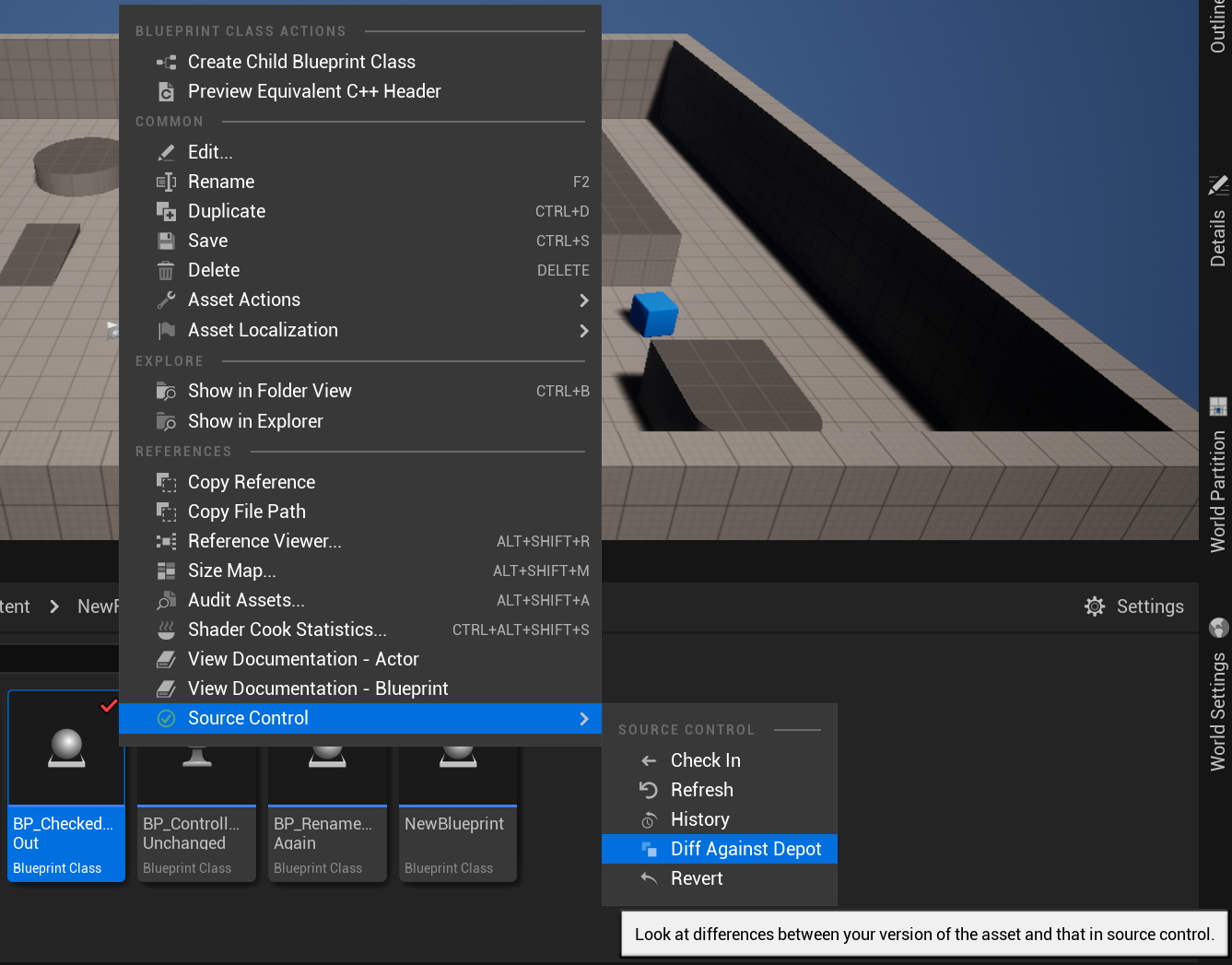
Content Browser Context Menu
Submit Files
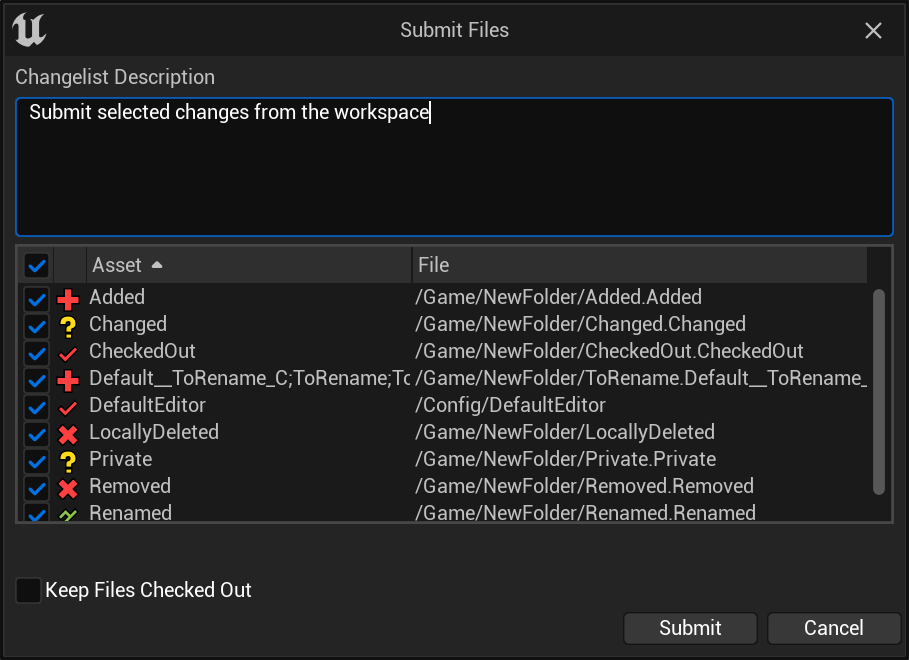
Submit Files to Revision Control
View Changelists
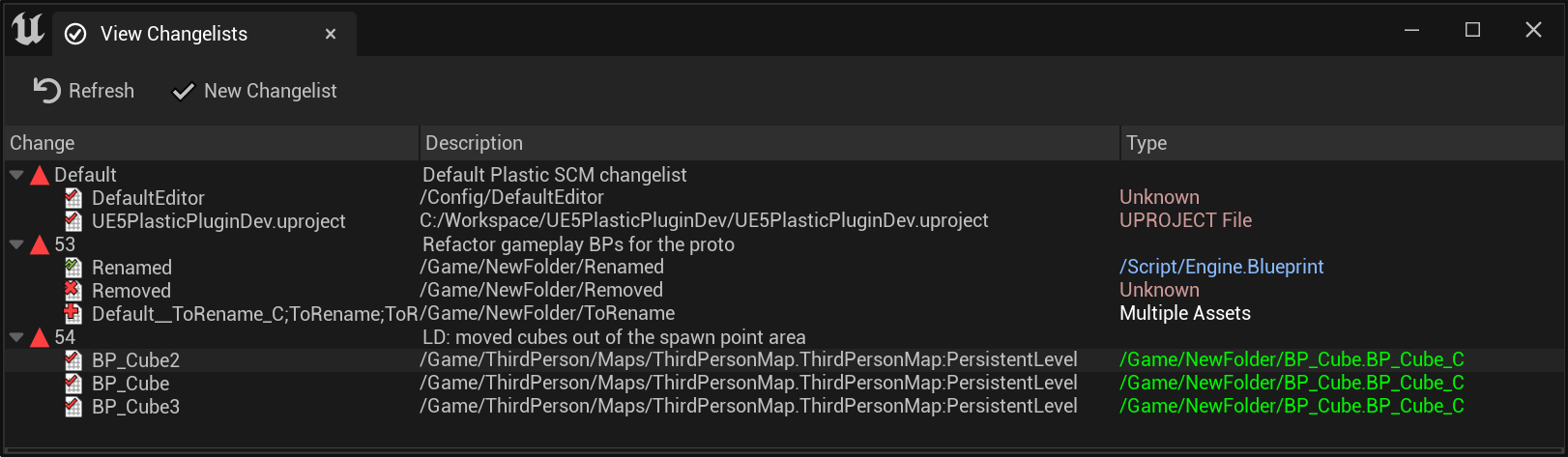
Changelist Window
File History
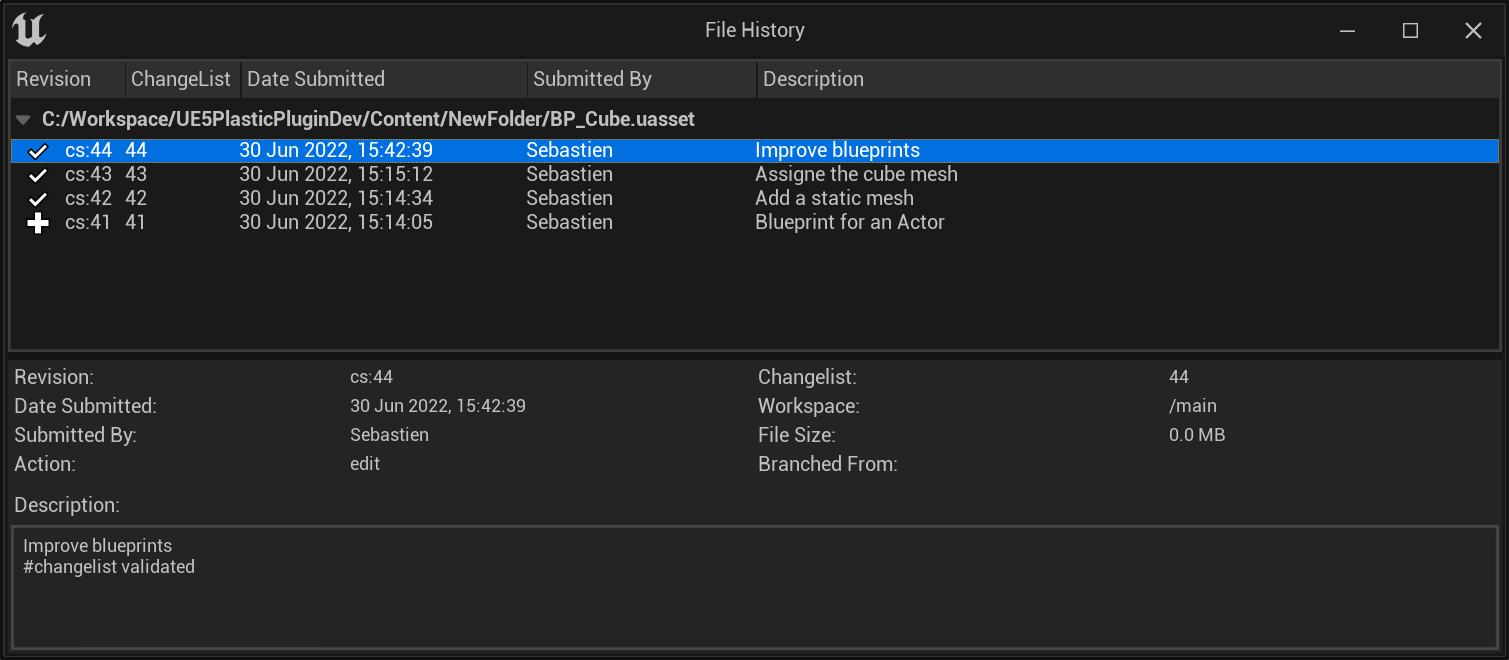
History of a file
Blueprint Diff
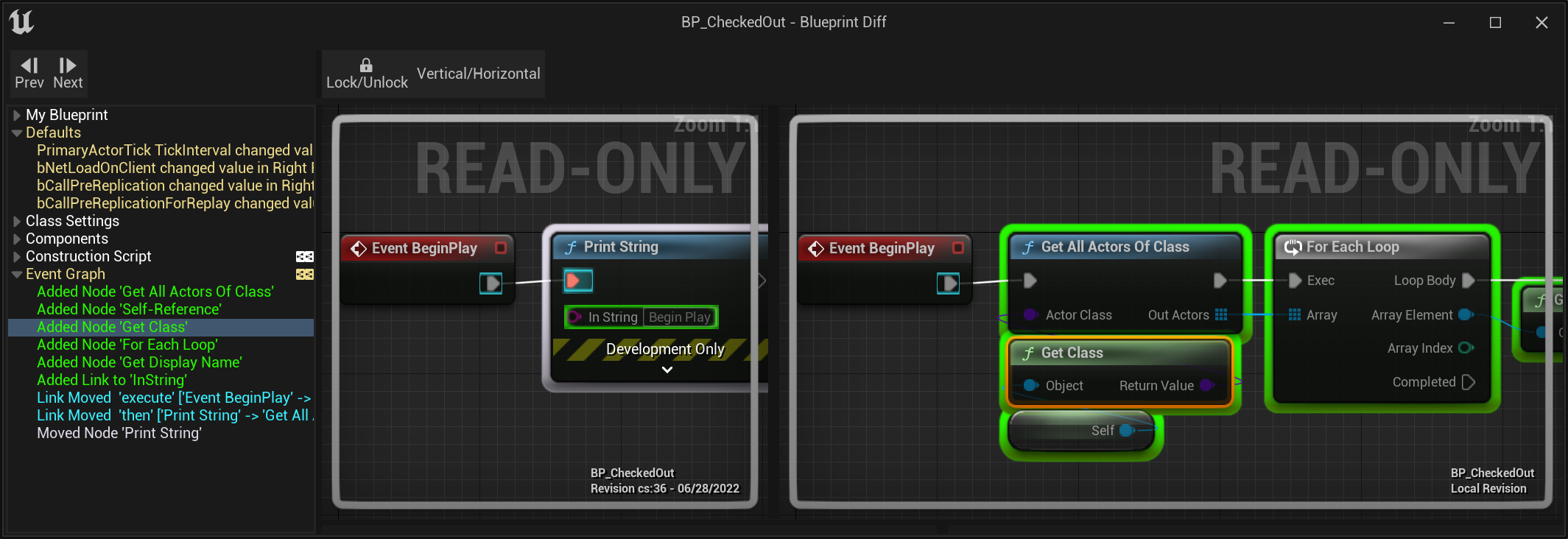
Blueprint Visual Diff
Material Diff
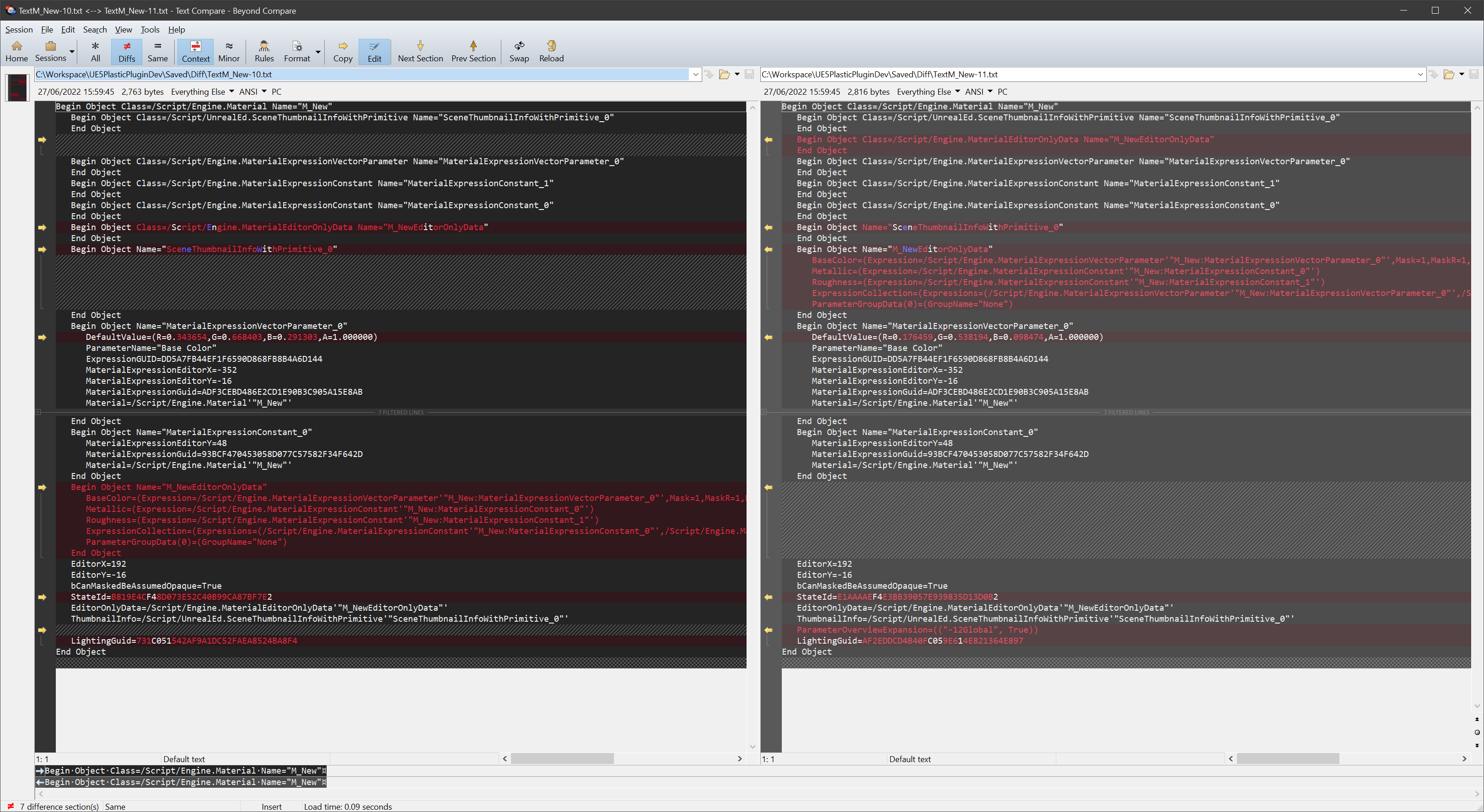
Material Diff
Redirectors
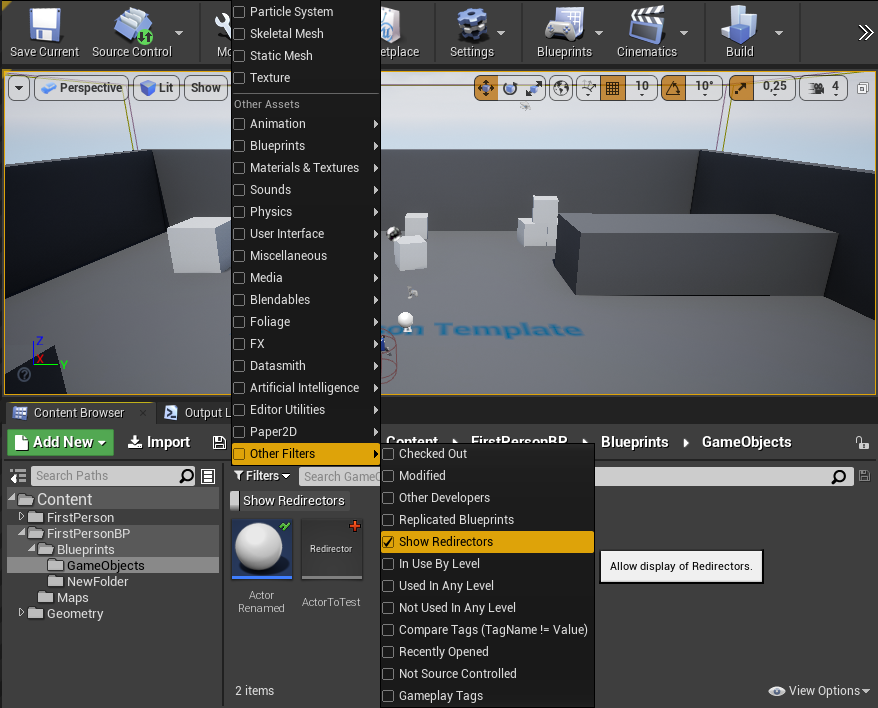
Source Control - Show Redirectors
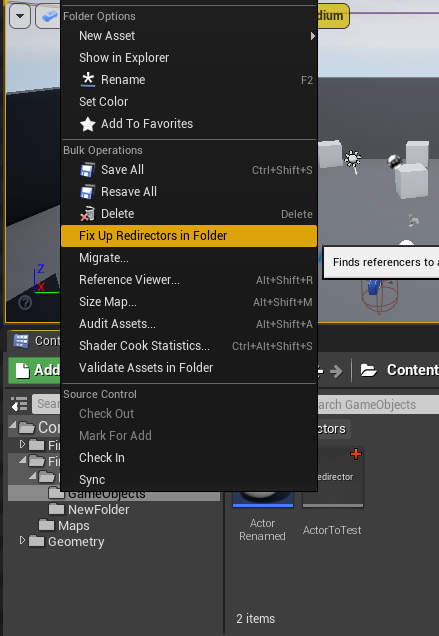
Source Control - Show Redirectors
Detect Changes on other Branches
Source Control Settings
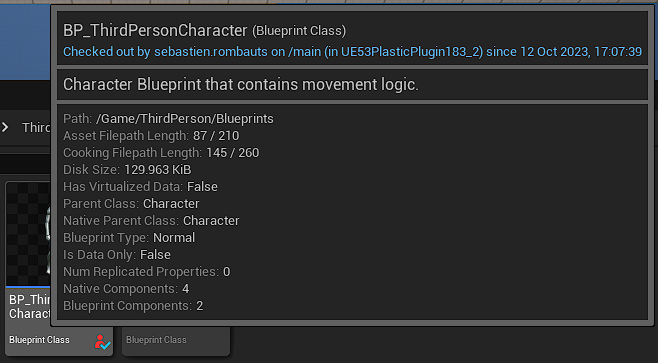
Asset checked-out by someone else
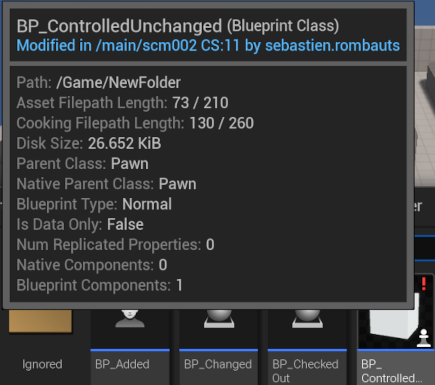
Asset modified in another branch
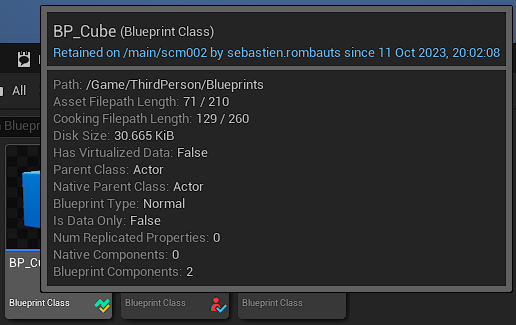
Retained Lock in another branch
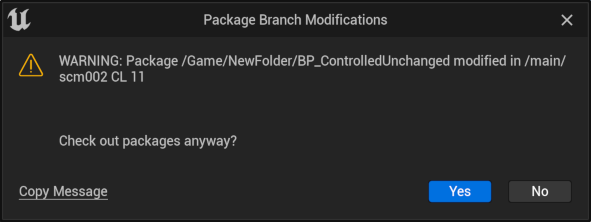
Warning on checkout for an asset modified in another branch
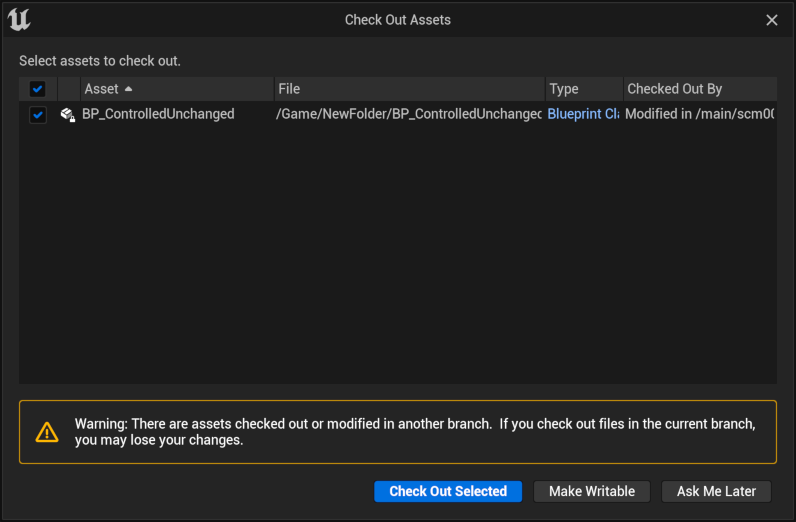
Warning on modification for an asset modified in another branch
Branches
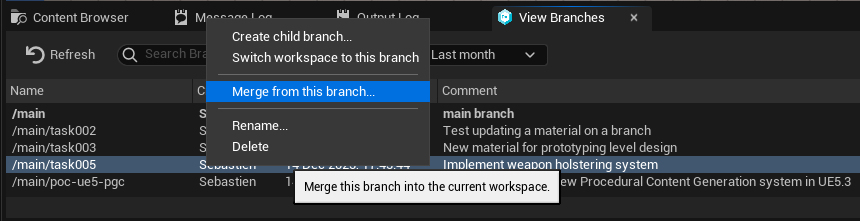
View Branches window
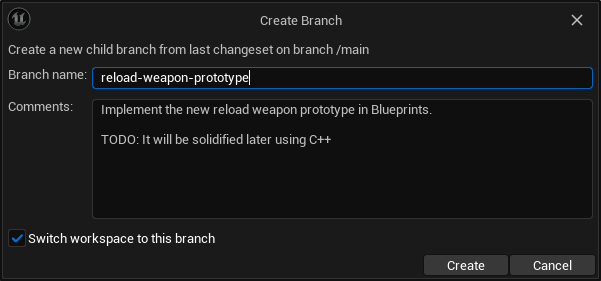
Create Branch Dialog
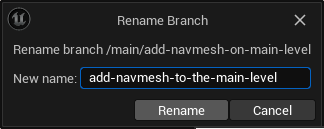
Rename Branch Dialog
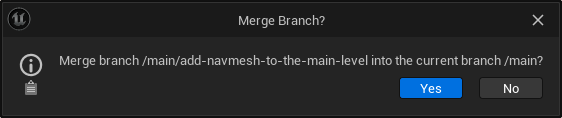
Merge Branch Dialog
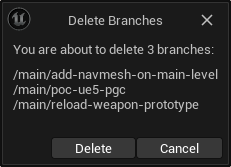
Delete Branches Dialog
Changesets History
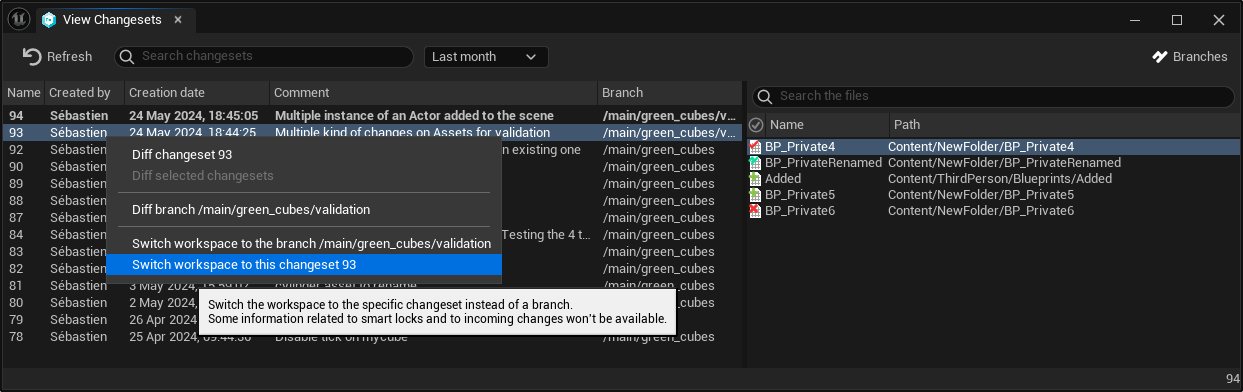
View Changesets window
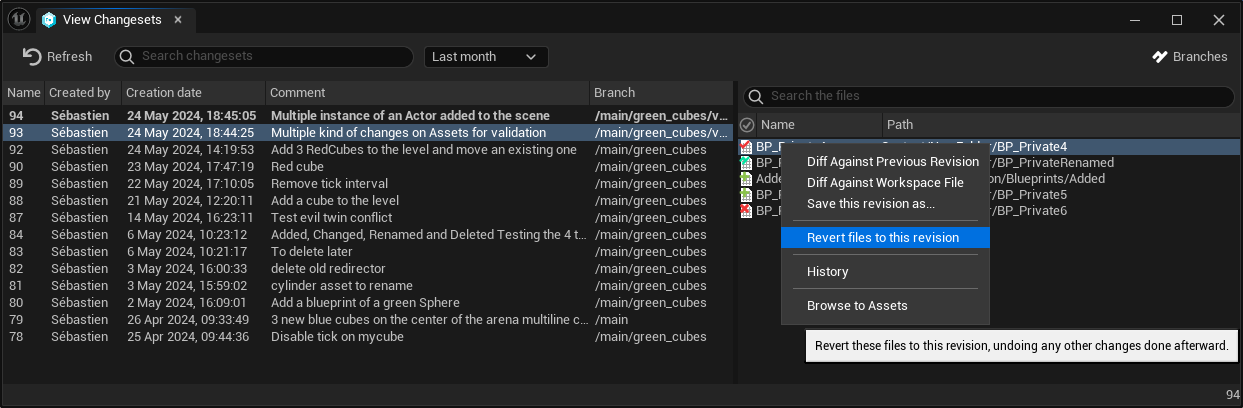
Files in Changeset context menu
SmartLocks
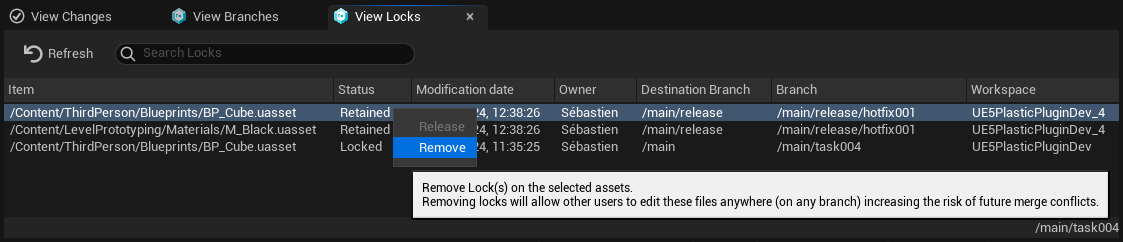
View Locks window
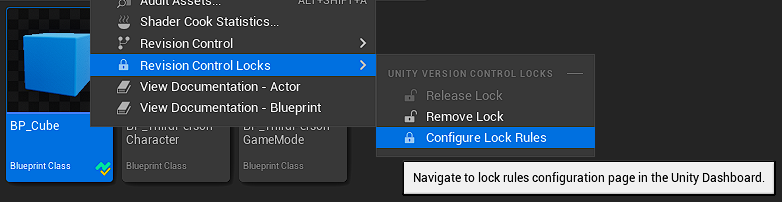
Smart Locks admin context menu
Merge conflicts on Blueprints
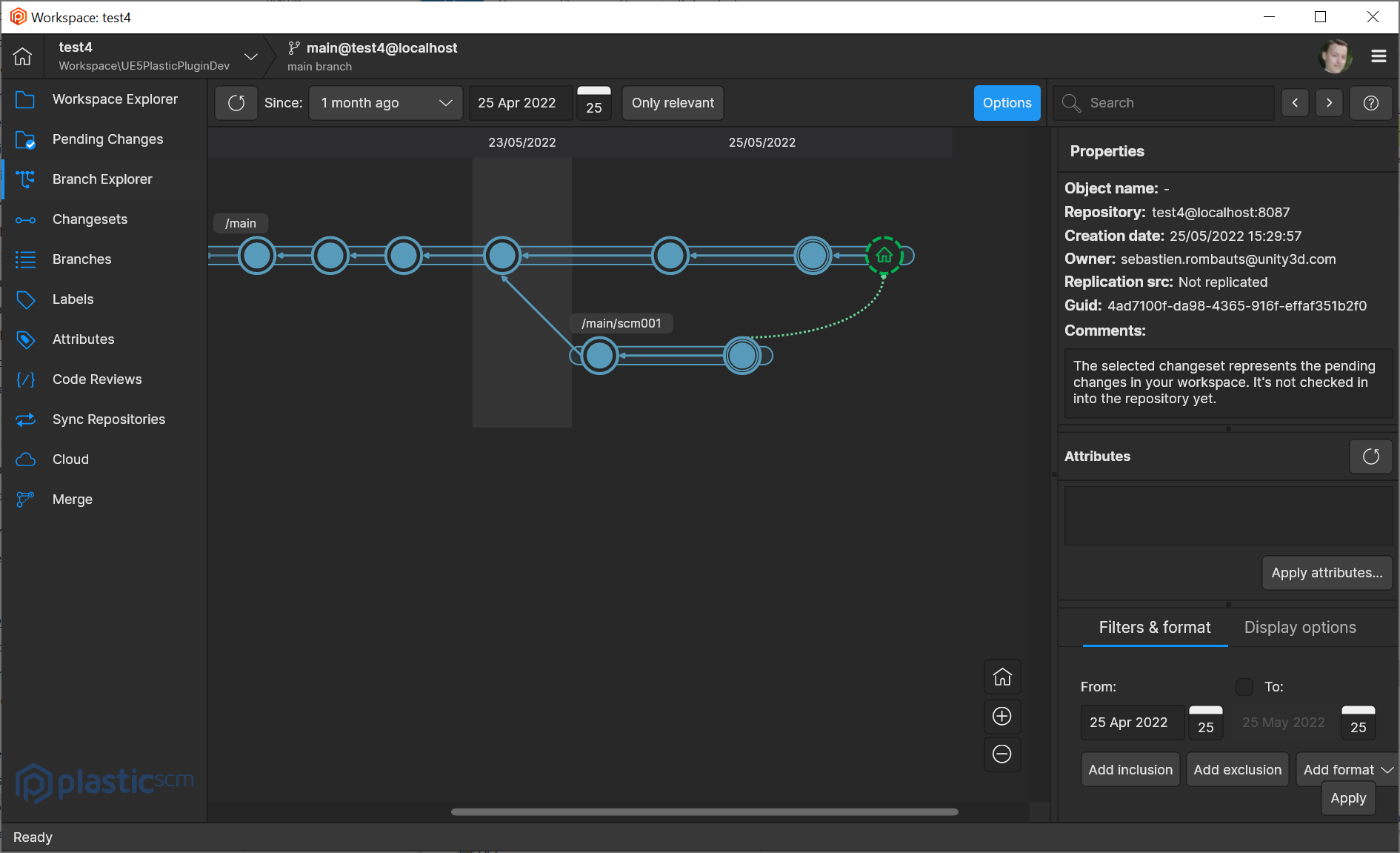
Merged branch with a pending conflict resolution
Merge Conflict
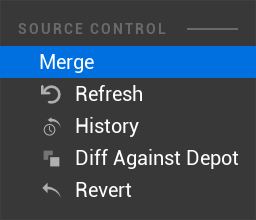
Merge context menu
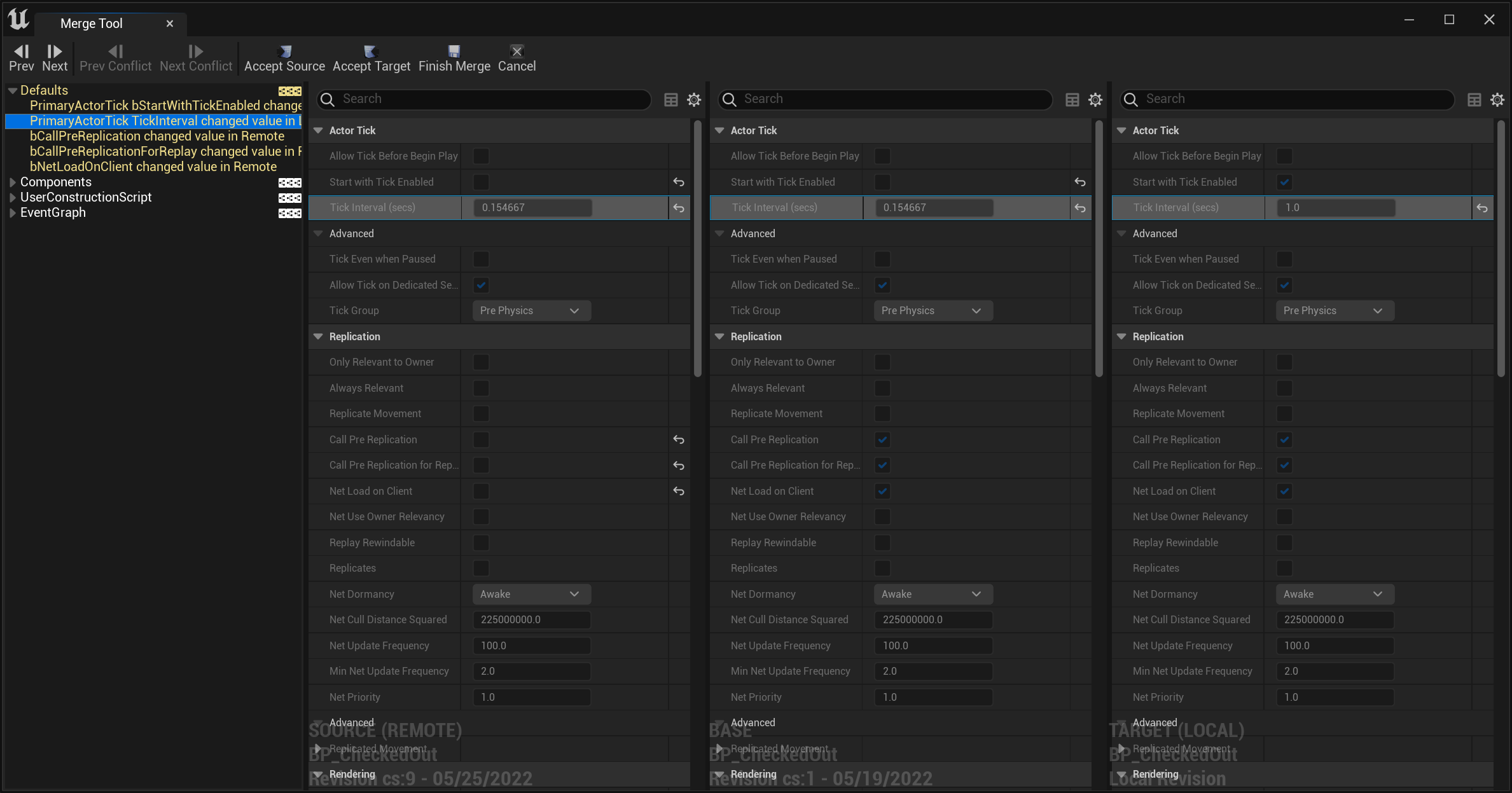
Merge of Blueprint properties
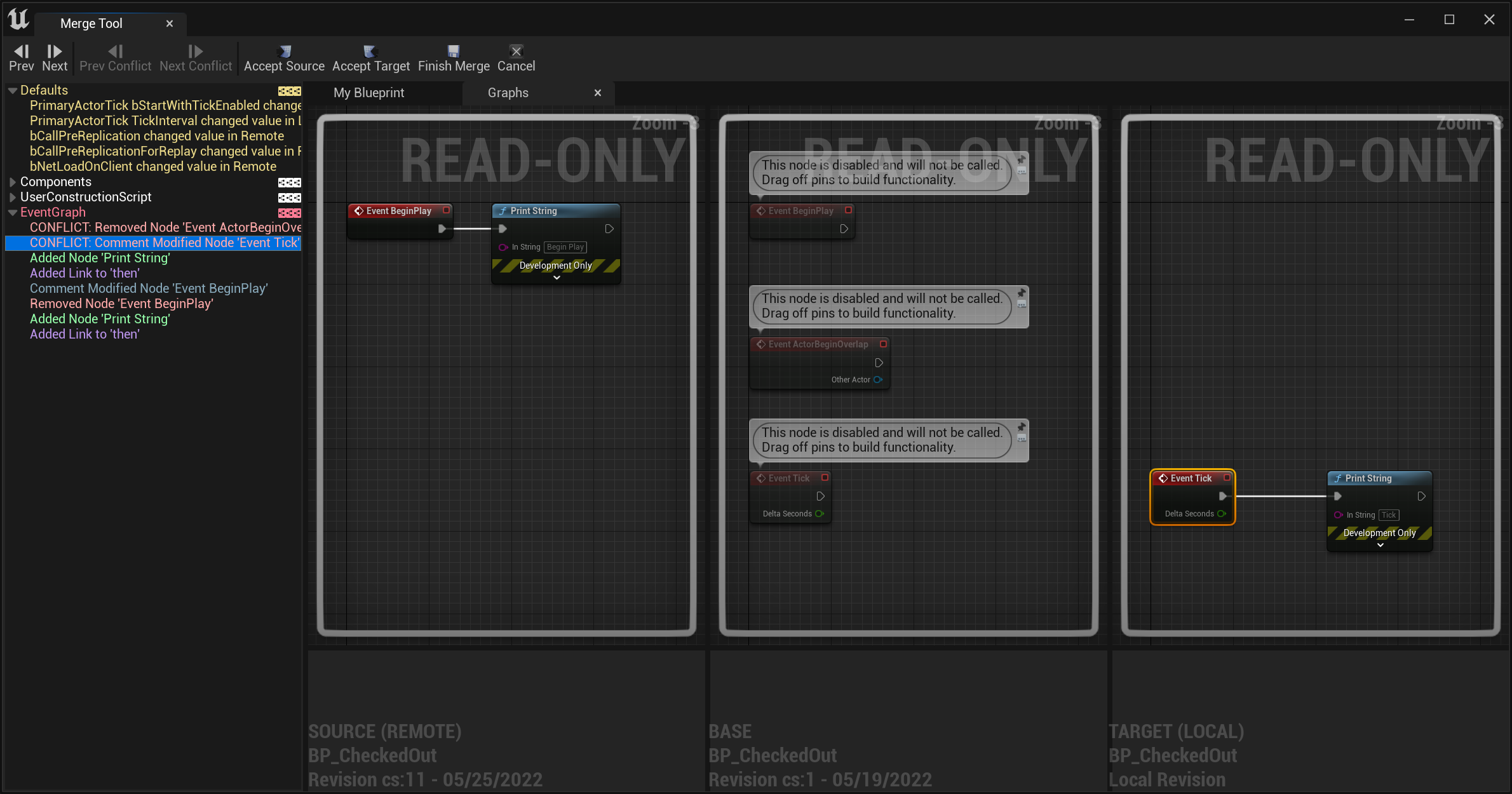
Merge of Blueprint Event Graph
Workflows
Mainline
- update the workspace (get latest) using Gluon GUI, with the Unreal Editor closed (since the Editor is locking assets, but also .exe & .dll files that might be in source control)
- start the Editor, make modifications and checkout assets
- then check-in (submit) the assets, either from within the Editor, or from the GUI after closing the Editor (the benefit of closing is you ensure that everything is saved)
- when needed, close the Editor and update the workspace again
Task branches
- create a child branch from main using in-Editor Branches window
- switch to it immediately, updating the workspace, and reloading assets
- make modifications and checkout assets
- then check-in the assets (remember to save everything, the toolbar now has a button to track the number of unsaved assets)
- create a code review from the branch
- create a new task branch from main or go back to main to merge branches
Unity Version Control Setup
Save connection credentials
Configure Locks for Unreal Assets (exclusive checkout)
Contentlock.confC:\Program Files\PlasticSCM5\serverrep:<repname> [br:[<destination_branch>]] [excluded_branches:<exclusion_pattern>]/Content
rep:UE5PlasticPluginDev/Content
rep:UE5PlasticPluginDev br:/main /main/release excluded_branches:/main/experiments/Content
rep:UE5PlasticPluginDev*.uasset*.umap
rep: */Content
/Content
Configure Visual Diff of Blueprints from Unity Version Control GUI
$binary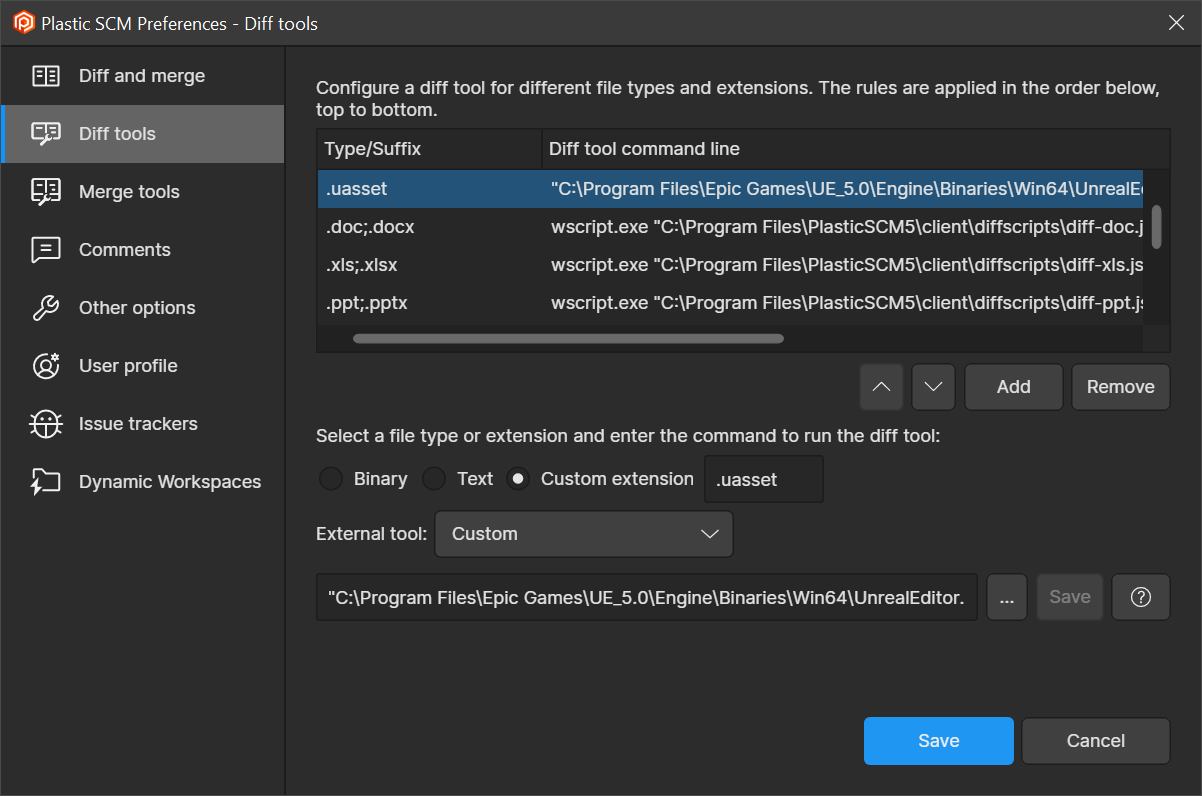
Diff tools
"C:\Program Files\Epic Games\UE_5.0\Engine\Binaries\Win64\UnrealEditor.exe" "C:\wkspaces\ProjectName\ProjectName.uproject" -diff "@sourcefile" "@destinationfile"
Text Diff of any assets
"C:\Program Files\Epic Games\UE_5.0\Engine\Binaries\Win64\UnrealEditor-Cmd.exe" "C:\wkspaces\ProjectName\ProjectName.uproject" -NoShaderCompile -run="DiffAssets" %1 %2 DiffCmd="C:\Program Files\PlasticSCM5\client\mergetool.exe -s={1} -d={2}"
Support
Known issues
- Merge Conflict: "Accept Target" crash the UE4 & UE5 Editor (same with Perforce and Git Plugins)
- Merge conflict from cherry-pick or from range-merge cannot be solved by the plugin: use the Unity Version Control GUI
- Bug: the Editor does not handle visual diff for renamed/moved assets
Features not supported
- tags: get labels (used for crash when the full Engine is under Perforce)
- annotate: blame (used for crash when the full Engine is under Perforce)
Enable debug logs
Enable Verbose logs in Unreal Engine
<ProjectName>/Save/Logs/ProjectName.logEnable logging for Unity Version Control CLI
C:\Program Files\PlasticSCM5\client\<LOCALAPPDATA>\plastic4\logs\cm.log.txt