Animation Timeline window reference
Edit how your objects move and how your object's properties change over time.
읽는 시간 4분최근 업데이트: 6달 전
To open the Animation Timeline window to animate a single object, do one of the following:
- If you already have an Animation component on your object, in your component, select the Record button next to the Animation Clip field.
- Add an Animation component to your GameObject. The Animation Timeline window opens automatically.
To edit multiple objects on a timeline, select the Animation Director object in the Hierarchy panel.
Animation Timeline window properties - Animation component
The following options show in the Animation Timeline window when you access the window from the Animation component.

The side panel of the Animation window when you open from the Animation component.
Property | Description |
|---|---|
| Animation | Select the animation clip you want to edit. When you select a clip, the timeline displays the clip's keyframes. |
| GameObject | The object that the animation clip changes. Keyframes in the clip affect this object's properties during playback. |
Animation Timeline window properties - Animation Director
The following options show in the Animation Timeline window when you access the window from the Animation Director.
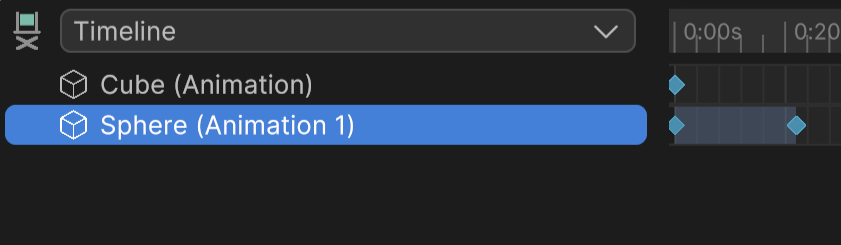
The side panel of the Animation window when you open from the Animation Director.
Property | Description |
|---|---|
| Timeline | Select the timeline you want to work on. A timeline allows you to animate multiple objects in the same window. |
| Target GameObjects | The list of objects that you want to animate on this timeline. If you animate this object, its keyframes appear on the timeline in the same line as the object's name. To add objects, select the object in the Hierarchy panel while the Animation Timeline window is open. |
Timeline area
This timeline is the track editor where you add, move, and adjust keyframes for each animated property over time. This area is the same for both Animation component and Animation Director.
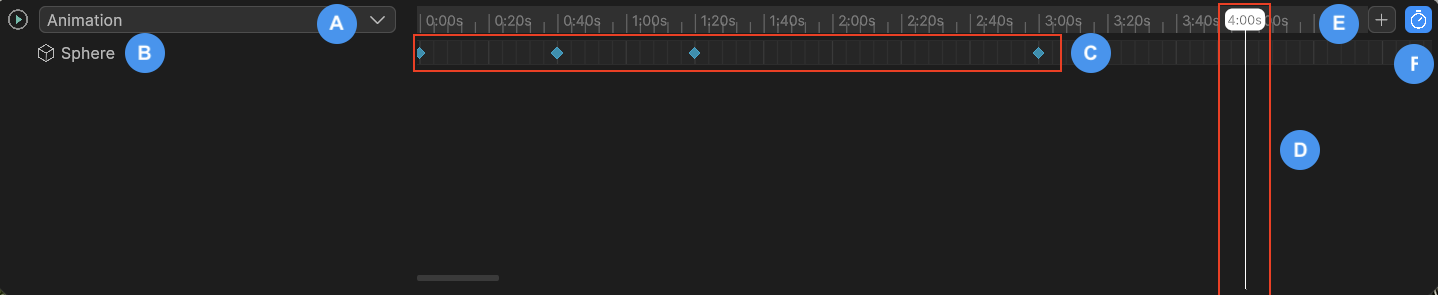
A screenshot of a timeline with keyframes placed.
A: The animation clip or timeline to edit.
B: The GameObjects to animate in the timeline appear in the left panel.
C: Keyframes - Keyframes appear on the timeline when you change an object's properties while the Animation Timeline window is open. This records the object's properties (for example, its rotation) in their current state. Drag the keyframe to a different position on the timeline to alter the timing of the property change. To add more keyframes, move the handle to a different position and make another change to the property.
D: Handle - Drag the handle to scrub through the animation, set the time to insert new keyframes, and preview changes at specific moments.
E: Extend Timeline Duration - Click the + button to extend the timeline duration by 60 seconds each time you select it. Use this when you need more time in the animation clip to add or adjust keyframes.
F: Stopwatch - Toggle the timeline's time units between seconds and frames. Enables time-based or frame-accurate editing.
For instructions on how to use the timeline to animate objects, refer to:
- Animate a GameObject with the Animation component.
- Animate multiple GameObjects with the Animation Director.
Animation Timeline Toolbar window properties
When the Animation Timeline window is open, a toolbar appears across the top of the Scene View.

The toolbar that appears when you open the Animation Timeline window.
The toolbar contains the following buttons:
Property | Description |
|---|---|
| Rewind | Move the animation back to the first frame or second of the timeline. |
| Skip back | Move back one frame or second in the animation. |
| Play | Play the animation in the timeline in a loop. When you select this button it switches to a Pause button. |
| Pause | Play the animation in the timeline in a loop. When you select this button it switches to a Pause button. |
| Skip next | Move forward one frame or second in the animation. |
| Fast forward | Move to the last keyframe in the timeline. |
| Exit (X) | Exit the Animation Timeline window. |