Ad Quality Unity 플러그인
Ad Quality 플러그인을 연동하여 사용자에게 노출되는 광고 콘텐츠를 모니터링하고 제어하여 앱의 목표에 부합하고 사용자 경험을 향상합니다.
읽는 시간 1분최근 업데이트: 8달 전
Ad Quality는 사용자가 보는 광고 콘텐츠를 모니터링하고 제어할 수 있도록 지원하여, 앱의 목적에 부합하고 사용자 경험을 향상시키는 광고를 제공하는 데 도움이 됩니다. 고객의 관심을 끄는 관련성 높은 광고를 게재하면서 수익 창출 가능성을 극대화합니다.
필수 조건
단계별 가이드를 따르고 레벨플레이 플랫폼에서 애플리케이션을 구성합니다.
1단계: Ad Quality 플러그인 임포트
- Ad Quality Unity 플러그인을 다운로드합니다.
- Unity 프로젝트가 열려 있는지 확인합니다.
- 추출한 파일을 더블 클릭하고 Unity 프로젝트에 임포트합니다.
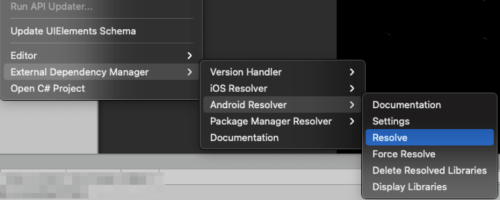
Assets > Mobile Dependency Manager > Android Resolver > Resolve로 이동합니다.
2단계: SDK 초기화
레벨플레이 계정에서 찾을 수 있는 앱 키를 사용하여 Ad Quality를 초기화합니다.
첫 번째 씬의 Awake 메서드에 다음 코드를 추가합니다.
void Awake (){ // Initialize IronSourceAdQuality.Initialize(appKey);}
앱이 광고 임곗값에 도달하면 레벨플레이 플랫폼에서 데이터를 관찰할 수 있습니다.
(선택 사항) 3단계: 사용자 ID 설정
사용자 ID를 Ad Quality에 전달하면 사용자의 광고 활동 파악에 대한 가시성을 높일 수 있습니다.
추가 구성 섹션의 연동 가이드를 따릅니다.