기술 자료

​
​

Development

User Acquisition

Monetization

산업 분야

Unity Cloud

Get Started

Asset Manager SDKs and services

Open Unity Dashboard

Unity Cloud

이 페이지는 선택한 언어로 제공되지 않습니다.
​
​
Unity Dashboard
  • Accounts
  • Organizations
  • Projects
  • Products
  • Billing
Developer Data
  • Introduction to the Developer Data Framework
  • Get started
  • View Diagnostics for your project
  • Privacy and consent
Unity Asset Manager
  • What's new
  • Asset Manager web
    • Get started
    • Manage access and permissions
    • Create projects and collections
    • Add assets
    • Manage assets
    • Collaboration
      • Threads and comments
      • Jira configuration
      • Jira issues
      • Annotation tools
      • Create annotations
      • View Material Override
      • Viewer window
    • Discover assets
    • Transform assets
    • Download assets
    • Trash
  • Asset Store
  • Manage Assets in the Editor
  • Unity Version Control
  • Developer documentation
Unity Pipeline Automation
  • About
  • Get started
  • Pipelines
  • Automations
  • Monitor jobs
  1. Unity Cloud Documentation
  2. Asset Manager
  3. Asset Manager collaboration

Jira integration setup

Configure your organization’s Jira integration so members can create and track Jira issues in Asset Manager web.
읽는 시간 1분
최근 업데이트: 일 년 전

Prerequisites

  • You have the organization Owner role.
  • Your Jira server details.

Set up Jira integration

To set up the Jira integration:
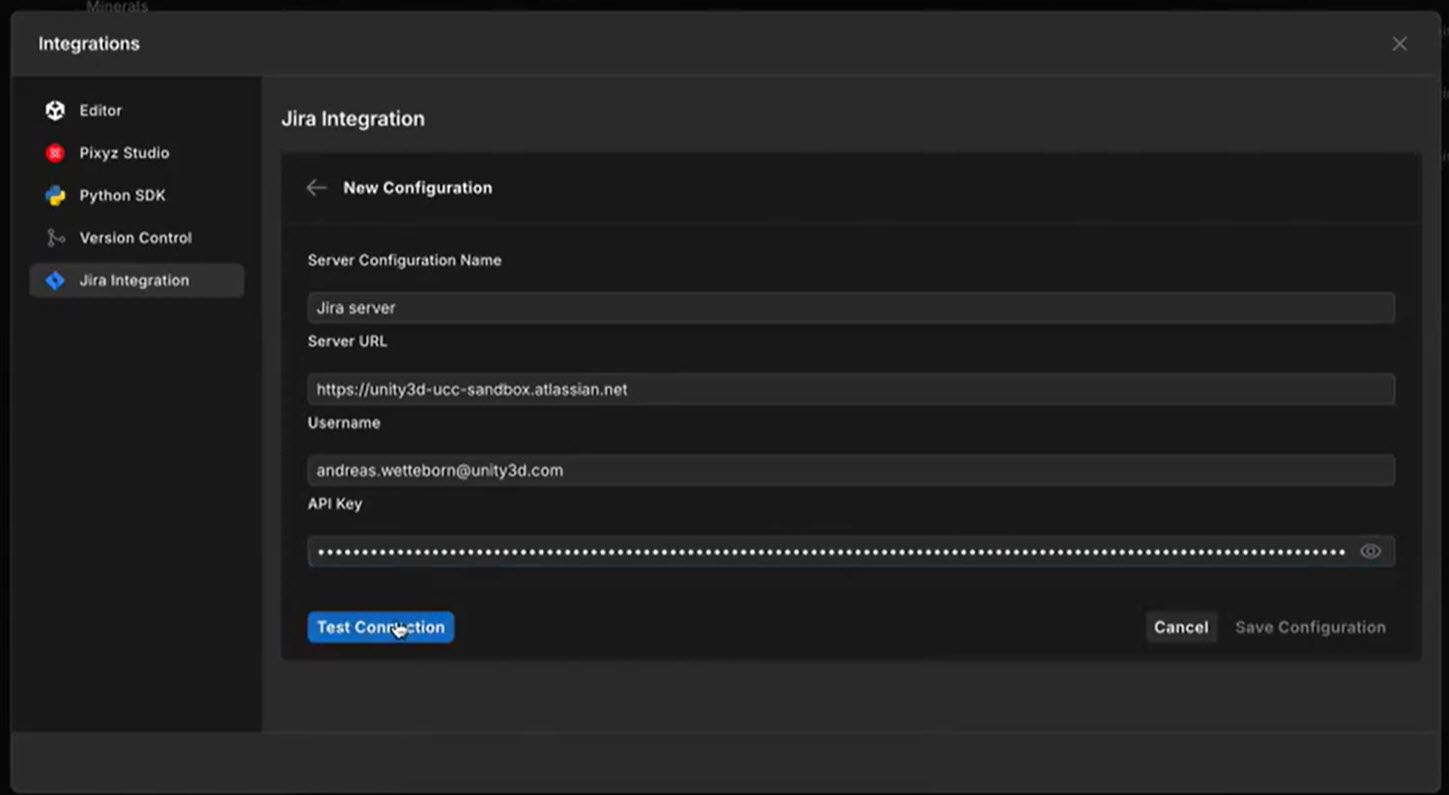
  1. In Asset Manager web, scroll to the bottom of the side panel, and select Integrations > Jira Integration.
  2. Select New configuration.
  3. Enter the required details.
Jira integration configuration window showing fields for Server configuration name, Server URL, Username, and API key.
  1. Select Test connection. If the test succeeds, the Save configuration button is enabled.
  2. Select Save configuration. All projects on your Jira server display in a list.
  3. Enable the projects you want to use in Asset Manager.
  4. Select a default reporter.
  5. (Optional) Select an Asset Manager project to link to your Jira project.
  6. Select Update configuration.
You and your organization members can now create and track issues in the enabled Jira projects.
참고
When you link a specific Asset Manager project to a Jira project, only that Asset Manager project will have access. If you leave it as None, all Asset Manager projects can access the Jira project.

Copyright © 2026 Unity Technologies
법률 정보개인정보 처리방침쿠키Documentation Terms of Use개인 정보 판매 또는 공유 금지개인정보 보호 선택(쿠키 설정)

'Unity', Unity 로고 및 기타 Unity 상표는 미국 및 기타 지역 내 Unity Technologies 또는 그 계열사의 상표 또는 등록상표입니다(자세한 내용은 여기에서 확인하세요). 기타 명칭 또는 브랜드는 해당 소유자의 상표입니다.

일부 페이지는 편의를 위해 기계 번역되었으며 부정확한 내용이 있을 수 있습니다. 정보가 상충되는 경우, 영어 버전을 우선으로 참조하세요.

  • 보고 있는 페이지
    • Prerequisites

    • Set up Jira integration


이 페이지의 문제 보고