기술 자료

​
​

Development

User Acquisition

Monetization

산업 분야

Unity Cloud

Get Started

Asset Manager SDKs and services

Open Unity Dashboard

Unity Cloud

이 페이지는 선택한 언어로 제공되지 않습니다.
​
​
Unity Dashboard
  • Accounts
  • Organizations
  • Projects
  • Products
  • Billing
Developer Data
  • Introduction to the Developer Data Framework
  • Get started
  • View Diagnostics for your project
  • Privacy and consent
Unity Asset Manager
  • What's new
  • Asset Manager web
  • Asset Store
  • Manage Assets in the Editor
  • Unity Version Control
  • Developer documentation
Unity Pipeline Automation
  • About
  • Get started
  • Pipelines
  • Automations
  • Monitor jobs
  1. Unity Cloud Documentation
  2. Unity Pipeline Automation (beta)

Monitor jobs

How to monitor and inspect job progress, output data, and review logs to debug issues
읽는 시간 2분
최근 업데이트: 7달 전

중요
Only organization owners and members with the Automation Viewer role can monitor jobs.
The dashboard lists jobs created by running pipelines in your organization. You can watch active jobs progress through their steps, get the output data from completed jobs, rerun jobs, and check job logs to help debug issues.
팁
If your organization has no pipelines, you can still monitor jobs from built-in pipelines such as the 3D previews created by Asset Manager when you upload a 3D model.

Overview

Monitoring jobs enables you to:
  • Overview
    • View the progress of active and historical jobs
    • Rerun a job
    • View details for a job
    • View logs for each step of a job ##view-job-logs

View the progress of active and historical jobs

팁
If you do not have any jobs then either run a pipeline or upload a 3D model to Asset Manager, which will automatically run pipelines it uses for 3D previews.
  1. Go to the Pipeline Automation service on the Cloud dashboard
  2. Click
    Jobs
    in the navigation
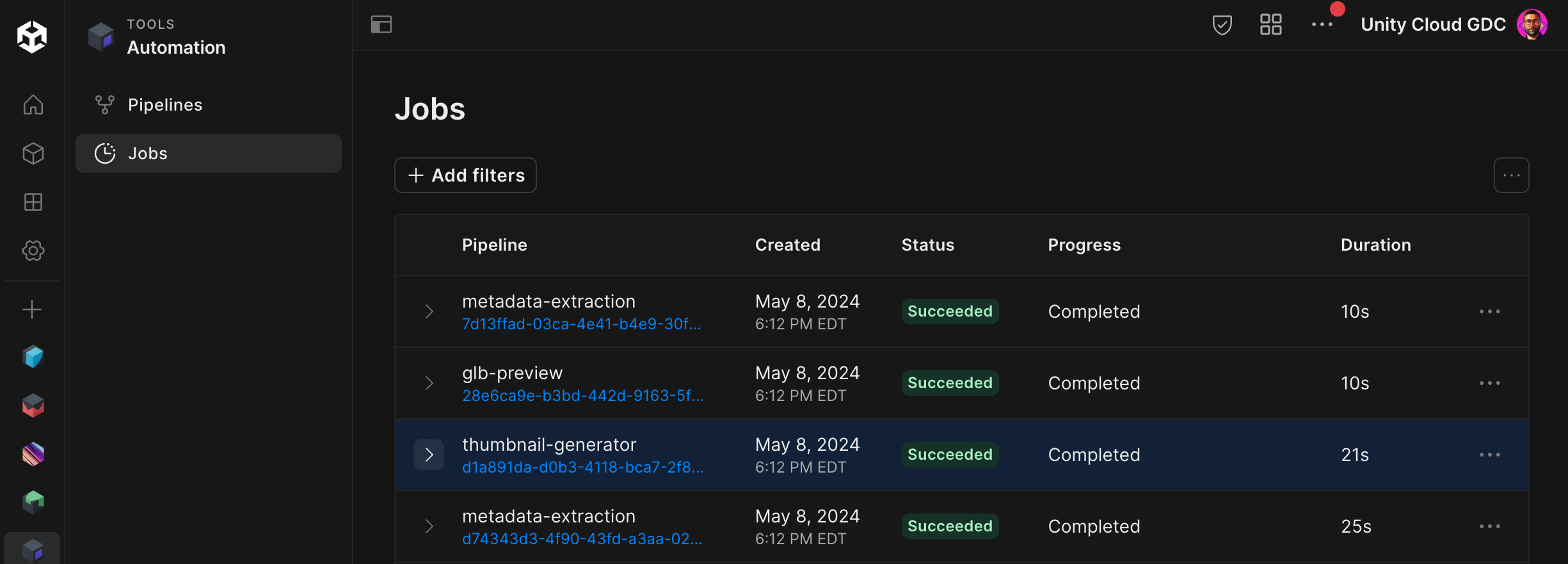
Jobs page
A list of active and historical jobs is displayed.

Rerun a job

중요
Only organization owners or members with the Automation User role can run jobs.
To run a pipeline using the same or similar parameters used on a previous job:
  1. Go to the jobs list
  2. Click the
    ...
    menu on a job you want to run the pipeline for again
  3. Click
    Rerun Job
The modal for running that pipeline will appear with the parameters populated with the previous job's parameters. You can modify the parameters and run it again.

View details for a job

To view a job's status, input parameters, and generated outputs:
  1. Go to the jobs list.
  2. Click a job's ID to open its details page
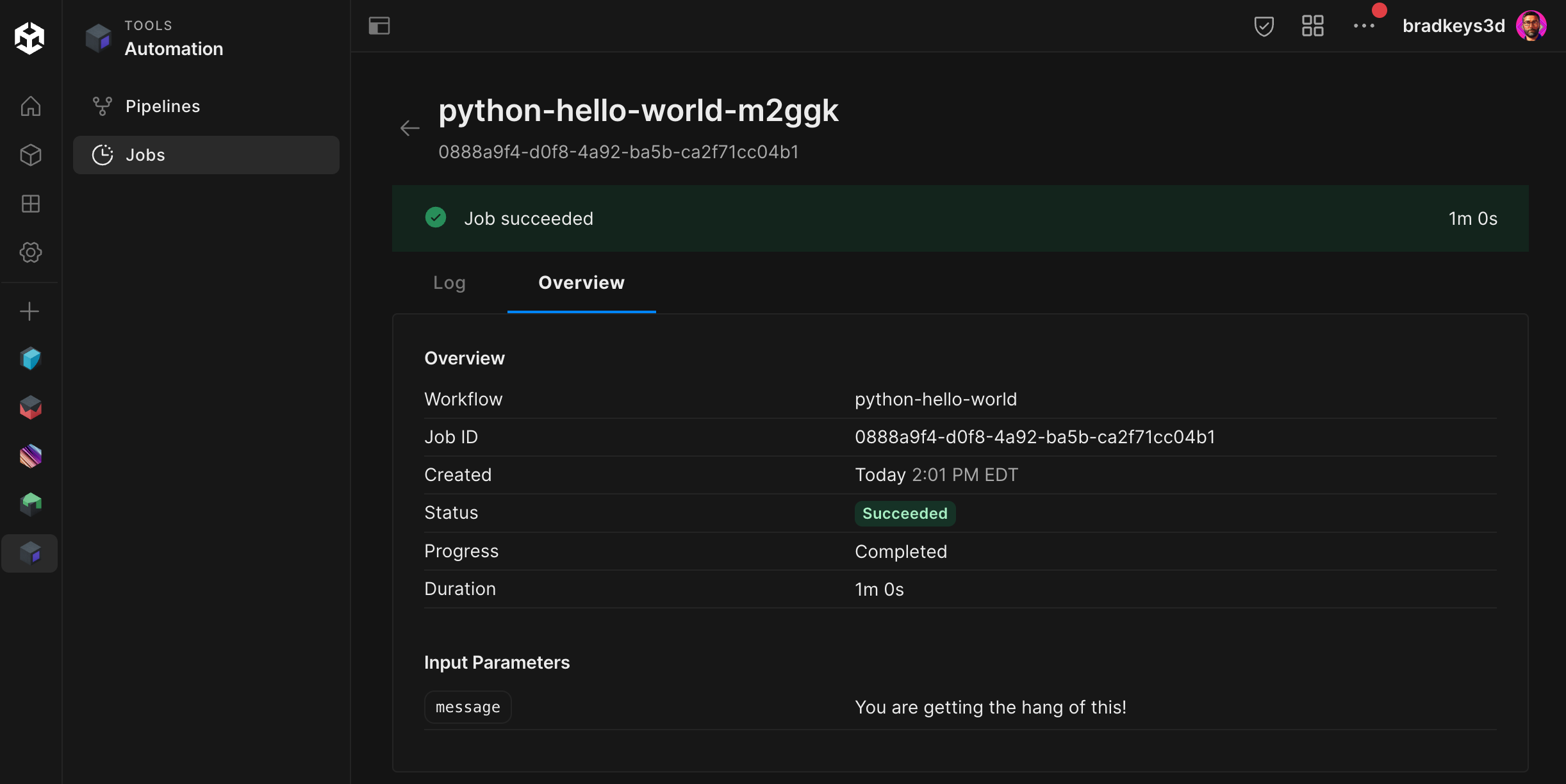
Job details page
You can see the values of the input parameters used to run the pipeline, as well as the outputs it generated. You can also access the Log tab from here.

View logs for each step of a job

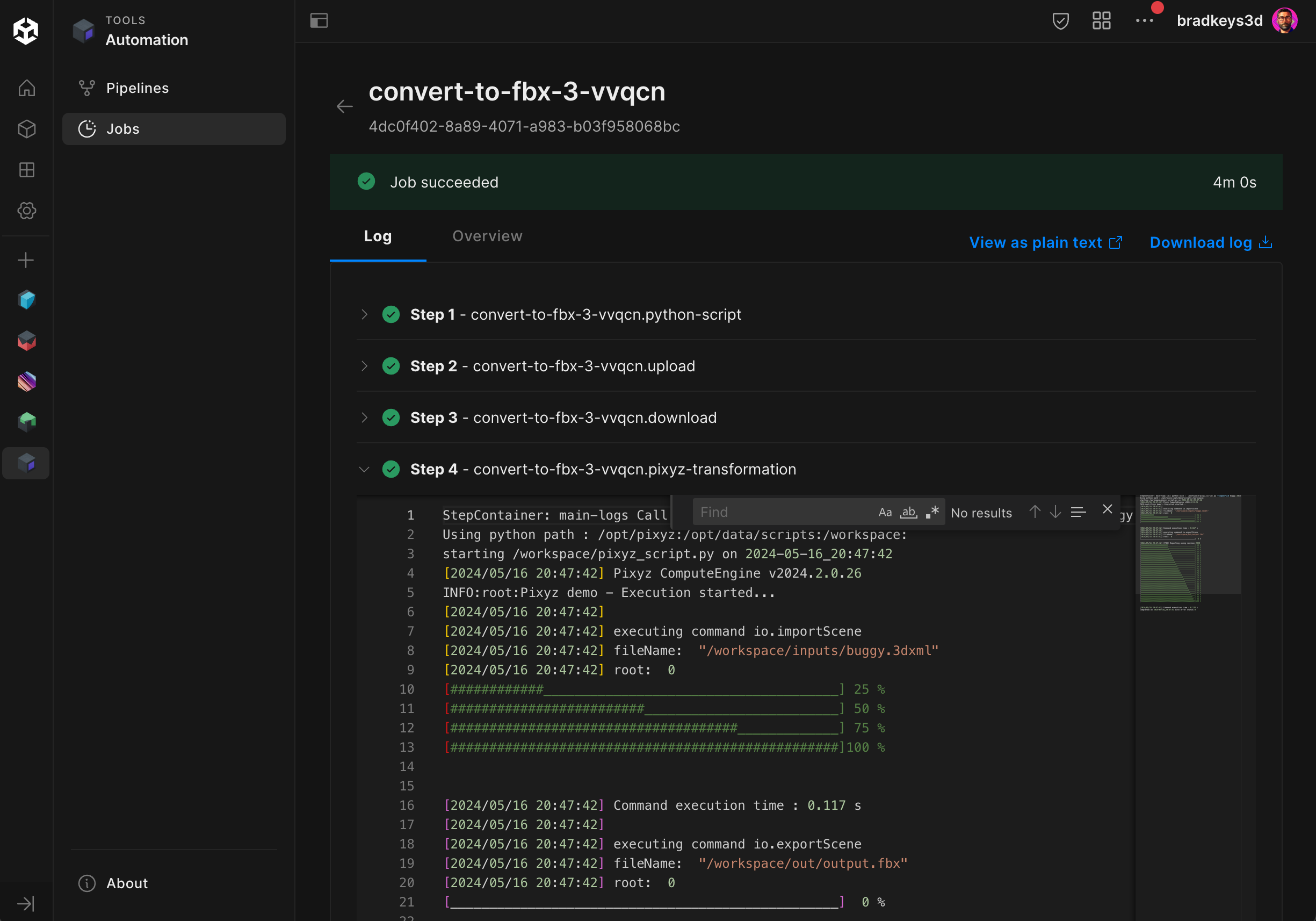
Each step in a job contains logs that may provide helpful information, especially if the job failed. Use the logs to debug issues when creating a pipeline, or to determine why your input data might be invalid for a particular pipeline.
To view job logs:
  1. View details for a job
  2. Click the
    Log
    tab
Job logs page
Each step of the job is listed. You can expand a step to view its detailed logs. You can also download or view the raw combined logs.

Copyright © 2026 Unity Technologies
법률 정보개인정보 처리방침쿠키Documentation Terms of Use개인 정보 판매 또는 공유 금지개인정보 보호 선택(쿠키 설정)

'Unity', Unity 로고 및 기타 Unity 상표는 미국 및 기타 지역 내 Unity Technologies 또는 그 계열사의 상표 또는 등록상표입니다(자세한 내용은 여기에서 확인하세요). 기타 명칭 또는 브랜드는 해당 소유자의 상표입니다.

일부 페이지는 편의를 위해 기계 번역되었으며 부정확한 내용이 있을 수 있습니다. 정보가 상충되는 경우, 영어 버전을 우선으로 참조하세요.

  • 보고 있는 페이지
    • Overview

      • View the progress of active and historical jobs

      • Rerun a job

      • View details for a job

      • View logs for each step of a job


이 페이지의 문제 보고