Run a pipeline
How to run pipelines for asset transformations and other workloads.
읽는 시간 1분최근 업데이트: 15일 전
The dashboard displays your organization's pipelines and enables you to run them.
This is helpful for Automation Developers to debug pipelines, and may also be useful for organization members to manually run certain pipelines.
You can also run pipelines by integrating with our web API.
To run a pipeline:
- Go to Pipeline Automation on the cloud dashboard.
- In the left navigation bar, select Pipelines. The list of your organization's pipelines is displayed here.
- Select a pipeline you want to run. A modal appears.
- Fill in each of the required parameters.
- Select Run.
The modal closes and a toast with a link to the running job appears.
You can now monitor the job to see its progress and debug issues.
Example: run a Pixyz pipeline
For convenience, this example assumes you are storing files on Unity Asset Manager.
Prerequisites
A 3D model in Asset Manager
To provide the parameters required to trigger the pipeline, you will need to reference a 3D asset in Asset Manager.
Here is a sample model that you can use to test with.
A dataset for transformed data
Once your 3D model has been transformed by Pixyz, it is uploaded to a dataset within your asset.
To create a new dataset:
- Edit the asset.
- Select the Dataset tab.
- Select the More (⋮) menu.
- Select Add Dataset.
- Select + Dataset.
- Give it a name and type.
Run your Pixyz pipeline
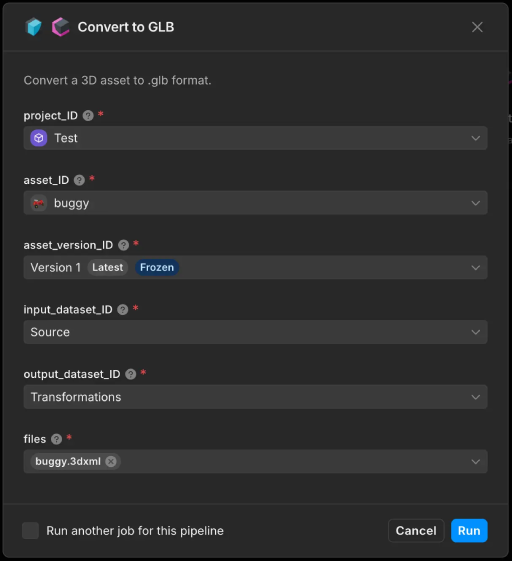
- Go to the Pipelines page.
- Select a Pixyz based pipeline.
- Provide the required Asset Manager parameters.
- Select Run.