シングルリワード広告セットの追加
Tapjoy の User Acquisition (ユーザー獲得) ダッシュボードで、エンゲージメント単価 (CPE) (CPE)キャンペーンのシングルリワード広告セットを作成および設定します。
読み終わるまでの所要時間 7 分最終更新 8日前
エンゲージメント単価 (CPE) キャンペーンを作成 した後は、配信する広告セットを追加します。作成する各広告セットは、Offerwall 上に表示される特定のオファーに対応します。
広告セットやシングルリワードの詳細については、「CPE キャンペーンの概要」ドキュメントの 広告セット セクションと ゲーム内報酬のタイプ セクションを参照してください。
CPE キャンペーンの詳細については、CPE キャンペーンの概要 を参照してください。
新しい広告セットを CPE キャンペーンに加えるには、既存の広告セットをクローンして設定をコピーし、必要に応じて変更することもできます。広告セットをクローンしても、新しい広告セットが自動で有効になることはありません。新しい広告セットを有効にする前に、Offerwall チームによる審査が必要です。
前提条件
広告セットを加える前に、以下の条件を満たしていることを確認してください。
- 広告セットに入れる要素を決定すること。広告セットのプランニングについてヘルプが必要な場合は、担当のアカウントマネージャーにお問い合わせください。
- 特定の要件を満たすオファー手順を準備します。詳細については、CPE オファー テキスト要件に関する説明を参照してください。
- アプリケーション エンゲージメントを追加します。
- アプリのエンゲージメントを MMP と統合していること。
- CPE キャンペーンを作成していること。
キャンペーンへの広告セットの追加
既存のキャンペーンに広告セットを加えるには、Tapjoy の User Acquisition (ユーザー獲得) ダッシュボード で、以下のステップを実行します。
- 左側のメニューから Campaigns (キャンペーン) を選択し、広告セットを加える CPE キャンペーンを探します。
- + Add New Ad Set (+ 新しい広告セットを追加) を選択します。
広告セットのメタデータの入力
広告セットのメタデータは、整理、管理、追跡がしやすいように、わかりやすい値を定義してください。
広告セットのメタデータを入力するには、以下のステップに従います。
- ダッシュボードで広告セットを識別するために、Ad Set Name (広告セット名) を定義します。
- デフォルトの Name Suffix (名前サフィックス) は "CPE" のままにしてください。このデフォルトのサフィックスは、Tapjoy Offerwall チームが CPE キャンペーンの管理に使用しているため、推奨されるベストプラクティスです。
バジェットの設定
入札額はいつでも調整できます。詳細については、CPE 入札管理 を参照してください。
広告セットのバジェットを設定するには、以下の手順を実行します。
- Reward Type (報酬タイプ) として Single reward (シングルリワード) を選択します。
- ROAS 目標 を設定するには、ドロップダウンから最適化期間を選択して、パーセンテージを入力します。
例えば、D3 ROAS 目標 が 90% の場合、ユーザーがアプリをインストールしてから 3 日後に広告費回収率 (ROAS) で 90% のリターンが得られることを想定しています。 - オファーを表示するパブリッシャーアプリごとに異なる入札額を設定したい場合は、Per App Bid (Per-App 入札) トグルをオンにします。
- Per App Bid (Per-App 入札) トグルをオンにした場合は、ステップ 5 に進みます。それ以外の場合は、入札 金額を入力します。
- Per App Bid (Per-App 入札) トグルをオンにすると、各パブリッシャーアプリのイベント入札額を手動または CSV ファイルで設定できます。
Find & Add Apps (アプリの検索と追加) ボタンを使ってパブリッシャーアプリを加え、Default (デフォルト) を含む各パブリッシャーの Bid (入札額) 列に金額を入力します。
デフォルト入札額は、リストに含まれていないパブリッシャーアプリに適用されます。以下の例では、Default が 5 ドル、MyTapjoy が 10 ドルに設定されています。この設定では、ユーザーが MyTapjoy でイベントに遭遇し、そのイベントを完了した場合、10 ドルを支払うことになります。リストに含まれていない他のすべてのパブリッシャーアプリについては、5 ドルを支払います。

- Daily Budget (日予算) フィールドに、キャンペーンが 1 日に消費できる金額を入力します。
- Lifetime Budget (ライフタイムバジェット) フィールドに、キャンペーン全体で消費できる総額を入力します。
- Lifetime Conversion Cap (ライフタイムコンバージョン上限) フィールドに、この広告セットでユーザーがイベントを完了できる最大回数を入力します。
ターゲティングの設定
デバイスおよびユーザーのターゲティング設定を行い、オファーが適切なオーディエンスにモバイルデバイス上で表示されるようにします。
デバイスターゲティングの設定
デバイスターゲティングを設定するには、以下のステップに従います。
- 広告セットのターゲットとする Device Type (デバイスタイプ) を選択します。
- 広告セットのターゲットとする OS Versions (OS バージョン) を選択します。
- Wi-Fi 接続のデバイスのみに広告セットを表示する場合は、Wi-Fi Only (Wi-Fi のみ) トグルをオンにします。
- 特定のモデルの Android デバイスをターゲットにする場合は、Show Advanced (高度な設定を表示) を選択します。Device Model (デバイスモデル) ドロップダウンリストから、Selected by Model Name (モデル名で選択) を選択し、希望するモデルを指定します。
ユーザーターゲティングの設定
ユーザーターゲティングを設定するには、以下のステップに従います。
-
広告セットを表示するユーザーの Location (地域) を選択します。
-
Location (地域) オプションで All Available Regions (すべての利用可能な地域) 以外を選択した場合は、選択したオプションに応じたステップに従います。それ以外の場合は、ステップ 3 へ進みます。国や地域を選択または入力します。
-
アプリストアでのアプリのレーティングに一致する Age Rating (年齢レーティング) を選択します。
-
Language (言語) を選択すると、選択した言語がデバイスの優先言語と一致するユーザーのみにオファーが表示されます。
トラッキングの設定
Offerwall や MMP がユーザーのアクションを正しく記録してアトリビュートできるように、広告セットのクリック数を追跡する方法を設定します。トラッキングを設定するには、以下のステップに従います。
-
Attribution Tracking Link (アトリビューショントラッキングリンク) の横で、以下のいずれかを行います。
- 広告セットが MMP に統合されている場合は、Client-side Click (クライアント側クリック) を選択します。
- 広告セットが MMP に統合されていない場合、または SDK を使用してアトリビューションデータを直接 Offerwall に送信している場合は、None (なし) を選択します。
-
Client-side Click (クライアント側クリック) を選択した場合は、以下のステップに従って、Override Destination URL (オーバーライド先 URL) に入力してください。
- MMP のダッシュボードから、アトリビューショントラッキングリンクを探してコピーします。すべての MMP には、このリンクに必要なパラメーターとクリック数の追跡に必要な Offerwall クリックマクロがあらかじめ設定されています。統合およびアトリビューション URL の詳細については、お使いの MMP のドキュメントを参照してください。
- Override Destination (オーバーライド先) テキストボックスを選択して、Third Party Attribution (TPAT) Editor (サードパーティアトリビューション (TPAT) エディター) ダイアログを開きます。
- リンクを貼り付けます。Save (保存) を選択する前に、必要な修正がある場合はダイアログに表示されます。
-
任意: Attribution Window (アトリビューションウィンドウ) を日数で入力します。
Offerwall クリエイティブの設定
ユーザーがオファー内容と報酬を獲得するために完了すべき具体的なイベントを理解できるよう、分かりやすい見た目と指示でクリエイティブを設定します。
Offerwall クリエイティブを設定するには、+ Add Creative (+ クリエイティブを追加) を選択して Add Offerwall Creative (Offerwall クリエイティブの追加) ダイアログを開き、本セクションに記載されている手順に従ってください。
クリエイティブの基本情報の入力
Basic (基本) セクションで、以下の操作を行います。
- この広告セットの指示を区別するために、クリエイティブに Name (名前) を付けます。この名前は内部でのみ表示されます。
- クリエイティブのテキストコンテンツをユーザーに表示する言語として、Language (言語) を選択します。
Offerwall でのオファーの表示設定
Offer List (オファーリスト) セクションで、オファーの表示方法を設定します。
以下の例は、Tapjoy アプリとそれに対応する オファーリスト が Offerwall 上でどのように表示されるかを示しています。
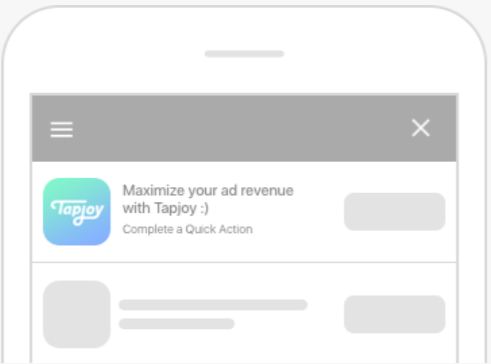
オファーの表示を設定するには、以下のステップに従います。
-
Offerwall に表示される アプリアイコン を設定するには、以下のいずれかのオプションを選択します。
- Use Default App Icon (デフォルトのアプリアイコンを使用): Tapjoy は Apple Store や Google Play ストアに表示されているアプリアイコンを使用します。
- Override App Icon (アプリアイコンをオーバーライド): Tapjoy は Apple Store や Google Play ストアに表示されるアイコンの代わりに、アップロードした画像を使用します。
-
Headline (見出し) フィールドにオファーのタイトルを入力します。
-
PlayTab などのおすすめモジュールでのオファーの視認性を高めるために、ランドスケープ形式の ヒーロー画像 をアップロードします。
-
任意: Offerwall でアプリのゲームプレイのアニメーション GIF を表示します。GIF を加えるには、以下のステップに従います。
- Hide Advanced (高度な設定を非表示) を選択します。
- Animated GIF App Icon (アニメーション GIF アプリアイコン) トグルをオンにします。
- UI で指定された要件を満たす 2 つの GIF をアップロードします。
オファー指示の設定
Offer Instruction (オファー指示) セクションでは、ユーザーにオファーで完了すべきアクションを正確に伝える指示を記述します。
右側のパネルで、ユーザーに表示されるのとまったく同じ形式で指示内容をプレビューできます。
オファーの指示を設定するには、以下の Instruction Type (指示タイプ) オプションのいずれかを選択し、テキストボックスに内容を入力してください。
指示タイプ | 説明 | 画像サイズ | 動画サイズ | 動画の長さ |
|---|---|---|---|---|
| Text only | (テキストのみ)オファーに表示するテキスト指示のみ。 | |||
| Gallery | (ギャラリー)テキスト指示に加え、最大 4 枚の異なる画像を表示。 | 750x750 ピクセル | ||
| Video | (動画)テキスト指示に加え、動画を表示。動画は .mp4 ファイルである必要があります。任意で画像をアップロードすることもできます。 | 750x422 ピクセル | 100 MB | 最大 15 秒 |
オファーの指示を設定したら、Save (保存) を選択して、そのクリエイティブを Offerwall Creative (Offerwall クリエイティブ) セクションのリストに加えます。
トラフィックの分割の指定
Traffic Split (A/B Testing) (トラフィック配分 (A/B テスト)) 列ヘッダーの下に、各クリエイティブが表示されるユーザーの割合 (%) を入力します。
メモの追加
自分のチームと Tapjoy Offerwall チームのみが閲覧できる追加情報を指定できます。
Tapjoy Offerwall チームが広告セットをより効率的に審査できるように、MMP 統合内のアプリやイベント設定に関連するスクリーンショットを最大 5 枚までアップロードしてください。これらの画像は、Tapjoy Offerwall チームが広告セットの審査を効率的に進めるのに役立ちます。
Offerwall の内部審査チームに追加情報を伝える必要がある場合は、Note (メモ) テキストボックスにその情報を入力できます。記載できる内容には、以下のようなものがあります。
- オファーの表示先を制御するためのパブリッシャーアプリの許可リストとブロックリスト。同じリストを使用している有効な広告セットの ID または名前を入力するか、特定のパブリッシャーアプリのアプリ ID またはバンドル ID を入力できます。
- クリックからコンバージョンまでの最小または最大時間 (CTCT)。
- 内部テストをスピードアップするための、ユーザーが最初のイベントを完了するまでの想定時間。
Add internal notes (内部メモの追加) セクションの入力が完了したら、Save All (すべて保存) を選択してください。
保存すると設定は完了し、Tapjoy Offerwall チームが広告セットを審査して承認します。通常、承認結果は 1 営業日以内に E メールで届きます。審査が 3 営業日を超える場合は、担当のアカウントマネージャーにお問い合わせください。
また、広告セットの審査状況は、以下の画像のように、User Acquisition (ユーザー獲得) ダッシュボードのキャンペーン一覧から確認することもできます。
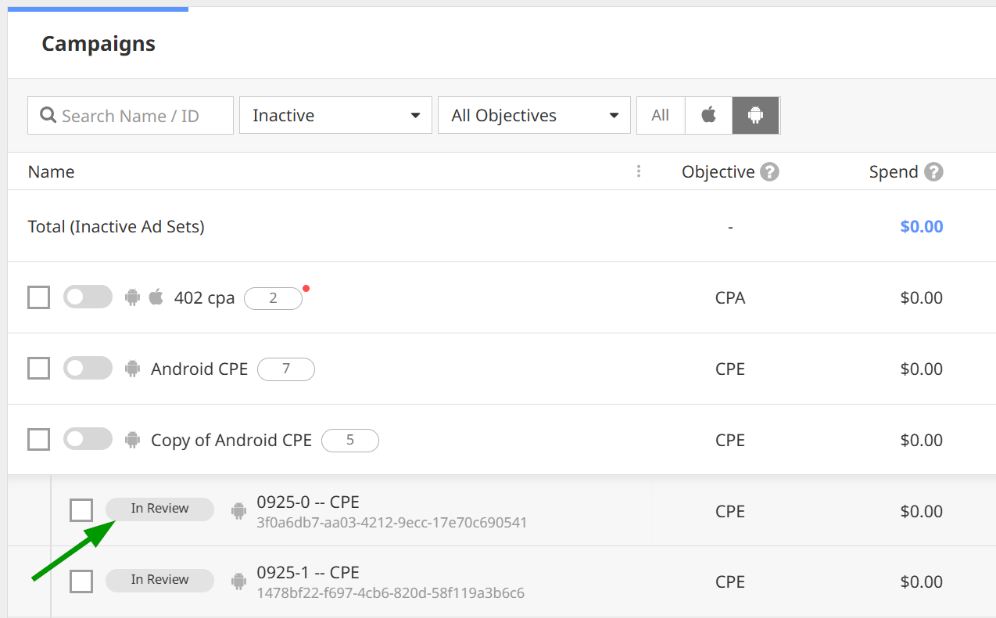
CPE キャンペーンと広告セットの承認を確認する E メールを受け取った後は、CPE キャンペーンと広告セットを有効化 してください。