ドキュメント

​
​

Development

User Acquisition

Monetization

産業

Unity Cloud

Get Started

Asset Manager SDKs and services

Open Unity Dashboard

Unity Cloud

このページは選択した言語では使用できません。
​
​
Unity Dashboard
  • Accounts
  • Organizations
  • Projects
  • Products
  • Billing
Developer Data
  • Introduction to the Developer Data Framework
  • Get started
  • View Diagnostics for your project
  • Privacy and consent
Unity Asset Manager
  • What's new
  • Asset Manager web
    • Get started
    • Manage access and permissions
    • Create projects and collections
    • Add assets
    • Manage assets
    • Collaboration
      • Threads and comments
      • Jira configuration
      • Jira issues
      • Annotation tools
      • Create annotations
      • View Material Override
      • Viewer window
    • Discover assets
    • Transform assets
    • Download assets
    • Trash
  • Asset Store
  • Manage Assets in the Editor
  • Unity Version Control
  • Developer documentation
Unity Pipeline Automation
  • About
  • Get started
  • Pipelines
  • Automations
  • Monitor jobs
  1. Unity Cloud Documentation
  2. Asset Manager
  3. Asset Manager collaboration

Jira integration setup

Configure your organization’s Jira integration so members can create and track Jira issues in Asset Manager web.
読み終わるまでの所要時間 1 分
最終更新 1年前

Prerequisites

  • You have the organization Owner role.
  • Your Jira server details.

Set up Jira integration

To set up the Jira integration:
  1. In Asset Manager web, scroll to the bottom of the side panel, and select Integrations > Jira Integration.
  2. Select New configuration.
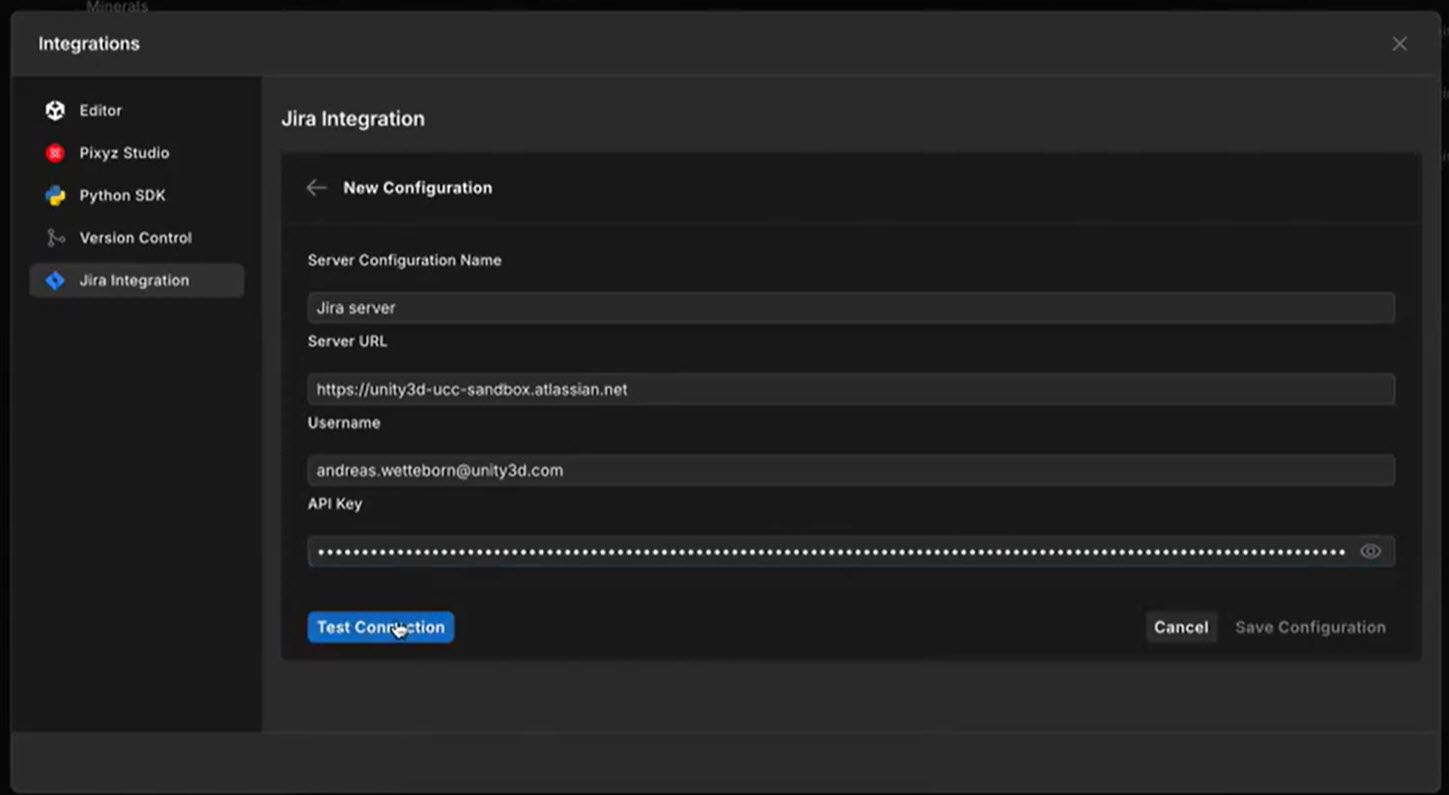
  3. Enter the required details.
Jira integration configuration window showing fields for Server configuration name, Server URL, Username, and API key.
  1. Select Test connection. If the test succeeds, the Save configuration button is enabled.
  2. Select Save configuration. All projects on your Jira server display in a list.
  3. Enable the projects you want to use in Asset Manager.
  4. Select a default reporter.
  5. (Optional) Select an Asset Manager project to link to your Jira project.
  6. Select Update configuration.
You and your organization members can now create and track issues in the enabled Jira projects.
注
When you link a specific Asset Manager project to a Jira project, only that Asset Manager project will have access. If you leave it as None, all Asset Manager projects can access the Jira project.

Copyright © 2026 Unity Technologies
法規事項プライバシーポリシークッキーDocumentation Terms of Use私の個人情報を販売または共有しないプライバシーに関する選択 (クッキー設定)

"Unity" の名称、Unity のロゴ、およびその他の Unity の商標は、米国およびその他の国における Unity Technologies またはその関係会社の商標または登録商標です (詳しくはこちら)。その他の名称またはブランドは該当する所有者の商標です。

一部のページは利便性向上のため機械翻訳を使用しており、内容に不正確な表現が含まれる場合があります。内容に齟齬または不一致が生じた場合は、英語版を正本とします。

  • このページ
    • Prerequisites

    • Set up Jira integration


このページの問題を報告する