Get started
How to access the Unity Pipeline Automation product on the Unity Dashboard.
読み終わるまでの所要時間 1 分最終更新 1ヶ月前
To get started with Pipeline Automation:
1. Add the Pipeline Automation shortcut
You can add a Unity Pipeline Automation shortcut to your dashboard.
Go to the Unity Dashboard and follow the steps below:
Go to the Unity Dashboard and follow the steps below:
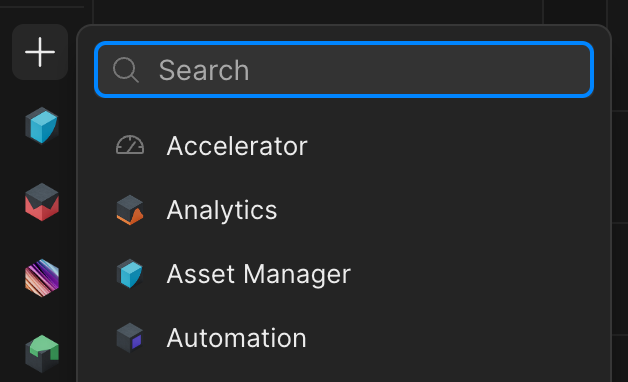
- Select the + shortcut button in the left navigation bar.
- Select Pipeline Automation from the list.
The Pipeline Automation logo now appears on your dashboard.
2. Assign Automation roles
The two roles in the Pipeline Automation service that you can assign to service accounts to grant different levels of access are:
- Automation Developer
- Automation User
You can assign the Automation Developer role to members of your organization to enable them to create pipelines and automations. To assign organization-level roles, follow these steps.
The following roles are listed under :
AutomationPermission | Automation Developer, Organization Owner/Manager | Automation User (service accounts), Organization User | Organization Guest |
|---|---|---|---|
| Create, edit, delete pipelines and automations | Yes | No | No |
| Run pipelines | Yes | Yes | No |
| View pipelines and jobs | Yes | Yes | No |