Mintegral integration
Integrate Mintegral as an ad network in your Flutter application using the Unity LevelPlay mediation platform, including account setup, ad unit creation, and SDK integration.
Read time 1 minuteLast updated 7 months ago
This guide will instruct you step-by-step on how to set Mintegral live as an Ad Network on the Unity LevelPlay Mediation platform.
For the Mintegral network, the auto setup tool is available to use after you complete step 1. The auto setup tool will create an application and bidder placement and pull placement details from Mintegral—so you don’t need to switch between the LevelPlay and Mintegral platforms. Alternatively, you can complete the whole setup manually.
Prerequisites
Ensure that you correctly integrate Rewarded ads, Interstitial ads, or Banner ads into your application. Refer to the following platform-specific guides for integration instructions:
Step 1. Create a Mintegral Account
- Create an account with Mintegral. You can do so here.
- After your account has been verified, you can login at their partner login here.
Step 2. Create an Application in Mintegral
If this is your first time setting up a Mintegral account, continue below.
- Login
- When you log in for the first time, select ‘APP Setting’
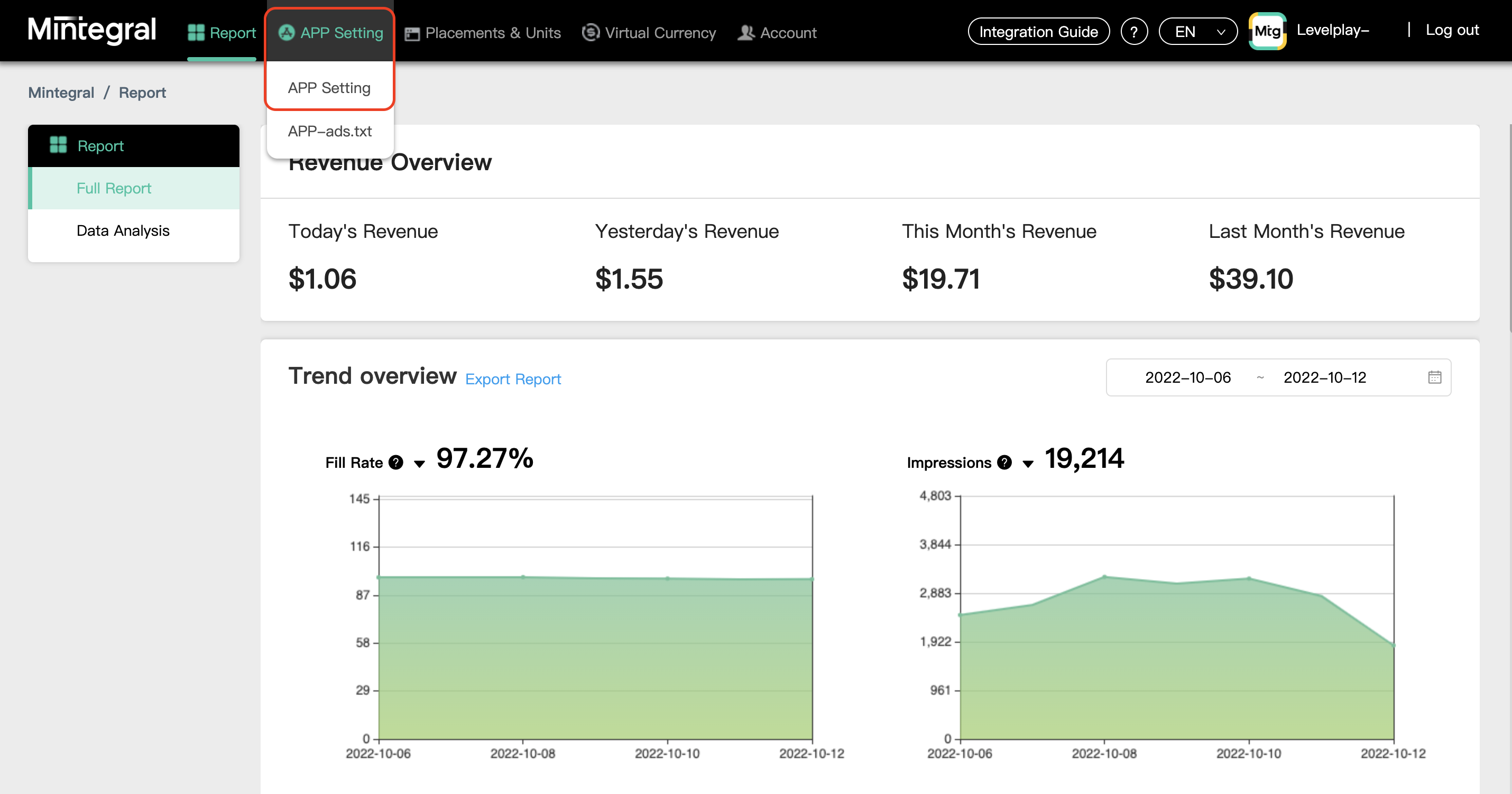
- When you log in for the first time, select ‘APP Setting’
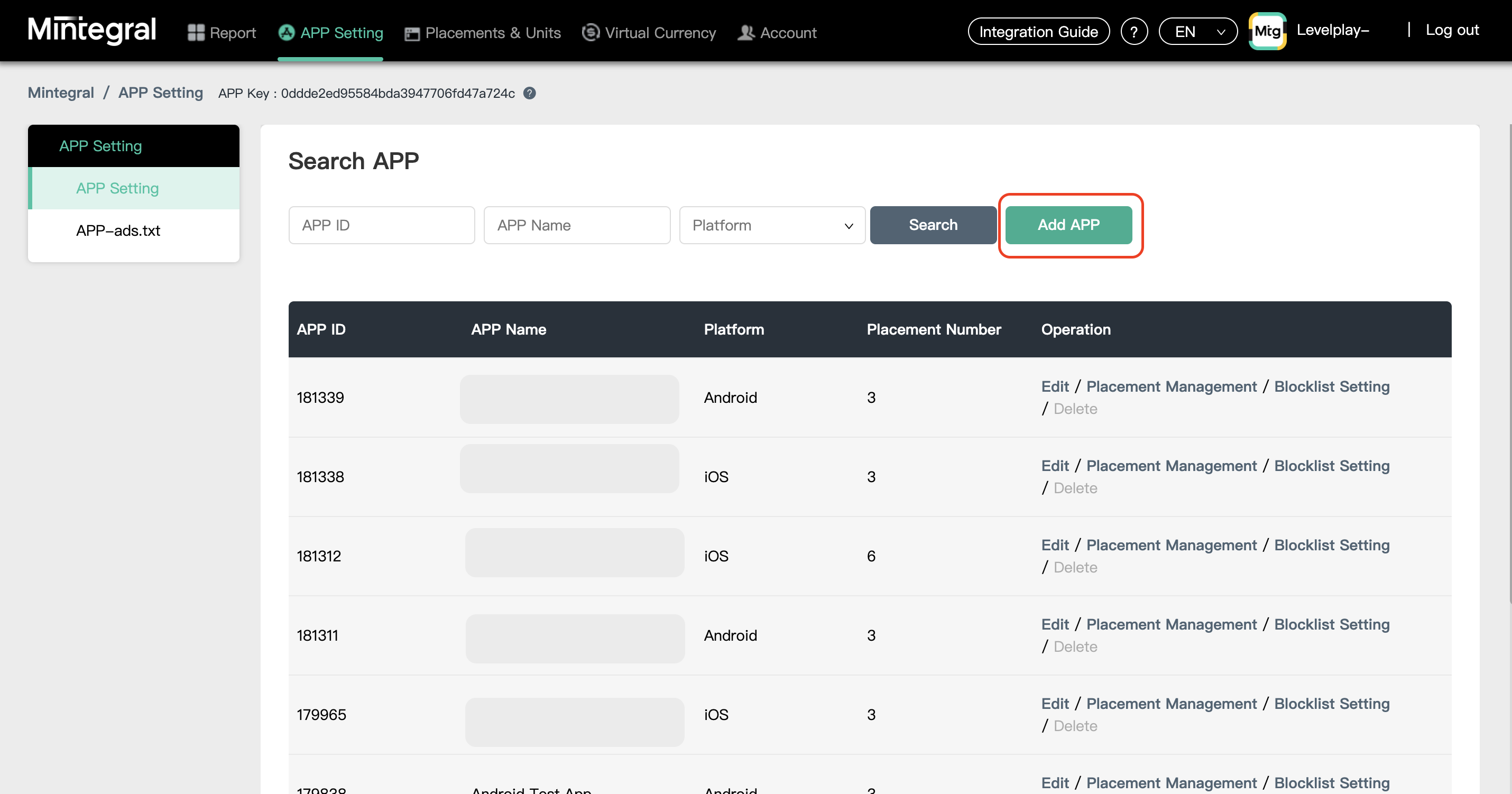
- Add Your App
-
Upon clicking '+ Add APP', a setup module will appear, Configure your app settings (Choose Ironsource as mediation platform). You will need a unique Mintegral application per platform (iOS + Android) just like you do with your LevelPlay account.
-
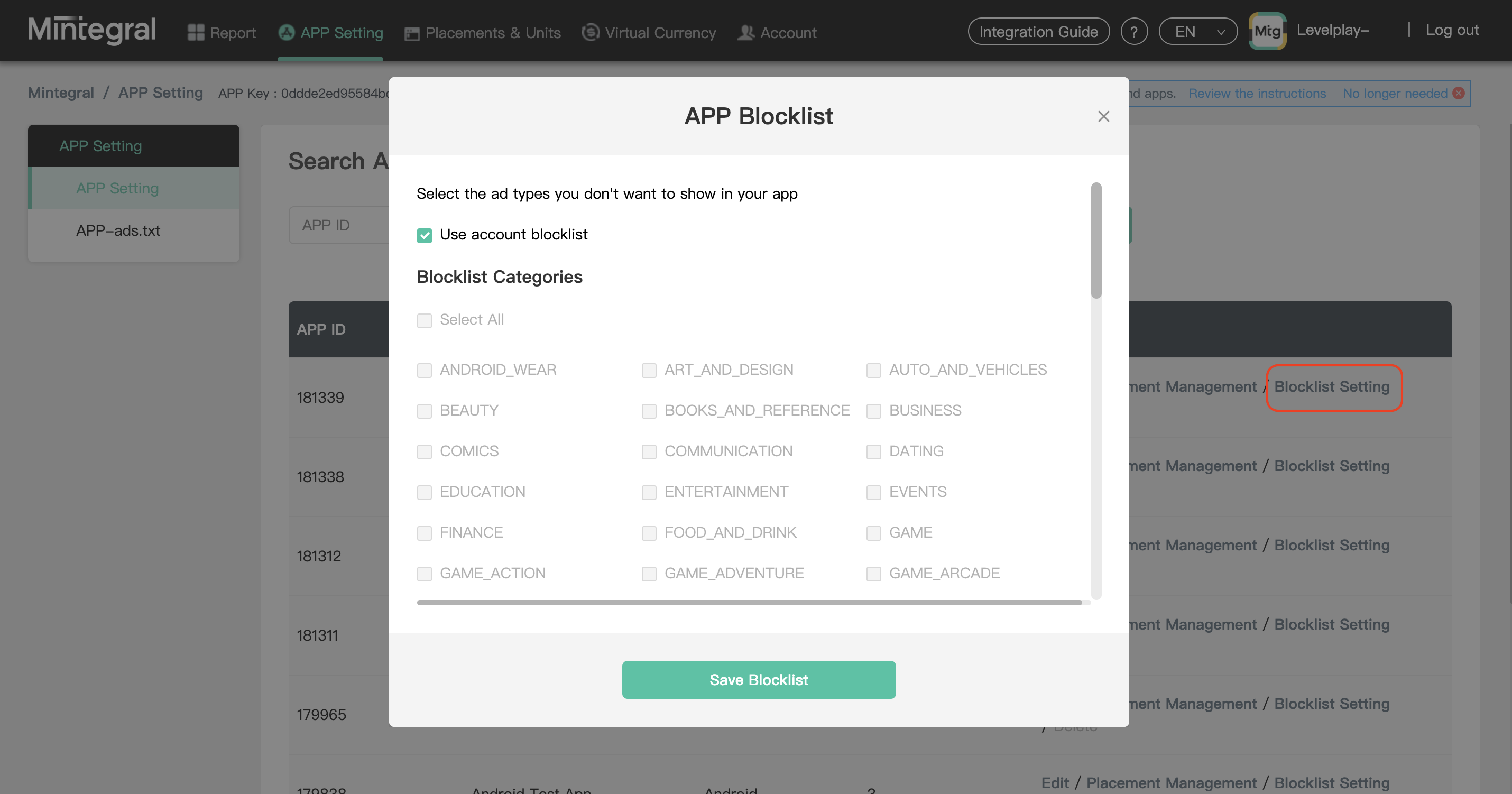
After you defined the settings, you can choose to check the ad types you DO NOT wish to be delivered to your application.
-
- Add placements
-
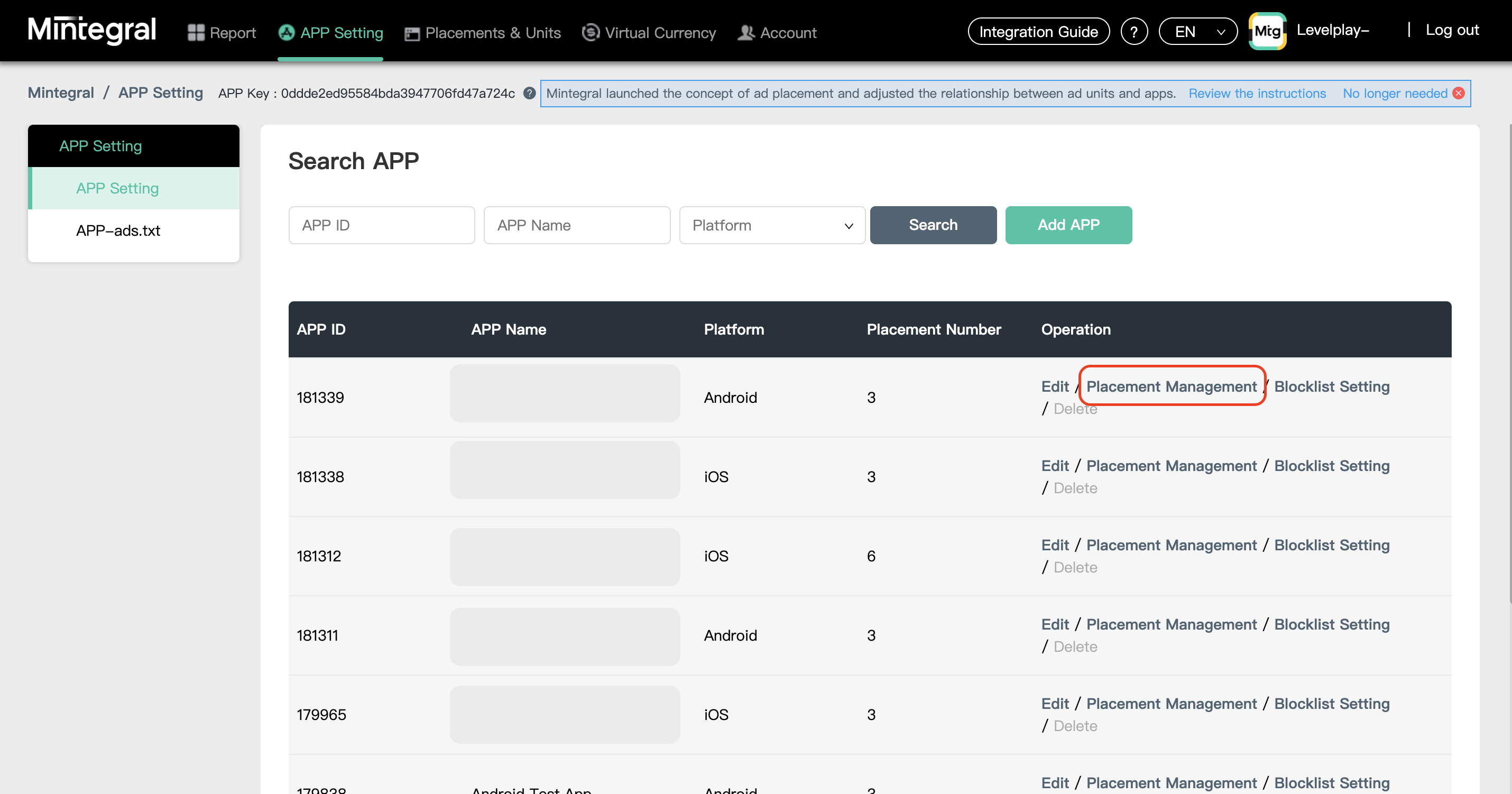
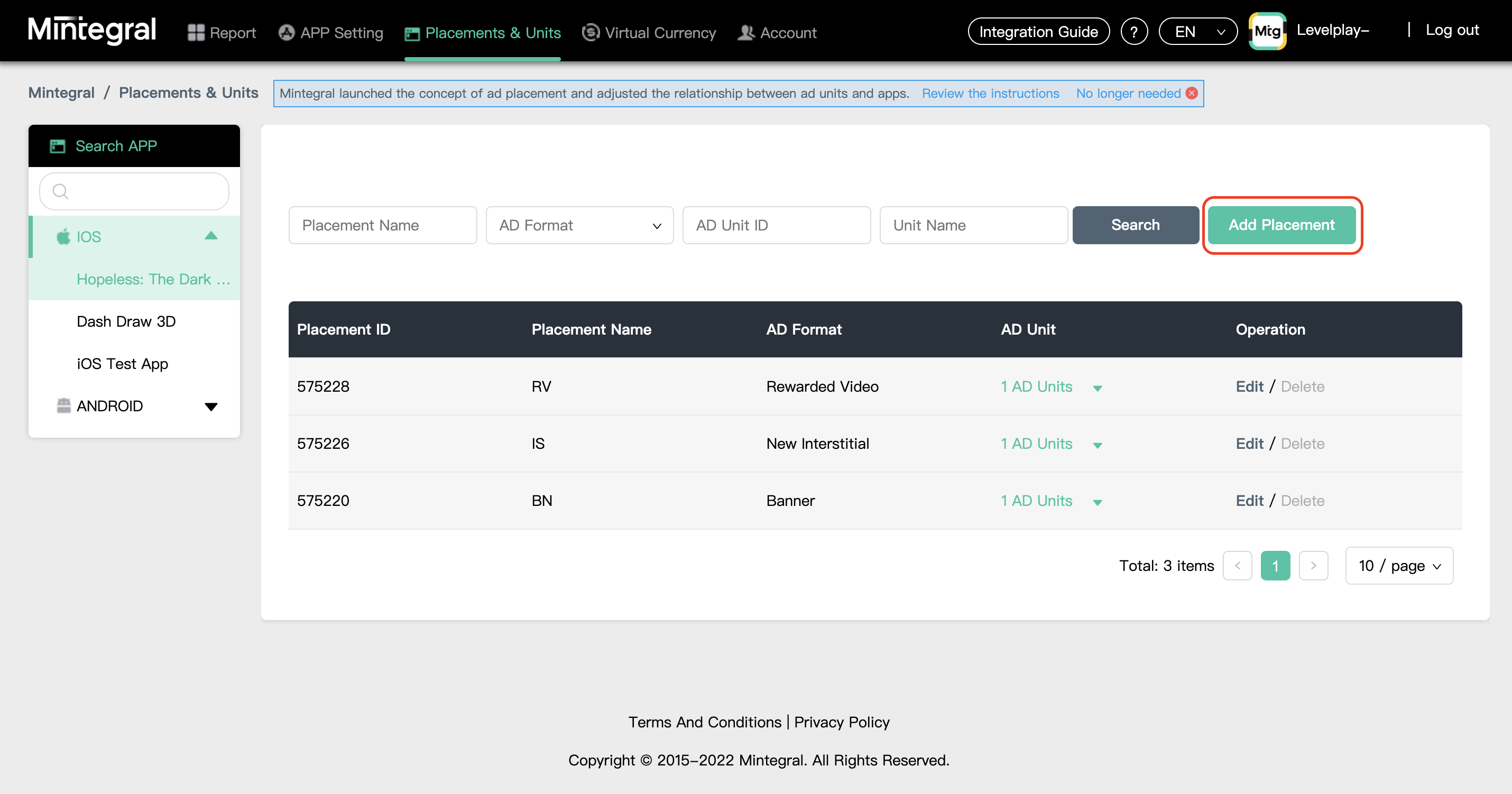
After you defined the Applications settings, select the relevant Apps through dashboard and select Placement Management.
-
Select Add Placement.
-
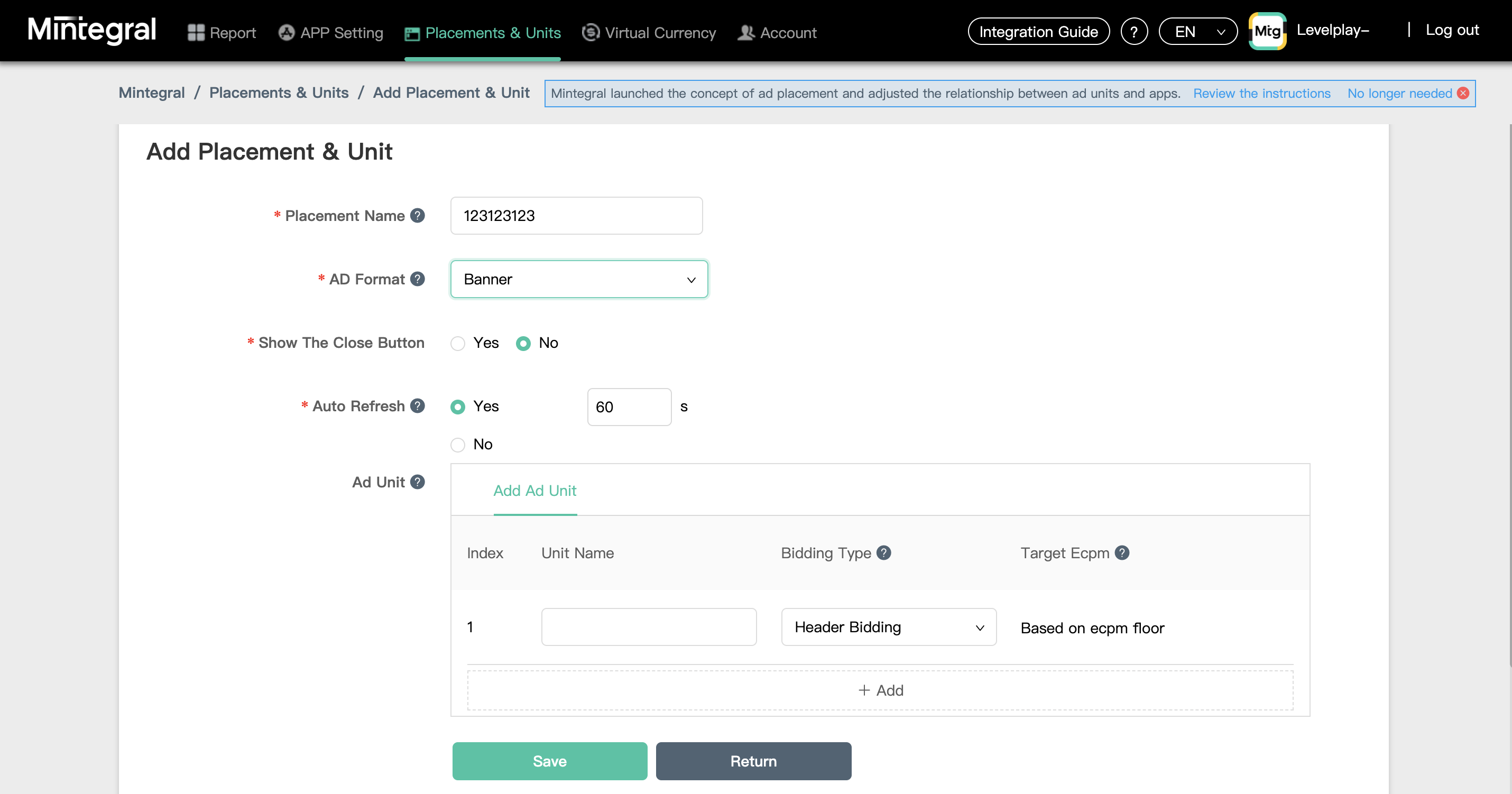
Mintegral adapters can serve Rewarded ads, Interstitial and Banner. Choose the 'AD format' according to your needs. For Banner, It is highly recommended to set the Auto Refresh value for No, since you can control the refresh rate on the mediation platform.
-
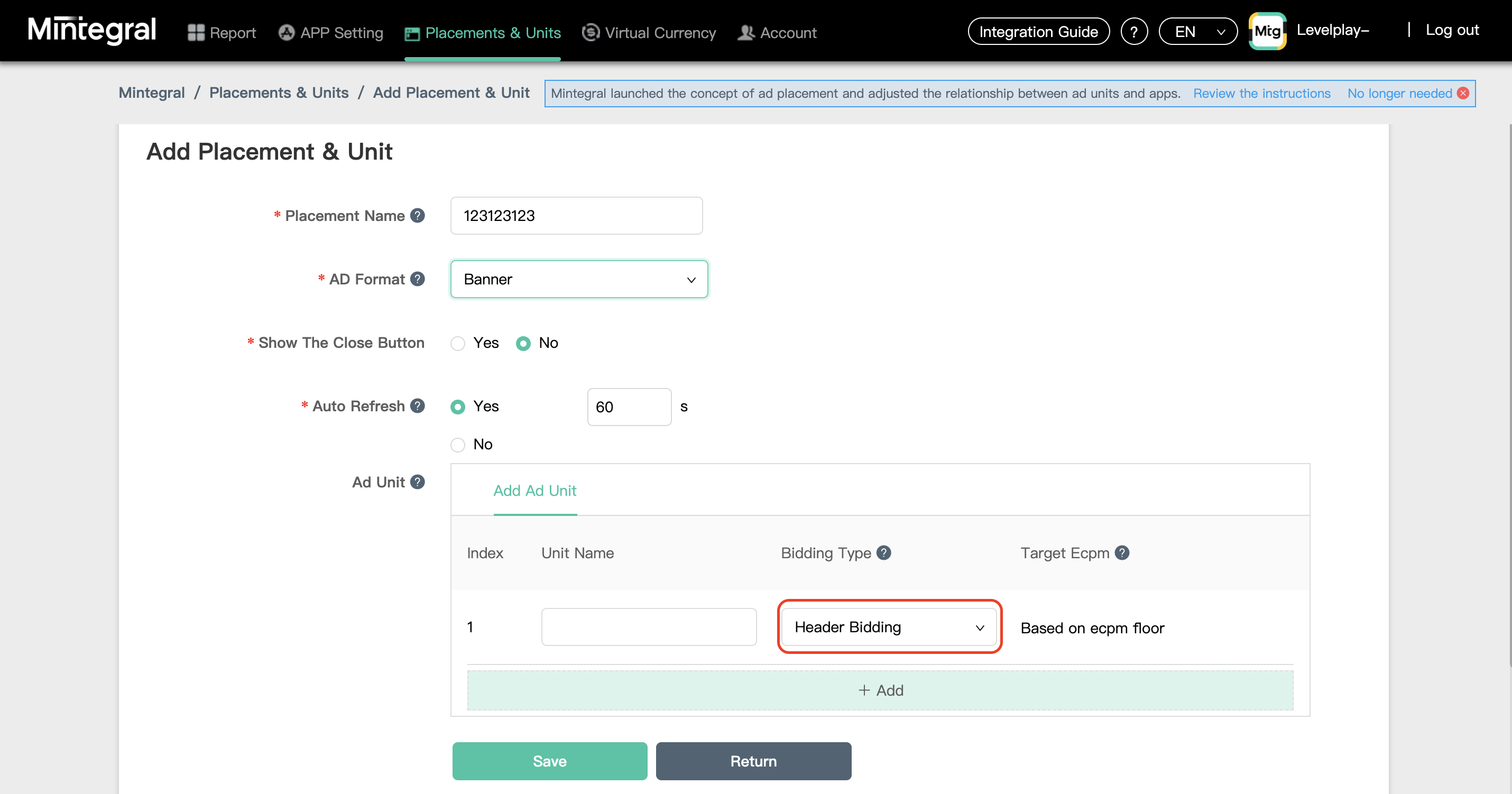
Define your ad unit. As Mintegral network is a bidder only, you must choose 'Header Bidding' as the Bidding Type.
-
Step 3. Activate Mintegral in Your LevelPlay Network Setup Module
-
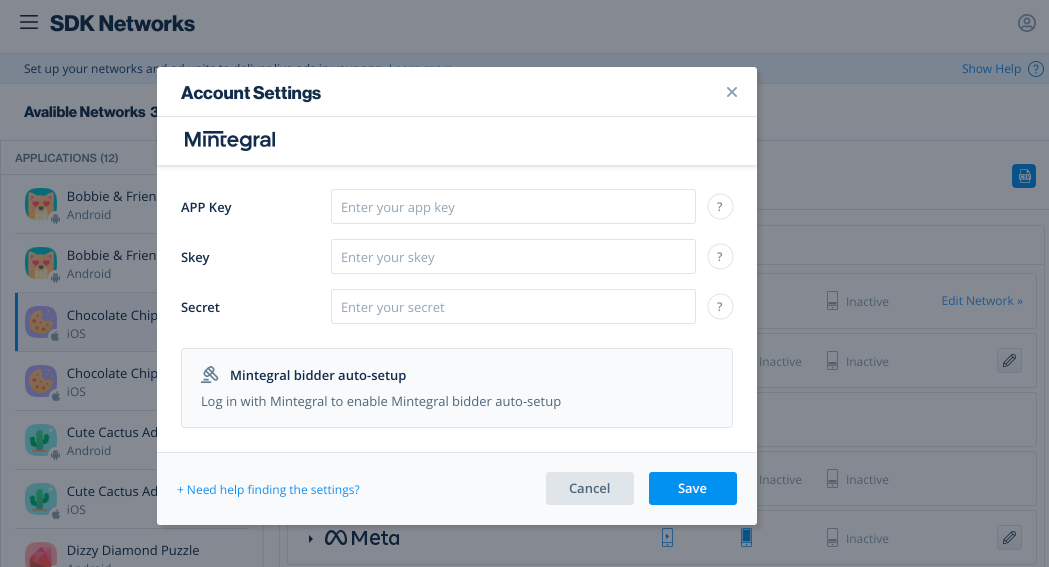
Select SDK Networks in the left side nav bar. Then select Available networks at the top of the page and select Mintegral from the list of supported networks.
-
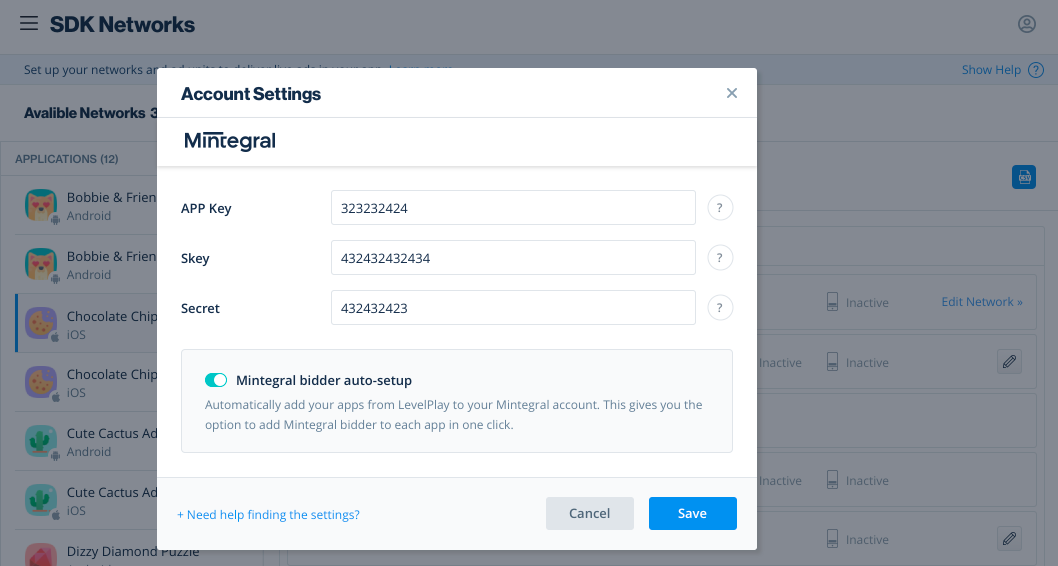
There are values from your Mintegral account that need to be inserted into your LevelPlay network setup module:
App Key | The unique ID assigned to your app on Mintegral's dashboard. |
|---|---|
| SKey | API key for reporting |
| Secret | The unique ID assigned to your Mintegral user. |
After you obtain this information, you must configure Mintegral's Parameters in your LevelPlay Account. By adding the above information correctly, you will be able to take full advantage of Mintegral's ad inventory and reporting data on the ironSource mediation platform.
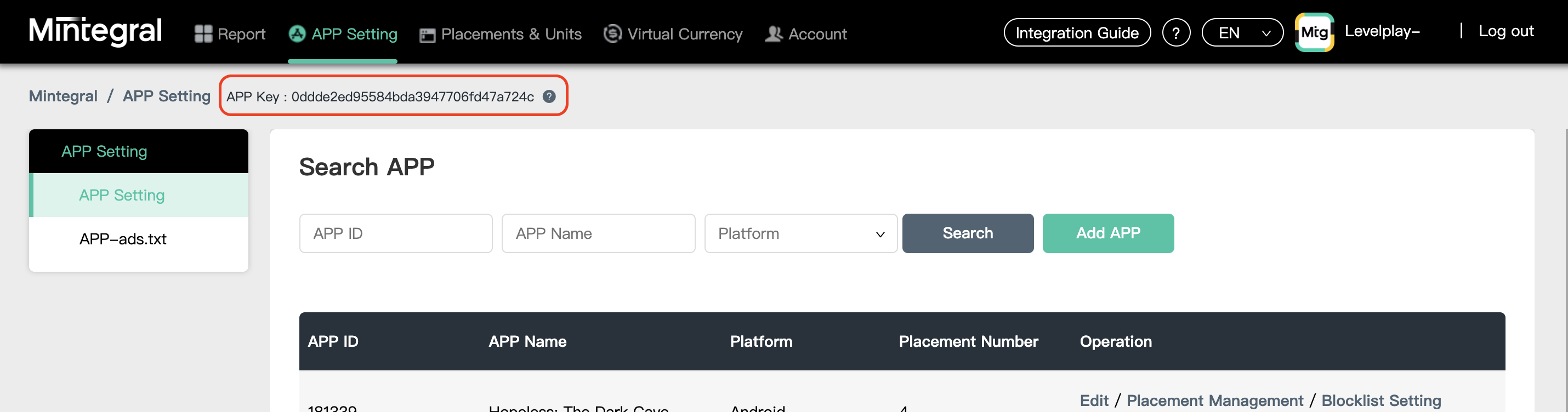
App Key
After you have created an application in the Mintegral dashboard (as described in step 2), go to the 'APP Setting' screen - on top of this page, you will find your **App Key.
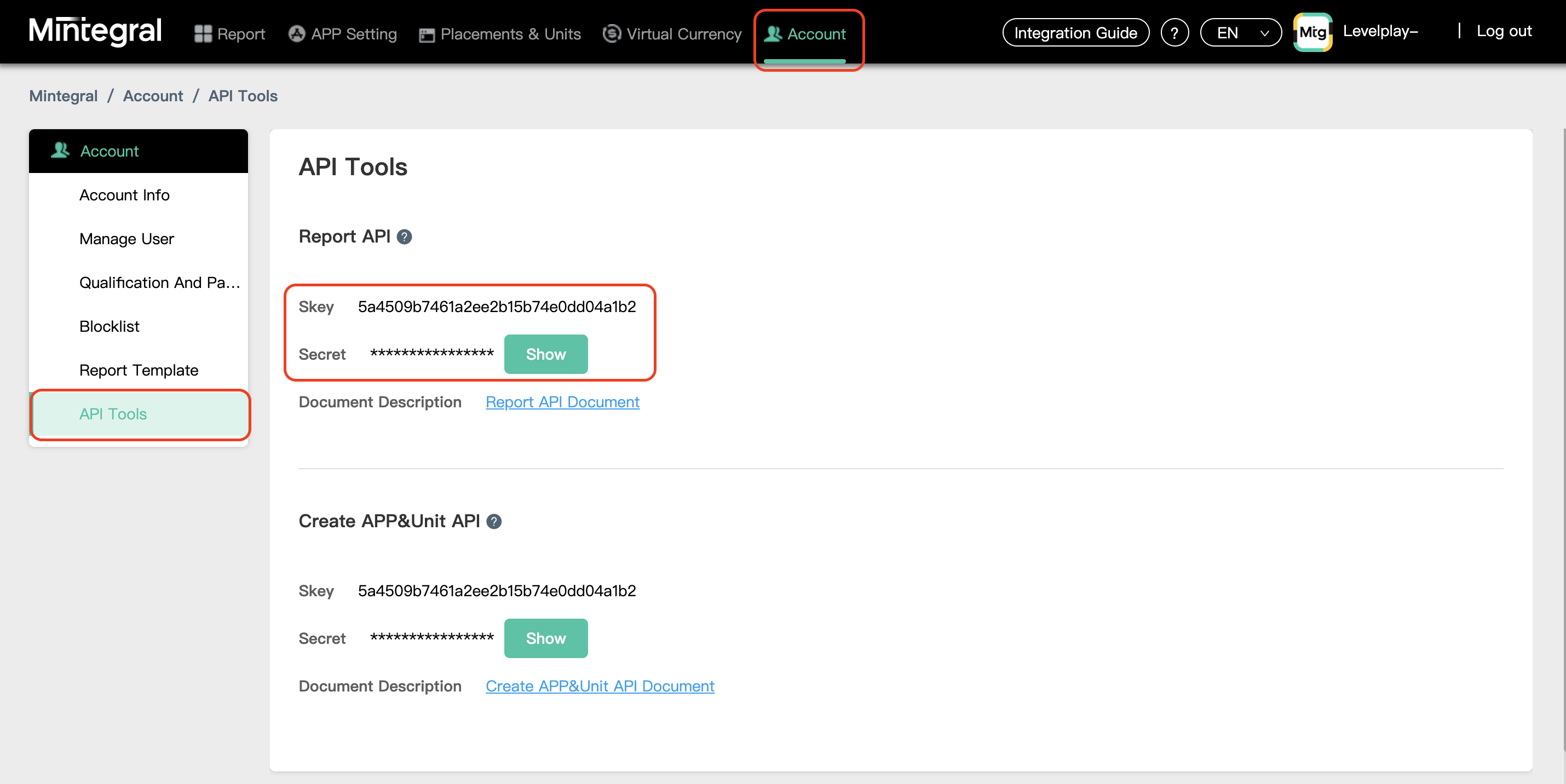
SKey + Secret
After you have logged into your Mintegral user (as described in step 1), go to the 'API Tools' under 'Account' tab - on the Upper menu: Now, on the bottom of the page you can find your SKey, as well as your Secret.
Step 4. Setup Mintegral on the app level
- There are two ways that you can get the Mintegral bidder setup on LevelPlay:
- Auto-setup - Automatically create a new application and placement bidders, and pull all the necessary configurations settings from Mintegral
- Manual - Go between the LevelPlay and Mintegral platforms to retrieve and enter the necessary information.
Auto-setup
-
To activate the auto setup feature toggle on the bidder auto-setup tool. This will enable you to automatically create an application and bidder placement on the MIntegral platform and allow LevelPlay to pull placement details from Mintegral.
-
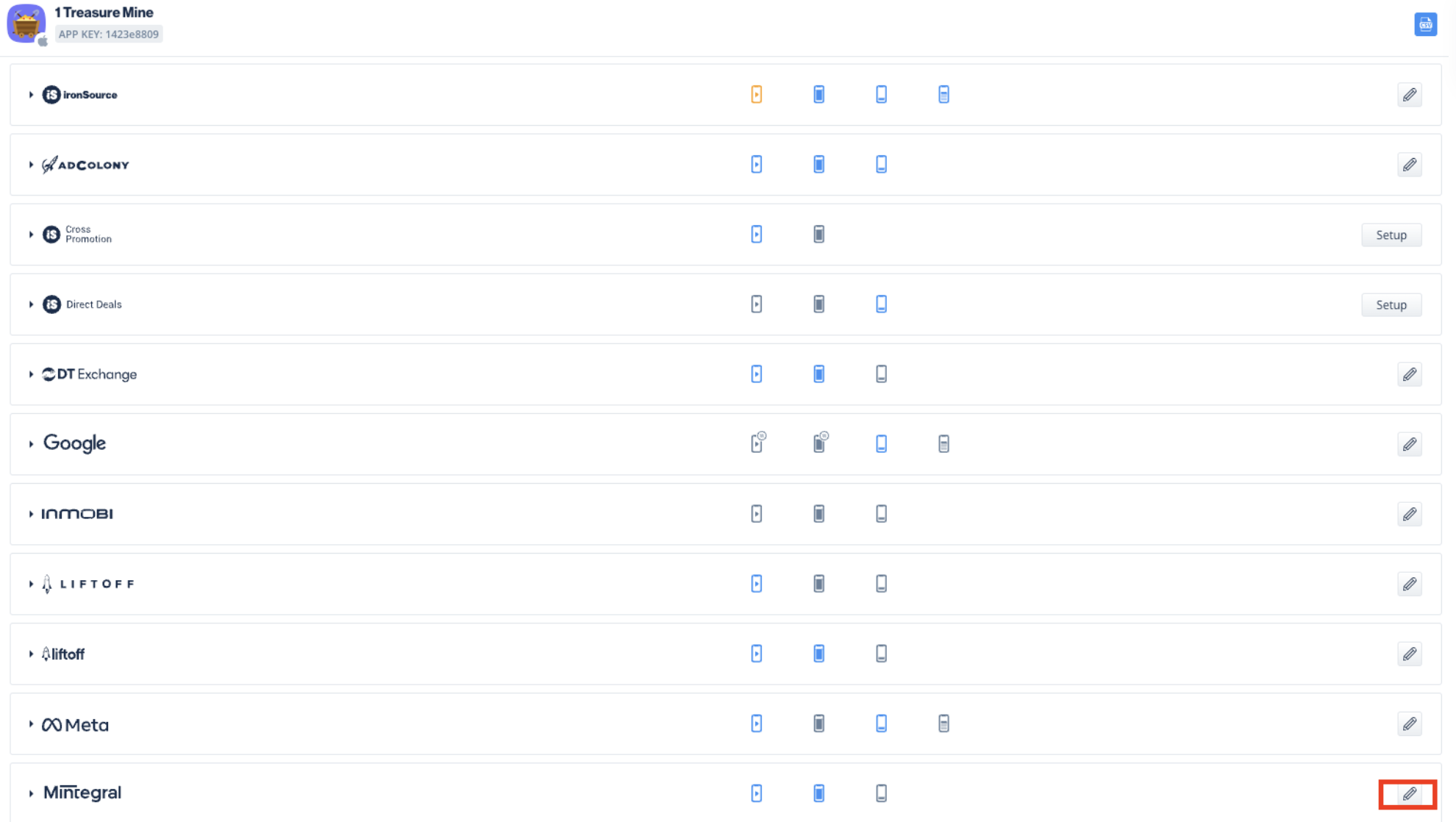
Select the app where you'd like to run interstitial, rewarded, or banner ads from Mintegral. Then select the define icon in the Mintegral row.
-
Select Add bidder to automatically create new application and bidding placements on the Mintegral platform, and import the, App ID, Placement ID and Ad unit ID.
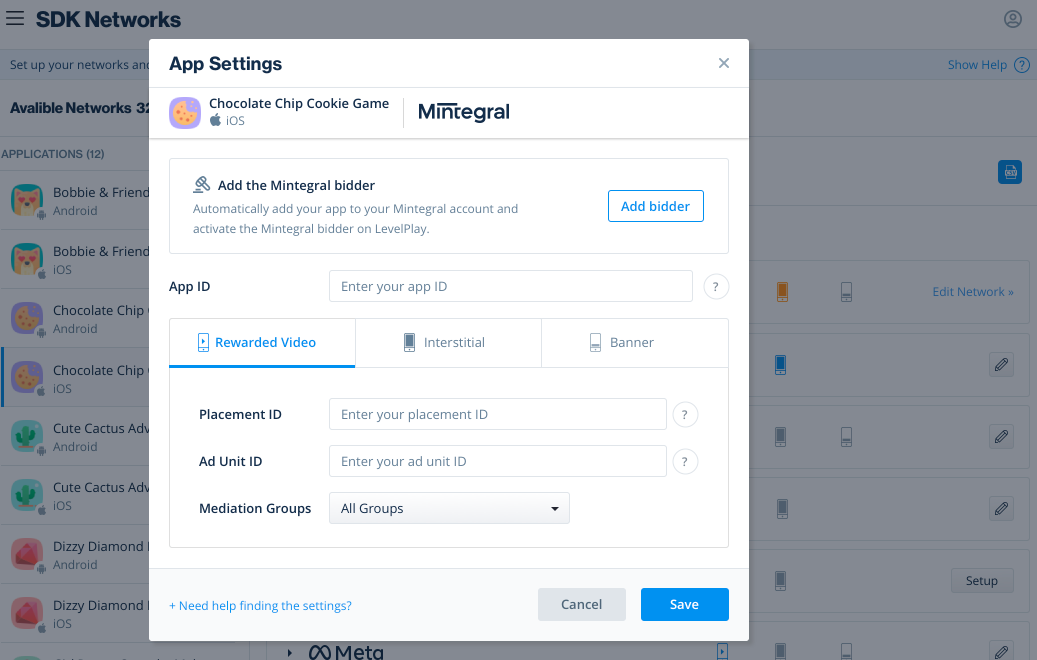
Select Save to approve and accept all configurations. If you close the module without saving, the assets will be created on the Mintegral platform without importing the data onto the Levelplay platform.
Manual setup
-
On SDK network page, choose the application you would like to configure, and select Setup under Mintegral bidder
-
Enter your App ID, then add your Placement ID and Ad Unit ID for each ad unit you want to use with the Mintegral bidder.
-
You can retrieve these parameters from your Mintegral account:
-
App ID
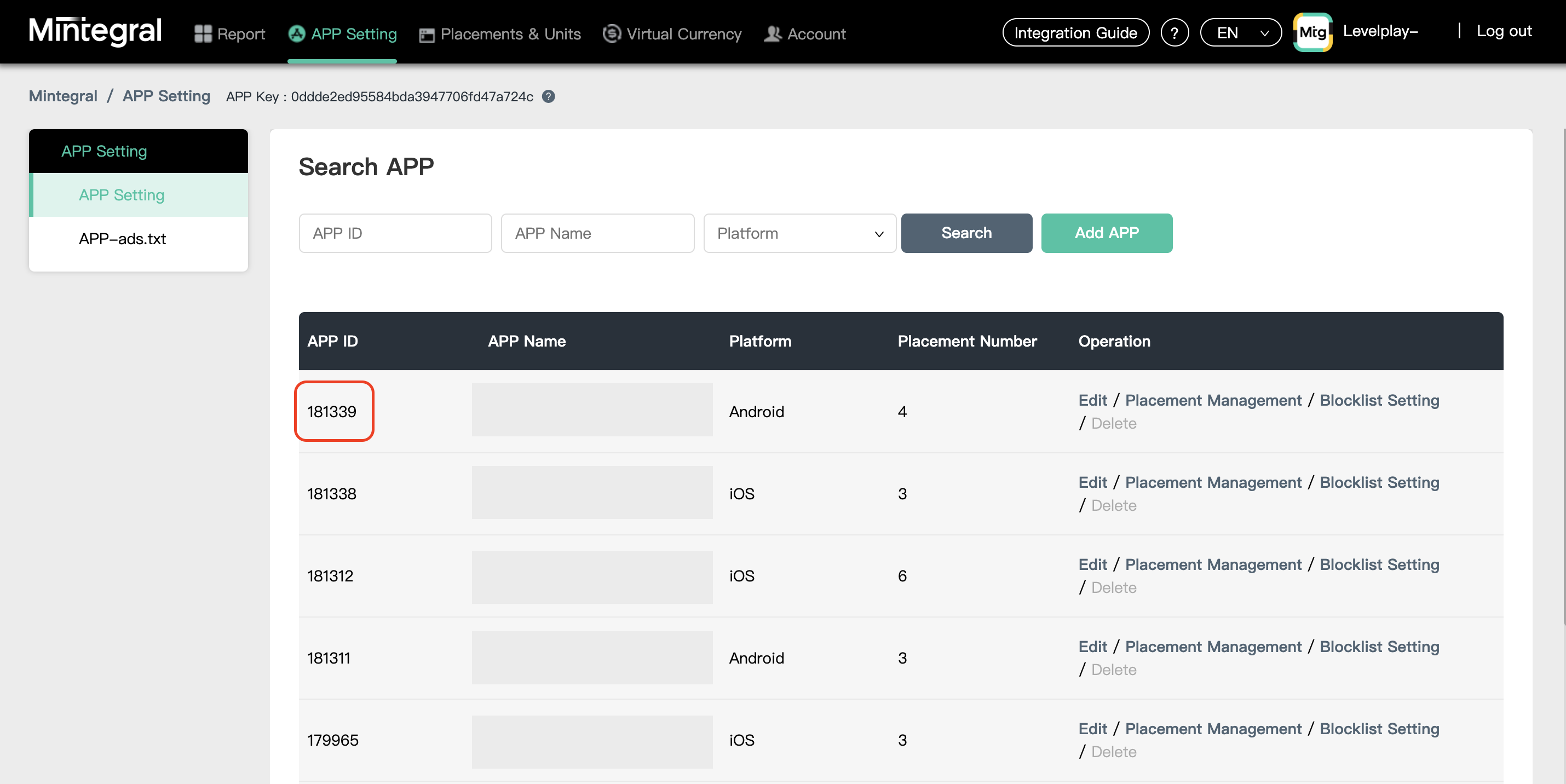
-
Placement ID
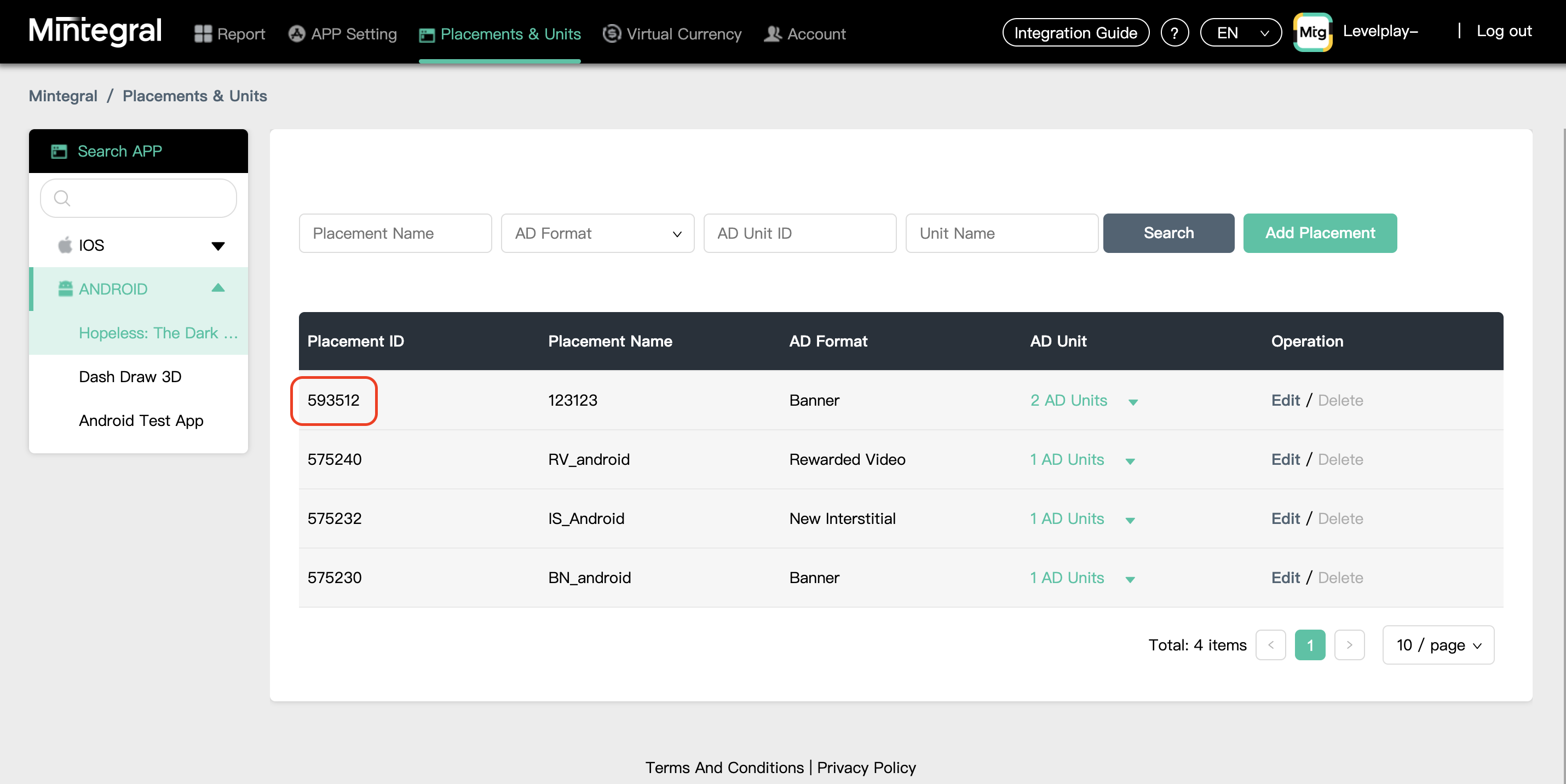
-
Ad Unit ID
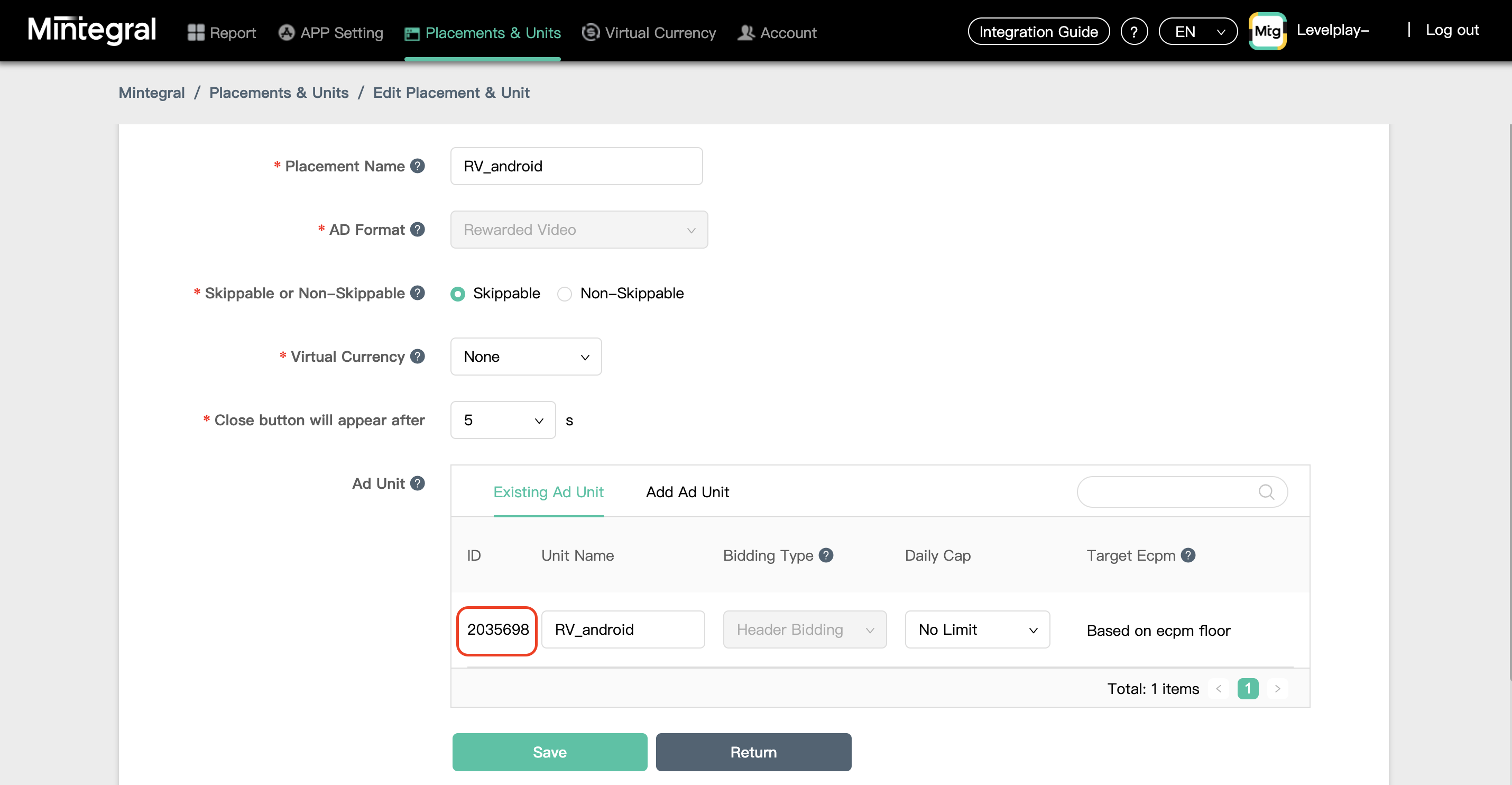
-
Step 5. Add the Mintegral Adapter to Your Build
Step 6. Mintegral Additional Settings
Set COPPA
Unity LevelPlay platform lets publishers communicate Mintegral COPPA settings directly to the Mintegral network. This feature is enabled using LevelPlay SDK 7.2.4.1+, Mintegral Android Adapter 4.3.12+.
Use the following syntax, to set Mintegral COPPA to true, to report Child:
LevelPlay.setMetaData({"Mintegral_COPPA": ["true"]});
Use the following syntax, to set Mintegral COPPA to false to report Adult:
LevelPlay.setMetaData({"Mintegral_COPPA": ["false"]});
To learn more about age-restrictions settings under the Mintegral network, visit here.
You can now deliver Mintegral ads within your application.