Set up Custom Store Listings
Set up Custom Store Listings for Android campaigns in the User Acquisition dashboard.
Read time 3 minutesLast updated 2 months ago
You can add a unique Product page for apps in the Google Play Store when setting up creative packs or add the Custom Store Listing to your creative pack information later.
Refer the following instructions to connect Custom Store Listings to your creative packs in the Unity Ads User Acquisition dashboard.
You'll complete two tasks when you connect Product pages to your creative packs:
- Locate the Unique URL Parameter for your Custom Store Listing.
- Add your Unique URL Parameter to your creative pack in one of two places:
- Add the Unique URL Parameter to new creative packs during creative pack setup.
- Add the Unique URL Parameter to existing creative packs.
Locate your Unique URL Parameter
To add a Custom Store Listing to a creative pack, you need to locate your listing's Unique URL Parameter. Refer to the following instructions to locate your Unique URL Parameter in the Google Play Store:
- Open your Custom Store Listing in a web browser.
- Locate the Unique URL Parameter at the end of the URL. The parameter is the string of characters following in the URL.
&listing=)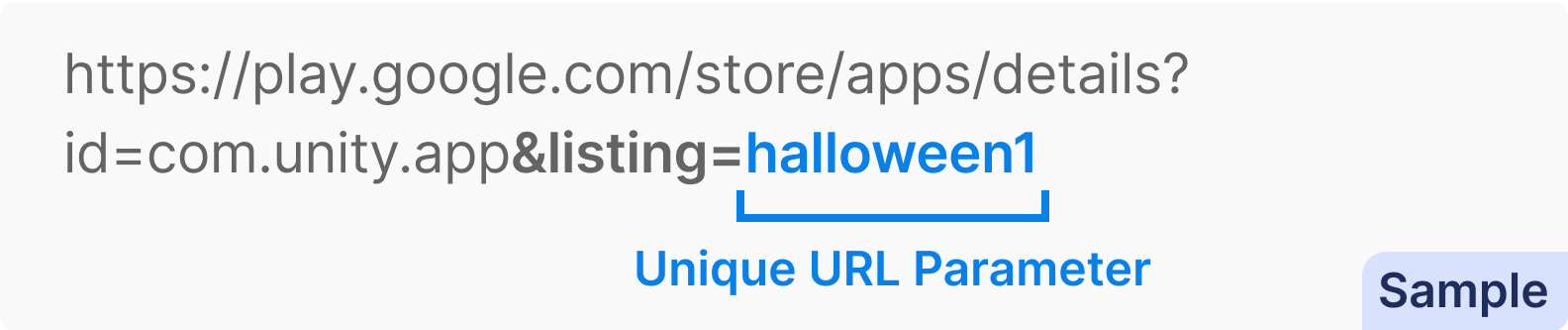
- Copy the Unique URL Parameter. Refer to the following examples to verify you have copied the correct portion of the URL:
Correct URL parameter | Incorrect URL parameter |
|---|---|
| |
Add Custom Store Listings to new creative packs
Do the following to add a Custom Store Listing when setting up new creative packs:
- In the Campaign settings page, go to the Creative packs section and select Add.
- Select the type of creative pack you want to configure to open the Create new creative pack dialog.
- In the Custom store listing section of the creative pack setup settings, select Custom store listing.
- Enter your Unique URL Parameter in the field provided. When you enter the parameter correctly, a green check mark appears.
- Upload your creative content. To review the creative pack setup, refer to Manage creative packs.
- Select Create to save your creative pack information.
Add Custom Store Listings to existing creative packs
Do the following in the Creative packs section of your Campaign settings to add a Custom Store Listing to an existing creative pack:
- Identify which creative pack you want to connect to a custom product page. Selecting the pack will expand the creative pack details.
- In the creative pack details, locate the Product page section. Select the edit pencil icon.
- Select Custom store listing.
- Enter your Unique URL Parameter in the field provided. If the URL parameter is in the correct format, a green check mark will appear.
- Select Apply to save your store listing.