Project integration and UBA settings
Use project integrations to integrate Unity Build Automation (UBA) with external services.
Read time 3 minutesLast updated 4 months ago
Use project integrations to receive notifications about build status and other Unity Build Automation (UBA) events. Project integrations send notifications through external collaboration tools such as Slack or Discord. External notifications help streamline your workflow automation by keeping your team informed.
To use project integrations with UBA:
Add or modify a project integration
To add or modify a project integration:
- Open your project in the Unity Dashboard.
- In the primary navigation menu, select Development > Settings.
- In the Project Integrations section, either add a new integration or modify an existing integration.
For more information on integrations, refer to Integrations.
Subscribe to UBA notifications
When you add or modify a project integration and your project uses UBA, you can subscribe to the following UBA-specific service and event notifications:
Notification | Description |
|---|---|
| Build Upload | UBA stores the primary artifact from a local build you uploaded. You can share or download an uploaded artifact like a cloud-built artifact. |
| Build Success | UBA built your project successfully. Your project finished and produced the expected output. You can download artifacts and logs from the dashboard. |
| Build Started | UBA has assigned your project to a build machine. The build process has started. |
| Build Restarted | UBA has restarted your build. UBA restarts a build when it encounters an internal platform issue, a stalled validation step, or a stalled build waiting for a build machine. |
| Build Queued | UBA has queued your project and is waiting to assign a build machine. UBA queues a build when you reach the limit of concurrent builds. |
| Build Failure | UBA was unable to build your project. You can download build logs for errors and failure details. |
| Build Canceled | UBA has stopped the build process before completion. This happens when you manually cancel a build or a policy cancels a build. A system issue, such as a timeout or concurrency limit, might also cancel a build. |
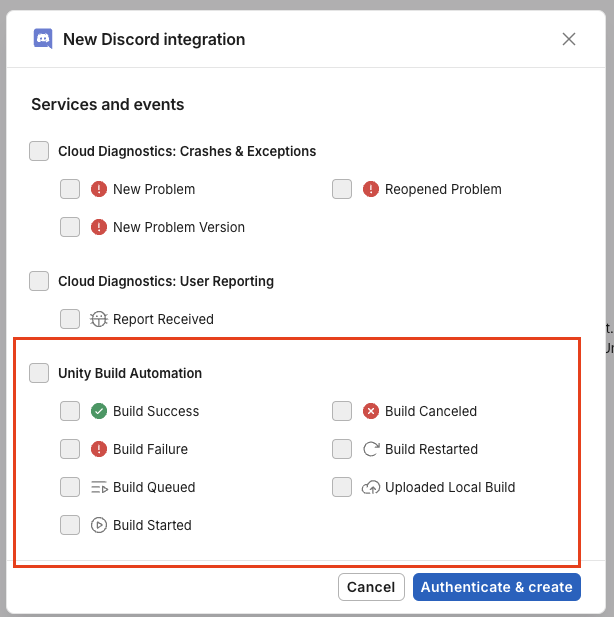
The available UBA notifications and the subscription interface might differ depending on the collaboration tool. For example, the following image displays the interface for a new Discord integration.
uba-events
Test your integration
Before you rely on your project integration to provide UBA notifications, you can test the integration to ensure it functions as expected.
To test a project integration:
- Subscribe to the Build Started notification.
- Manually start a build in UBA.
- Verify that the collaboration tool you configured for the project integration, such as a Slack or a Discord channel, receives the Build Started notification.
- If you configured a webhook, verify that you received the correct payload. For example, the following JSON shows the webhook integration for a Windows desktop.
{ "buildNumber": 1, "buildStatus": "started", "buildTargetName": "Default Windows desktop 64-bit", "cleanBuild": false, "credentialsOutdated": false, "links": { "api_self": { "href": "/api/orgs/1000000/projects/10000000-0000-0000-0000-000000000000/buildtargets/default-windows-desktop-64-bit/builds/11", "method": "get" }, "artifacts": [], "dashboard_log": { "href": "/organizations/1000000/projects/10000000-0000-0000-0000-000000000000/cloud-build/buildtargets/default-windows-desktop-64-bit/builds/1/log", "method": "get" }, "dashboard_project": { "href": "/organizations/1000000/projects/10000000-0000-0000-0000-000000000000/cloud-build/history", "method": "get" }, "dashboard_summary": { "href": "/organizations/1000000/projects/10000000-0000-0000-0000-000000000000/cloud-build/history", "method": "get" }, "dashboard_url": { "href": "https://dashboard.unity3d.com", "method": "get" } }, "local": false, "orgForeignKey": "1000000", "platform": "standalonewindows64", "platformName": "Windows x86_64", "projectGuid": "10000000-0000-0000-0000-000000000000", "projectName": "project-name", "scmType": "oauth", "startedBy": "User Name <myuser@email.com>"}