View large assets
How to view large Unity Cloud Assets using 3D Data Streaming.
阅读时间2 分钟最后更新于 1 年前
It can be challenging to view large or complex assets, such as Industrial assets on the web. With Unity's 3D Data Streaming (3DDS) technology, you can easily view large Unity Cloud Assets in the Asset Manager interface.
Asset files
Every Unity Cloud Asset includes the following files:
- The source file uploaded by the person who added the asset to the Asset Manager Project.
- Preview files that the system uses to generate thumbnails and asset previews in the Asset Manager interface.
- Any metadata associated with the asset.
Prerequisites
Before you start, make sure you meet the following prerequisites:
- You are assigned a Unity Industry or Unity Cloud Enterprise seat in your organization.
- You have the Contributor or higher role in the Asset Manager Project that contains the asset you want to prepare for 3DDS.
- You have the Consumer or higher role to view the 3DDS asset.
Prepare a Unity Cloud Asset for 3DDS
You need to prepare your asset for 3DDS before you can use Data Streaming to view your asset.
You can download Unity Cloud Assets from multiple places in the Asset Manager interface. To prepare your asset for 3DDS:
- Select an asset. A panel appears on the right side.
- On the top right corner, select the Edit button. The panel is now in editing mode.
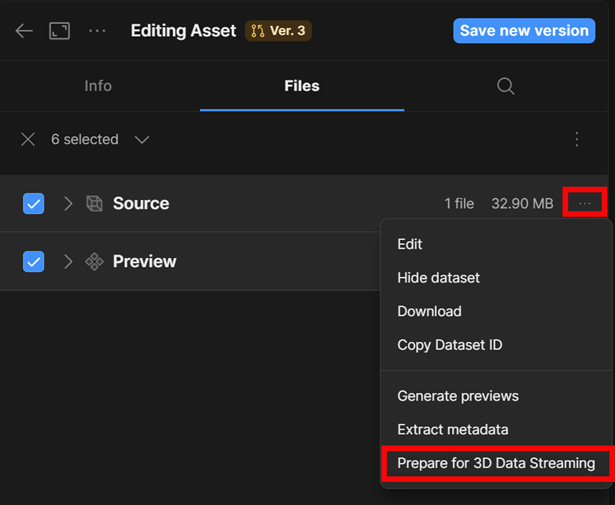
- Select the Files tab.
- Go to Source, on the right side select the More (...) icon.
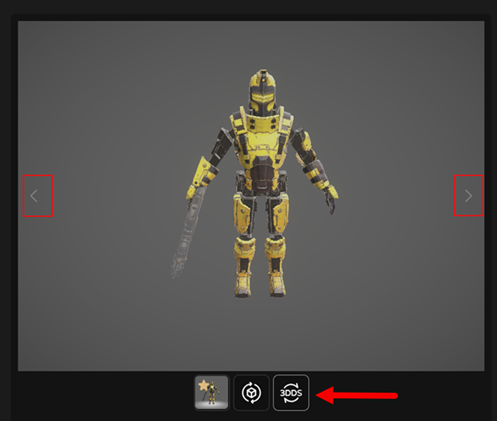
- Select Prepare for 3D Data Streaming. In the Info tab, Asset Manager creates a 3DDS tile in the previews section when it’s ready.
View your asset
You can view your asset once the automation is complete. To view your asset in the 3DDS viewer:
- Select an asset. A panel appears on the right side.
- Select the Info tab.
- Select the next arrow button to view your newly available 3DDS viewer from the list of previews.
- You can explore the large asset using your mouse or touchpad to pan and zoom. To view the asset in full screen, on the top left corner, select the expand icon.