文档

​
​

Development

User Acquisition

Monetization

工业

Unity Cloud

Get Started

Asset Manager SDKs and services

Open Unity Dashboard

Unity Cloud

此页面不支持所选语言。
​
​
Unity Dashboard
  • Accounts
  • Organizations
  • Projects
  • Products
  • Billing
Developer Data
  • Introduction to the Developer Data Framework
  • Get started
  • View Diagnostics for your project
  • Privacy and consent
Unity Asset Manager
  • What's new
  • Asset Manager web
  • Asset Store
  • Manage Assets in the Editor
  • Unity Version Control
  • Developer documentation
Unity Pipeline Automation
  • About
  • Get started
  • Pipelines
  • Automations
  • Monitor jobs
  1. Unity Cloud Documentation
  2. Unity Pipeline Automation (beta)

Monitor jobs

How to monitor and inspect job progress, output data, and review logs to debug issues
阅读时间2 分钟
最后更新于 7 个月前

重要
Only organization owners and members with the Automation Viewer role can monitor jobs.
The dashboard lists jobs created by running pipelines in your organization. You can watch active jobs progress through their steps, get the output data from completed jobs, rerun jobs, and check job logs to help debug issues.
提示
If your organization has no pipelines, you can still monitor jobs from built-in pipelines such as the 3D previews created by Asset Manager when you upload a 3D model.

Overview

Monitoring jobs enables you to:
  • Overview
    • View the progress of active and historical jobs
    • Rerun a job
    • View details for a job
    • View logs for each step of a job ##view-job-logs

View the progress of active and historical jobs

提示
If you do not have any jobs then either run a pipeline or upload a 3D model to Asset Manager, which will automatically run pipelines it uses for 3D previews.
  1. Go to the Pipeline Automation service on the Cloud dashboard
  2. Click
    Jobs
    in the navigation
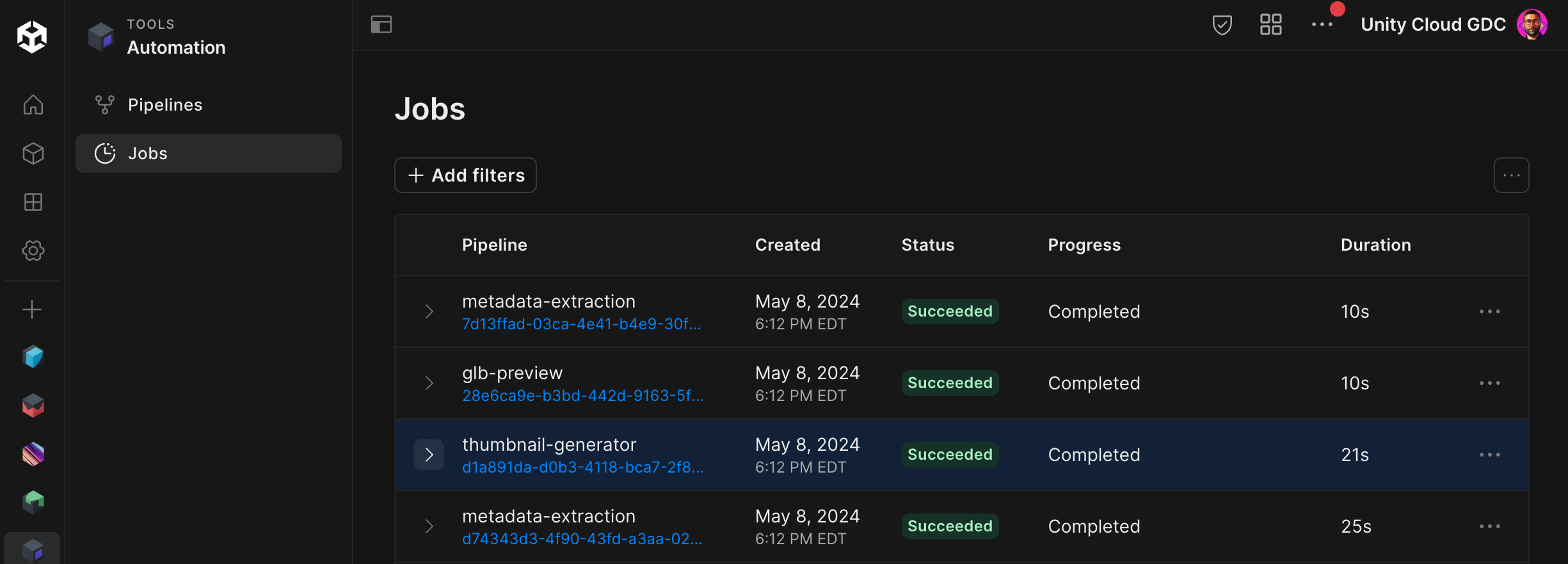
Jobs page
A list of active and historical jobs is displayed.

Rerun a job

重要
Only organization owners or members with the Automation User role can run jobs.
To run a pipeline using the same or similar parameters used on a previous job:
  1. Go to the jobs list
  2. Click the
    ...
    menu on a job you want to run the pipeline for again
  3. Click
    Rerun Job
The modal for running that pipeline will appear with the parameters populated with the previous job's parameters. You can modify the parameters and run it again.

View details for a job

To view a job's status, input parameters, and generated outputs:
  1. Go to the jobs list.
  2. Click a job's ID to open its details page
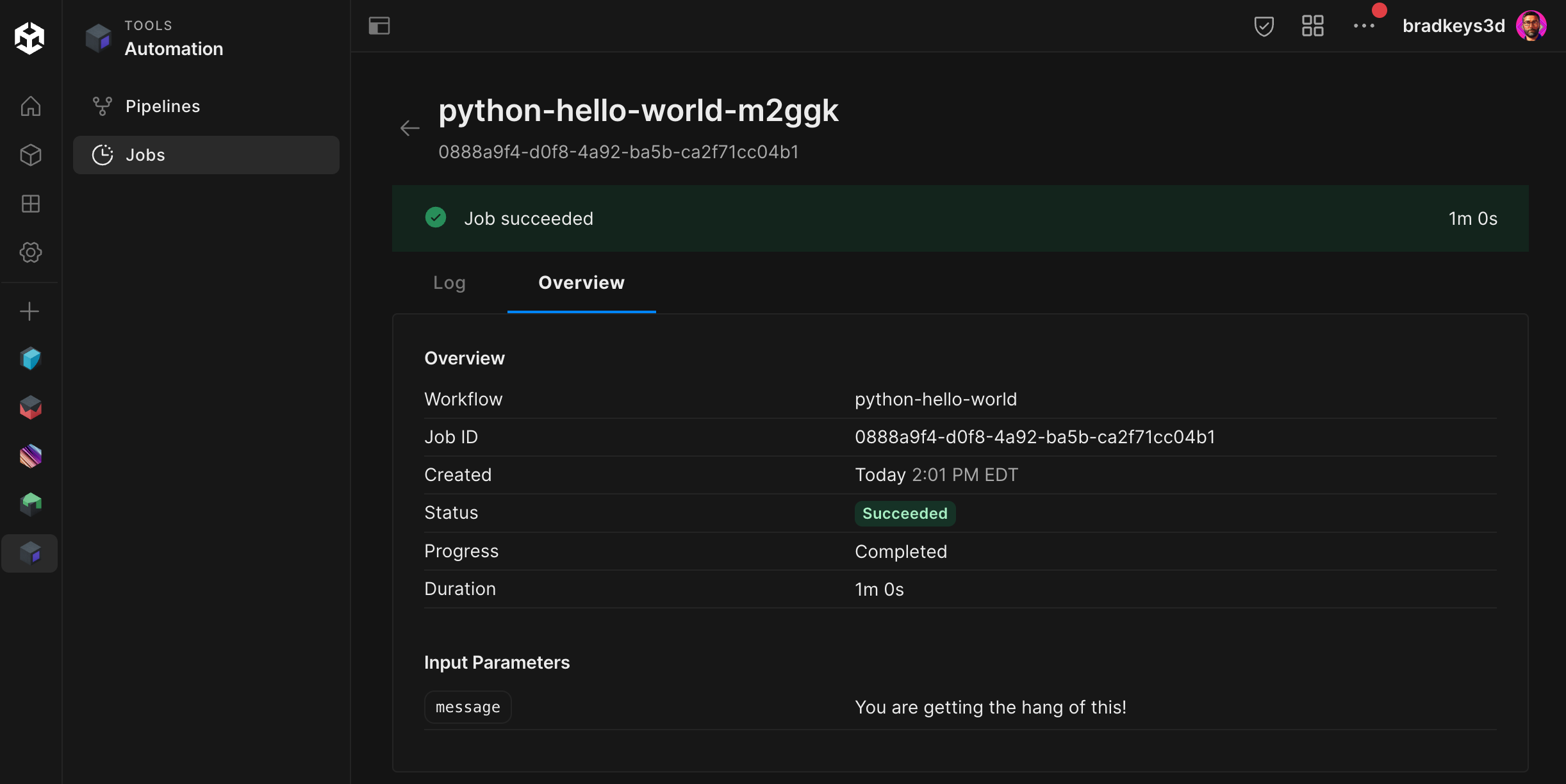
Job details page
You can see the values of the input parameters used to run the pipeline, as well as the outputs it generated. You can also access the Log tab from here.

View logs for each step of a job

Each step in a job contains logs that may provide helpful information, especially if the job failed. Use the logs to debug issues when creating a pipeline, or to determine why your input data might be invalid for a particular pipeline.
To view job logs:
  1. View details for a job
  2. Click the
    Log
    tab
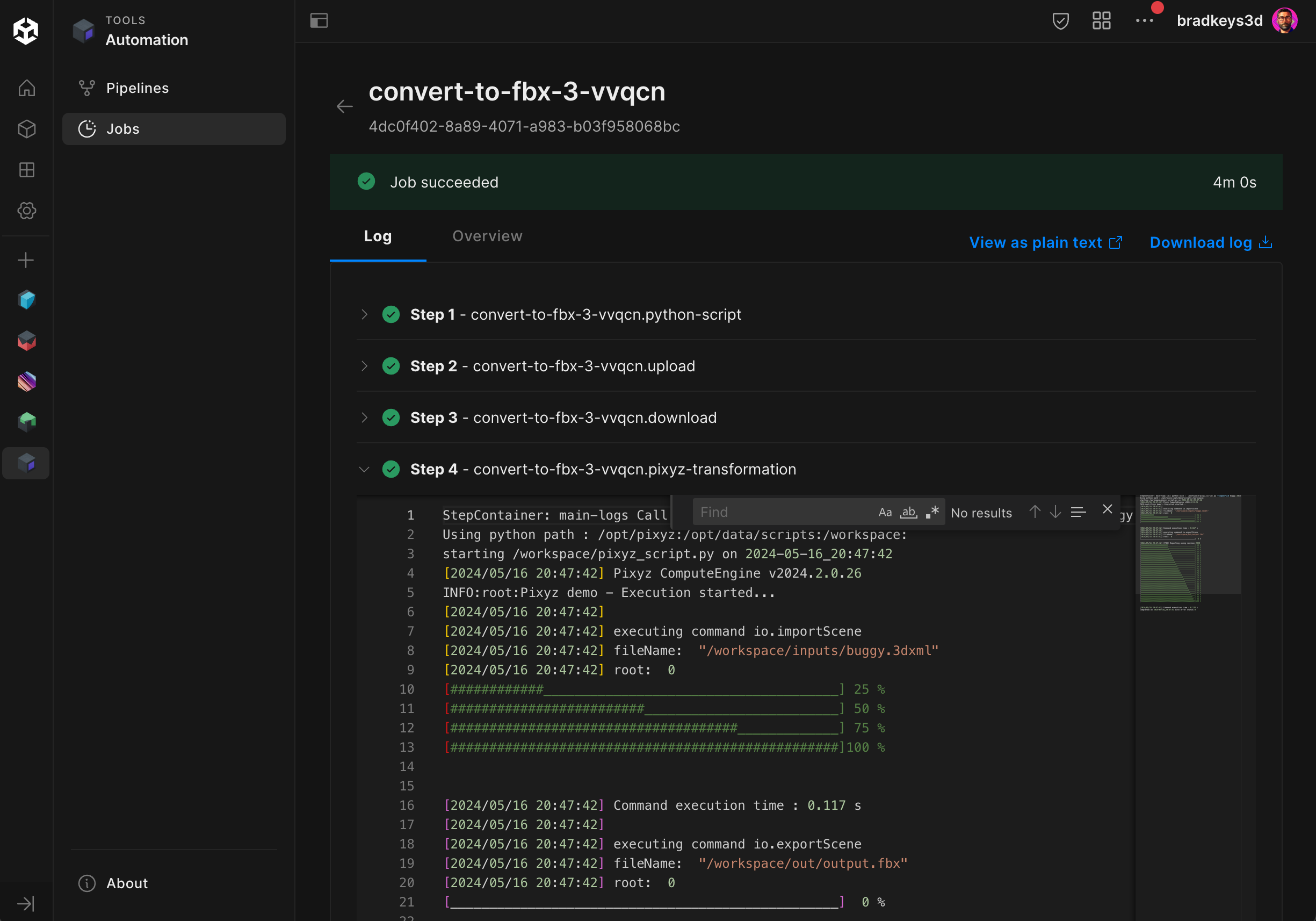
Job logs page
Each step of the job is listed. You can expand a step to view its detailed logs. You can also download or view the raw combined logs.

Copyright © 2026 Unity Technologies
法律信息隐私政策CookiesDocumentation Terms of Use请勿出售或分享我的个人信息您的隐私选择(Cookie 设置)

“Unity”、Unity 徽标及其他 Unity 商标是 Unity Technologies 或其附属公司在美国和其他地方的商标或注册商标(此处查看更多信息)。其他名称或品牌是其各自所有者的商标。

为方便起见,一些页面是机器翻译的,可能包含不准确的内容。如有信息不一致的情况,以英文版本为准。

  • 在本页上
    • Overview

      • View the progress of active and historical jobs

      • Rerun a job

      • View details for a job

      • View logs for each step of a job


报告此页面的问题