Hierarchy panel
Use the Hierarchy panel to manage and organize GameObjects in your scene.
읽는 시간 4분최근 업데이트: 3달 전
The Hierarchy panel lists all the GameObjects in your scene and helps you organize them. Find this panel on the left side of the Unity Studio interface.
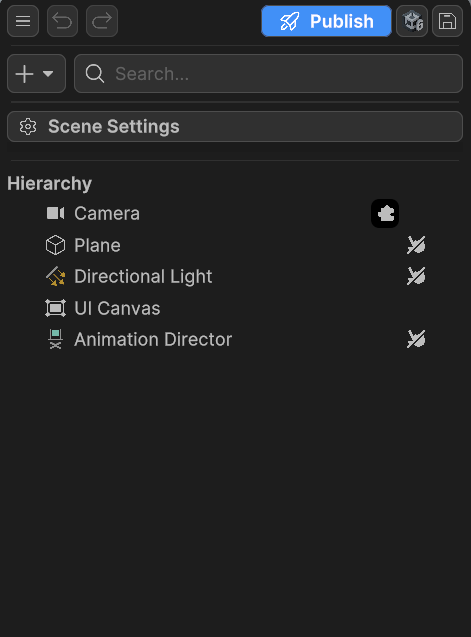
Screenshot of the Hierarchy panel
Hierarchy panel overview
The Hierarchy panel provides essential tools to help you manage the structure and organization of your scene in Unity Studio.
The following table describes the different parts of the Hierarchy panel:
Property | Description |
|---|---|
| Main menu | Access options to publish, export, and more. For a list of the settings, refer to Main menu. |
| Undo/Redo | Undo or redo recent actions. |
| Publish | Publish your application on the web. |
| Open in Editor | Export your Unity Studio project to the Unity Editor. For more information, refer to Unity Studio Exporter. |
| Session participants | View and search for users currently active in the draft. For more information, refer to Collaboration. |
| Add (+) | Add new GameObjects to your scene, including empty objects, primitives, and UI elements. For more information, refer to Add GameObjects to your scene. |
| Search bar | Find objects by name. |
| Scene Settings | Edit environmental settings of the scene such as the texture, rotation, and lighting of the skybox that surrounds the scene. For more information, refer to Scene settings. |
| Hierarchy | View and manage the hierarchy of GameObjects in your scene. Lists every GameObject in your scene. Select their names to open their properties. Refer to Hierarchy list for more information. |
Any GameObject you add to the scene or hierarchy shows in the Hierarchy panel. This includes any objects you drag into your scene from the Project panel.
Main menu
Located at the top left of the Hierarchy panel, Main menu gives you access to the following items:
Property | Description |
|---|---|
| Publish | Publish your application on the web. |
| Export to Editor | Export your Unity Studio project to the Unity Editor. For more information, refer to Unity Studio Importer package. |
| Make a copy | Duplicate the current draft and rename the new draft. For more information, refer to Make a copy of your draft. |
| Open in Asset Manager | View your draft in the Asset Manager (opens in a new tab). |
| Documentation | Open the Unity Studio documentation (opens in a new tab). |
| Learn Course | View the Unity Studio Learn Course series videos (opens in a new tab). |
| Open controls guide | View available keyboard shortcuts. |
| Contact Support | Contact the Unity Studio support team for help with any issues you encounter. |
| Report Bug | Select to report any issues you encounter. Unity Studio submits the bug details to the Unity Studio team, which they can use to improve the tool. |
| Submit Feedback | Share your thoughts and suggestions to the Unity Studio team. |
| Back Home | Exit your draft and return to the Unity Studio Home page. |
Add GameObjects to your scene
Select Add (+) to bring up the menu to add new GameObjects to your scene. You can choose from:
Property | Description |
|---|---|
| Empty Object | A blank GameObject, useful for grouping or as a starting point. |
| Primitives | Basic 3D shapes (Cube, Sphere, Capsule, Cylinder, Plane, Quad) for building or prototyping your scene. |
| UI | Add UI Canvas, Button, Text, InputField or Image elements to your scene. |
Hierarchy list
The list of GameObjects in the Hierarchy panel provides several useful features to help you manage and organize your GameObjects.
Scene visibility and selectability
If your scene has many objects, it can be difficult to manage all the items. Use these controls to make your workflow easier:
Property | Description |
|---|---|
| Toggle selectability | Locks an asset so you can’t select it in the Scene view. Useful to protect important objects from accidental edits. |
| Toggle visibility | Hides or shows objects in the Scene view without affecting their visibility during Play mode. This helps you focus on specific parts of your scene or work with complex projects. |
Select objects
Select the names of the GameObjects in the list to open their properties in the Inspector panel, or to manipulate the object in the Scene view.
Right-click the object(s) in the list to access further actions via the context menu.
Hierarchy editing
You can freely rearrange the internal hierarchy of imported 3D models. For example, you can reparent parts, move child objects to different positions, delete individual child objects, and create new child objects (such as empty objects or primitives) within a model’s hierarchy.
Parent your objects
Unity Studio uses a parent-child hierarchy to help you organize your scene. When you drag one GameObject onto another in the Hierarchy, you make it a child of the target object. This means:
- If you move, scale, or rotate the parent, it affects all its children.
- You can nest GameObjects for easier organization and transformation.
This is especially helpful if you want to keep related objects together. For example, to group parts of a machine or elements of a User Interface (UI).