Game Overrides와 CCD의 연동
Use Remote Config and badges to integrate Game Overrides with Cloud Content Delivery so you can target content to specific audiences.
읽는 시간 5분최근 업데이트: 7달 전
Game Overrides를 사용하면 특정 잠재 고객에게 콘텐츠를 타게팅할 수 있습니다. 예를 들어 A/B 테스트를 실행하고 지리적 위치와 특정 기간에 맞게 콘텐츠를 커스터마이즈할 수 있습니다. 배지는 의도한 콘텐츠를 식별하고, Remote Config는 라이브 플레이어에게 영향을 주지 않으면서 해당 콘텐츠를 테스트하고, 동시에 특정 플레이어에게 배지가 있는 콘텐츠를 배포합니다.
Game Overrides를 연동하려면 다음 단계를 완료합니다.
- Remote Config 패키지 설치
- 프로젝트 ID 연결
- CCD 배지를 사용하여 콘텐츠를 타게팅하는 오버라이드를 생성합니다.
- 게임 코드에 Remote Config 연동
- CCD에서 적절한 에셋 검색
Remote Config 패키지 설치
패키지 설치에 대한 자세한 내용은 패키지 관리자를 참고하십시오.
- Unity 에디터에서 Window > Package Manager를 선택합니다.
- 패키지 목록 뷰에서 Remote Config를 선택합니다.
- 패키지 세부사항 뷰에서 Remote Config를 프로젝트로 임포트하는 데 필요한 버전을 선택하고 설치합니다.
프로젝트 ID 연결
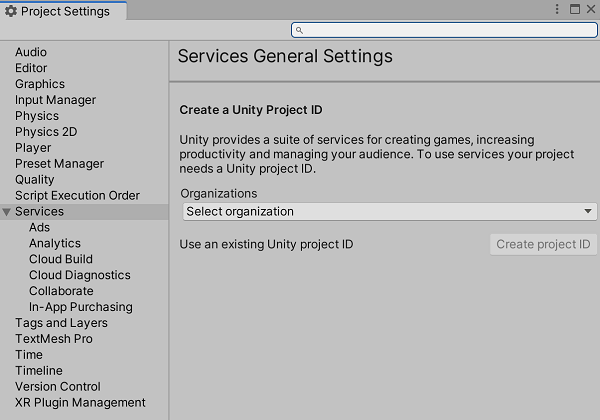
아직 연결하지 않았다면 Unity 프로젝트를 프로젝트 ID에 연결해야 합니다.
Unity 에디터에서 프로젝트를 연결하면 다음을 수행합니다.
- Services 창(Window > General > Services)을 엽니다.
- General settings를 선택합니다.
- Project settings 메뉴의 Services 섹션에 있는 드롭다운에서 현재 조직을 선택합니다. 관련 조직 목록을 보려면 Unity Hub에 로그인해야 합니다.
- Use an existing Unity project ID를 선택하여 이전에 개발자 대시보드에서 생성한 ID에 프로젝트를 연결하거나, Create project ID를 선택하여 프로젝트를 새 ID에 연결합니다.
오버라이드 생성
Game Overrides 서비스 또는 Cloud Content Delivery 서비스를 통해 Unity Dashboard에서 오버라이드를 생성할 수 있습니다. 오버라이드 생성을 참고하십시오.
-
내비게이션에서 LiveOps를 선택하여 Game Overrides 서비스로 이동한 다음 두 번째 내비게이션에서 Game Overrides > Overrides를 선택합니다.
또는 Cloud Content Delivery 서비스 자체 버킷의 Targeting 탭에서 Create Override를 선택하여 Overview 페이지로 이동할 수도 있습니다. -
오버라이드 생성을 선택합니다.
-
오버라이드 이름을 지정하고 Next를 선택합니다.
-
JEXL 조건을 지정하여 타게팅할 플레이어를 선택한 다음 타게팅할 플레이어의 비율을 지정합니다. Next를 선택합니다.
-
+ Choose content type을 선택한 다음 Cloud Content Delivery > Badge를 선택합니다. Done을 선택합니다.
-
Choose a bucket을 선택한 다음 사용하려는 버킷을 선택합니다.
-
Choose your badge를 선택한 다음 사용하려는 배지를 선택합니다. Choose를 선택한 다음 Next를 선택합니다.
-
오버라이드를 실행할 Start 및 End Date를 선택합니다. Finish를 선택합니다.
-
오버라이드를 활성화하려면 Enable을 선택합니다.
게임 코드에 Remote Config 연동
RemoteConfigUnity.ServicesRemote Config 서비스에는 액세스 가능한 인스턴스가 있어, 런타임 시 구성을 가져오고 적용하는 작업을 처리할 수 있습니다. 이 예제에서는 이 값을 사용하여 오버라이드에서 정의한 CCD 구성의 키-값 페어를 가져옵니다. 이 페어의 키는 정적 문자열 입니다. 그런 다음 검색이 성공하면 함수를 호출합니다. 는 가져오기 요청에 대한 응답을 나타내는 구조체를 사용합니다.
RemoteConfigServiceCCD_CONFIG_KEYApplyCcdConfigApplyCcdConfigConfigResponseC#
public struct userAttributes {}public struct appAttributes {} async Task InitializeRemoteConfigAsync(){ // initialize handlers for unity game services await UnityServices.InitializeAsync(); // remote config requires authentication for managing environment information if (!AuthenticationService.Instance.IsSignedIn) { await AuthenticationService.Instance.SignInAnonymouslyAsync(); }} async void Start(){ if (Utilities.CheckForInternetConnection()) { await InitializeRemoteConfigAsync(); } RemoteConfigService.Instance.appConfig = RemoteConfigService.Instance.GetConfig("ccd"); RemoteConfigService.Instance.FetchCompleted += ApplyCcdConfig; RemoteConfigService.Instance.FetchConfigs("ccd", new userAttributes(), new appAttributes());} void ApplyCcdConfig(ConfigResponse configResponse){ switch (configResponse.requestOrigin) { case ConfigOrigin.Default: Debug.Log("Default values will be returned"); break; case ConfigOrigin.Cached: Debug.Log("Cached values loaded"); break; case ConfigOrigin.Remote: Debug.Log("Remote Values changed"); if (RemoteConfigService.Instance.appConfig.HasKey("CCD_CONFIG_KEY")) { // get the correct key-value pair for CCD (the key will always be "CCD_CONFIG_KEY") string jsonValue = RemoteConfigService.Instance.appConfig.GetJson("CCD_CONFIG_KEY"); // you will use jsonValue in the next step } break; }}
CCD에서 적절한 에셋 검색
CCD 구성을 가져온 후에는 버킷 정보와 배지 이름을 추출하여 CCD에서 적절한 에셋을 검색할 수 있습니다.
CcdConfigC#
public class CcdConfig{ public string bucketId; public string bucketName; public string badgeName;}
그런 다음 함수에서는 가져온 CCD 구성에서 이러한 값을 추출하고 이를 사용하여 CCD에서 적절한 에셋을 검색할 수 있습니다.
ApplyCcdConfigC#
// extract the config values that you have defined when creating your OverrideCcdConfig ccdConfig = JsonUtility.FromJson<CcdConfig>(jsonValue); // the bucketId and badgeName are required to fetch the appropriate assetsvar bucketId = ccdConfig.bucketId;var badgeName = ccdConfig.badgeName; // fetch the entry from CCD// Note that for a dynamic file path, a config override can be used in order to fetch// the correct file path for your assetJObject entry = CcdManager.Instance.GetEntry(bucketId, badgeName, "ENTRY_PATH");// fetch the entry's content from CCDvar content = CcdManager.Instance.GetContent(bucketId, entry["entryid"].ToString()); // use your asset(s) as needed// YOUR CODE HERE
CCDManagerC#
using System.Collections;using System.Collections.Generic;using UnityEngine;using System.Threading.Tasks;using Unity.RemoteConfig; using System.Net;using System;using System.IO; public class CcdManager : MonoBehaviour{ private static string projectId = "YOUR_PROJECT_ID_HERE"; private static string ccdBaseUrl = $"https://{projectId}.client-api.unity3dusercontent.com/client_api/v1/"; private static CcdManager m_Instance; public static CcdManager Instance { get { return m_Instance; } } private void Awake() { if (m_Instance != null && m_Instance != this) { Destroy(this.gameObject); return; } m_Instance = this; DontDestroyOnLoad(this.gameObject); } public JObject GetEntry(string bucketId, string badgename, string entrypath) { var entryUrl = $"{ccdBaseUrl}/buckets/{bucketId}/release_by_badge/{badgename}/entry_by_path/?path={entrypath}"; HttpWebRequest request = (HttpWebRequest)WebRequest.Create(entryUrl); HttpWebResponse response = (HttpWebResponse)request.GetResponse(); StreamReader reader = new StreamReader(response.GetResponseStream()); string jsonResponse = reader.ReadToEnd(); JObject ccdEntry = JObject.Parse(jsonResponse); return ccdEntry; } public string GetContent(string bucketId, string entryid) { var contentUrl = $"{ccdBaseUrl}/buckets/{bucketId}/entries/{entryid}/content/"; HttpWebRequest request = (HttpWebRequest)WebRequest.Create(String.Format(contentUrl)); HttpWebResponse response = (HttpWebResponse)request.GetResponse(); StreamReader reader = new StreamReader(response.GetResponseStream()); string contentValue = reader.ReadToEnd(); return contentValue; }}
이제 오버라이드로 정의된 에셋을 검색했습니다.