User roles
Understand the Safety Moderator and Safety Admin roles and their permissions.
Read time 1 minuteLast updated 22 days ago
To access the moderation dashboard, users must have one of two roles: Safety Moderator or Safety Admin. Each role comes with distinct permissions:
- The Safety Moderator role allows users to view sessions, action player reports, archive them, and provide feedback.
- The Safety Admin role includes all the permissions of the Safety Moderator and access to project settings that may affect processing.
- Select the Projects button on the Unity Dashboard.
- Choose the project you want to make changes in.
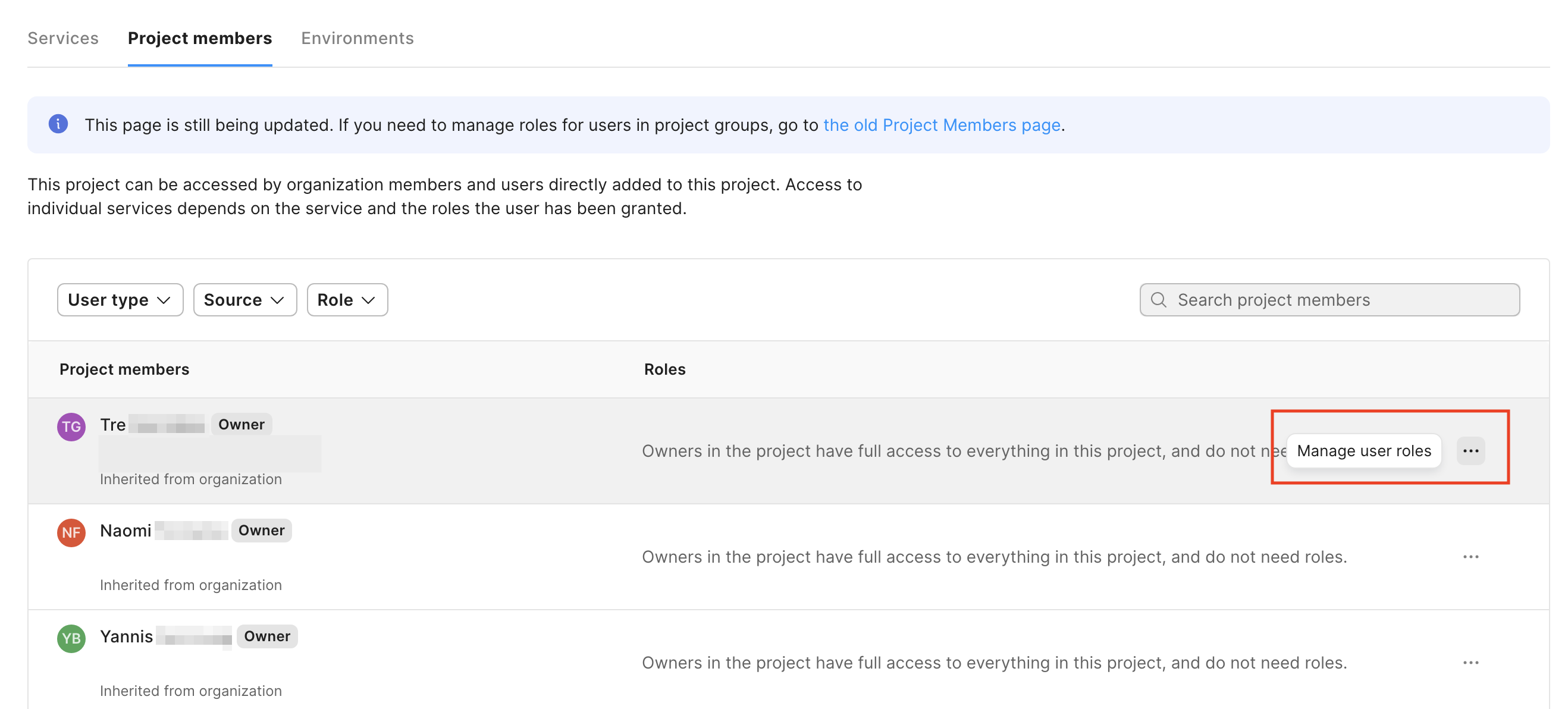
- Scroll down and select the Project members tab.
- Select the context button (...) for a user you want to assign a role.
- Select Edit roles in project
- Choose the Safety Moderator or Safety Admin roles under Multiplayer.
Safety Moderator
Safety Moderator is a role that is assigned to a user within a project to gain access to the Moderation Platform. The Moderation Platform assists moderation teams with online experiences by providing additional context, through Safe Text, to user communications. Safe Text will highlight text messages that are identified as inappropriate. The analysis generates a report for the moderation team to aid in decision-making and help the moderation team prioritize and quickly identify whether the incident violated any policies. Once connected to Safe Text, and sessions are processed, moderators can use the Moderation Platform to analyze session results. Safety Moderators can:- View and manage incidents.
- Search, sort and filter incidents.
- Provide feedback on session accuracy.
- Take actions on reports.
- Resolve incidents.
- Review the Community health dashboard.