ObjectField
Make a field to receive any object type.
Read time 24 minutesLast updated 8 days ago
Definition
- Type: Method
- Namespace: UnityEditor
- Assembly: UnityEditor.CoreModule
ObjectField(Object, Type, GUILayoutOption[])
Make a field to receive any object type.
public static Object ObjectField(Object obj, Type objType, params GUILayoutOption[] options)
Parameters
The object the field shows.
The type of the objects that can be assigned.
An optional list of layout options that specify extra layout properties. Any values passed in here will override settings defined by the . Additional Resources: GUILayout.Width, GUILayout.Height, GUILayout.MinWidth, GUILayout.MaxWidth, GUILayout.MinHeight, GUILayout.MaxHeight, GUILayout.ExpandWidth, GUILayout.ExpandHeight.
styleReturns
Type | Description |
|---|---|
| Object | The object that has been set by the user. |
Remarks
You can assign objects either by drag and drop or by selecting an object using the Object Picker.
Ensure that the allowSceneObjects parameter is false if the object reference is stored as part of an asset, since assets can't store references to objects in a Scene.
If the ObjectField is part of a custom Editor for a script component, use EditorUtility.IsPersistent() to check if the component is on an asset or a Scene object.
See the example in the Editor class for further information.
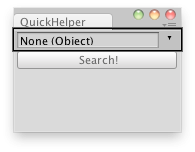
Search for a help page by selecting the GameObject in the Object Field.
// EditorScript that quickly searches for a help page// about the selected Object.//// If no such page is found in the Manual it opens the Unity forum.using UnityEditor;using UnityEngine;using System.Collections;public class ExampleClass : EditorWindow{ public Object source; [MenuItem("Example/ObjectField Example _h")] static void Init() { var window = GetWindowWithRect<ExampleClass>(new Rect(0, 0, 165, 100)); window.Show(); } void OnGUI() { EditorGUILayout.BeginHorizontal(); source = EditorGUILayout.ObjectField(source, typeof(Object), true); EditorGUILayout.EndHorizontal(); if (GUILayout.Button("Search!")) { if (source == null) ShowNotification(new GUIContent("No object selected for searching")); else if (Help.HasHelpForObject(source)) Help.ShowHelpForObject(source); else Help.BrowseURL("https://forum.unity3d.com/search.php"); } }}
You can also use the parameter to change the look of the control. The following example changes the look of a Sprite ObjectField that is displayed with a large field format.
options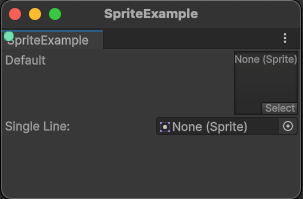
Two different layout options for a sprite field.
using UnityEditor;using UnityEngine;public class SpriteExample : EditorWindow{ public Sprite sprite; [MenuItem("Example/ObjectField Sprite Example")] static void Init() { var window = GetWindowWithRect<SpriteExample>(new Rect(0, 0, 165, 100)); window.Show(); } void OnGUI() { sprite = EditorGUILayout.ObjectField(sprite, typeof(Sprite), false, GUILayout.Height(EditorGUIUtility.singleLineHeight)) as Sprite; }}
ObjectField(Object, Type, Object, GUILayoutOption[])
Make a field to receive any object type.
public static Object ObjectField(Object obj, Type objType, Object targetBeingEdited, params GUILayoutOption[] options)
Parameters
The object the field shows.
The type of the objects that can be assigned.
Optional object used to filter selection criteria. If the target object is persistent, scene objects are available for selection. If the target object is a GameObject or Component, the selection is limited to objects within the same scene as the target.
An optional list of layout options that specify extra layout properties. Any values passed in here will override settings defined by the . Additional Resources: GUILayout.Width, GUILayout.Height, GUILayout.MinWidth, GUILayout.MaxWidth, GUILayout.MinHeight, GUILayout.MaxHeight, GUILayout.ExpandWidth, GUILayout.ExpandHeight.
styleReturns
Type | Description |
|---|---|
| Object | The object that has been set by the user. |
Remarks
You can assign objects either by drag and drop or by selecting an object using the Object Picker.
Ensure that the allowSceneObjects parameter is false if the object reference is stored as part of an asset, since assets can't store references to objects in a Scene.
If the ObjectField is part of a custom Editor for a script component, use EditorUtility.IsPersistent() to check if the component is on an asset or a Scene object.
See the example in the Editor class for further information.
Search for a help page by selecting the GameObject in the Object Field.
// EditorScript that quickly searches for a help page// about the selected Object.//// If no such page is found in the Manual it opens the Unity forum.using UnityEditor;using UnityEngine;using System.Collections;public class ExampleClass : EditorWindow{ public Object source; [MenuItem("Example/ObjectField Example _h")] static void Init() { var window = GetWindowWithRect<ExampleClass>(new Rect(0, 0, 165, 100)); window.Show(); } void OnGUI() { EditorGUILayout.BeginHorizontal(); source = EditorGUILayout.ObjectField(source, typeof(Object), true); EditorGUILayout.EndHorizontal(); if (GUILayout.Button("Search!")) { if (source == null) ShowNotification(new GUIContent("No object selected for searching")); else if (Help.HasHelpForObject(source)) Help.ShowHelpForObject(source); else Help.BrowseURL("https://forum.unity3d.com/search.php"); } }}
You can also use the parameter to change the look of the control. The following example changes the look of a Sprite ObjectField that is displayed with a large field format.
optionsTwo different layout options for a sprite field.
using UnityEditor;using UnityEngine;public class SpriteExample : EditorWindow{ public Sprite sprite; [MenuItem("Example/ObjectField Sprite Example")] static void Init() { var window = GetWindowWithRect<SpriteExample>(new Rect(0, 0, 165, 100)); window.Show(); } void OnGUI() { sprite = EditorGUILayout.ObjectField(sprite, typeof(Sprite), false, GUILayout.Height(EditorGUIUtility.singleLineHeight)) as Sprite; }}
ObjectField(Object, Type, bool, GUILayoutOption[])
Make a field to receive any object type.
public static Object ObjectField(Object obj, Type objType, bool allowSceneObjects, params GUILayoutOption[] options)
Parameters
The object the field shows.
The type of the objects that can be assigned.
Allow assigning Scene objects. See Description for more info.
An optional list of layout options that specify extra layout properties. Any values passed in here will override settings defined by the . Additional Resources: GUILayout.Width, GUILayout.Height, GUILayout.MinWidth, GUILayout.MaxWidth, GUILayout.MinHeight, GUILayout.MaxHeight, GUILayout.ExpandWidth, GUILayout.ExpandHeight.
styleReturns
Type | Description |
|---|---|
| Object | The object that has been set by the user. |
Remarks
You can assign objects either by drag and drop or by selecting an object using the Object Picker.
Ensure that the allowSceneObjects parameter is false if the object reference is stored as part of an asset, since assets can't store references to objects in a Scene.
If the ObjectField is part of a custom Editor for a script component, use EditorUtility.IsPersistent() to check if the component is on an asset or a Scene object.
See the example in the Editor class for further information.
Search for a help page by selecting the GameObject in the Object Field.
// EditorScript that quickly searches for a help page// about the selected Object.//// If no such page is found in the Manual it opens the Unity forum.using UnityEditor;using UnityEngine;using System.Collections;public class ExampleClass : EditorWindow{ public Object source; [MenuItem("Example/ObjectField Example _h")] static void Init() { var window = GetWindowWithRect<ExampleClass>(new Rect(0, 0, 165, 100)); window.Show(); } void OnGUI() { EditorGUILayout.BeginHorizontal(); source = EditorGUILayout.ObjectField(source, typeof(Object), true); EditorGUILayout.EndHorizontal(); if (GUILayout.Button("Search!")) { if (source == null) ShowNotification(new GUIContent("No object selected for searching")); else if (Help.HasHelpForObject(source)) Help.ShowHelpForObject(source); else Help.BrowseURL("https://forum.unity3d.com/search.php"); } }}
You can also use the parameter to change the look of the control. The following example changes the look of a Sprite ObjectField that is displayed with a large field format.
optionsTwo different layout options for a sprite field.
using UnityEditor;using UnityEngine;public class SpriteExample : EditorWindow{ public Sprite sprite; [MenuItem("Example/ObjectField Sprite Example")] static void Init() { var window = GetWindowWithRect<SpriteExample>(new Rect(0, 0, 165, 100)); window.Show(); } void OnGUI() { sprite = EditorGUILayout.ObjectField(sprite, typeof(Sprite), false, GUILayout.Height(EditorGUIUtility.singleLineHeight)) as Sprite; }}
ObjectField(string, Object, Type, GUILayoutOption[])
Make a field to receive any object type.
public static Object ObjectField(string label, Object obj, Type objType, params GUILayoutOption[] options)
Parameters
Optional label in front of the field.
The object the field shows.
The type of the objects that can be assigned.
An optional list of layout options that specify extra layout properties. Any values passed in here will override settings defined by the . Additional Resources: GUILayout.Width, GUILayout.Height, GUILayout.MinWidth, GUILayout.MaxWidth, GUILayout.MinHeight, GUILayout.MaxHeight, GUILayout.ExpandWidth, GUILayout.ExpandHeight.
styleReturns
Type | Description |
|---|---|
| Object | The object that has been set by the user. |
Remarks
You can assign objects either by drag and drop or by selecting an object using the Object Picker.
Ensure that the allowSceneObjects parameter is false if the object reference is stored as part of an asset, since assets can't store references to objects in a Scene.
If the ObjectField is part of a custom Editor for a script component, use EditorUtility.IsPersistent() to check if the component is on an asset or a Scene object.
See the example in the Editor class for further information.
Search for a help page by selecting the GameObject in the Object Field.
// EditorScript that quickly searches for a help page// about the selected Object.//// If no such page is found in the Manual it opens the Unity forum.using UnityEditor;using UnityEngine;using System.Collections;public class ExampleClass : EditorWindow{ public Object source; [MenuItem("Example/ObjectField Example _h")] static void Init() { var window = GetWindowWithRect<ExampleClass>(new Rect(0, 0, 165, 100)); window.Show(); } void OnGUI() { EditorGUILayout.BeginHorizontal(); source = EditorGUILayout.ObjectField(source, typeof(Object), true); EditorGUILayout.EndHorizontal(); if (GUILayout.Button("Search!")) { if (source == null) ShowNotification(new GUIContent("No object selected for searching")); else if (Help.HasHelpForObject(source)) Help.ShowHelpForObject(source); else Help.BrowseURL("https://forum.unity3d.com/search.php"); } }}
You can also use the parameter to change the look of the control. The following example changes the look of a Sprite ObjectField that is displayed with a large field format.
optionsTwo different layout options for a sprite field.
using UnityEditor;using UnityEngine;public class SpriteExample : EditorWindow{ public Sprite sprite; [MenuItem("Example/ObjectField Sprite Example")] static void Init() { var window = GetWindowWithRect<SpriteExample>(new Rect(0, 0, 165, 100)); window.Show(); } void OnGUI() { sprite = EditorGUILayout.ObjectField(sprite, typeof(Sprite), false, GUILayout.Height(EditorGUIUtility.singleLineHeight)) as Sprite; }}
ObjectField(string, Object, Type, Object, GUILayoutOption[])
Make a field to receive any object type.
public static Object ObjectField(string label, Object obj, Type objType, Object targetBeingEdited, params GUILayoutOption[] options)
Parameters
Optional label in front of the field.
The object the field shows.
The type of the objects that can be assigned.
Optional object used to filter selection criteria. If the target object is persistent, scene objects are available for selection. If the target object is a GameObject or Component, the selection is limited to objects within the same scene as the target.
An optional list of layout options that specify extra layout properties. Any values passed in here will override settings defined by the . Additional Resources: GUILayout.Width, GUILayout.Height, GUILayout.MinWidth, GUILayout.MaxWidth, GUILayout.MinHeight, GUILayout.MaxHeight, GUILayout.ExpandWidth, GUILayout.ExpandHeight.
styleReturns
Type | Description |
|---|---|
| Object | The object that has been set by the user. |
Remarks
You can assign objects either by drag and drop or by selecting an object using the Object Picker.
Ensure that the allowSceneObjects parameter is false if the object reference is stored as part of an asset, since assets can't store references to objects in a Scene.
If the ObjectField is part of a custom Editor for a script component, use EditorUtility.IsPersistent() to check if the component is on an asset or a Scene object.
See the example in the Editor class for further information.
Search for a help page by selecting the GameObject in the Object Field.
// EditorScript that quickly searches for a help page// about the selected Object.//// If no such page is found in the Manual it opens the Unity forum.using UnityEditor;using UnityEngine;using System.Collections;public class ExampleClass : EditorWindow{ public Object source; [MenuItem("Example/ObjectField Example _h")] static void Init() { var window = GetWindowWithRect<ExampleClass>(new Rect(0, 0, 165, 100)); window.Show(); } void OnGUI() { EditorGUILayout.BeginHorizontal(); source = EditorGUILayout.ObjectField(source, typeof(Object), true); EditorGUILayout.EndHorizontal(); if (GUILayout.Button("Search!")) { if (source == null) ShowNotification(new GUIContent("No object selected for searching")); else if (Help.HasHelpForObject(source)) Help.ShowHelpForObject(source); else Help.BrowseURL("https://forum.unity3d.com/search.php"); } }}
You can also use the parameter to change the look of the control. The following example changes the look of a Sprite ObjectField that is displayed with a large field format.
optionsTwo different layout options for a sprite field.
using UnityEditor;using UnityEngine;public class SpriteExample : EditorWindow{ public Sprite sprite; [MenuItem("Example/ObjectField Sprite Example")] static void Init() { var window = GetWindowWithRect<SpriteExample>(new Rect(0, 0, 165, 100)); window.Show(); } void OnGUI() { sprite = EditorGUILayout.ObjectField(sprite, typeof(Sprite), false, GUILayout.Height(EditorGUIUtility.singleLineHeight)) as Sprite; }}
ObjectField(string, Object, Type, bool, GUILayoutOption[])
Make a field to receive any object type.
public static Object ObjectField(string label, Object obj, Type objType, bool allowSceneObjects, params GUILayoutOption[] options)
Parameters
Optional label in front of the field.
The object the field shows.
The type of the objects that can be assigned.
Allow assigning Scene objects. See Description for more info.
An optional list of layout options that specify extra layout properties. Any values passed in here will override settings defined by the . Additional Resources: GUILayout.Width, GUILayout.Height, GUILayout.MinWidth, GUILayout.MaxWidth, GUILayout.MinHeight, GUILayout.MaxHeight, GUILayout.ExpandWidth, GUILayout.ExpandHeight.
styleReturns
Type | Description |
|---|---|
| Object | The object that has been set by the user. |
Remarks
You can assign objects either by drag and drop or by selecting an object using the Object Picker.
Ensure that the allowSceneObjects parameter is false if the object reference is stored as part of an asset, since assets can't store references to objects in a Scene.
If the ObjectField is part of a custom Editor for a script component, use EditorUtility.IsPersistent() to check if the component is on an asset or a Scene object.
See the example in the Editor class for further information.
Search for a help page by selecting the GameObject in the Object Field.
// EditorScript that quickly searches for a help page// about the selected Object.//// If no such page is found in the Manual it opens the Unity forum.using UnityEditor;using UnityEngine;using System.Collections;public class ExampleClass : EditorWindow{ public Object source; [MenuItem("Example/ObjectField Example _h")] static void Init() { var window = GetWindowWithRect<ExampleClass>(new Rect(0, 0, 165, 100)); window.Show(); } void OnGUI() { EditorGUILayout.BeginHorizontal(); source = EditorGUILayout.ObjectField(source, typeof(Object), true); EditorGUILayout.EndHorizontal(); if (GUILayout.Button("Search!")) { if (source == null) ShowNotification(new GUIContent("No object selected for searching")); else if (Help.HasHelpForObject(source)) Help.ShowHelpForObject(source); else Help.BrowseURL("https://forum.unity3d.com/search.php"); } }}
You can also use the parameter to change the look of the control. The following example changes the look of a Sprite ObjectField that is displayed with a large field format.
optionsTwo different layout options for a sprite field.
using UnityEditor;using UnityEngine;public class SpriteExample : EditorWindow{ public Sprite sprite; [MenuItem("Example/ObjectField Sprite Example")] static void Init() { var window = GetWindowWithRect<SpriteExample>(new Rect(0, 0, 165, 100)); window.Show(); } void OnGUI() { sprite = EditorGUILayout.ObjectField(sprite, typeof(Sprite), false, GUILayout.Height(EditorGUIUtility.singleLineHeight)) as Sprite; }}
ObjectField(GUIContent, Object, Type, GUILayoutOption[])
Make a field to receive any object type.
public static Object ObjectField(GUIContent label, Object obj, Type objType, params GUILayoutOption[] options)
Parameters
Optional label in front of the field.
The object the field shows.
The type of the objects that can be assigned.
An optional list of layout options that specify extra layout properties. Any values passed in here will override settings defined by the . Additional Resources: GUILayout.Width, GUILayout.Height, GUILayout.MinWidth, GUILayout.MaxWidth, GUILayout.MinHeight, GUILayout.MaxHeight, GUILayout.ExpandWidth, GUILayout.ExpandHeight.
styleReturns
Type | Description |
|---|---|
| Object | The object that has been set by the user. |
Remarks
You can assign objects either by drag and drop or by selecting an object using the Object Picker.
Ensure that the allowSceneObjects parameter is false if the object reference is stored as part of an asset, since assets can't store references to objects in a Scene.
If the ObjectField is part of a custom Editor for a script component, use EditorUtility.IsPersistent() to check if the component is on an asset or a Scene object.
See the example in the Editor class for further information.
Search for a help page by selecting the GameObject in the Object Field.
// EditorScript that quickly searches for a help page// about the selected Object.//// If no such page is found in the Manual it opens the Unity forum.using UnityEditor;using UnityEngine;using System.Collections;public class ExampleClass : EditorWindow{ public Object source; [MenuItem("Example/ObjectField Example _h")] static void Init() { var window = GetWindowWithRect<ExampleClass>(new Rect(0, 0, 165, 100)); window.Show(); } void OnGUI() { EditorGUILayout.BeginHorizontal(); source = EditorGUILayout.ObjectField(source, typeof(Object), true); EditorGUILayout.EndHorizontal(); if (GUILayout.Button("Search!")) { if (source == null) ShowNotification(new GUIContent("No object selected for searching")); else if (Help.HasHelpForObject(source)) Help.ShowHelpForObject(source); else Help.BrowseURL("https://forum.unity3d.com/search.php"); } }}
You can also use the parameter to change the look of the control. The following example changes the look of a Sprite ObjectField that is displayed with a large field format.
optionsTwo different layout options for a sprite field.
using UnityEditor;using UnityEngine;public class SpriteExample : EditorWindow{ public Sprite sprite; [MenuItem("Example/ObjectField Sprite Example")] static void Init() { var window = GetWindowWithRect<SpriteExample>(new Rect(0, 0, 165, 100)); window.Show(); } void OnGUI() { sprite = EditorGUILayout.ObjectField(sprite, typeof(Sprite), false, GUILayout.Height(EditorGUIUtility.singleLineHeight)) as Sprite; }}
ObjectField(GUIContent, Object, Type, Object, GUILayoutOption[])
Make a field to receive any object type.
public static Object ObjectField(GUIContent label, Object obj, Type objType, Object targetBeingEdited, params GUILayoutOption[] options)
Parameters
Optional label in front of the field.
The object the field shows.
The type of the objects that can be assigned.
Optional object used to filter selection criteria. If the target object is persistent, scene objects are available for selection. If the target object is a GameObject or Component, the selection is limited to objects within the same scene as the target.
An optional list of layout options that specify extra layout properties. Any values passed in here will override settings defined by the . Additional Resources: GUILayout.Width, GUILayout.Height, GUILayout.MinWidth, GUILayout.MaxWidth, GUILayout.MinHeight, GUILayout.MaxHeight, GUILayout.ExpandWidth, GUILayout.ExpandHeight.
styleReturns
Type | Description |
|---|---|
| Object | The object that has been set by the user. |
Remarks
You can assign objects either by drag and drop or by selecting an object using the Object Picker.
Ensure that the allowSceneObjects parameter is false if the object reference is stored as part of an asset, since assets can't store references to objects in a Scene.
If the ObjectField is part of a custom Editor for a script component, use EditorUtility.IsPersistent() to check if the component is on an asset or a Scene object.
See the example in the Editor class for further information.
Search for a help page by selecting the GameObject in the Object Field.
// EditorScript that quickly searches for a help page// about the selected Object.//// If no such page is found in the Manual it opens the Unity forum.using UnityEditor;using UnityEngine;using System.Collections;public class ExampleClass : EditorWindow{ public Object source; [MenuItem("Example/ObjectField Example _h")] static void Init() { var window = GetWindowWithRect<ExampleClass>(new Rect(0, 0, 165, 100)); window.Show(); } void OnGUI() { EditorGUILayout.BeginHorizontal(); source = EditorGUILayout.ObjectField(source, typeof(Object), true); EditorGUILayout.EndHorizontal(); if (GUILayout.Button("Search!")) { if (source == null) ShowNotification(new GUIContent("No object selected for searching")); else if (Help.HasHelpForObject(source)) Help.ShowHelpForObject(source); else Help.BrowseURL("https://forum.unity3d.com/search.php"); } }}
You can also use the parameter to change the look of the control. The following example changes the look of a Sprite ObjectField that is displayed with a large field format.
optionsTwo different layout options for a sprite field.
using UnityEditor;using UnityEngine;public class SpriteExample : EditorWindow{ public Sprite sprite; [MenuItem("Example/ObjectField Sprite Example")] static void Init() { var window = GetWindowWithRect<SpriteExample>(new Rect(0, 0, 165, 100)); window.Show(); } void OnGUI() { sprite = EditorGUILayout.ObjectField(sprite, typeof(Sprite), false, GUILayout.Height(EditorGUIUtility.singleLineHeight)) as Sprite; }}
ObjectField(GUIContent, Object, Type, bool, GUILayoutOption[])
Make a field to receive any object type.
public static Object ObjectField(GUIContent label, Object obj, Type objType, bool allowSceneObjects, params GUILayoutOption[] options)
Parameters
Optional label in front of the field.
The object the field shows.
The type of the objects that can be assigned.
Allow assigning Scene objects. See Description for more info.
An optional list of layout options that specify extra layout properties. Any values passed in here will override settings defined by the . Additional Resources: GUILayout.Width, GUILayout.Height, GUILayout.MinWidth, GUILayout.MaxWidth, GUILayout.MinHeight, GUILayout.MaxHeight, GUILayout.ExpandWidth, GUILayout.ExpandHeight.
styleReturns
Type | Description |
|---|---|
| Object | The object that has been set by the user. |
Remarks
You can assign objects either by drag and drop or by selecting an object using the Object Picker.
Ensure that the allowSceneObjects parameter is false if the object reference is stored as part of an asset, since assets can't store references to objects in a Scene.
If the ObjectField is part of a custom Editor for a script component, use EditorUtility.IsPersistent() to check if the component is on an asset or a Scene object.
See the example in the Editor class for further information.
Search for a help page by selecting the GameObject in the Object Field.
// EditorScript that quickly searches for a help page// about the selected Object.//// If no such page is found in the Manual it opens the Unity forum.using UnityEditor;using UnityEngine;using System.Collections;public class ExampleClass : EditorWindow{ public Object source; [MenuItem("Example/ObjectField Example _h")] static void Init() { var window = GetWindowWithRect<ExampleClass>(new Rect(0, 0, 165, 100)); window.Show(); } void OnGUI() { EditorGUILayout.BeginHorizontal(); source = EditorGUILayout.ObjectField(source, typeof(Object), true); EditorGUILayout.EndHorizontal(); if (GUILayout.Button("Search!")) { if (source == null) ShowNotification(new GUIContent("No object selected for searching")); else if (Help.HasHelpForObject(source)) Help.ShowHelpForObject(source); else Help.BrowseURL("https://forum.unity3d.com/search.php"); } }}
You can also use the parameter to change the look of the control. The following example changes the look of a Sprite ObjectField that is displayed with a large field format.
optionsTwo different layout options for a sprite field.
using UnityEditor;using UnityEngine;public class SpriteExample : EditorWindow{ public Sprite sprite; [MenuItem("Example/ObjectField Sprite Example")] static void Init() { var window = GetWindowWithRect<SpriteExample>(new Rect(0, 0, 165, 100)); window.Show(); } void OnGUI() { sprite = EditorGUILayout.ObjectField(sprite, typeof(Sprite), false, GUILayout.Height(EditorGUIUtility.singleLineHeight)) as Sprite; }}
ObjectField(SerializedProperty, GUILayoutOption[])
Make a field to receive any object type.
public static void ObjectField(SerializedProperty property, params GUILayoutOption[] options)
Parameters
The object reference property the field shows.
An optional list of layout options that specify extra layout properties. Any values passed in here will override settings defined by the .
Additional Resources: GUILayout.Width, GUILayout.Height, GUILayout.MinWidth, GUILayout.MaxWidth, GUILayout.MinHeight, GUILayout.MaxHeight, GUILayout.ExpandWidth, GUILayout.ExpandHeight.
styleAdditional Resources: GUILayout.Width, GUILayout.Height, GUILayout.MinWidth, GUILayout.MaxWidth, GUILayout.MinHeight, GUILayout.MaxHeight, GUILayout.ExpandWidth, GUILayout.ExpandHeight.
Remarks
Obsoleted. Use the overloads at the top of the page, with the allowSceneObjects parameter.
ObjectField(SerializedProperty, GUIContent, GUILayoutOption[])
Make a field to receive any object type.
public static void ObjectField(SerializedProperty property, GUIContent label, params GUILayoutOption[] options)
Parameters
The object reference property the field shows.
Optional label in front of the field. Pass GUIContent.none to hide the label.
An optional list of layout options that specify extra layout properties. Any values passed in here will override settings defined by the .
Additional Resources: GUILayout.Width, GUILayout.Height, GUILayout.MinWidth, GUILayout.MaxWidth, GUILayout.MinHeight, GUILayout.MaxHeight, GUILayout.ExpandWidth, GUILayout.ExpandHeight.
styleAdditional Resources: GUILayout.Width, GUILayout.Height, GUILayout.MinWidth, GUILayout.MaxWidth, GUILayout.MinHeight, GUILayout.MaxHeight, GUILayout.ExpandWidth, GUILayout.ExpandHeight.
Remarks
Obsoleted. Use the overloads at the top of the page, with the allowSceneObjects parameter.
ObjectField(SerializedProperty, Type, GUILayoutOption[])
Make a field to receive any object type.
public static void ObjectField(SerializedProperty property, Type objType, params GUILayoutOption[] options)
Parameters
The object reference property the field shows.
The type of the objects that can be assigned.
An optional list of layout options that specify extra layout properties. Any values passed in here will override settings defined by the .
Additional Resources: GUILayout.Width, GUILayout.Height, GUILayout.MinWidth, GUILayout.MaxWidth, GUILayout.MinHeight, GUILayout.MaxHeight, GUILayout.ExpandWidth, GUILayout.ExpandHeight.
styleAdditional Resources: GUILayout.Width, GUILayout.Height, GUILayout.MinWidth, GUILayout.MaxWidth, GUILayout.MinHeight, GUILayout.MaxHeight, GUILayout.ExpandWidth, GUILayout.ExpandHeight.
Remarks
Obsoleted. Use the overloads at the top of the page, with the allowSceneObjects parameter.
ObjectField(SerializedProperty, Type, GUIContent, GUILayoutOption[])
Make a field to receive any object type.
public static void ObjectField(SerializedProperty property, Type objType, GUIContent label, params GUILayoutOption[] options)
Parameters
The object reference property the field shows.
The type of the objects that can be assigned.
Optional label in front of the field. Pass GUIContent.none to hide the label.
An optional list of layout options that specify extra layout properties. Any values passed in here will override settings defined by the .
Additional Resources: GUILayout.Width, GUILayout.Height, GUILayout.MinWidth, GUILayout.MaxWidth, GUILayout.MinHeight, GUILayout.MaxHeight, GUILayout.ExpandWidth, GUILayout.ExpandHeight.
styleAdditional Resources: GUILayout.Width, GUILayout.Height, GUILayout.MinWidth, GUILayout.MaxWidth, GUILayout.MinHeight, GUILayout.MaxHeight, GUILayout.ExpandWidth, GUILayout.ExpandHeight.
Remarks
Obsoleted. Use the overloads at the top of the page, with the allowSceneObjects parameter.