Logic Editor window reference
Use the Logic Editor window to create and edit Logic scripts.
阅读时间3 分钟最后更新于 2 个月前
This information gives an overview of the Logic Editor window User Interface (UI), which you use to work with Logic scripts.
The Logic Editor window contains three main panels:
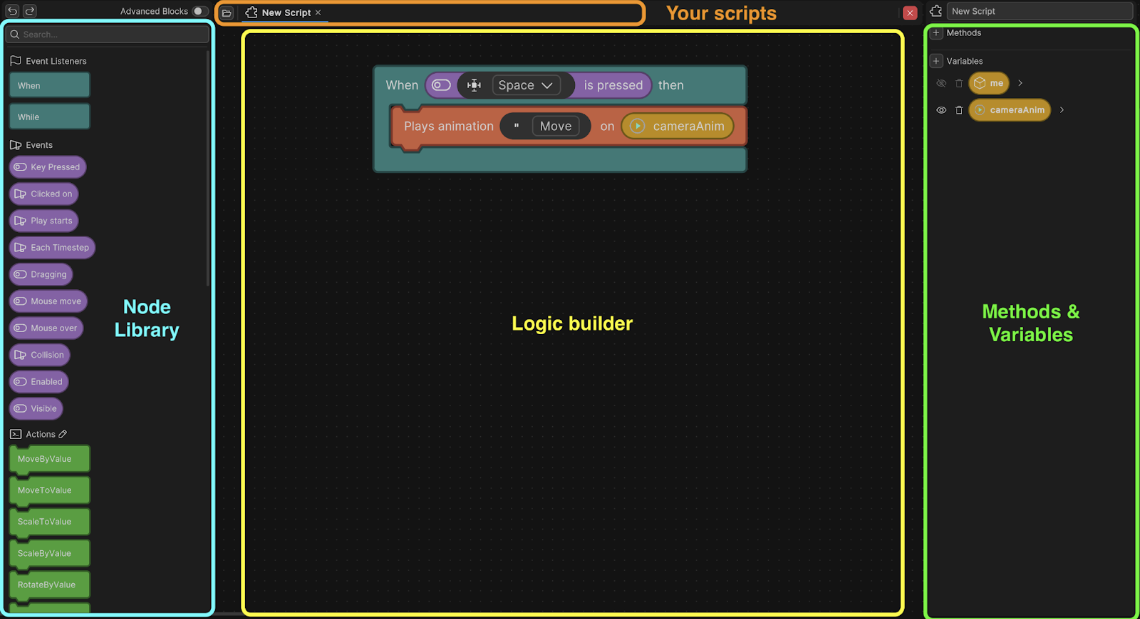
The Logic Editor User Interface (UI)
Node Library
The Node Library panel is where you can find all the available nodes. Nodes are the building blocks for your logic.
Property | Description |
|---|---|
| Nodes | The list of nodes in the panel in different categories- for example, events, actions, conditions. |
| Advanced Blocks | Enable this option to switch to more complex logic with greater control. Disable to switch back to basic nodes. |
| Search Bar | Enter the name of a specific node you want to find. |
Logic Builder
Use the Logic Builder to create and drag nodes into your script and build your logic. Connect nodes together to create Logic Blocks.
Right-click on a node or the background of this panel for the following options:
Context option | Description |
|---|---|
| Create Note | Create a note. You can attach notes to a node, or leave in empty space in the Logic Builder. |
| Open documentation | Some nodes have documentation available in the Unity API reference. Select to go to the documentation. Only available on certain nodes. |
| Cut | Remove the selected node but keep it in memory so you can paste it elsewhere. |
| Copy | Copy the selected node so you can paste it elsewhere. |
| Duplicate | Copy and paste the selected node in place. |
| Delete | Remove the selected node. |
| Delete (Keep chain) | Remove a node but keep the connection between the previous and next nodes. |
| Add Unity Event Method | For more advanced users, you can right-click on the background of the middle panel to add Unity Event Methods such as |
Logic Builder Hotkeys
Use the following hotkeys to speed up your workflow in the Logic Builder:
Action | Hotkey |
|---|---|
| Cut node | Cmd/Ctrl + X |
| Duplicate node | Cmd/Ctrl + D |
| Paste node in the Logic Builder | Cmd/Ctrl + V |
| Redo action | Cmd/Ctrl + Y |
| Toggle search | Cmd/Ctrl + F |
| Undo action | Cmd/Ctrl + Z |
Methods and Variables
The panel lets you create and manage methods (groups of actions) and variables (data holders).
Property | Descriptions |
|---|---|
| Script Name | Change the name of your Logic script in this field. |
| Methods | Use the Add(+) button to create a new method. |
| Variables | Use the Add(+) button to create a new variable. |
| Remove | The Remove icon shows next to each variable or method in this panel. Select to delete the item. |
| Show/Hide | This icon shows next to each variable. Click to toggle the variable's visibility. Hidden variables don’t appear in the Logic component for editing. |
For more information about methods and variables, refer to Methods, variables and parameters.