Get started with Offerwall
Set up Tapjoy Offerwall in your app and learn how to configure, integrate, and optimize it to increase user engagement and support higher revenue potential.
Thời gian đọc 3 phútCập nhật lần cuối 10 ngày trước
Monetize your app with Offerwall by setting up content cards in the Tapjoy Offerwall monetization dashboard. Offerwall rewards users for their ad engagement with in-app virtual currency. Setting up Offerwall includes both technical implementation in your app's code and setup in the Monetization dashboard. Refer to this guide for an overview of the dashboard configuration. To get started with offerwall, familiarize yourself with the following setup tasks:
- Create app: Add your app to the Monetization dashboard. (Required)
- Virtual currencies: Create a virtual currency that users earn by completing offers. (Required)
- Placements: Implement placement instances in your app code. (Required)
- Content cards: Configure how the Offerwall displays in your app. (Required)
- Messaging: Set up Tapjoy's Message to Earn or deeplink your internal messaging to direct users to the Offerwall. (Recommended)
- Optimization: Explore additional features to optimize your Offerwall setup. (Optional)
Prerequisites
Before you start the Offerwall setup tasks, ensure you complete the following prerequisites:- Integrate Tapjoy's Offerwall SDK. Refer to the following individual platform guides for detailed integration instructions:
- Add your app to the Monetization dashboard
Virtual currencies
When users complete offers in your Offerwall, they earn a custom virtual currency that you create. This currency enables users to purchase in-app rewards for their ad engagement. The following image shows an example of how offerwall shows an advertiser's custom virtual currency to end users: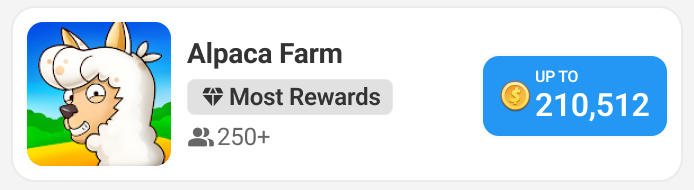
- Tapjoy-managed: Tapjoy manages and stores the user’s currency balance on its own servers.
- Self-managed: Tapjoy notifies your server of currency activity with a callback URL, but you're responsible for managing and storing the user's currency balance.
Placements
A placement is a specific location in your app where you want to display Content cards or use Messaging to direct users to an offerwall. One placement can include multiple content cards, each configured for a specific user segment. Placements require technical implementation in your app code. You can make changes to your placement configurations through the Tapjoy dashboard. For instruction on how to implement placements in your app code, refer to the following platform-specific placement guides: When you choose where to implement placements, consider both contextual and user-initiated placements. The recommended best practice is to start with a placement in both your app's home screen and in-app purchase (IAP) store. Use the correct placement type to test and implement both Content cards and Messaging. For more information, refer to the Placements documentation.Content cards
Content cards are how you display offerwalls to your users. When you set up a content card, you determine your Offerwall's virtual currency, exchange rate, and placement in your app. You can customize your Offerwall's appearance with a range of options, including colors and currency icons. The following image is an example of how an advertiser's offerwall appears for end users: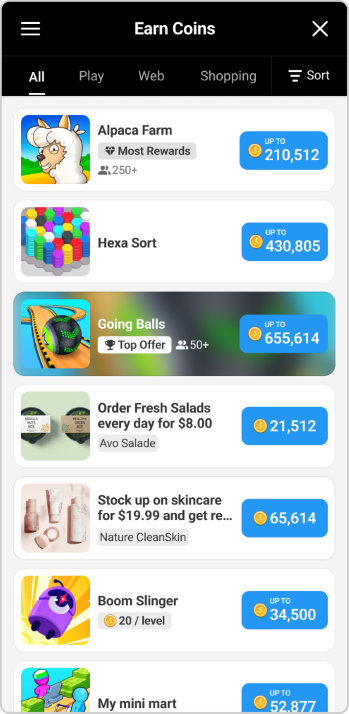
Messaging: Message to Earn or Deeplinking
Display in-app messages that direct users to your offerwall with either Message to Earn (M2E) or by deeplinking your internal messaging. The following image is an example of M2E in-app messaging: