Content cards
Learn how to create content cards in the Tapjoy Offerwall monetization dashboard to display offers in a visually engaging format, enhance user interaction, and increase conversion rates.
Thời gian đọc 2 phútCập nhật lần cuối 10 ngày trước
A content card is a specific configuration of an offerwall that allows developers to target specific user segments. These configurations include different currencies, exchange rates, UI customizations, or frequency settings. The following examples show common use cases for creating different types of content cards:
- Content cards with different UI to target users by country
- Content cards with varying exchange rates to target users based on behavior
- Content cards with localized messaging to target users by language
How content cards work
You can configure multiple Offerwall cards under a single placement to deliver personalized content to different user segments. When a placement calls for an Offerwall, Tapjoy goes through the listed content cards and displays the first one that matches the user's targeting criteria.Example
Consider a placement namedmain_menu_button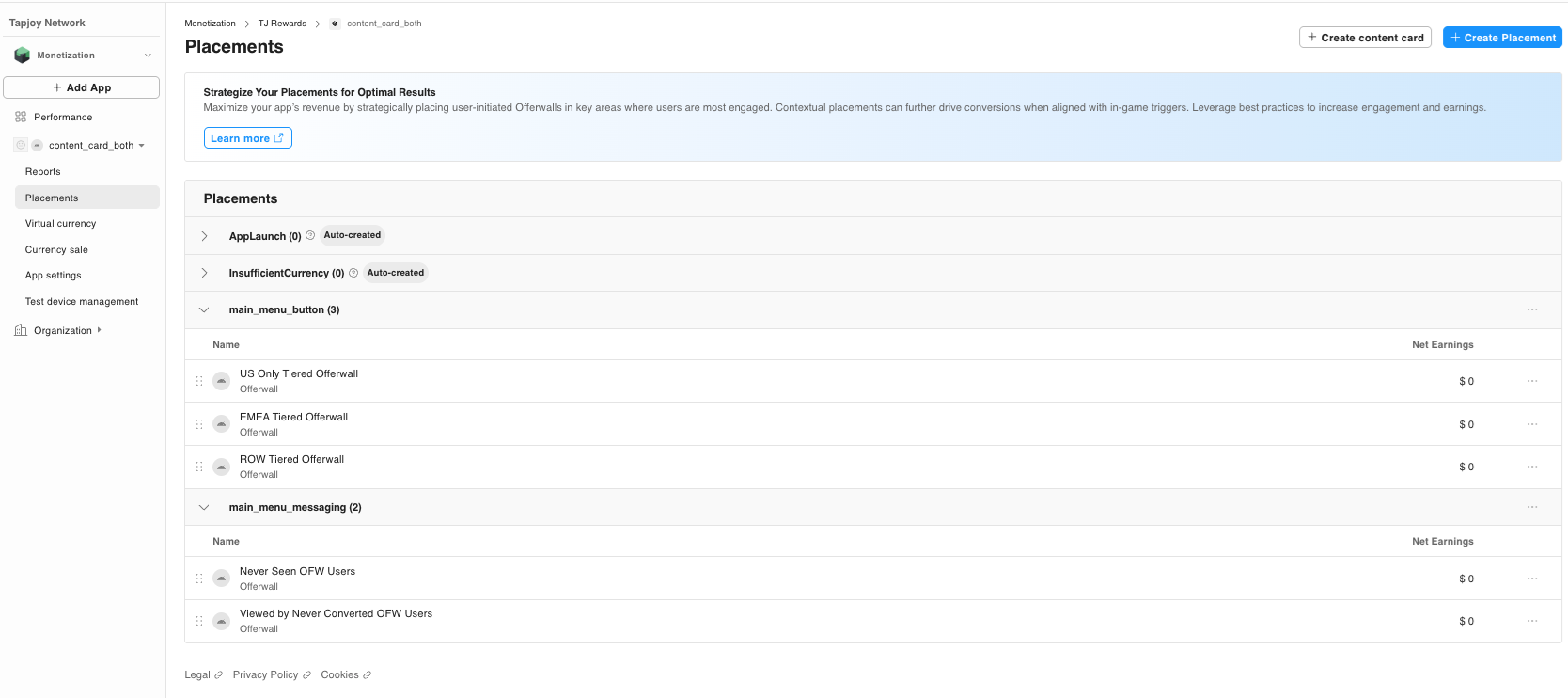
Best practices for content card targeting
Follow these targeting best practices to optimize user engagement and maximize revenue:Segment by user attributes
Set up content cards based on user segments to ensure you deliver relevant content to your intended audience. For more information, refer to Targeting.Enable Messaging
If your content card appears in a Contextual placement, enable Message to Earn or deeplink your in-app messaging to the content card. This feature increases visibility and encourages more users to engage with offers.Run A/B tests
If you’re unsure of which configuration works best for a segment, use Tapjoy’s A/B testing tool to experiment with different content card setups. Measure results and optimize for higher performance.Create a content card
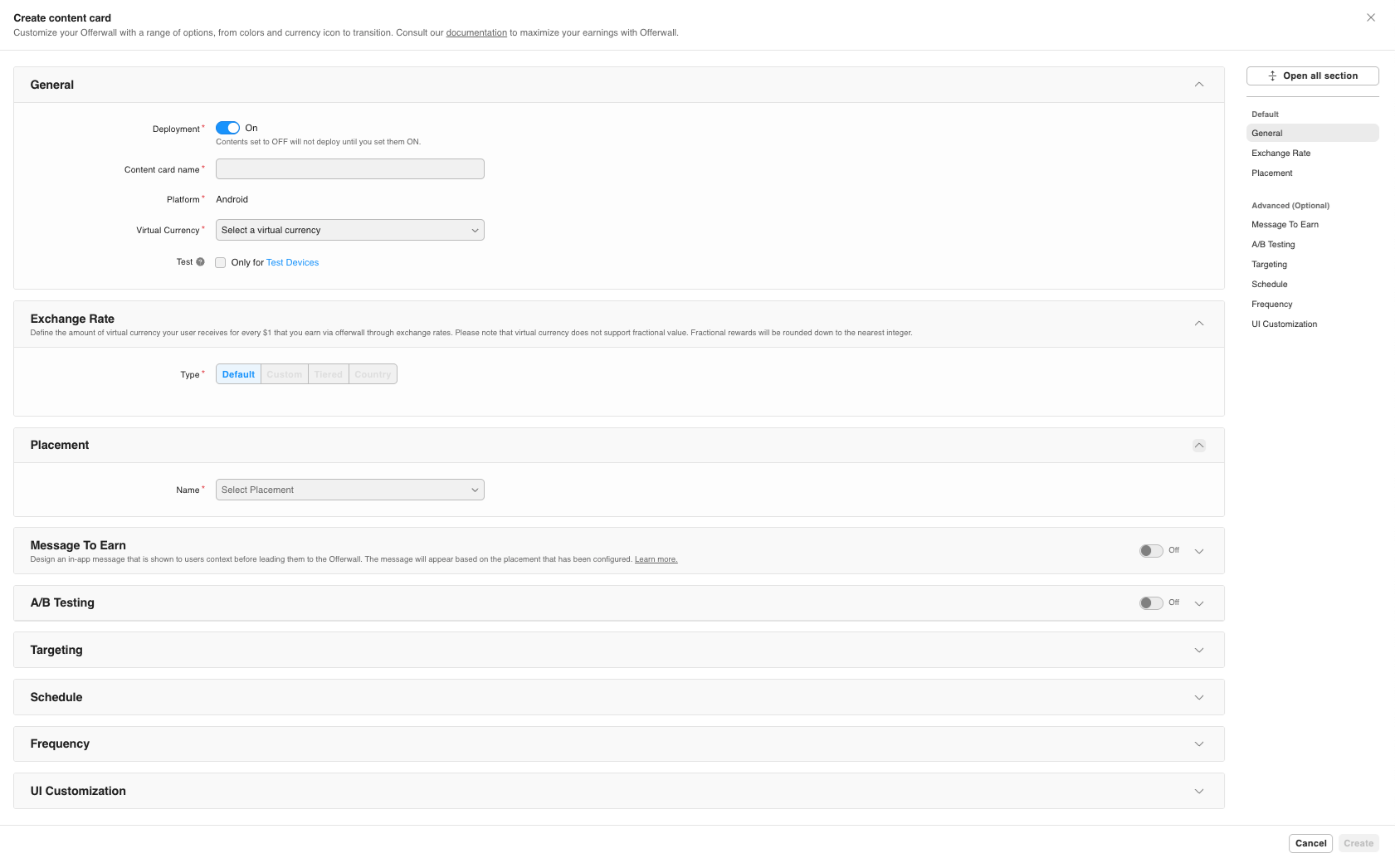
- Go to your app in the Tapjoy Offerwall monetization dashboard.
- Select Placements from the side navigation menu.
- Select Add content card.
- In the General section, enter a name for your content card and select the appropriate Virtual currency from the dropdown.
- To restrict your offerwall to test devices only, check the Test checkbox.
- In the Exchange rate setup section, choose what Type of exchange rate to apply to your virtual currency. For more information about rate types, refer to the Exchange Rates guide.
- In the Placement setup section, choose the appropriate placement(s) for your content card from the Name dropdown.
- You can optionally configure recommended options now or after the initial setup.
- Message to Earn (M2E)
- Targeting
- Schedule
- Frequency
- UI Customizations
- Select Create to save your settings when the card configuration is complete.