Offerwall Currency Sales
Use currency sales in your app to incentivize user engagement and help to maximize revenue.
Thời gian đọc 5 phútCập nhật lần cuối 10 ngày trước
Offerwall currency sales are limited-time promotions where publishers increase the in-app reward users receive for completing Offerwall offers typically by applying a multiplier (for example, 2x). These sales drive user engagement and monetization by making offers more attractive. Publishers can run them independently or join Tapjoy’s scheduled sales around major holidays. Currency sales are a proven way to increase engagement, retention, and revenue for app developers. You can set a limited-time offerwall promotion that increases the rewards offered to users, ranging from 1.01x to 10x the standard rate.
Types of Offerwall currency sales
Choose the appropriate currency sale type to optimize user engagement and revenue.Currency sale type | Description |
|---|---|
| Increase revenue from existing users | Schedule around major holidays and peak engagement periods when the advertiser spend is the highest. Opt into these preset currency sales to maximize earnings. Refer to the 2025 preset currency sale dates for more information on optimizing your sale schedule. |
| Custom | Set up a custom currency sale to coincide with a new game mode, character release, or game anniversary to increase engagement. Refer to the Set up a currency sale with a preset section of this article for more information on optimizing your custom schedule. |
Benefits of running currency sales
Increasing reward value incentivizes users to interact with the offerwall and complete offerwall tasks, which can lead to the following results:- Higher engagement: Users are more likely to explore and complete offers.
- Increased offer completion rates: More users finish tasks, driving ad revenue.
- Grown in in-app purchases (IAP): Players experience in-game boosts, encouraging future spending.
Set up a currency sale with a preset
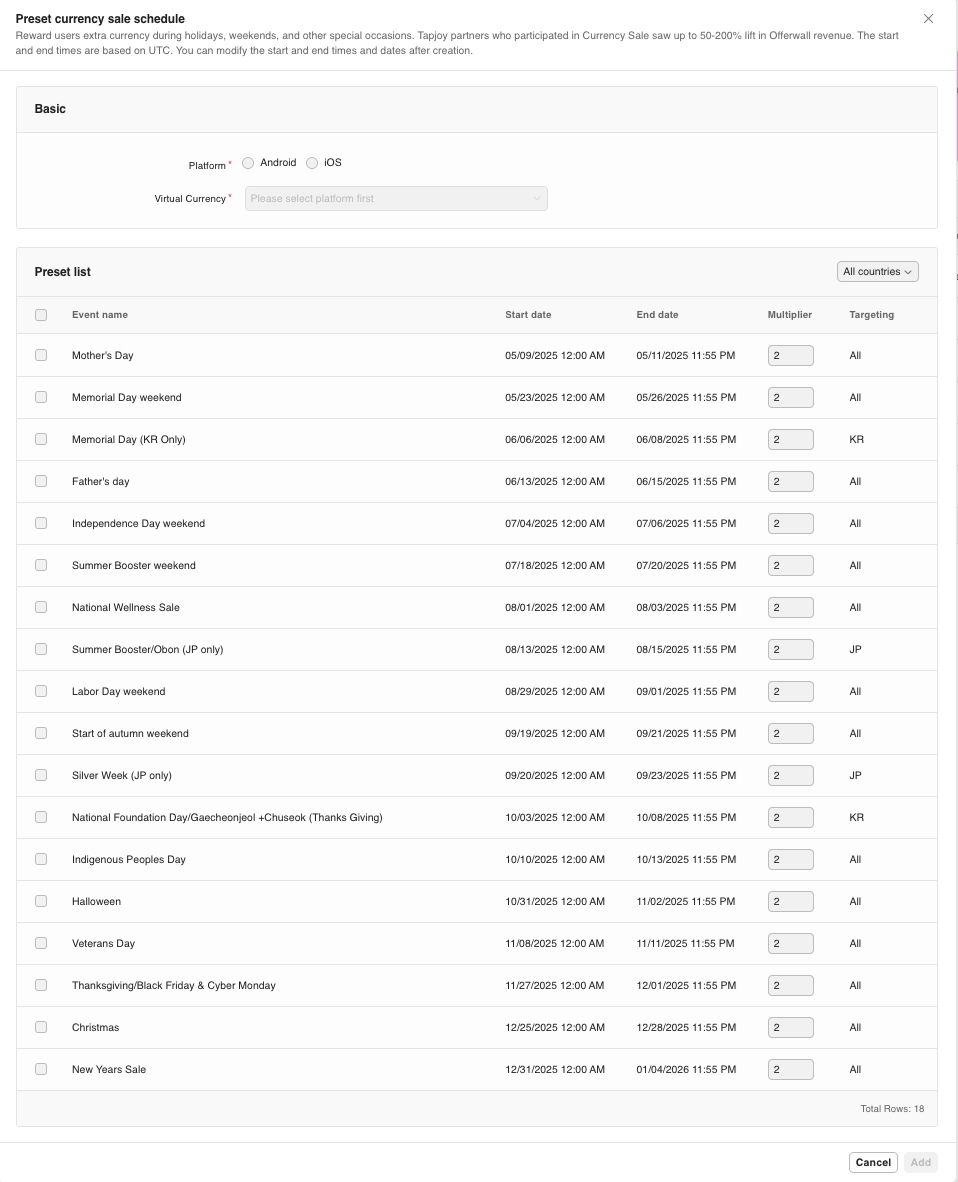
- In the side navigation menu, select Currency sale.
- Then select Add from preset from the top right corner.
-
In the Preset currency sale schedule, select predefined currency sales from the Preset list. Adjust the sale Multiplier as necessary.
- Select Add to activate the sale. The sale displays in the Currency Sale list when you filter sales by All. After the sale ends, it moves to the Ended filter.
Set up a custom currency sale
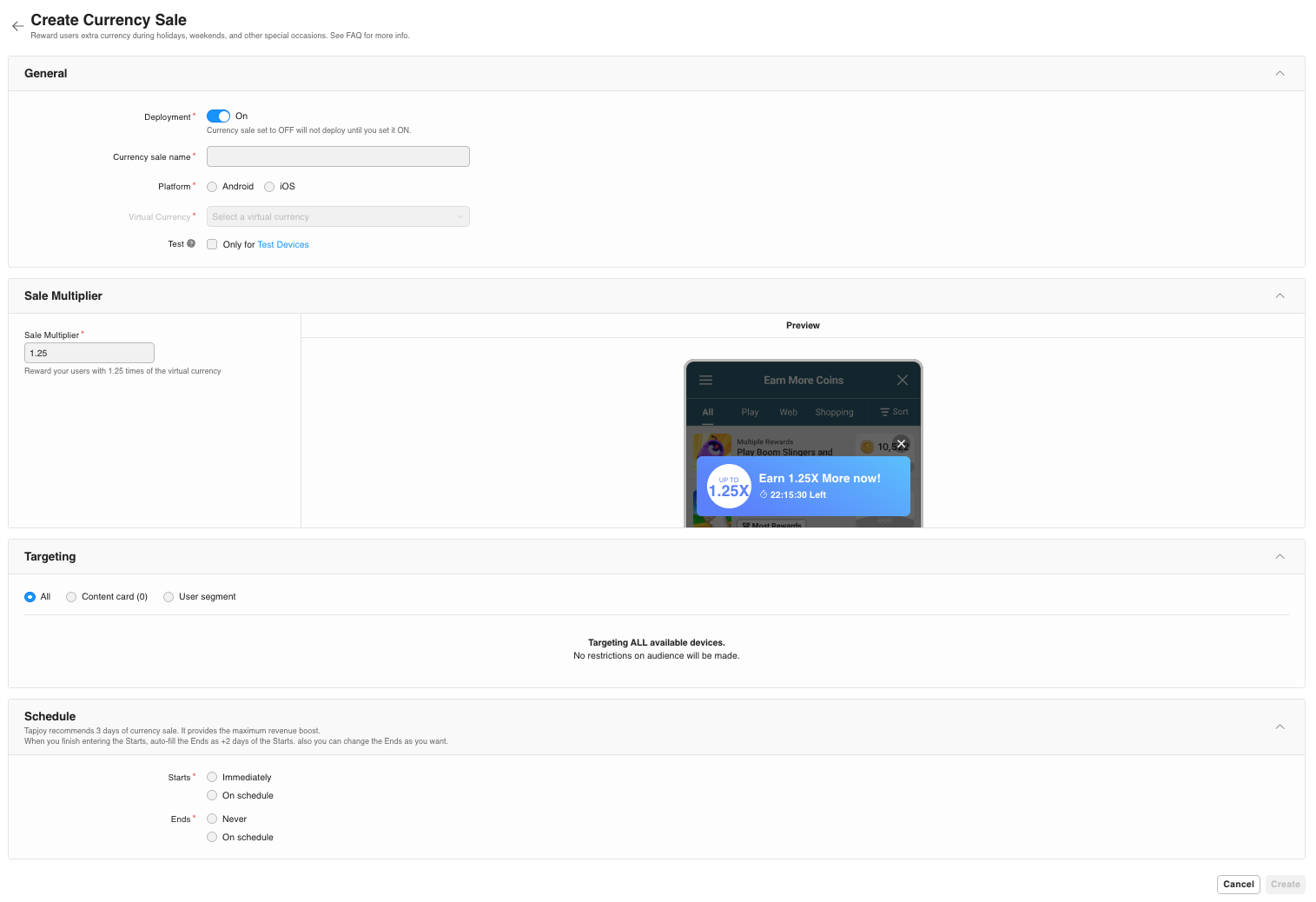
- In the side navigation menu, select Currency Sale, then select Create Currency Sale.
- Complete the following currency sale form sections:
Field | Input |
|---|---|
| Deployment | Enabled by default. The sale doesn't go live until the start date. |
| Currency sale name | Enter a name for the sale. |
| Platform | Preselected based on the app's operating system. |
| Virtual currency | Choose a currency that you already configured. |
| Test | Enable to limit the sale to test devices only. |
Apply a promotion for the sale For example, if you apply a 1.5X multiplier, the user earns 150 coins instead of the normal 10 coins.
Define audience segments for the currency sale. Select from the following options:
- All: Target the currency sale to all
- Content Card: Link the currency sale to a specific content card. The sale inherits all specified targeting in the content card.
- User Segment: Select specific segments for this currency sale to target. To learn more about each type, refer to the Targeting documentation.
Set the Start and End time of the currency sale. The time zone will match the app’s configured settings.To leave the sale active indefinitely, select Never as the End date.
- Select Save to finish the setup. The sale displays in the Currency Sale list when you select the All filter. After the sale ends, it moves to the Ended filter.
Optimizing currency sales with Messaging
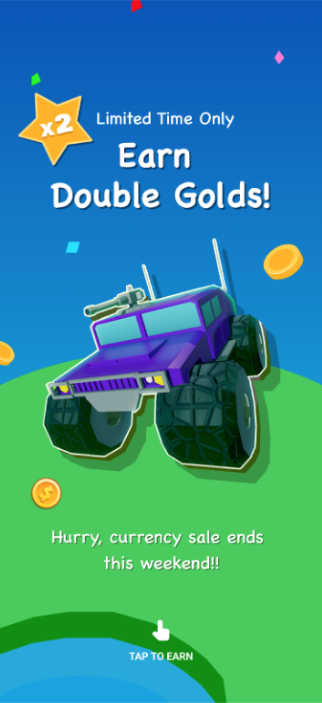
- Message to Earn are customizable in-app messages that direct users to the Offerwall during gameplay. With targeting features, you can reach specific user segments, such as players who have never made an in-app purchase - by using tailored messages to drive engagement and conversions.
- Deeplinking lets you use your own in-app messaging system to link directly to the Offerwall. Refer to the platform-specific tabs of the Message to Earn deeplinking documentation based on your implementation.
Set up a personalized currency sale with Message to Earn
This type of currency sale requires configuring Message to Earn as a prerequisite. To learn more about setting up customizable in-app messages in content cards with Message to Earn, refer to the Configure Message to Earn section of the Messaging article.- Go to the Targeting section of the Currency sale setup and select Content card.
- Select the Content card that aligns with the target demographic for this currency sale.
- Go to the Schedule section and set the Starts and Ends dates for the currency sale. The time zone will match the app’s configured settings. To leave the sale active indefinitely, select Never as the End date.
- Select Save to finish the setup. The sale displays in the Currency Sale list when you select the All filter. After the sale ends, it moves to the Ended filter.
2025 preset currency sales
Refer to these dates when setting up a custom currency sale to coincide with a new game mode, character release, or game anniversary to increase engagement.Themes | Dates | Region |
|---|---|---|
| Thanksgiving / Black Friday / Cyber Monday | November 27 to December 1 | All |
| Christmas | December 25 to 28 | All |
| New Year’s | December 31 to January 4 | All |
2026 preset currency sales
Themes | Dates | Region |
|---|---|---|
| New Year’s | December 31 to January 4 | All |
| Coming of Age | January 10 to 12 | JP |
| Martin Luther King Day | January 16 to 19 | All |
| Superbowl Weekend | February 6 to 8 | All |
| Valentine’s Day and President’s Day | February 13 to 16 | All |
| Seollal (Lunar New Year) | February 16 to 18 | KR |
| Independence Movement Day | February 28 to March 2 | KR |
| St. Patrick’s Day | March 14 to 17 | All |
| Easter Weekend | April 3 to 5 | All |
| Spring Booster Sale | April 17 to 19 | All |
| Golden Week | April 29 to May 6 | JP |
| Children’s Day | May 2 to 5 | KR |
| Mother’s Day | May 8 to 10 | All |
| Memorial Day weekend | May 22 to 25 | All |
| Memorial Day | June 3 to 7 | KR |
| Father’s Day | June 19 to 21 | All |
| Independence Day weekend | July 3 to 6 | All |
| Summer Booster weekend | July 24 to 26 | All |
| Lucky 8 Weekend Sale | August 7 to 9 | All |
| Summer Booster / Obon | August 13 to 15 | JP |
| Back to School | August 21 to 23 | All |
| Labor Day weekend | September 4 to 7 | All |
| Start of autumn weekend | September 18 to 21 | All |
| Silver Week | September 19 to 23 | JP |
| Chuseok | September 24 to 27 | KR |
| National Foundation Day/Gaecheonjeol | October 3 to 5 | KR |
| Indigenous Peoples Day | October 9 to 12 | All |
| Halloween | October 30 to November 1 | All |
| Veterans Day | November 11 to 15 | All |
| Thanksgiving / Black Friday / Cyber Monday | November 26 to 30 | All |
| Christmas | December 24 to 28 | All |
| New Year’s | December 31 to January 3 | All |