Exchange rates
Understand how to set and manage exchange rates in the Tapjoy Offerwall monetization dashboard to ensure accurate virtual currency rewards.
Thời gian đọc 5 phútCập nhật lần cuối 10 ngày trước
Exchange rates define the amount of virtual currency a user receives for every $1 that you earn through an Offerwall conversion. Configuring your exchange rate strategically helps you deliver compelling rewards and can help to increase Offerwall engagement while maintaining your app’s economy. Tapjoy supports four types of exchange rates, each designed to meet specific user targeting and monetization goals: Default, Custom, Tiered, and Country-level targeting. This document outlines available exchange rates, best practices for each type, and configuration instructions to help you provide appropriate incentives for Offerwall users. The following table shows the different exchange rate types, their associate monetization goals, and their key benefits to help you choose your exchange rate strategy:
Exchange rate type | Monetization goal | Key benefits |
|---|---|---|
| Default | Standard rate for all users without custom configuration |
|
| Custom | Target specific user segments, such as high-currency users, new users, or IAP-averse users. |
|
| Tiered |
|
|
| Country-based | Optimize rewards by region based on conversion rates and purchasing power |
|
Default exchange rates
This is the standard exchange rate applied when no custom settings are in place. For example, if the default rate is $1 = 100 coins, users will receive 100 coins for each $1 you earn. To modify this behavior, consider using Custom or Tiered rates.Custom exchange rates

Custom exchange rate use cases
Refer to the following user types to understand when to use custom exchange rates for different users:User type | User needs | Exchange rate strategy |
|---|---|---|
| Mature users | Users with high virtual currency balances might need higher incentives to engage. | Use a custom rate to offer more compelling incentives. For example, a 2-coin reward might not motivate a user with one million coins. |
| New or inactive Offerwall users | Users who have never completed an offer might not understand the value or ease of completing an offer. | A higher reward can encourage a user to make their first conversion. |
| IAP-adverse users | Users who are unlikely to make in-app purchases and are more likely to generate value through ad revenue. | Offering a higher multiplier can help to drive more Offerwall completions to non-IAP segments, and can encourage more Offerwall completions with minimal risk to your IAP revenue. |
Set up custom exchange rates
- Go to the Exchange Rate section of your Content card setup.
- Select Custom as the exchange rate Type.
- Enter a Currency multiplier value (for example, 2.0 for twice the base currency).
- The multiplier determines the effective exchange rate for offers. For example, if your virtual currency’s default exchange rate is $1 = 100, then a 2× multiplier will provide 200 units of currency per $1 Offerwall payout.
Tiered exchange rates
The tiered setting gives you granular control by assigning different multipliers based on offer value. This tool helps you align the value of your Offerwall currency with your in-app purchase pricing, making offers more appealing to users without risking Offerwall engagement with IAP cannibalization. This structure can help you to balance Offerwall incentives more closely with your in-app purchase pricing and user value tiers.Tiered exchange rate use cases
Refer to the following offerwall monetization goals to understand when to use tiered exchange rates:Monetization goal | Exchange rate strategy |
|---|---|
| Gradually reduce payout amounts | Use a declining reward structure to prevent currency inflation in your app. |
| Reward high-value actions more | Users are more likely to complete high-value offers when the reward feels large. |
| Align exchange rates with IAP values | Match or slightly exceed the currency value of your in-app purchases to make the Offerwall an appealing alternative without devaluing purchases. |
How tiered exchange rates work
Tiered exchange rates calculate the total user reward by adding up the rewards across tiers. Each tier has a defined offer value range and a corresponding multiplier. Refer to the following example calculation for a user who completes a $25 offer based on a Tiered Exchange Rate. The currency exchange rate is $1 = 100 coins.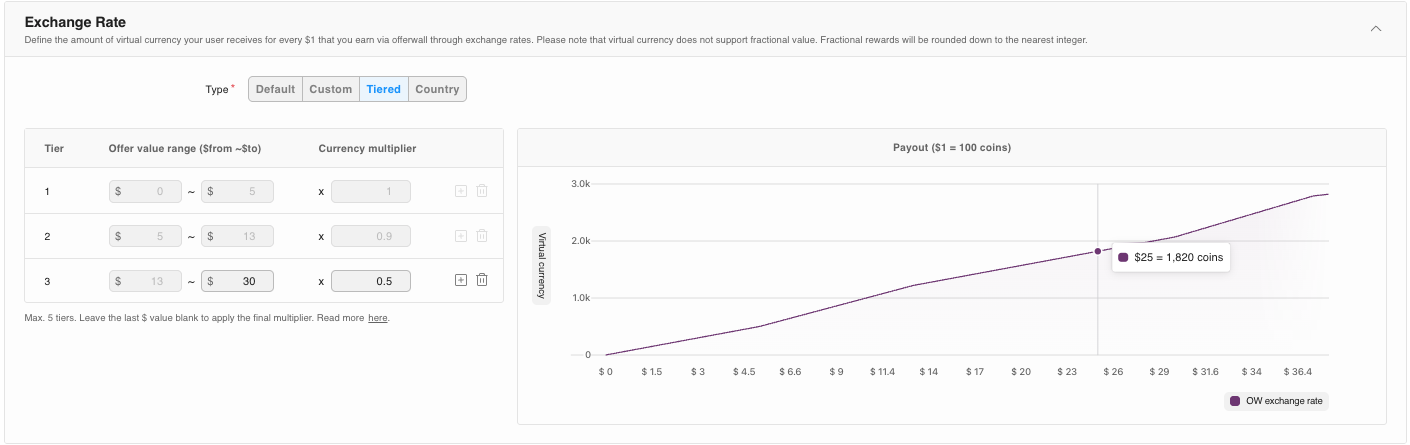
Tier 1 calculation
In the first tier, the offer value range is from $0 to $5 with a currency multiplier of .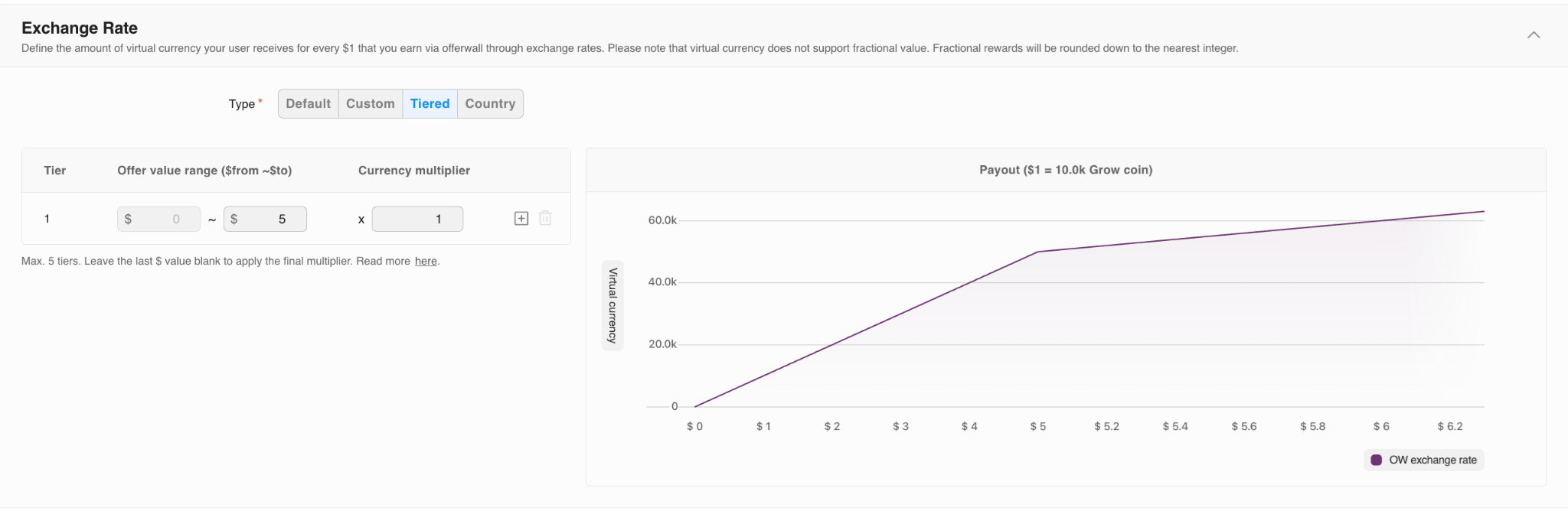
1((Max offer value of Tier 1 − Min offer value of Tier 1) × Tier 1 multiplier) × Currency exchange
Tier 2 calculation
In the second tier, the offer value ranges from $5 to $13 with a currency multiplier of .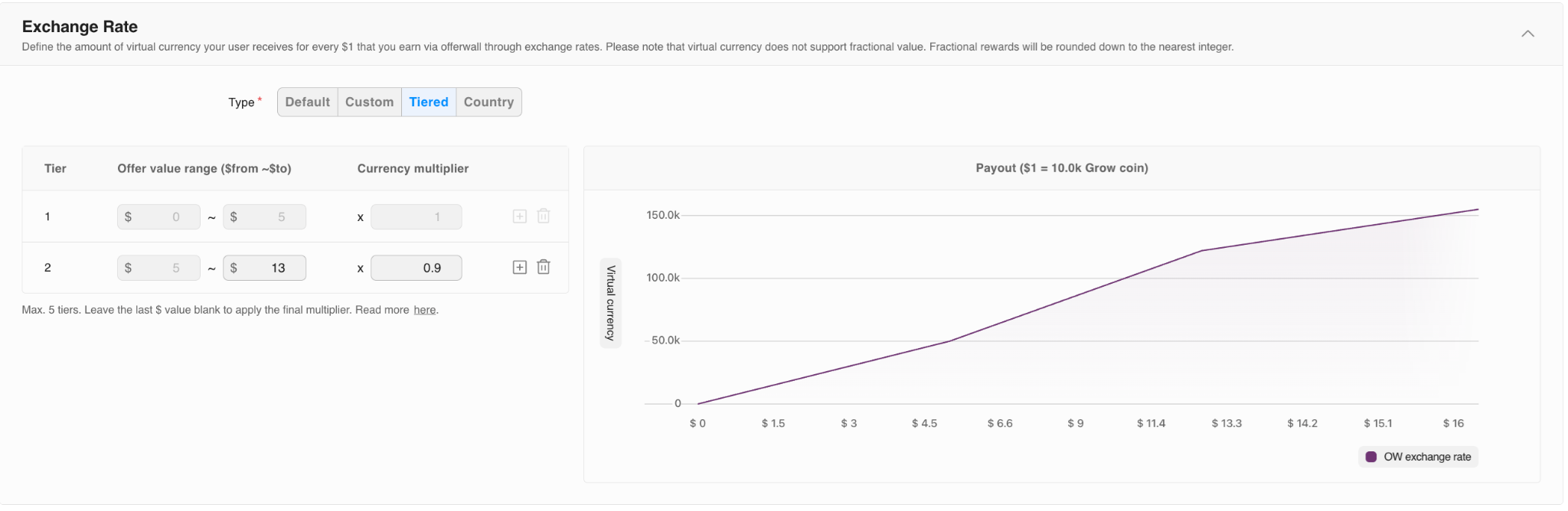
0.9((Max offer value of Tier 2 − Min offer value of Tier 2) × Tier 2 multiplier) × Currency exchange
Tier 3 calculation
In the third tier, the offer value ranges from $13 to $30 with a currency multiplier of . The max offer amount for this tier is $25 because the user completed a $25 offer.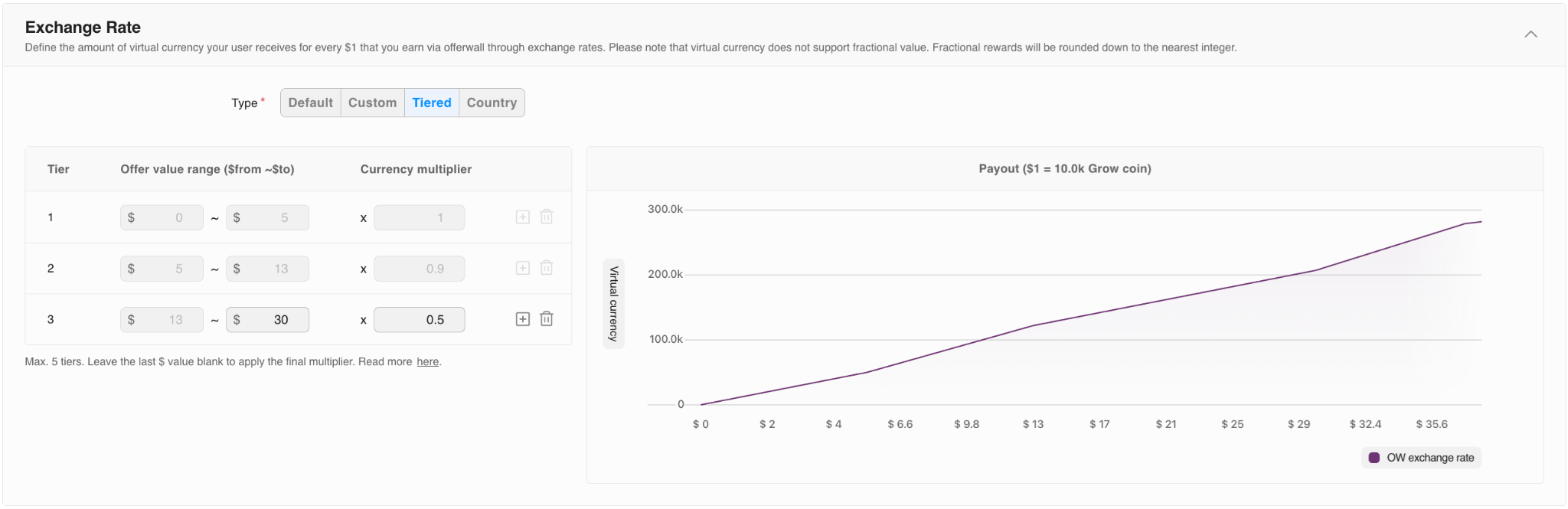
0.5((Offer completed value − Min offer value of Tier 3) × Tier 3 multiplier) × Currency exchange
Total payout calculation
Add the total payout of all tiers.The user will receive 1,820 coins based on the example tiered exchange rate.
(((Tier 1 payout) + (Tier 2 payout) +(Tier 3 payout))) = Total payout
Set up tiered exchange rates
- In your Content card setup, go to the Exchange rate section.
- Select Tiered.
- Add between 1 and 5 tiers for your setup as necessary. Refer to the following best practices for adding tiers:
- When you add tiers, the system sets initial value ranges automatically to avoid gaps.
- Leave the maximum value blank for the final tier to include all higher-value offers.
- Enter your Currency multiplier value for each tier.
- Use the line graph to preview user payouts by offer value. Drag to zoom in on specific offer values.
Country-based exchange rates
Use the country setting to assign different exchange rates by region. This can help to account for different levels of purchasing power based on a user’s country and optimize Offerwall performance globally.Country-based exchange rate use cases
Refer to the following offerwall monetization goals to determine when to use country-based exchange rates:Monetization goal | Exchange rate strategy |
|---|---|
| Increase rates in low-conversion countries | If a country has high Offerwall views but few completions, users might not perceive the rewards to be valuable. Increasing the exchange rate can improve engagement. |
| Normalize rewards between regions | Differences in regional economies and exchange rates can affect the perceived value of your Offerwall. Adjust rates to maintain a fair, consistent value across countries. |
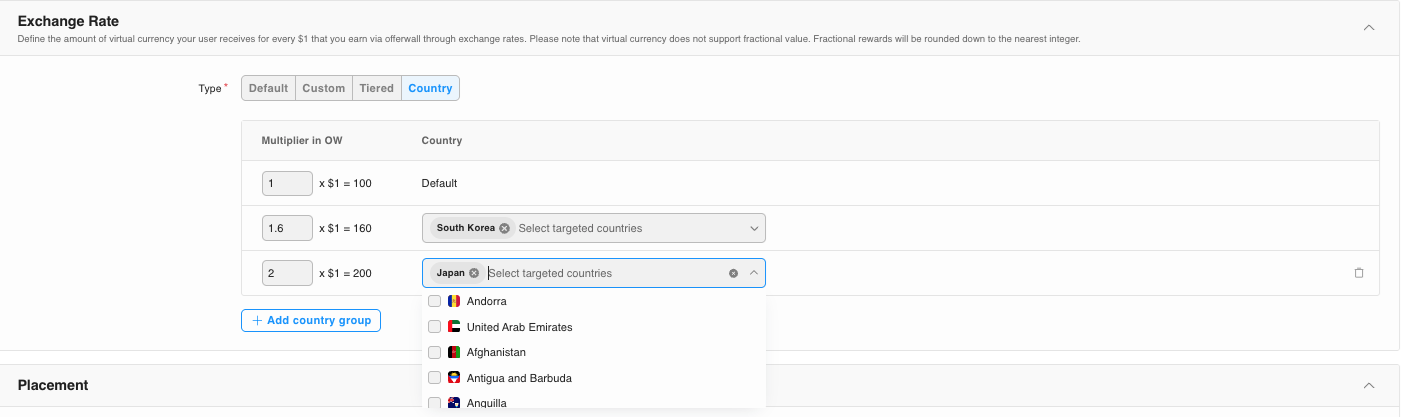
Set up country exchange rates
- In your Content card setup, go to the Exchange rate section.
- Select Country.
- Select different countries in the dropdown.
- Add multipliers to the country set.