3D preview tab reference
Explore the properties and settings available in the 3D preview to inspect assets, control camera behavior, customize grid and wireframe displays, and manage viewing tools.
읽는 시간 5분최근 업데이트: 2달 전
In the Project Assets interface, select an asset to preview it. By default, it opens in the Thumbnail tab, which is a 2D viewer. Select the 3D preview tab to inspect your asset in a 3D viewer.
3D preview toolbar
Explore the properties in the 3D preview tab, starting at the upper-left corner and moving clockwise.
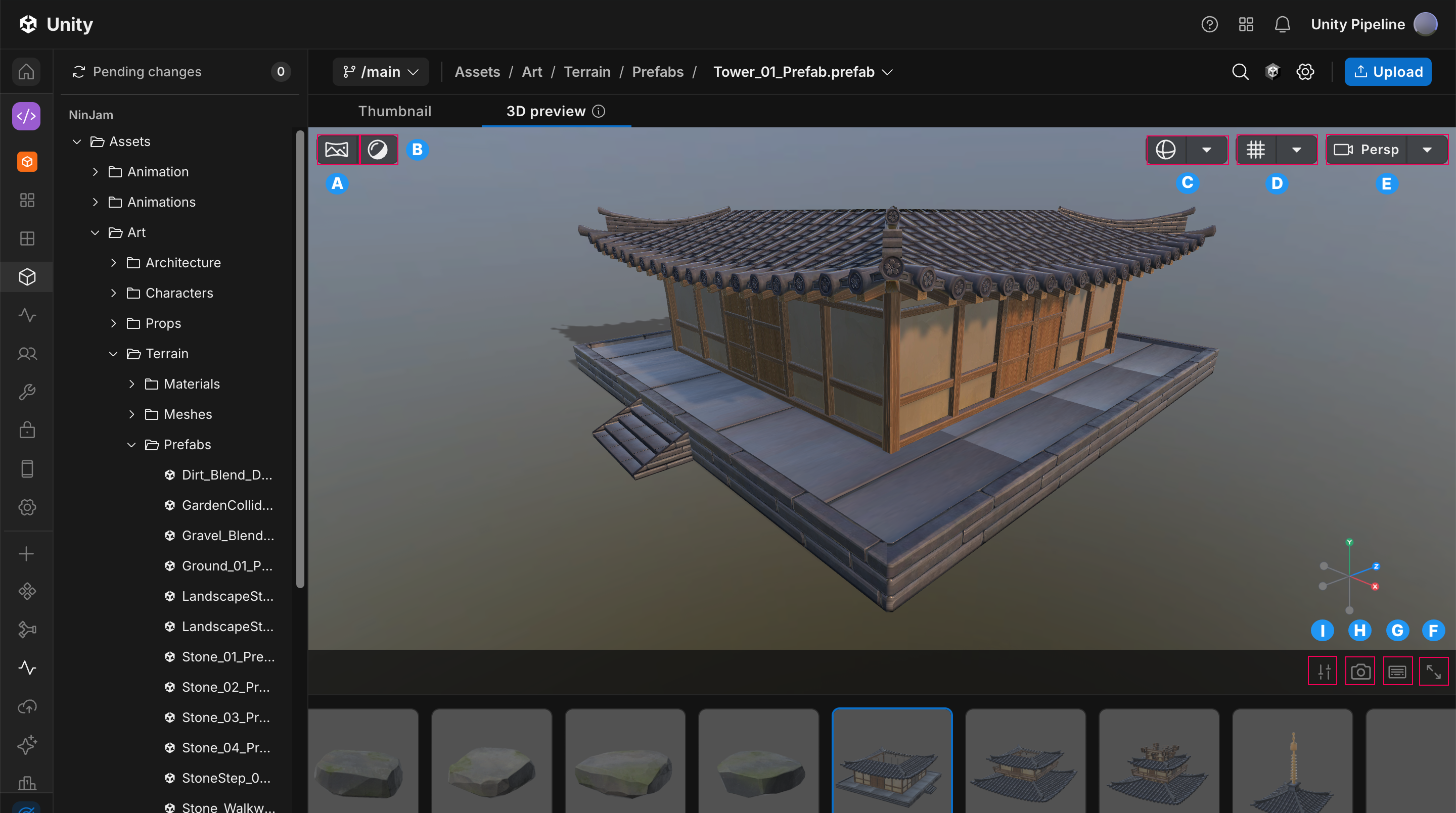
The properties available in the **3D preview** tab
Label | Property | Description |
|---|---|---|
| A | Environment, Lighting, Background | Configures the Environment, Lighting, and Background settings in the 3D preview tab to control how assets appear. |
| B | Material channels | Shows the material channels assigned to a 3D asset. |
| C | Wireframe settings | Shows or hides the wireframe and select a wireframe color. |
| D | Grid settings | Shows or hides the grid and customize the grid. |
| E | Camera settings | Controls the camera view mode and alignment. |
| F | Enter full screen | Expands the 3D preview tab to full screen mode. |
| G | Keyboard shortcuts | Shows keyboard shortcuts for navigation and scene selection. |
| H | Snapshot viewer | Downloads a snapshot of the current view. |
| I | Viewer settings | Configures camera movement, speed, and clipping behavior. |
Environment settings
Explore the properties in the Environment settings in the upper-left corner of the 3D preview tab.
Property | Description |
|---|---|
| Pure diffuse | Uses unlit, diffuse shading to show base colors and materials without environmental influence. |
| Studio | Uses a controlled studio setup to simulate balanced ambient lighting and soft reflections. |
| Morning | Uses a sky-based lighting environment with soft, warm tones to simulate magic hour lighting. |
| Sunny | Uses strong overhead direct lighting to simulate bright highlights and defined shadows. |
| Cloudy | Uses diffused sky lighting to simulate overcast conditions. |
| Night | Uses low, desaturated lighting with a night sky to simulate nighttime conditions. |
| City Night | Uses an urban night environment to simulate artificial lighting and complex reflections. |
| Unity Default | Uses the default environment from the Unity Editor. |
Lighting settings
Explore the properties in the Lighting settings in the upper-left corner of the 3D preview tab.
Property | Description |
|---|---|
| Directional light toggle | Enables or disables the directional light in the scene. |
| HDRI Rotation slider | Adjusts the rotation of the HDR environment to change lighting direction and reflections. |
Background settings
Explore the properties in the Background settings in the upper-left corner of the 3D preview tab.
Property | Description |
|---|---|
| Background color | Sets a solid color as the background for the viewer. |
| HDR Background toggle | Enables or disables the HDR environment as the background. |
| Blur Background toggle | Enables or disables background blur to reduce visual detail and improve focus on the asset. |
Material channels
Use material channels to inspect a 3D asset without changing the original asset’s materials. Material channels are baked into the model as a single texture. This enables efficient rendering and ensures a consistent appearance across environments.
You can inspect the following material channels:
Material channel | Description |
|---|---|
| Albedo | Defines the base color of the surface. |
| Emission | Controls light that the material emits. |
| Metalness | Determines how metallic the surface appears. |
| Normal map | Adds surface detail without increasing geometry. |
| Occlusion map | Simulates shadowed areas to enhance depth. |
| Opacity | Adjusts the transparency of the surface. |
| Roughness | Controls how shiny or matte the material appears. |
| UV checkerboard | Displays the UV layout to debug textures. |
Wireframe settings
Explore the properties in the Wireframe settings in the upper-right corner of the 3D preview tab.
Property | Description |
|---|---|
| Off | Hides the wireframe on the 3D asset. |
| Wireframe on shaded | Shows the wireframe on the 3D asset. |
| Show bounding box | Displays the bounding box around the selected asset. |
| Color | Selects a color for the wireframe. |
Grid settings
Explore the properties in the Grid settings in the upper-right corner of the 3D preview tab.
Property | Description |
|---|---|
| Grid | Shows or hides the grid in the viewer. |
| Axes enabled | Shows or hides the grid axes. |
| Snap to Model Ground Plane | Turns alignment to the ground plane on or off to position the asset accurately. |
| Scale | Sets the spacing between grid lines. |
| Size | Sets the overall dimensions of the grid. |
| Opacity | Adjusts the transparency of the grid. |
| Plane | Selects the plane on which the grid is displayed. |
Camera settings
Explore the properties in the camera settings in the upper-right corner of the 3D preview tab.
Property | Description |
|---|---|
| Orthographic | Sets the camera to an orthographic view to remove perspective distortion. |
| Perspective | Sets the camera to a perspective view to display depth and distance. |
| Align | Aligns the camera to a predefined viewpoint. |
Viewer settings
Explore the properties in the Viewer settings in the lower-right corner of the 3D preview tab, for camera movement and clipping.
Property | Description |
|---|---|
| Camera easing | Enables smooth camera movement when starting or stopping. |
| Camera acceleration | Enables gradual increases in camera movement speed. |
| Camera speed | Sets the base movement speed of the camera. |
| Max speed | Sets the maximum movement speed the camera can reach. |
| Custom clipping | Enables custom near and far clipping values. |
| Near clip | Sets the minimum distance from the camera at which objects are visible. |
| Far clip | Sets the maximum distance from the camera at which objects are visible. |