Game Overrides と CCD のインテグレーション
Use Remote Config and badges to integrate Game Overrides with Cloud Content Delivery so you can target content to specific audiences.
読み終わるまでの所要時間 11 分最終更新 8ヶ月前
Game Overrides を使用すると、例えば、A/B テストの実行や、地理的な場所や特定の期間に合わせたコンテンツのカスタマイズにより、コンテンツのターゲットとして特定のオーディエンスを設定できます。バッジで意図したコンテンツを識別し、Remote Config でライブプレイヤーに影響を与えずにそのコンテンツをテストし、さらに、バッジを付けたコンテンツを特定のプレイヤーに配信することができます。
Game Overrides を統合するには、以下のステップを実行します。
- Remote Config パッケージをインストールする
- プロジェクト ID をリンクする
- CCD バッジを使用して、コンテンツのターゲットを設定するための Override を作成する
- Remote Config をゲームコードに組み込む
- CCD から適切なアセットを取得する
Remote Config パッケージをインストールする
パッケージのインストールについては、Unity の Package Manager を参照してください。
- Unity エディターで、Window (ウィンドウ) > Package Manager (パッケージマネージャー) を選択します。
- Packages (パッケージ) リストビューで、Remote Config を選択します。
- パッケージ固有の詳細ビューで、Remote Config をプロジェクトにインポートするのに必要なバージョンを選択し、インストールします。
プロジェクト ID をリンクする
まだ行っていない場合は、Unity プロジェクトをプロジェクト ID にリンクする必要があります。
Unity エディターからプロジェクトをリンクするには、以下を行います。
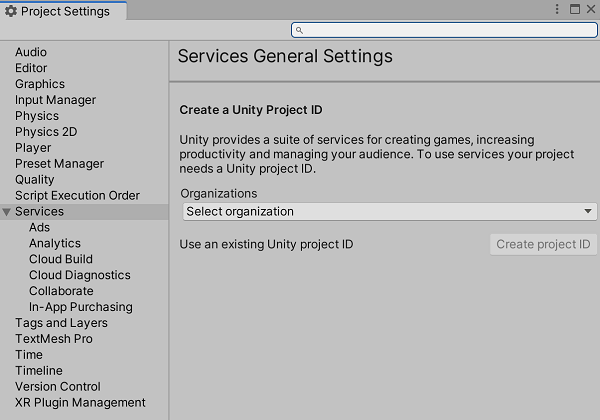
- Services (サービス) ウィンドウを開きます (Window (ウィンドウ) > General (全般) > Services (サービス) を選択します)。
- General settings (全般設定) を選択します。
- Project settings (プロジェクト設定) メニューの Services (サービス) セクションで、ドロップダウンから組織を選択します。関連付けられている組織のリストを表示するには、Unity Hub にサインインしている必要があります。
- Use an existing Unity project ID (既存の Unity プロジェクト ID を使用) を選択して、開発者ダッシュボードで以前に作成した ID にプロジェクトをリンクするか、Create project ID (プロジェクト ID を作成) を選択して新しい ID にプロジェクトをリンクします。
Override を作成する
Unity Dashboard で、Game Overrides サービスまたは Cloud Content Delivery サービスから Override を作成できます。Override の作成 を参照してください。
-
ナビゲーションバーで LiveOps を選択して Game Overrides サービスに移動し、セカンダリナビゲーションバーで Game Overrides > Overrides を選択します。
または、Cloud Content Delivery サービス自体のバケットの Targeting (ターゲティング) タブで Create Override (Override を作成) を選択して、Overview (概要) ページに移動することもできます。 -
Create Override (Override を作成) を選択します。
-
Override に名前を付け、Next (次へ) を選択します。
-
JEXL 条件 を指定してターゲットにするプレイヤーを選択し、ターゲットにするこれらのプレイヤーの割合を指定します。Next (次へ) を選択します。
-
+ Choose content type (+ コンテンツタイプを選択) を選択し、Cloud Content Delivery > Badge (バッジ) を選択します。Done (完了) を選択します。
-
Choose a bucket (バケットを選択) を選択し、使用するバケットを選択します。
-
Choose your badge (バッジを選択) を選択し、使用するバッジを選択します。Choose (選択) を選択し、Next (次へ) を選択します。
-
Override を実行する Start (開始日) と End Date (終了日) を選択します。Finish (終了) を選択します。
-
Enable (有効化) を選択して Override をアクティベートします。
Remote Config をゲームコードに組み込む
RemoteConfigUnity.ServicesRemote Config サービスには、実行時に設定の取得と適用を処理するためのアクセス可能な インスタンスがあります。この例では、それを使用して、Override によって定義された CCD 設定のキーと値のペアを取得します。このペアのキーは、静的文字列 です。取得に成功したら、 関数を呼び出します。 は、取得リクエストへの応答を表す 構造体を受け取ります。
RemoteConfigServiceCCD_CONFIG_KEYApplyCcdConfigApplyCcdConfigConfigResponseC#
public struct userAttributes {}public struct appAttributes {} async Task InitializeRemoteConfigAsync(){ // initialize handlers for unity game services await UnityServices.InitializeAsync(); // remote config requires authentication for managing environment information if (!AuthenticationService.Instance.IsSignedIn) { await AuthenticationService.Instance.SignInAnonymouslyAsync(); }} async void Start(){ if (Utilities.CheckForInternetConnection()) { await InitializeRemoteConfigAsync(); } RemoteConfigService.Instance.appConfig = RemoteConfigService.Instance.GetConfig("ccd"); RemoteConfigService.Instance.FetchCompleted += ApplyCcdConfig; RemoteConfigService.Instance.FetchConfigs("ccd", new userAttributes(), new appAttributes());} void ApplyCcdConfig(ConfigResponse configResponse){ switch (configResponse.requestOrigin) { case ConfigOrigin.Default: Debug.Log("Default values will be returned"); break; case ConfigOrigin.Cached: Debug.Log("Cached values loaded"); break; case ConfigOrigin.Remote: Debug.Log("Remote Values changed"); if (RemoteConfigService.Instance.appConfig.HasKey("CCD_CONFIG_KEY")) { // get the correct key-value pair for CCD (the key will always be "CCD_CONFIG_KEY") string jsonValue = RemoteConfigService.Instance.appConfig.GetJson("CCD_CONFIG_KEY"); // you will use jsonValue in the next step } break; }}
CCD から適切なアセットを取得する
CCD 設定の取得に成功したら、バケット情報とバッジ名を抽出して、CCD から適切なアセットを取得できます。
まず、 クラスを定義します。
CcdConfigC#
public class CcdConfig{ public string bucketId; public string bucketName; public string badgeName;}
ApplyCcdConfigC#
// extract the config values that you have defined when creating your OverrideCcdConfig ccdConfig = JsonUtility.FromJson<CcdConfig>(jsonValue); // the bucketId and badgeName are required to fetch the appropriate assetsvar bucketId = ccdConfig.bucketId;var badgeName = ccdConfig.badgeName; // fetch the entry from CCD// Note that for a dynamic file path, a config override can be used in order to fetch// the correct file path for your assetJObject entry = CcdManager.Instance.GetEntry(bucketId, badgeName, "ENTRY_PATH");// fetch the entry's content from CCDvar content = CcdManager.Instance.GetContent(bucketId, entry["entryid"].ToString()); // use your asset(s) as needed// YOUR CODE HERE
CCDManagerC#
using System.Collections;using System.Collections.Generic;using UnityEngine;using System.Threading.Tasks;using Unity.RemoteConfig; using System.Net;using System;using System.IO; public class CcdManager : MonoBehaviour{ private static string projectId = "YOUR_PROJECT_ID_HERE"; private static string ccdBaseUrl = $"https://{projectId}.client-api.unity3dusercontent.com/client_api/v1/"; private static CcdManager m_Instance; public static CcdManager Instance { get { return m_Instance; } } private void Awake() { if (m_Instance != null && m_Instance != this) { Destroy(this.gameObject); return; } m_Instance = this; DontDestroyOnLoad(this.gameObject); } public JObject GetEntry(string bucketId, string badgename, string entrypath) { var entryUrl = $"{ccdBaseUrl}/buckets/{bucketId}/release_by_badge/{badgename}/entry_by_path/?path={entrypath}"; HttpWebRequest request = (HttpWebRequest)WebRequest.Create(entryUrl); HttpWebResponse response = (HttpWebResponse)request.GetResponse(); StreamReader reader = new StreamReader(response.GetResponseStream()); string jsonResponse = reader.ReadToEnd(); JObject ccdEntry = JObject.Parse(jsonResponse); return ccdEntry; } public string GetContent(string bucketId, string entryid) { var contentUrl = $"{ccdBaseUrl}/buckets/{bucketId}/entries/{entryid}/content/"; HttpWebRequest request = (HttpWebRequest)WebRequest.Create(String.Format(contentUrl)); HttpWebResponse response = (HttpWebResponse)request.GetResponse(); StreamReader reader = new StreamReader(response.GetResponseStream()); string contentValue = reader.ReadToEnd(); return contentValue; }}
これで、Override によって定義されたアセットを取得できました。