Introduction to Report Builder
Utilize Unity Ads' Report Builder to create customizable, drag-and-drop reports that visualize campaign performance across various dimensions
Read time 1 minuteLast updated 3 days ago
Report Builder is a simple but powerful drag-and-drop reporting tool available from the Unity Ads User Acquisition dashboard. Use Report Builder data visualizations to:
- Analyze performance metrics and gain deeper insights into your campaign data.
- Visualize data through your preferred chart options.
- Troubleshoot campaign performance.
- Filter data in ways that provide actionable insights.
- Compare based on single or multiple dimensions.
- From the secondary navigation menu, select Reporting.
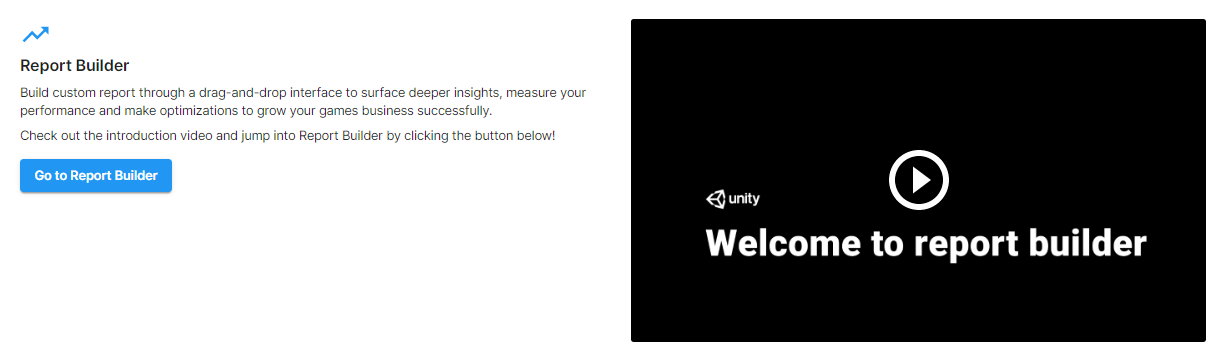
- In the Report Builder section, optionally play the video for a brief introduction, then select Go to Report Builder.
- Dashboards provide holistic overviews of campaign performance.
- Data Cubes provide granular report filtering, so that you can drill down and easily modify what is displayed.