Test attribution links with the Ad Testing app
Test your attribution links the Unity Ads Ad Testing app to ensure functionality.
Read time 4 minutesLast updated 3 months ago
Before you go live with a new campaign, use the Attribution Links Tester to ensure that your links function as expected. Use the following instructions to test your attribution link.
Prerequisites
There are several prerequisites to testing your attribution links. Review and ensure that you meet the following requirements:
|
|
|
|---|---|---|
Install the Ad Testing app | To download and install the Ad Testing app, go to its Apple App Store or Google Play page. You can also search "Ad Testing" in the app store. | Ensure that you install version 2.4.1 or higher for iOS, and version 2.4.0 or higher for Android. |
Add at least one creative pack | Include at least one approved creative pack in the campaign you're testing. Without an approved creative pack, the Attribution Link Tester won't work. | |
Assign a campaign budget | Set the campaign budget for the campaign you're testing. Without a budget, the Attribution Link Tester will not work. | |
Use a device without the test app previously installed | Use a device that doesn't already have the test app installed. If the device already has the app installed, it will disrupt the test flow and prevent attribution link validation. |
Testing your attribution links involves the following tasks:
- Enable Ad Testing tracking.
- Use the Attribution Links Tester.
Enable Ad Testing tracking
When you open the Ad Testing app, it will prompt you to allow tracking. Alternatively, you can access the data tracking permission in your device's settings.
Enable Ad Testing to request permission to track data across apps on your device. When you open the Ad Testing app, it will prompt you to allow tracking. Alternatively, you can access the data tracking permission in your device's settings.
Enable Ad Testing on iOS devices
- Go to Settings > Privacy > Allow Apps to Request to Track and enable the setting. If this setting was already enabled, you must reset your device's Identifier for Advertisers (IDFA). To reset the IDFA, do the following:
- Toggle the Allow Apps to Request to Track setting off.
- When prompted, select Ask Apps to Stop Tracking.
- Toggle the Allow Apps to Request to Track setting on again.
Enable Ad Testing on Android devices using Android 12 and later
- Go to Settings > Google services > Ads, and select Get new advertising ID to confirm that Google can track your device across apps.
From the ads settings screen, select Reset advertising ID and confirm that you want to reset your Android Advertising ID.
Enable Ad Testing on other Android devices
- Select Settings > Google services > Ads, and disable the Opt out of Ads Personalization setting to ensure that Google can track your device across apps.
- From the ads settings screen, select Reset advertising ID and confirm that you want to reset your Android Advertising ID.
Use the Attribution Links Tester
Do the following to test your attribution tracking links:
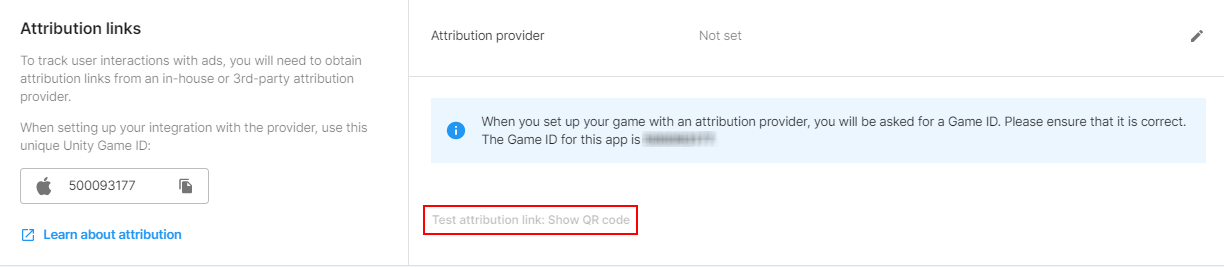
- From the Unity User Acquisition dashboard, select the campaign you want to test and go to the Attribution links section.
- Select Test attribution link: Show QR code. This option is only available after you enter and save your attribution tracking links, and the campaign has at least one approved creative pack.
- In the Ad Testing app, select Scan QR, and allow the app to access your device's camera.
- Scan the QR code from the dashboard.
- Following the on-screen prompts to initialize the ad.
- Play the ad and select the ad's call to action to install the app on your device.
- Open the advertised app to give it time to send postbacks to the MMP. The MMP will then forward install postbacks to Unity.
- Return to the test app and select Check Install Postback Status.