Set up Android Custom store listings
Set up Custom store listings for Android campaigns in the User Acquisition dashboard.
Read time 2 minutesLast updated 2 months ago
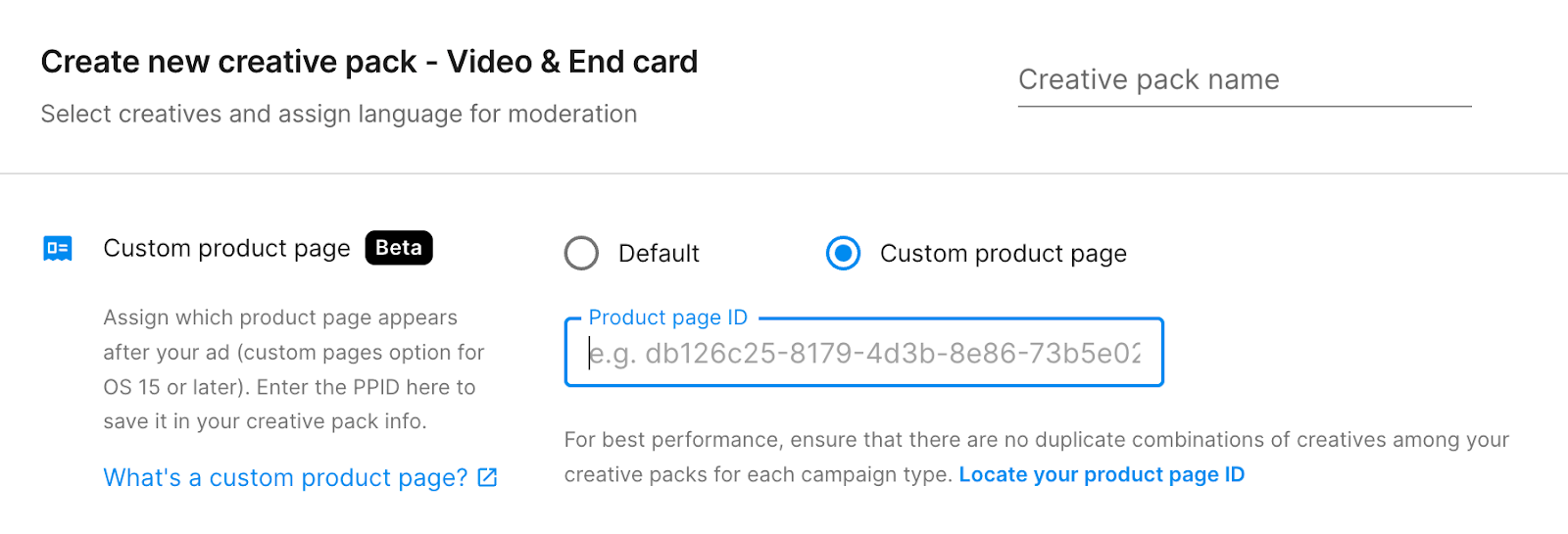
You can add a Custom store listing for apps in the Google Play Store when you set up creative packs or add the Custom store listing to your creative pack information later.
Refer the following instructions to connect Custom store listings to your creative packs in the Unity User Acquisition dashboard.
You complete two tasks when you connect Custom store listings to your creative packs:
Locate your Unique URL Parameter
To add a Custom store listing to a creative pack, you need to locate your listing's Unique URL Parameter. Refer to the following instructions to locate your Unique URL Parameter in the Google Play Store:
- Open your Custom store listing in a web browser.
- Locate the Unique URL Parameter at the end of the URL. The parameter is the string of characters following in the URL.
&listing=)
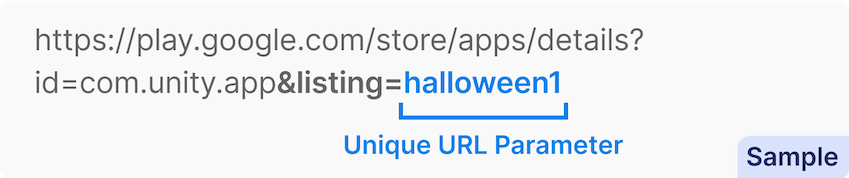
Unique URL Parameter in the Google Play store URL
- Copy the Unique URL Parameter. Refer to the following examples to verify you copy the correct part of the URL:
Correct URL parameter | Incorrect URL parameter |
|---|---|
| |
Connect the Custom store listing to your creative pack
To connect your Custom store listing to new or existing creative packs, follow these instructions:
To add a Custom store listing when you create a new creative pack from the Creative library, do the following:
- Go to the Creative Packs tab.
- Select Create creative pack to open the Create new creative pack dialog.
- Select the Creative pack type, App, and enter the Creative pack name.
- In the Custom store listing section, enter the Custom store listing ID (PPID).