Create your Remote Catalog
Define your product catalog and upload it to the Remote Catalog service.
Read time 11 minutesLast updated 6 days ago
Configure your product catalog and upload it to the Remote Catalog service so your users can access the latest products for your application, without having to install a new version.
If you upload your product catalog to the Remote Catalog, the Unity IAP SDK can retrieve the product catalog from the class and display the products to your users. This has the following benefits:
RemoteCatalogProvider- You ensure real-time distribution of your products and pricing without the need for your users to update their applications.
- You don't have to configure product information across multiple payment providers.
Products and catalog listings
Unity IAP represents your catalog with two related concepts:
- A product is what you grant to the user. Each product has a SKU, also called the .
productId - A catalog listing is a purchasable version of a product, identified by a . A product can have several catalog listings, so you can sell the same product in more than one way.
catalogListingId
To buy a product, a user purchases one of its catalog listings. When you start a purchase or target a specific listing, use the rather than the . If you don't define more than one listing for a product, Unity IAP creates a single catalog listing where the matches the SKU. Existing single-listing catalogs continue to work without any changes.
catalogListingIdproductIdcatalogListingIdDefine your product catalog
You can use the following methods to define information about your products in a remote product catalog:
- In the Unity Editor (recommended)
- In a CSV file
- Import an existing catalog from the App Store or Google Play
- Use the API
- Use a custom integration
You can also author your catalog directly on the Unity Cloud Dashboard, under In-App Purchases > Catalog.
If you use the Unity Editor to add products, Unity In-App Purchasing (IAP) automatically handles some of the backend logic required for the purchase fulfillment process. This is helpful especially if you choose to fulfill purchases through the backend API.
Create a product catalog in the Unity Editor
If you define products in the Unity Editor, the Editor stores your product configurations in files so you can use config-as-code workflows to manage them.
To create a product in the Unity Editor, follow these steps:
- To create a catalog item, right-click in a directory and select Create > Services > IAP Catalog item.
- Give your catalog item a name. This creates a Catalog Item asset, and opens the asset in the Inspector window.
- Enter the details for your catalog item. For more information, refer to the Catalog Item asset Inspector reference.
- Select Apply.
Repeat these steps to create catalog items for all your products.
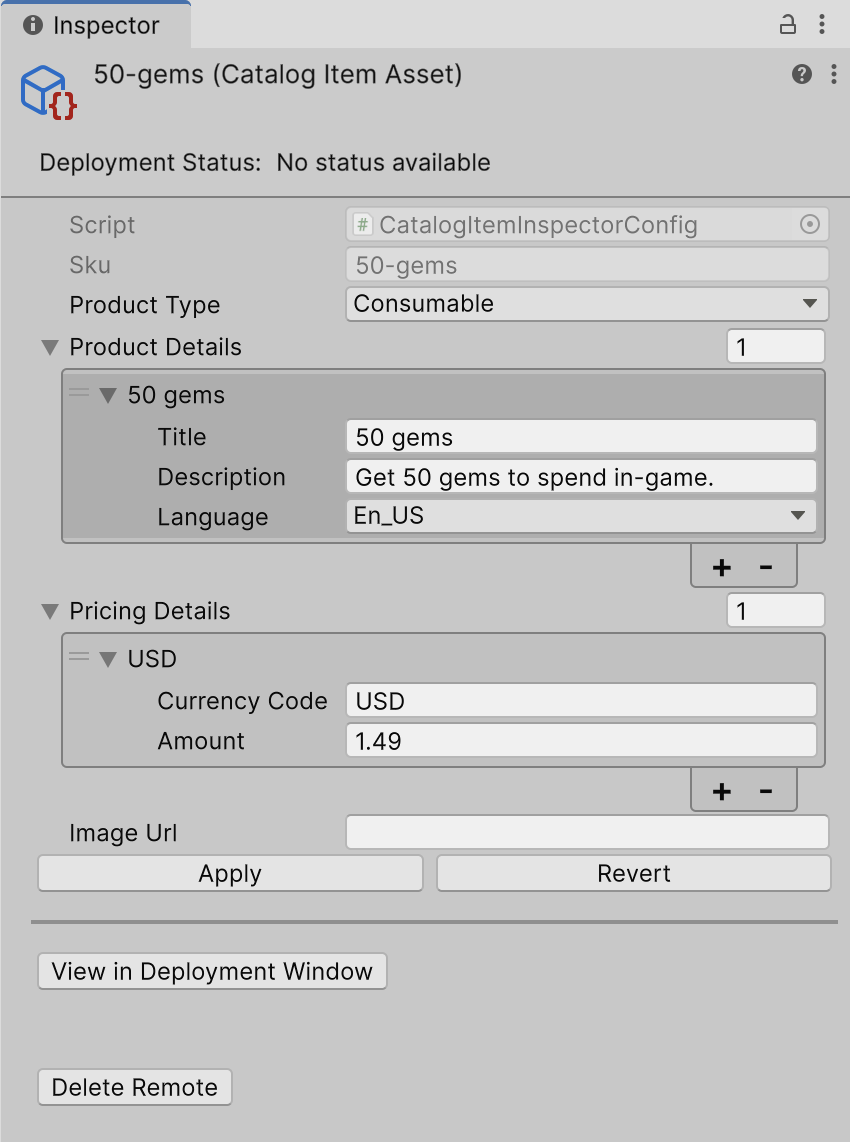
After you have added your products, select View in Deployment window to open your product catalog in the Deployment window and upload them to the Remote Catalog.
You can also edit the product details directly in the file instead of in the Unity Editor. The properties in the file map to the properties listed in the Catalog Item asset Inspector reference.
Catalog Item Asset Inspector reference
Refer to the following properties to define your IAP catalog items:
Property | Description |
|---|---|
| Script | Filled by default. |
| Catalog Listing Id | Filled by default (uses the file path). The identifier you use to target this listing when you start a purchase. |
| SKU | Filled by default (uses the file name). |
| Product Type | Select the type of IAP product. |
| Product Details | Enter information about the product, including:
|
| Pricing Details | Enter the product price information, including:
|
| Image URL | Enter an image URL to specify which image to display for the product. |
| Webshop availability | Select to make this listing available in your webshop catalog. |
| Store ID Overrides | Optional. Map your listing to the Apple App Store, Google Play Store, Xbox Store, and Mac App Store, which have different naming requirements. Only use these fields if your SKU doesn't meet a store's requirements:
|
Catalog item validation rules
When you deploy a catalog item, Unity IAP validates its fields and reports any errors in the Deployment window. You can't deploy a catalog item until you fix its validation errors. The following rules apply whether you edit the item in the Inspector or directly in the file:
.ucatField | Rule |
|---|---|
| SKU | Optional. Defaults to the file name. When set, use 1 to 141 characters, and only letters, digits, periods ( |
| Product Type | Required. One of |
| Product Details | Include at least one entry. |
| Title | Required for each product details entry. 1 to 50 characters. |
| Description | Optional. Maximum 250 characters. |
| Subtitle | Optional. Maximum 50 characters. |
| Badge | Optional. Unity IAP treats the badge as unset if its text is empty. |
| Pricing Details | Include at least one entry, and include an entry with the |
| Amount | Required for each pricing entry. Greater than 0. |
| Store ID Overrides | Optional. Each override needs a store ( |
The Catalog Listing Id (the file name without the extension) must follow the same character rules as the SKU: 1 to 141 characters, and only letters, digits, periods, underscores, and hyphens.
.ucatAuthor catalog items in a CSV file
Instead of creating a separate file for each product, you can define multiple catalog items together in a single file. This is useful when you manage a large catalog or export product data from a spreadsheet.
.ucat.catalog.csvEach row defines one product for one language and currency. To add more languages or currencies to the same product, repeat the row and reuse the value. Unity IAP groups rows that share a into a single catalog item.
CatalogItemIdCatalogItemIdUse the following columns to define your catalog items:
Column | Description | Required |
|---|---|---|
| The catalog listing ID. If empty, Unity IAP uses the | No |
| The product SKU. If empty, the listing is skipped with a warning and won't deploy. | Yes |
| The product title for the row's language. | Yes |
| The product description. | No |
| The product subtitle. | No |
| The badge text. Leave empty for no badge. | No |
| The badge image URL. | No |
| The language code for the title, description, subtitle, and badge. Defaults to | No |
| The product type. Defaults to | No |
| The currency code for the row's price. Unity IAP skips the price if this column is missing. | No |
| The price amount. Unity IAP skips the price if this column is missing. | No |
| The price to display on your webshop. Use standard decimal currency format (for example, 9.99 converts to $9.99 in USD). | No |
| The product image URL. | No |
The same validation rules apply to catalog items that you define in a CSV file. Unity IAP reports a warning on the CSV item in the Deployment window for any row that uses an unknown product type or language, is missing a value, or duplicates a language or currency for the same product. When a product has duplicate rows for the same language or currency, Unity IAP uses the first row.
SkuTo upload your CSV catalog, deploy the file from the Deployment window in the same way as a file.
.catalog.csv.ucatImport an existing catalog
If you already have a catalog configured in the App Store or Google Play, you can import it into the Unity Editor instead of recreating your products.
Before you import, store a store API credential as a secret in Secret Manager. Unity uses that credential to read your listings from the store. The Import Catalog window takes an existing secret, so create the secret first. For the required credential contents and store permissions, refer to Set up store credentials for catalog import.
To import an existing catalog into the Unity Editor, follow these steps:
- In the Unity Editor, select Services > In-App Purchasing > Import Catalog.
- Select the App Store or Google Play Store tab for the store you want to import from.
- Under Step 1: Fetch Catalog Data, enter the following credential details, then select Fetch Catalog:
- Secret Key: the key of the secret that holds your store credential.
- Secret Scope: the level that holds the secret, which is ,
organization, orproject.environment
- Under Step 2: Import or Export, set the Import New destination path for the generated catalog items, then select Apply.
Unity generates a file for each listing it retrieves. Any modified SKU only updates the existing file, whereas any new SKU creates a new file at the import destination. If the import fails, refer to Troubleshooting catalog import.
.ucat.ucat.ucatAfter you import your catalog, upload it to the Remote Catalog service.
Use the API to create a product catalog
Use this method if you prefer to manage your product catalog through an Editor script instead of using the Unity Editor UI.
First, you have to create an file to contain all the required dependencies.
Refer to the following example to create your file:
.asmdef.asmdef{ "name": "MyIAPProject.Authoring", "rootNamespace": "MyIAPProject.Authoring", "references": [ "Unity.Services.Core", "Unity.Services.Core.Editor", "Unity.Services.Core.Internal", "Unity.Services.DeploymentApi", "Unity.Services.Core.Environments.Editor", "UnityEditor.Purchasing.Authoring", "UnityEditor.Purchasing.Editor.Authoring.Core", "Unity.Purchasing.Editor.Shared", "Unity.Purchasing" ], "includePlatforms": [ "Editor" ]}
Then, you can use the API to modify the Remote Catalog directly:
ILiveContentConfigClient- Obtain the relevant services through the :
PurchasingAuthoringServiceProviderILiveContentConfigClientIEnvironmentsApiPurchasingAuthoringServiceProvider.GetService<ILiveContentConfigClient>()
- Initialize the interface with the required information.
ILiveContentConfigClient - Make calls to read/update the catalog (these calls are made with the current signed in user authority).
Refer to the following code sample:
[MenuItem("IAP/Deployment/Get and print the catalog")]public static async void Select(){ var lcc = PurchasingAuthoringServiceProvider.GetService<ILiveContentConfigClient>(); var env = PurchasingAuthoringServiceProvider.GetService<IEnvironmentsApi>(); await lcc.Initialize( env.ActiveEnvironmentId.ToString(), CloudProjectSettings.projectId, CancellationToken.None); var items = await lcc.List(CancellationToken.None); Debug.Log(string.Join("\n", items.Select(i => $"{i.uSku} - {i.ProductDetails[0].Description}")));}
Use a custom Deployment window integration to create your product catalog
You can use the Deployment window to host custom integrations, so you can create a simple custom deployment such as CSV or excel directly to the Remote Catalog.
For information on how to create a simple Deployment window, refer to the Deployment package documentation.
Upload your product catalog to the Remote Catalog service
Use the Deployment window to upload your products to the Remote Catalog:
- In the Unity Editor, select Services > Deployment to open the Deployment window.
- Select the products you want to add to your Remote Catalog and select Deploy Selected.

Delete products from your remote catalog
There are multiple ways you can delete an item from the remote catalog in the Unity Editor:
- Open the catalog item in the Inspector window and select Delete Remote.
- Open the Deployment window, right-click the catalog item, and select Delete Remote.
Next steps
This page is part of a workflow to set up D2C payment providers with IAP. To continue this workflow, choose one of the following options: