Hub toolbar reference
Navigate Unity Hub using toolbar icons for documentation, theme, downloads, notifications, and account options.
Read time 4 minutesLast updated 2 months ago
The Hub toolbar is located at the top of the Hub window and contains links and tools for managing your Unity account and Hub features.

The toolbar of the Unity Hub.
The Hub toolbar contains the following options:
Option | Icon | Description |
|---|---|---|
| Documentation |  | Opens the Unity Hub documentation. |
| Theme |  | Controls the current theme for the Hub: dark, light, or matching the operating system default. |
| Downloads |  | Displays recent and in-progress downloads. For more information, refer to Downloads. |
| Notifications |  | Opens the notifications menu and displays past notifications. For more information, refer to Notifications. |
| Settings |  | Opens the Settings window. |
| User profile icon |  | Displays your current organization and initials or display picture. Select it to open the account menu for managing your Unity account. For more information, refer to Account menu. |
Notifications
Unity Hub includes a notifications feature that displays important updates and information about your Unity account from the Hub. These notifications help you stay informed about account-related activities.
Select the bell icon in the toolbar to open the notifications menu and display past notifications. Select a notification to mark it as read. Select Mark all as read to change the status of all notifications to read.
Enable notifications
Hub notifications are disabled by default. To enable them:
- Open the Unity Hub.
- Navigate to Settings in the left navigation menu.
- In the Notifications section, select the Enable notifications option.
System-level settings
Desktop notifications and notification sounds might require additional system permissions. To enable them:
- macOS: Go to System Settings > Notifications > Unity Hub and allow notifications for the Unity Hub.
- Windows: Go to Settings > System > Notifications & actions and enable notifications for the Unity Hub.
Account menu
The Hub account menu includes links to the Unity Dashboard, your organizations, and support. To open it, select the account icon in the top bar of the Hub window (your initials or display picture in a circle).
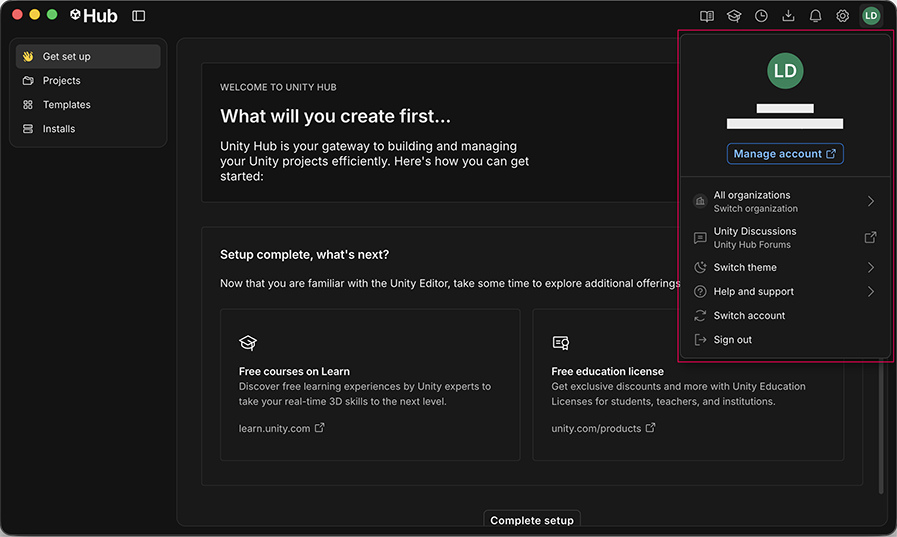
The Unity Hub account menu.
Element | Description |
|---|---|
| Manage account | Manage your personal information, privacy and security in the Unity Dashboard. You can also use the Dashboard to manage your organization's seats and redeem product codes. The Developer Dashboard is how you access Unity Gaming Services. Through this, you can build, grow, and monetize your projects. For more information, refer to Introduction to the Unity Dashboard. |
| All organizations | Lists the Unity organizations that you can switch between. If you select an organization that has an Asset Drive, it appears in the Hub menu. Select Manage organizations to open the My organizations webpage. For more information about organizations refer to Unity organizations. |
| Unity Discussions | Open the Unity Hub tag on Unity Discussions, where you can offer feedback and discuss the Hub with the community. |
| Switch theme | Change the current theme for the Hub: dark, light, or matching the operating system default. Same setting as the Theme option under Settings > Appearance. |
| Help and Support | Open a menu where you can find helpful information for any issues you might have. • Account help: Go to the Account troubleshooting webpage to find answers to the most frequently asked questions about user accounts. • Release notes: Go to the Unity Hub release notes webpage that details bug fixes and improvements for each release. • Documentation: Open this documentation website. • Logs: Opens the local browser window that contains Hub log files. The current log has the name • Report a bug: Open the Unity Hub Bug Reporter window where you can send files and information about a bug in the Unity Hub to Unity. The Hub automatically adds Editor logs ( |
| Switch account | Sign out of the Unity Hub and your web browser so that you can log in with a different account. |
| Sign in / Sign out | Sign out of the Unity Hub. |