Hub settings reference
Configure and customize Unity Hub settings for projects, installs, appearance, notifications, and more.
Read time 4 minutesLast updated 3 days ago
Use the Settings window to customize your settings for the Unity Hub. To access the Settings window, select the Settings tab in the left navigation menu.
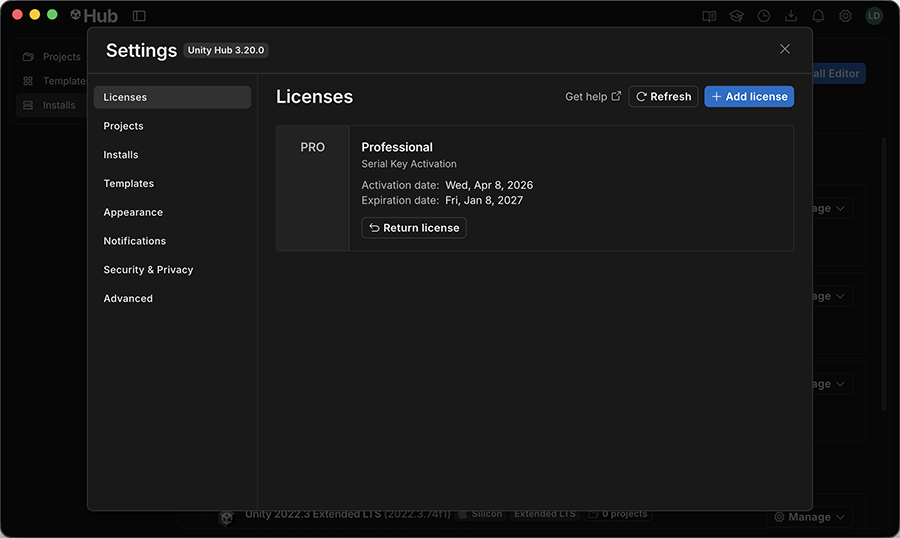
The Settings tab in the left navigation menu
The following tables describe each section of the Settings window:
Projects
Property | Description |
|---|---|
| Project location | Specifies the target directory in which the Hub creates a new project. When changing this value, the Hub automatically imports any existing projects found in the new target directory. Other projects already in the Hub are unaffected. |
| Default project name | Specifies the default project name the Hub uses for imported projects. The options are:
|
| Project removal | Specifies the Hub's behavior on project removal. Contains the following configurable options:
|
| Remove missing projects | Removes Hub projects that are no longer present at the specified path on the system. |
Installs
Property | Description |
|---|---|
| Installs location | Specifies the location for new Unity Editor and Learn installations. Existing installs are not affected by changes to this setting. The default locations are:
|
| Downloads location | Specifies the location for Editor and Learn downloads. The default location is the |
| Concurrent downloads | Specifies the maximum number of concurrent downloads allowed. The value must be between 2 and 20. |
Appearance
Property | Description |
|---|---|
| Theme | Specifies which theme the Hub displays in. This can also be controlled via the Hub toolbar. The following options are available:
|
| Menu bar | Specifies when to minimize the Hub application. The options available depend on your operating system. On macOS:
|
| Language | Specifies the display language for the Hub. Does not affect the Unity Editor display language. |
| New user onboarding | Specifies whether the Hub displays the Get set up page. |
Notifications
Property | Description |
|---|---|
| Enable notifications | Turns on notifications about your Unity account. Turning on notifications makes the following options available:
|
For more information on Hub notifications, refer to the Hub Toolbar reference.
Privacy
Property | Description |
|---|---|
| Opt-in settings | Specifies which opt-in settings and features are active in the Hub. The value of this setting is device-specific and does not follow with your account to other devices. |
Advanced
Property | Description |
|---|---|
| Channels | Specifies which release channel the Hub receives update notifications from. The options are:
|
When there's a new update available for the configured release channel, an information box appears in the Hub sidebar:
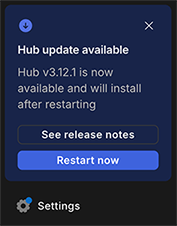
The update information box
To update to the newest version in your channel, select Restart now. This restarts the Hub application so that the updates can take effect.
For more details on updates to the Hub, refer to the Release Notes.
The Channels setting applies to Hub updates only. The Hub also updates the Unity CLI automatically, and you can't disable these updates. For more information, refer to Update the Unity CLI.
Reporting bugs
To report a bug to Unity, do one of the following:
- From the Account menu, go to Help and support > Report a bug.
- On the Hub Tray menu, go to Help and support > Report a bug.
Handling critical bugs in Beta channel releases
If you encounter a bug that prevents you from proceeding in Unity, reinstall the Unity Editor. To reinstall the Editor, do the following:
- Under Settings, select Advanced.
- Choose the Production channel.
- Restart the Unity Hub.
- Reinstall your preferred Editor version.