Test devices
Learn how to set up and use Test Devices for the Web Offerwall to access additional features during development.
Read time 2 minutesLast updated 4 months ago
Test Devices open up additional Tapjoy features when you are developing your application. Devices registered as test devices can view content cards set to "only for test devices". This lets you test specific content units without showing them to all users. Test Devices will automatically turn on Tapjoy Debug Logging for themselves after the SDK connects to the server.
Setting up test devices involves finding the advertising ID on the device and adding that ID to the Tapjoy Dashboard "App Settings/Test device” panel. For Web Offerwall, you need to create your own UUID to use as your test device ID.
Register your test device on the Tapjoy dashboard
When you have obtained the ID, go to Settings > App Settings > Test Device on the dashboard. Here you can enter the test device ID, which will set your device as a test device for your application. Select iOS for the platform.
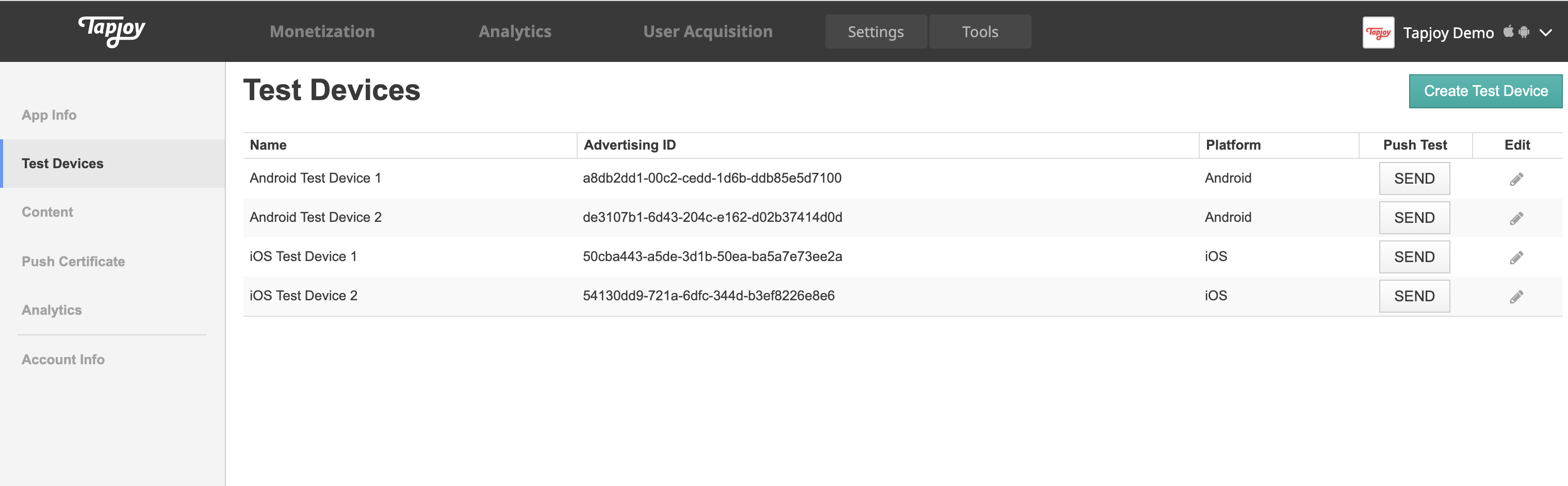
You can then use test device features. For example, content cards that have Only for Test Devices enabled can only be viewed by test devices.
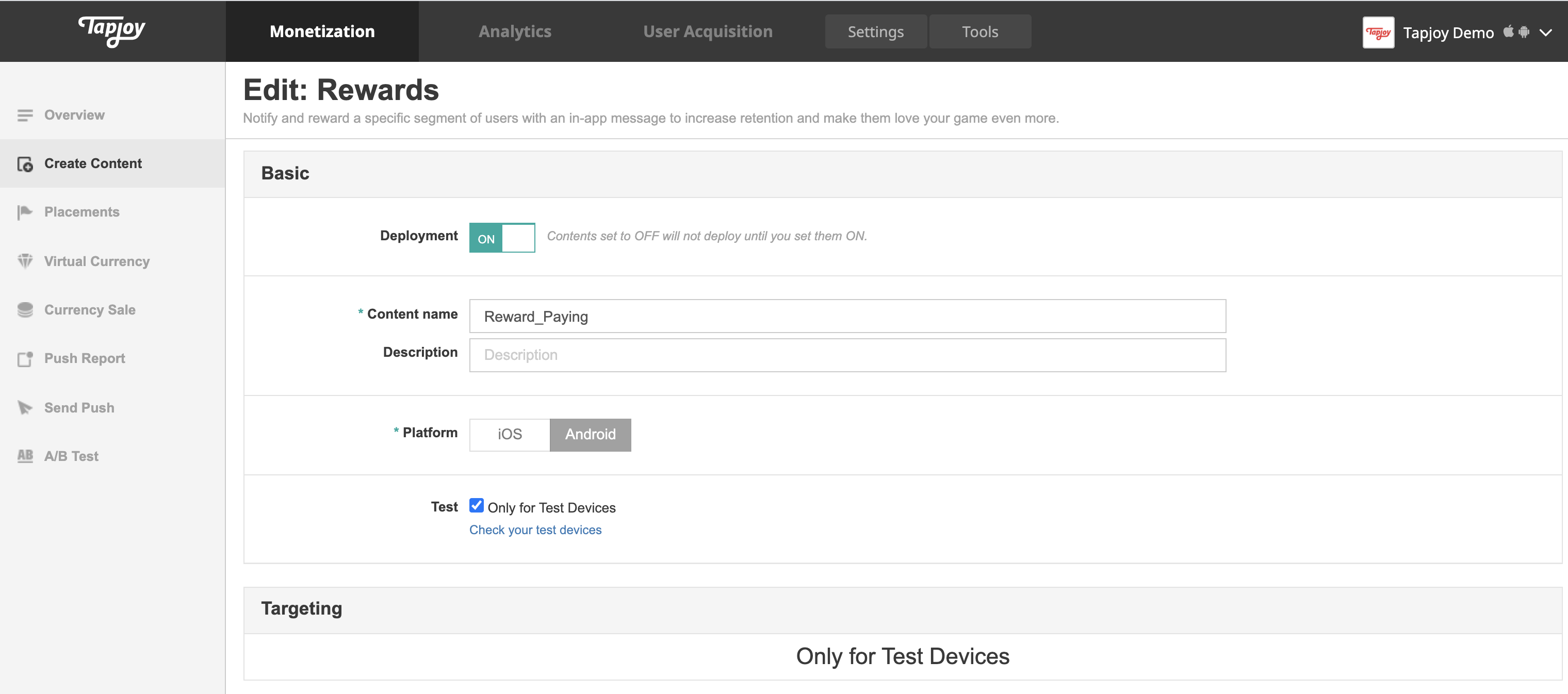
Test
After you add your test device ID to the Tapjoy Dashboard, you can call Tapjoy Offerwall with test mode by adding the parameter.
For example, if your test device value is , you can add the parameter in your deeplink.
test_id11111111-1111-1111-1111-111111111111test_idhttps://rewards.unity.com/owp/web/link/<SDK_KEY>/u/<USER_ID>?test_id=11111111-1111-1111-1111-111111111111
Custom JavaScript
If you are using Custom JavaScript, you can add the parameter when your web app initialises the Tapjoy SDK.
test_id<script> Tapjoy('init', { sdkKey: '<SDK_KEY>', publisherUserId: '<USER_ID>', eventName: '<PLACEMENT_NAME>', test_id : '11111111-1111-1111-1111-111111111111' // Adding test_id parameter });</script>// Call Tapjoy Offerwall<button onclick="javascript:Tapjoy('showOfferwall', {});">Click Me</button>