Manage ad units and placements
Manage and update ad units and placements in the Unity Ads Monetization dashboard. Learn how to edit settings, switch from waterfall to bidding mediation, and archive placements.
Read time 2 minutesLast updated 2 months ago
You can manage and update your ad units or placements anytime after creation in several ways:
- Edit ad unit and placement settings
- Switch the ad unit or or placement setup type
- Archive an ad unit or placement
- Update ad format settings
On the Placements page of the Unity Monetization Dashboard, select the ellipses (…) in the ad unit row of a specific ad unit or placement to edit, switch the setup type, archive an ad unit or placement, or update the ad format settings.
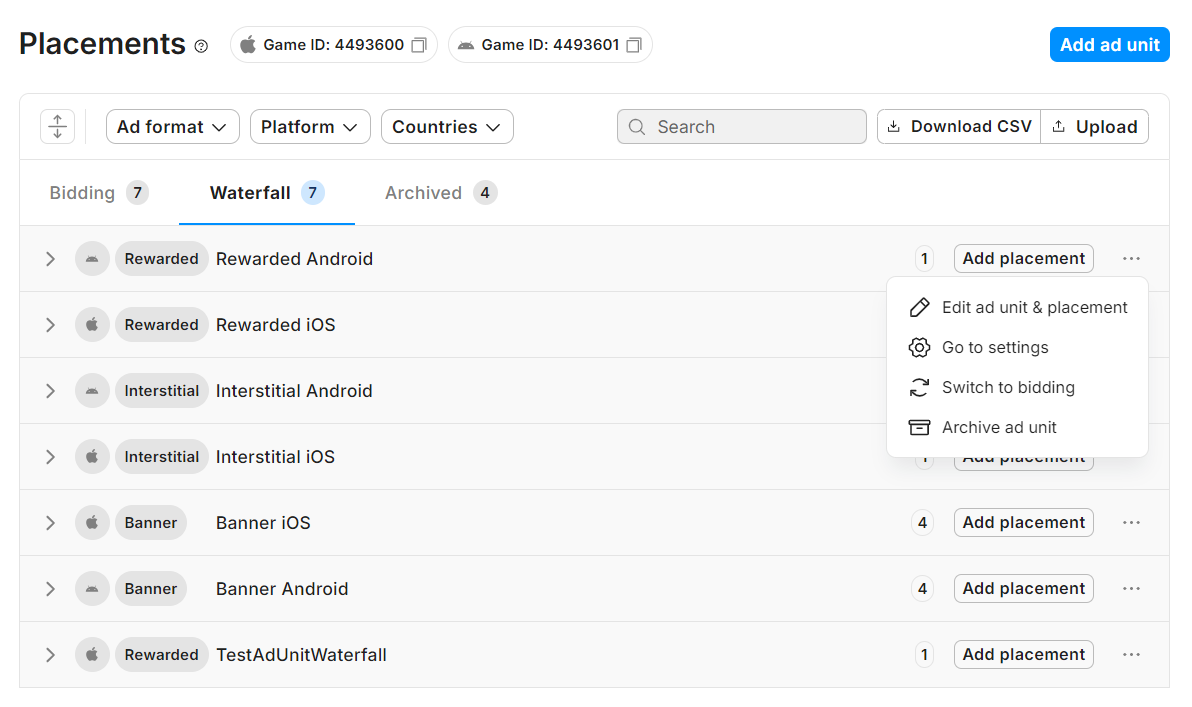
Edit ad unit and placement settings
After ad unit creation, you can change the ad unit name, placement name, ad format, or setup type from bidding to waterfall. Refer to Switch setup type for more information.
Once you create an ad unit for a specific platform (iOS or Android), you can't change the platform. To create an equivalent ad unit or placement for the other platform, you need to set it up separately.
Switch the ad unit or placement setup type
To switch a waterfall placement to bidding, do the following in the Unity Monetization Dashboard:
- Select Placements to open the placements page, then click the Waterfall tab.
- Locate the waterfall placement you want to change to a bidding placement from the waterfall placements list.
- Click the ellipses (...), then select Switch to bidding.
- Select Continue in the confirmation dialog.
- Enter a new placement name for the bidding placement, then click Save.
- Repeat steps 2-5 for all waterfall placements you intend to convert to bidding placements.
All waterfall placements you convert to bidding placements are visible from the Bidding tab of the Placements page.
Archive an ad unit and placement
Archiving an ad unit automatically archives all placements associated with it.
To select specific placements to delete, expand an ad unit row and individually archive placements. Alternatively, auto-collapse to see all placements created within each ad unit for a more comprehensive view.
From the Archived tab, you can unarchive ad units and placements. You can delete placements if they've been archived for over six months, or for over a week with no ad requests.
Update ad format settings
You can also configure advanced options for ad units by updating their ad format settings, which include a wide array of settings that define how a user sees and interacts with an ad in your app. These include things like allowing a user to skip an ad or an end-card on close, and more.
For descriptions of each of the available settings, refer to the Ad format settings reference.