Structure of a Unity Xcode Objective-C project type
Understand the structure of a Unity Xcode Objective-C project type.
Read time 5 minutesLast updated 16 days ago
When you build a Unity Xcode Objective-C project for the iOS platform, Unity creates a folder that contains an Xcode project. You need to build and sign this project before you deploy it on a device or distribute it on the App Store.
Every generated Unity iOS Xcode project has the following structure and targets:
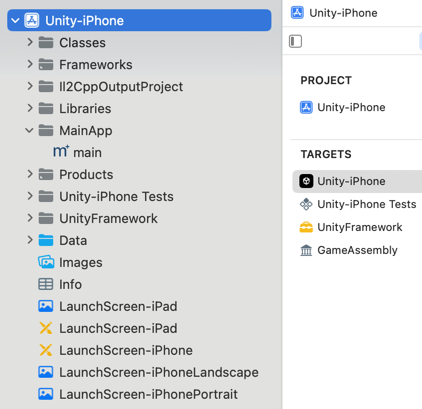
Unity iOS Xcode project structure
The Xcode project includes both the project file and framework links that only appear in the Xcode project navigator. Apart from the default folders, you can create custom folders to add custom files as required.
.xcodeprojProject targets
-
Unity-iPhone: A thin launcher part that runs the UnityFramework. It includes thefolder and app representation data such as Launch Screens,
MainAppfiles, icons, data, and.xibfiles. The Unity-iPhone target has a single dependency on the UnityFramework target.Info.plist -
UnityFramework: The target that produces thebundle. It includes the Unity runtime,
UnityFramework.framework,Classes, andUnityFrameworkfolders, along with dependent frameworks.Librariesfolder includes privacy manifest file (PrivacyInfo.xcprivacy), a consolidated privacy manifest file for Unity runtime, Unity plug-ins, packages, and your project.UnityFramework -
GameAssembly: A container for your C# code translated as C++ code. To build it, Xcode uses the IL2CPP tool that Unity includes in every generated Xcode project. The build produces:
- : A static library that contains all the project’s managed code, cross-compiled to C++, and built for iOS.
libGameAssembly.a - : A static library that contains the IL2CPP runtime code to support your managed code.
il2cpp.a
Classes folder
The folder contains code that integrates the Unity runtime and Objective-C. Unity stores the entry points of the application in the and files inside this folder. You can create your own derived from , or, if any of your plug-ins include , you can include instead. If your folder includes , you can merge and rename them.
Classesmain.mmUnityAppController.mm/hAppDelegateUnityAppControllerAppController.hUnityAppController.hPlugins/iOSAppController.mm/hThe code in this folder doesn’t change often, and you can place custom classes here. If you select the Append mode, Xcode preserves changes to this folder between builds. However, this function doesn’t support multiple build targets and requires a fixed structure of the folder.
LibrariesUnity’s internal profiler is fast and unobtrusive, and feeds basic information about:
- Which subsystem is taking most of the frame time.
- The .NET heap size.
- Garbage collection (GC) event count and duration.
Data folder
This folder contains your application’s serialized assets and .NET assemblies ( files). The file sets up various .NET services such as security and WebRequest. Xcode refreshes the contents of this folder with every build. You shouldn’t make any changes to it.
.datmachine.configBy default, the folder’s Target Membership is the Unity-iPhone target, and Unity runtime searches for it in the . To change the default bundle where Unity runtime looks for the folder, call on the UnityFramework instance before you call one of the run functions. For example, if you want to have together with the UnityFramework call, use and set the Target Membership to UnityFramework.
DatamainBundleDatasetDataBundleId: "com.my.product"DatasetDataBundleId: "com.unity3d.framework"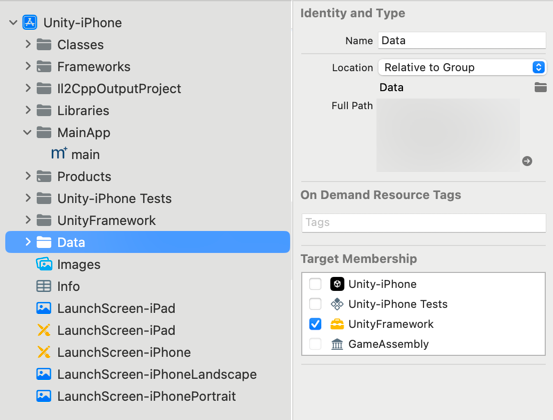
Data folder with the Target Membership set to UnityFramework.
Frameworks folder
The Frameworks folder contains , which contains the Unity Runtime static frameworks and plug-in types library for device and simulator.
UnityRuntime.frameworkLibraries folder
The contents of the Libraries folder are refreshed with every build. You shouldn’t make any changes to it.
Graphics files
Icons and splash screens ( files) are located in asset catalogs in the folder. Unity automatically manages these files. Launch screens, their XML Interface Builders ( files), and Storyboard files are stored in the project’s root folder. You can configure these files in the window (menu: Edit > > Player Settings). Make sure the custom launch images that you create adhere to Apple’s Human Interface Guidelines.
.pngUnity-iPhone.xibPlayer Settings
?
Project Settings
?
Property list (.plist) file
You can manage the file within the Unity-iPhone target (accessed via ) from Unity’s Player Settings window (menu: Edit > Project Settings > Player Settings > Other Settings > Identification). Unity updates this file rather than replacing it while building the Player. Don’t make changes to it unless you need to.
Info.plistmainBundleThe file, accessed via , is a part of . You can keep project specific values in this file instead of the file of the . This makes sure that you can still get these values if is moved into another application, for example, when using Unity as a Library.
/UnityFramework/Info.plistbundleWithIdentifier:@"com.unity3d.framework"UnityFrameworkInfo.plistmainBundleUnityFramework