Physics 2D project settings reference
Learn about Physics 2D settings.
Read time 9 minutesLast updated 16 days ago
The following Project settings manage the global settings for Physics 2D, which define the limits on the accuracy of the physics simulation of 2D GameObjects in the Unity physics system. A more accurate simulation requires more processing overhead, and these settings allow you to adjust the trade-off between accuracy and performance that best suits your project.
To open the Physics 2D project settings window, go to Edit > Project Settings… > Physics 2D to manage the global Project settings for Physics 2D

Physics 2D Inspector settings
General Settings tab
The following are the properties available in the General Settings tab of the Physics 2D manager window.
Property | Function |
|---|---|
| Gravity | Set the amount of gravity applied to all Rigidbody 2D GameObjects. Usually you only set gravity for the negative direction of the y-axis. |
| Default Material | Set a reference to the Physics Material 2D to use if none has been assigned to an individual Collider 2D. |
| Velocity Iterations | Set the number of iterations made by the physics system to resolve velocity effects. Higher numbers result in more accurate physics calculations but the Editor requires more CPU time. |
| Position Iterations | Set the number of iterations made by the physics system to resolve position changes. Higher numbers result in more accurate physics calculations but also requires more CPU time. |
| Bounce Threshold | Set the threshold for elastic collisions. Unity treats any collisions with a relative linear velocity below this threshold as inelastic, so no bounce will occur. |
| Max Linear Correction | Set the maximum linear position correction used when solving constraints (from a range between 0.0001 to 1000000). This helps to prevent overshooting. |
| Max Angular Correction | Set the maximum angular correction used when solving constraints (from a range between 0.0001 to 1000000). This helps to prevent overshooting. |
| Max Translation Speed | Set the maximum linear speed of a Rigidbody 2D GameObject during any physics update. |
| Max Rotation Speed | Set the maximum rotation speed of a Rigidbody 2D GameObject during any physics update. |
| Baumgarte Scale | Set the scale factor that determines how fast Unity resolves collision overlaps. |
| Baumgarte Time of Impact Scale | Set the scale factor that determines how fast Unity resolves time-of-impact overlaps. |
| Time to Sleep | Set the time (in seconds) that must pass after a Rigidbody 2D stops moving before it goes to sleep. |
| Linear Sleep Tolerance | Set the linear speed below which a Rigidbody 2D goes to sleep after the Time to Sleep elapses. |
| Angular Sleep Tolerance | Set the rotational speed below which a Rigidbody 2D goes to sleep after Time to Sleep elapses. |
| Default Contact Offset | Set a proximity distance value for Colliders to be considered in contact, even when they aren't actually in contact. Colliders whose distance is less than the sum of their Caution: Reducing this value too far can slow down Unity's ability to calculate continuous polygon collisions. Conversely, increasing the value too much might create artifacts for vertex collisions. |
| Simulation Mode | Select when Unity executes the 2D physics simulation.
|
| Simulation Layers | Select which layer(s) Unity simulates when Simulation Mode is set to FixedUpdate or Update.
|
| Queries Hit Triggers | Enable this option if you want Collider 2Ds marked as Triggers to return a hit when any physics query (such as Linecasts or Raycasts) intersects with them. Defaults to enabled. |
| Queries Start In Colliders | Enable this option if you want physics queries that start inside a Collider 2D to detect the Collider they start in. |
| Callbacks On Disable | Enable this option to produce collision callbacks when a Collider with contacts is disabled. |
| Reuse Collision Callbacks | Enable this setting to have the physics system reuse a single Collision2D instance for all collision callbacks. Disable to have the physics system create a new Collision2D instance for each collision callback instead. |
| Auto Sync Transforms | Enable this option to automatically sync transform changes with the physics system. |
| Gizmos | Select the types of physics 2D gizmos to be drawn within the Editor. You may select multiple options.
|
| Multithreading | Expand this to adjust the multithreading settings. Refer to Multithreading for information about each property. |
Simulation Mode: Update
The followings properties are visible only when you select Update or Script for the Simulation Mode.

The Simulation Mode properties, with the Update mode selected.
Property | Function |
|---|---|
| Use Sub Stepping | Enable this property to have the Editor use simulation sub-stepping during the simulation step. |
| Use Sub Step Count | Enable this property to have the Editor calculate contacts for all simulation sub-steps. This provides a more exact simulation for each sub-step but will reduce performance. Disable this property to only calculate contacts for the first simulation sub-step. |
| Max Sub Step Count | Sets the maximum number of simulation sub-steps allowed per-frame when simulation sub-stepping is enabled and actively running. This will also limit the amount of time the Editor spends on sub-stepping. |
| Min Sub Step FPS | Sets the minimum frames-per-second allowed for a simulation step before the Editor begins to use sub-stepping. When the current frame rate is lower than this value, the Editor will use simulation sub-stepping if Use Sub Stepping is enabled. |
Multithreading
The settings in the Multithreading section allow you to use the C# Job System to configure multithreaded physics.

Multithreading settings expanded.
Property | Function |
|---|---|
| Use Multithreading | Enable this option to execute the simulation steps using the job system and use the rest of these options to control how to achieve that. |
| Use Consistency Sorting | Enable this option if maintaining a consistent processing order becomes important to the simulation. Executing simulation steps on multiple CPU threads produces separate batches of data. Processing these separate batches reduces determinism in processing order, although produces faster results. |
| Interpolation Poses Per Job | Set the minimum number of Rigidbody 2D objects being interpolated in each simulation job. |
| New Contacts Per Job | Set the minimum number of new contacts to find in each simulation job. |
| Collide Contacts Per Job | Set the minimum number of contacts to collide in each simulation job. |
| Clear Flags Per Job | Set the minimum number of flags to be cleared in each simulation job. |
| Clear Body Forces Per Job | Set the minimum number of bodies to be cleared in each simulation job. |
| Sync Discrete Fixtures Per Job | Set the minimum number of fixtures to synchronize in the broadphase during discrete island solving in each simulation job. |
| Sync Continuous Fixtures Per Job | Set the minimum number of fixtures to synchronize in the broadphase during continuous island solving in each simulation job. |
| Find Nearest Contacts Per Job | Set the minimum number of nearest contacts to find in each simulation job. |
| Update Trigger Contacts Per Job | Set the minimum number of trigger contacts to update in each simulation job. |
| Island Solver Cost Threshold | Set the minimum threshold cost of all bodies, contacts and joints in an island during discrete island solving. |
| Island Solver Body Cost Scale | Set the cost scale of each body during discrete island solving. |
| Island Solver Contact Cost Scale | Set the cost scale of each contact during discrete island solving. |
| Island Solver Joint Cost Scale | Set the cost scale of each joint during discrete island solving. |
| Island Solver Bodies Per Job | Set the minimum number of bodies to solve in each simulation job when performing island solving. |
| Island Solver Contacts Per Job | Set the minimum number of contacts to solve in each simulation job when performing island solving. |
Layer Collision Matrix tab
The Layer Collision Matrix tab settings control whether Colliders (attached to different Rigidbody 2Ds) can come into contact which each other, based on the Layer assigned to the GameObject they are on. The matrix displays each Layer against every other Layer, allowing you to select which specific Layers can come into contact with another.
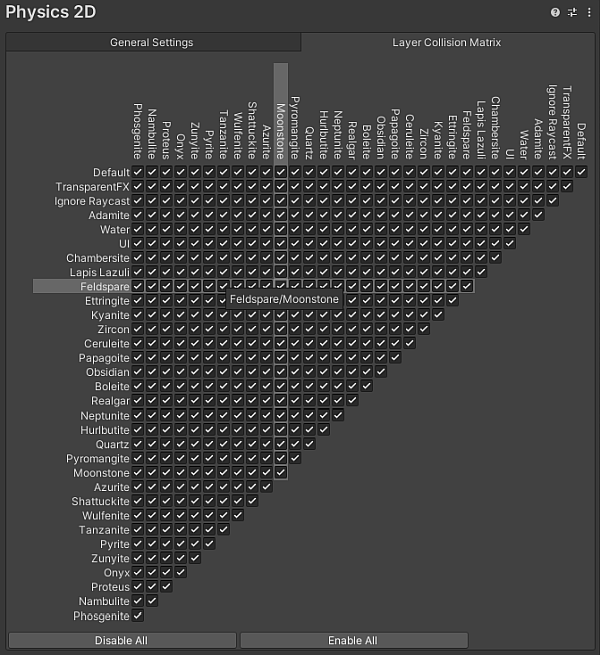
The Layer Collision Matrix tab.
A check mark at the intersection between two Layers indicates that contact is allowed between those two Layers, while a cleared checkbox indicates that contact between those two Layers is never allowed. When you hover over a Layer's name or a checkbox, its row and column are highlighted to make it easier to see which Layers its affects.