Debug Draw Modes for lighting reference
Lighting
Contributors / Receivers

A wooden village scene in Contributors / Receivers mode. Most of the geometry is orange and doesn't contribute to global illumination. The green rock and post receive global illumination from lightmaps, and the purple shields receive global illumination from Light Probes.
- Orange means the object doesn't contribute to global illumination. To change this, use the Contribute GI flag in the object's Static Editor Flags property.
- Green means the object receives global illumination from lightmaps. To change this, use the Receive Global Illumination setting in the object's Mesh Renderer component.
- Blue means the object receives global illumination from Light Probes. To change this, use the Receive Global Illumination setting in the object's Mesh Renderer component.
Shadow Cascades

A wooden village scene in Shadow Cascades mode. The closest geometry is purple to represent the first shadow cascade. Geometry that's further away, for example the rear of a house, is green. The furthest geometry, for example a hill behind the houses, is yellow.
Global Illumination
Indirect (Realtime Global Illumination only)

A wooden village scene in Indirect mode. Each GameObject displays a checkerboard pattern representing lightmap texels.
Directionality

A wooden village scene in Directionality mode. Each GameObject displays a similar checkerboard pattern to Indirect mode, using a different color depending on the direction the geometry faces.
Albedo

A wooden village scene in Albedo mode. Each GameObject displays a similar checkerboard pattern to Indirect mode, using the albedo color of the material.
Emissive

A wooden village scene in Emissive mode. Each GameObject displays a similar checkerboard pattern to Indirect mode, using a dark color where there's no emission.
UV Charts

A wooden village scene in UV Charts mode. Each GameObject displays a similar checkerboard pattern to Indirect mode, using a different color for each UV chart.
Systems (Realtime Global Illumination only)

A wooden village scene in Systems mode. Each GameObject displays a similar checkerboard pattern to Indirect mode, using a different color for each group of GameObjects.
Clustering (Realtime Global Illumination only)

A wooden village scene in Clustering mode. Each GameObject displays a bright multicolored patchwork pattern that represents lightmap clusters.
Lit Clustering (Realtime Global Illumination only)

A wooden village scene in Lit Clustering mode. Each GameObject displays a similar patchwork pattern to Clustering mode, using more muted colors that represent both different clusters and lightmap color.
Texel Validity (Baked Global Illumination only)

A wooden village scene in Texel Validity mode. Most of the scene is green to represent valid texels, but some of the edges of walls and GameObjects are red to represent invalid texels.
UV Overlap (Baked Global Illumination only)

A wooden village scene in UV Overlap mode. Small red areas on the edges of a small building highlight UV overlaps.
Lightmap indices (Baked Global Illumination only)
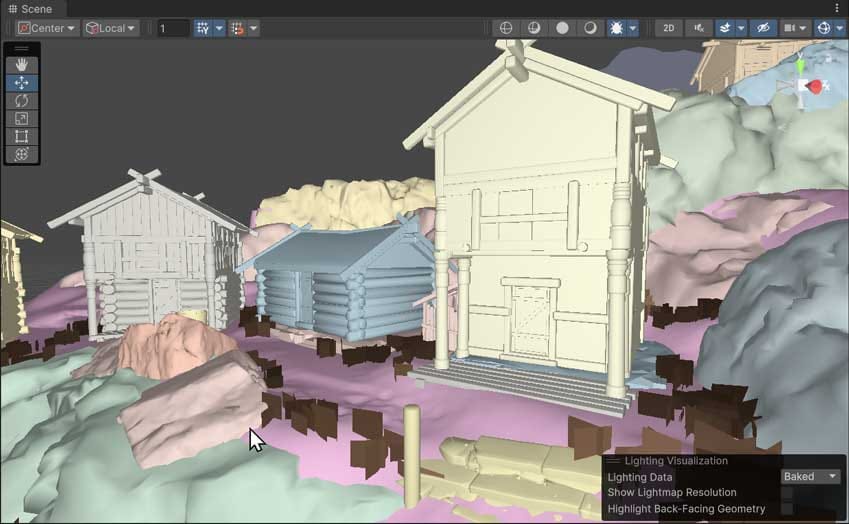
A wooden village scene in Lightmap Indices mode. Different GameObjects are different pastel colors, to represent different lightmaps.
Light Overlap (Baked Global Illumination only)

A wooden village scene in Light Overlap mode. Five light sources are visible. Four are white and contribute to the shadow mask textures. The fifth is red and displays a light cone, and doesn't contribute.
Baked Lightmap (Baked Global Illumination only)

A wooden village scene in Baked Lightmap mode. All the GameObjects have a dense checkerboard pattern to represent lightmap texels.
Shadowmask (Baked Global Illumination only)

A wooden village scene in Shadowmask mode. All the GameObjects display the same dense checkerboard pattern as Baked Lightmap mode, but are now red to represent the shadow mask texture.
?
Lighting Visualization overlay reference
Property | Description |
|---|---|
| Lighting Data | Select whether Unity uses the current baked lightmaps in the Debug Draw Mode, or temporary lightmaps that Unity rebakes when you update the scene. Refer to Preview lightmapping for more information. The options are:
|
| Show Lightmap Resolution | Use a checkerboard pattern to display the resolution of lightmaps. Each check is one pixel in a lightmap. |
| Highlight Back-Facing Geometry | Display back-facing geometry. The default color is purple. |
| Adjust Lightmap Exposure | Raise or lower the brightness of the lightmap colors, to help make the range of colors more visible. The default value is 0. |
Color preferences
Additional resources
- Lightmapping troubleshooting guide on the Unity Forums.