针对重度玩家减少广告频率
Adjust ad frequency for specific player groups using Game Overrides and Remote Config.
阅读时间6 分钟最后更新于 10 个月前
场景
本文档介绍了如何通过示例游戏来展示以下方面:
- 如何在玩家的角色被淘汰(“死亡”)时展示广告。
- 如何定位重度玩家。
- 如何更改重度玩家看到广告的频率。(重度玩家是指过去七天每天都进入游戏的玩家。)
我们将通过一个名为“Platformer Microgame”的 Unity 项目进行演示,该演示适用于任何其他游戏。
要求
- Unity 2019.4 及更高版本
- Unity Ads*
- Authentication
- Remote Config
- 登录 Unity Analytics Beta 版
注意:本示例中并不涵盖 Unity Ads。不过,您可以在预先创建的类中调用 ShowAd 函数。请参阅 Unity 广告。
说明
以下是步骤概述。下文会更详细地介绍每个步骤。
- 安装 Authentication、Remote Config 和 Analytics。
- 在 Unity 编辑器中将您的游戏关联至 Analytics。
- 使用默认值设置 Remote Config 键。
- 在游戏中从 Remote Config 检索值。
- 确定何时显示广告。
- 设置覆盖来为受众调整 Remote Config 键。
安装 Analytics、Authentication 和 Remote Config 软件包
登录 Unity Dashboard(Unity 后台)并找到此用例中所需的软件包(Analytics、Authentication 和 Remote Config)。

下载并安装每个软件包。将软件包直接添加到您项目的 PACKAGES 文件夹中。打开 manifest.json 文件并向依赖项中添加以下内容:
"com.unity.services.authentication": "1.0.0-pre.4","com.unity.services.analytics": "3.0.0-pre.2","com.unity.remote-config": "3.0.0-pre.3"
关联游戏
在 Unity 编辑器中,单击 Edit(编辑)> Project Settings(项目设置)> Services(服务)。选择相关项目并进行关联。这会将您的项目关联至后台。
设置 Remote Config 键
设置 Remote Config 键有两种方式:通过后台或通过编辑器。
在 Unity Dashboard(Unity 后台)中,转到 Remote Config 的 Config(配置) 页面。您可以在侧边栏中的 LiveOps 下方找到该键。
要添加将面向重度玩家更改的配置键,请执行以下操作:
- 单击 Add Key(添加键)。
- 输入键名称 adFrequency。
- 选择类型 Int 并输入值 1。
- 单击 Save(保存)。
这将是适用于所有玩家的默认值。
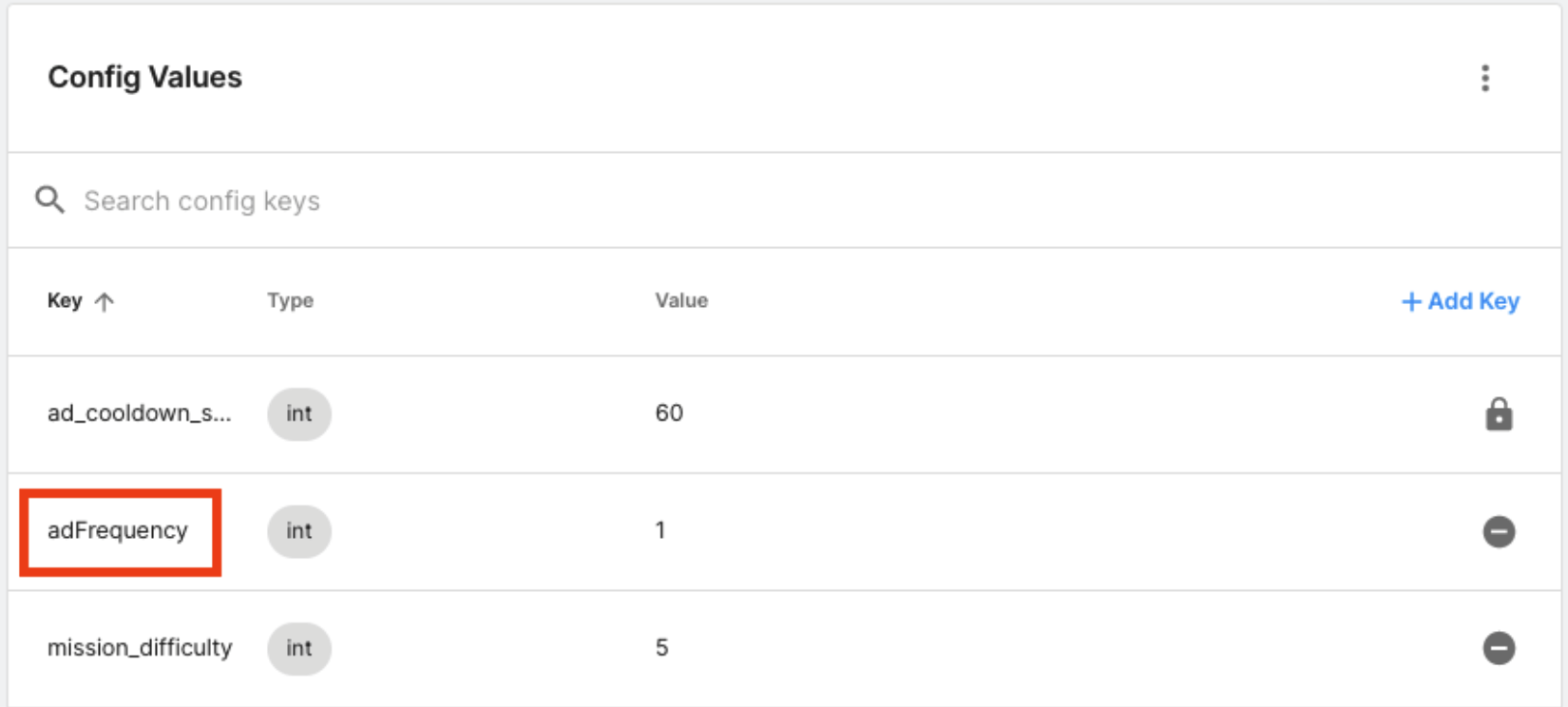
您也可以在 Unity 编辑器中更新这些配置值。单击菜单栏中的 Window(窗口),然后单击 Remote Config:它具有与 Dashboard(后台)相似的编辑面板。
设置游戏
使用以下代码从 Remote Config 获取 adFrequency 数据。将此代码附加到场景中的空对象上。
using Unity.RemoteConfig;using Unity.Services.Authentication;using Unity.Services.Core;using UnityEngine;public class UGS : MonoBehaviour{ public struct userAttributes { } public struct appAttributes { } public int adFrequency = 1; //Default is 1 ad on death async void Start() { await UnityServices.InitializeAsync(); // remote config requires authentication for managing environment information if (!AuthenticationService.Instance.IsSignedIn) { await AuthenticationService.Instance.SignInAnonymouslyAsync(); } ConfigManager.FetchCompleted += ConfigManager_FetchCompleted; ConfigManager.FetchConfigs(new userAttributes(), new appAttributes()); } void ConfigManager_FetchCompleted(ConfigResponse configResponse) { switch (configResponse.requestOrigin) { case ConfigOrigin.Default: Debug.Log("Default values will be returned"); break; case ConfigOrigin.Cached: Debug.Log("Cached values loaded"); break; case ConfigOrigin.Remote: Debug.Log("Remote Values loaded"); adFrequency = ConfigManager.appConfig.GetInt("adFrequency"); break; } }}
加载时,该对象将初始化一个匿名用户。您现在从 Remote Config 中获得了 adFrequency 的配置值。
例如,如果将 adFrequency 的值更改为 3,那么您希望在玩家每死亡三次或未通过关卡时显示一次广告。
死亡逻辑会计算玩家死亡的次数。如果死亡计数等于设置好的频率,就会显示广告。如果不等于,就不会显示广告。
countDeath++; if(ugs.adFrequency == countDeath) { countDeath = 0; PlayerPrefs.SetInt("countDeathForAds",countDeath); ads.ShowAd(); }
设置覆盖
按照上述步骤操作后,初始设置便已完成。
本示例的目标:创建一个面向重度玩家的覆盖,将 adFrequency 降低到每死亡三次显示一次广告。非重度玩家将继续在每次死亡时看到广告。
在 Game Overrides 中,转到 Overview(概述),它位于侧边栏中的 LiveOps 下方。
-
单击 Create Override(创建覆盖)。
-
为您的覆盖输入 name(名称),然后单击 Next(下一步)。
-
单击 Stateful Audiences(有状态受众),选择预定义的受众“Engaged Players”(重度玩家),然后单击 Next(下一步)。
- 注意:要启用 Stateful Audiences(有状态受众),请确保安装了 Unity Analytics。
-
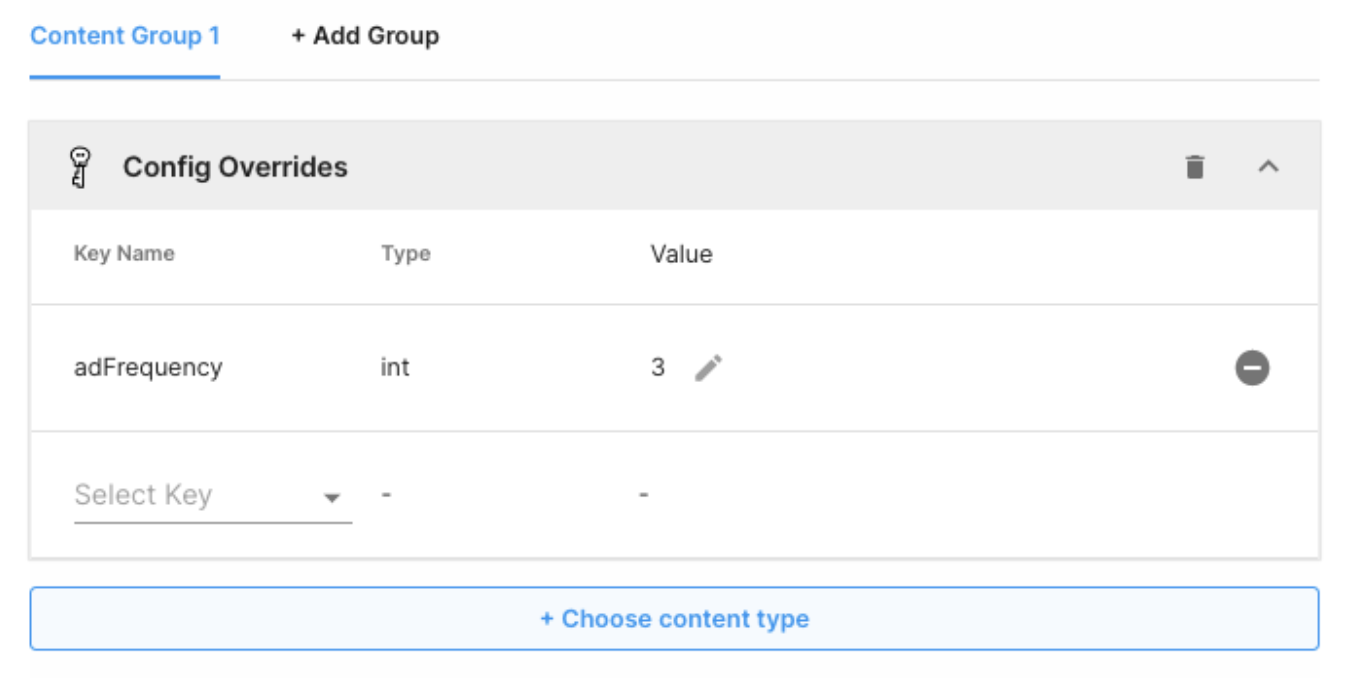
单击 Choose Content Type(选择内容类型),再选择 Config Overrides(配置覆盖),然后单击 Done(完成)。
-
从 Key Name(键名称) 下拉菜单中选择 adFrequency,输入值 3,然后单击 Next(下一步)。
-
安排覆盖立即运行,持续时间无期限,优先级为中等,然后单击 Finish(完成)。您可以调整优先级以处理覆盖之间可能存在的冲突。
-
核对更改并单击 Enable(启用)。
您的覆盖现在已经生效,重度玩家将在每死亡三次时收到一次广告。
如果您有任何疑问,请提交支持工单。