调试类
使用 Project 代码中的调试类将消息和错误写入控制台窗口。
阅读时间4 分钟最后更新于 5 天前
调试 类允许您在 Unity Editor 中可视化信息,这些信息可能有助于了解或调查Projectrunning时发生ON情况。例如,您可以使用它向控制台窗口打印消息,在 “场景”视图 Game View图中绘制可视化线条,以及在 Editor 中从脚本暂停播放模式。
Page面Overview了 调试 类及其使用该类编写脚本When的常见用法。有关调试类每个成员的详尽参考,请参阅调试脚本参考。
记录错误、警告和消息
Unity 有时会将错误、警告和消息记录到控制台窗口。 类使您能够通过自己的代码执行完全相同的操作,如下例所示:
DebugDebug.Log("This is a log message.");Debug.LogWarning("This is a warning message!");Debug.LogError("This is an error message!");
三种类型(报错、Warning和message)在 控制台窗口中都有自己的图标类型。
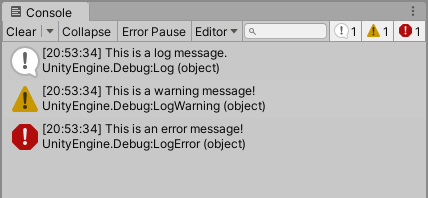
The Console window displays the three types of debug message: a regular log with a white exclamation icon, a warning with a yellow exclamation icon, and an error with a red exclamation icon.
写入控制台窗口的所有内容(由 Unity 或您自己的代码)也会写入日志文件。
如果在控制台中已启用错误暂停,则通过 类写入控制台的任何错误都会导致播放模式暂停。
Debug还可以为这些日志方法提供第二个可选参数来指示 message 与特定游戏对象关联,如下所示:
using UnityEngine;public class DebugExample :MonoBehaviour{ void Start() { Debug.LogWarning("I come in peace!", this.gameObject); }}
这样做的优点是,在控制台单击messageWhen,与该message关联的游戏对象对象将在层级视图中突出显示,从而确定与该message相关的游戏对象对象。在下图中,选择 Warning message 会突出显示 Alien (8) 游戏对象。
I come in peace!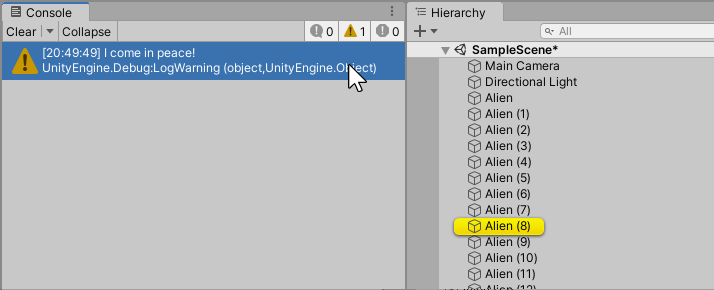
The Console window displays "I come in peace!" as a warning-level log message.
使用调试类
在此示例中,向 Scene 中的每个球体游戏对象添加了脚本,该脚本使用 来指示其与 Y Equals 为零的平面的垂直距离。请注意,此示例中的最后一个参数是线 Editor 中保持可见的Duration时间(以秒为单位)。
Debug.DrawLineusing UnityEngine;public class DebugLineExample :MonoBehaviour{ // Start is called before the first frame update void Start() { float height = transform.position.y; Debug.DrawLine(transform.position, transform.position - Vector3.up * height, Color.magenta, 4); }}
“场景”视图图中的result如下所示:
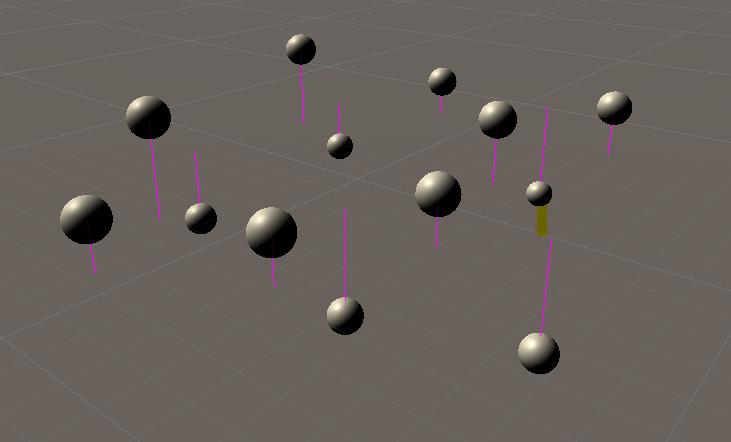
The Scene view displays a group of spheres, each with a magenta line indicating its distance from the plane where Y equals zero.
从非 Development 构建中排除调试代码
UnityEngine.Debug#ifDebug以下示例使用条件属性以及仅在 Development 构建中定义的名为 的脚本符号:
ENABLE_LOGSpublic static class Logger { [Conditional("ENABLE_LOGS")] public static void Debug(string logMsg) { UnityEngine.Debug.Log(logMsg); } }
有关更多信息,请参阅 Unity 条件编译。