Comment Editor window reference
Use the Comment Editor window in Unity Studio to add or edit comments that contain text, sketches, or files.
읽는 시간 2분최근 업데이트: 6달 전
To add a new comment, select Comment in the toolbar and select an area in the Scene View. The Comment Editor window opens.
To edit an existing comment, select the comment in the scene or in the Comment thread window, then select Edit from the options menu (... icon) for the comment.
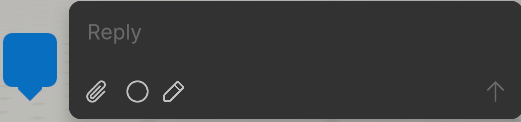
Comment Editor window in Unity Studio.
Comment input area overview
The comment input area allows you to add and edit comment text, plus add sketches or files to your comments.
Property | Description |
|---|---|
| Reply | Enter or edit the text of your comment. The other options in this table only show when you enter text in this field. |
| Attach file (paperclip icon) | Attach a file to your comment. Files can be up to 25 MB and can be in any format. When you select this option, it opens a file browser where you can attach files from your local device. You need to add text to the comment before you can submit a comment with an attached file. |
| Attach Spatial Marker | Attach one or multiple spatial markers to your comment. This allows you to link your comment to specific locations in the 3D scene. After you select this option, select a location in the scene to place the marker. Select multiple times to place multiple markers. |
| Edit Sketch (pencil icon) | Add or edit a sketch for your comment. This opens the sketch editor, where you can use the drawing tools to create your sketch. To draw, click and drag in the scene. |
| Post (⬆ icon button) | Post your comment to the scene. This option only shows for new comments. For existing comments, select Save (checkmark icon) to save your changes. |
Sketch toolbar overview
The sketch toolbar allows you to create sketches and annotations to attach to your comments.
This toolbar only appears when you select Edit Sketch. The toolbar at the bottom of the Scene view includes the following options:
Property | Description |
|---|---|
| Size | Change the thickness of your sketch lines. Drag to the right to increase the thickness, and to the left to decrease it. |
| Brush Color | Change the color of your sketch lines. Select to choose a color from the color wheel. |
| Opacity | Change how transparent your sketch lines are. Drag to the right to increase the opacity, and to the left to decrease it. |
| Accept | Save your sketch and exit Sketch mode. The sketch saves and appears as a file attachment on your comment. Make sure to select Post to submit your annotation, otherwise you lose your changes. |
| Cancel | Cancel your sketch and exit Sketch mode. |