Hub window reference
Learn about each section of the Unity Hub main window and what you can do in them.
읽는 시간 2분최근 업데이트: 3달 전
The main Hub window consists of the following sections, which you can access from the left navigation menu:
Projects
The Projects window displays all Unity projects you have in the Hub. Use it to create new projects, open existing ones, and manage project settings and connections.
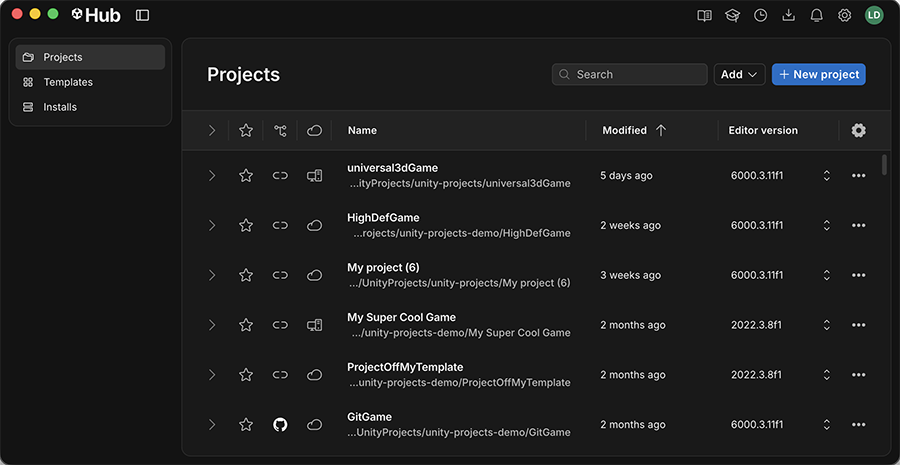
The Projects tab in the left navigation menu
For more information on the content and functionality of the Projects window, refer to Projects window reference.
Templates
The Templates window displays your custom templates. Use it to create a project from a template or build a custom template based on your own project.
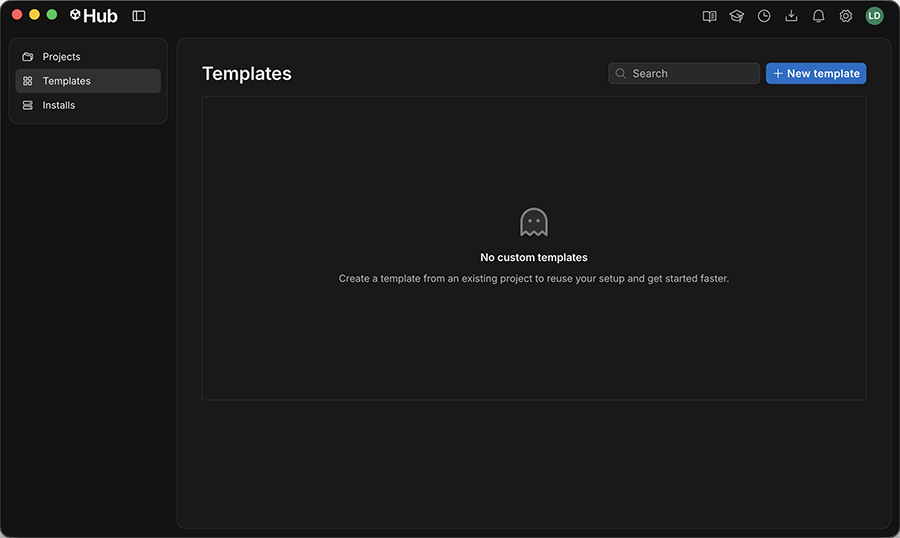
The Templates tab in the left navigation menu
For more information on templates, refer to Templates.
Installs
The Installs window allows you to manage the Unity Editor installations on your system. You can view the versions of the Unity Editor you have installed, add new versions, and manage modules for each installation.
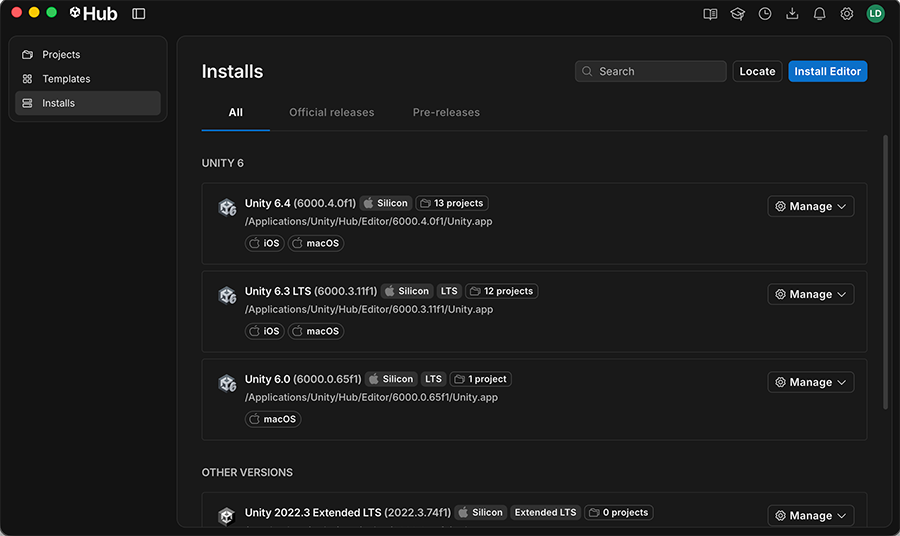
The Installs tab in the left navigation menu
Select the Manage drop down selector next to an installed version of the Unity Editor to view release notes, go to the install location on your system, or remove that version from the Hub.
Select Locate next to the search bar to open a file browser window and navigate to an existing installation of the Unity Editor on your system. Select the folder that contains the Editor executable to add it to the Hub.
Select Install Editor to open the Install Editor window, where you can select a version of the Unity Editor to download and install.
To search for an installed Editor version, type in the search bar to filter results immediately.
For more information on managing Unity Editor installations in the Installs window, refer to Downloading and managing Unity Editor installations.
All tab
Displays all installed versions of the Unity Editor on your system.
Official releases tab
Displays stable versions of the Unity Editor that are officially released.
Pre-releases tab
Displays beta and alpha versions of the Unity Editor that are available for testing.