DT Exchange 연동
레벨플레이 SDK를 사용하여 React Native 앱에 DT Exchange를 Mediation 네트워크로 통합합니다.
읽는 시간 2분최근 업데이트: 한 달 전
이 가이드는 레벨플레이 Mediation DT Exchange를 광고 네트워크로 게재하는 방법을 단계별로 설명합니다.
필수 조건
DT Exchange 계정 생성
DT Exchange 웹사이트에서 계정을 만드세요.
계정이 인증되면 DT Exchange 파트너 웹사이트에 로그인할 수 있습니다.
애플리케이션 및 플레이스먼트 만들기
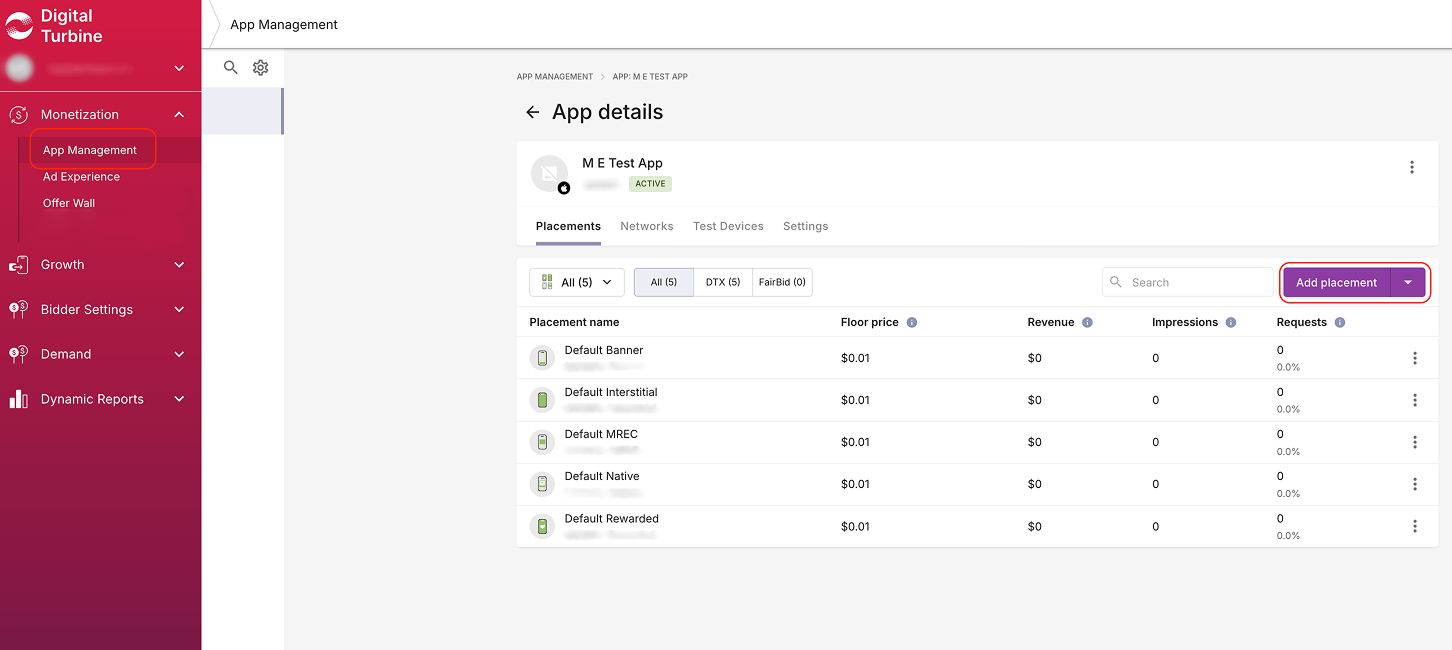
레벨플레이 플랫폼에서 DT Exchange 인벤토리에 액세스, 접근하려면 먼저 앱을 추가하고 DT Exchange 계정에 플레이스먼트를 설정해야 합니다.
- DT Exchange 계정에 로그인한 다음 수익화 > 앱 관리로 이동합니다.
- 앱 추가를 선택합니다.
- 앱 설정을 정의합니다. 플랫폼과 카테고리를 선택합니다.
- 플레이스먼트 추가: 보상형 광고, 인터스티셜 광고, 배너 또는 MREC
- Create App을 선택합니다.
SDK 네트워크 설정 모듈에서 DT Exchange 활성화
레벨플레이 플랫폼의 SDK 네트워크 설정 모듈에 DT Exchange 계정에서 다음 파라미터를 추가합니다.
파라미터 | 설명 |
|---|---|
| 퍼블리셔 ID, 소비자 키, 소비자 비밀 | DT Exchange 계정의 고유 식별자로 레벨플레이 플랫폼이 DT Exchange 계정에서 성능 데이터를 임포트하여 리포트 및 최적화에 사용할 수 있습니다. |
| App ID | DT Exchange 시스템에서 애플리케이션을 위한 고유 식별자입니다. |
| 플레이스먼트 ID | DT Exchange가 광고를 게재할 독특한 사이트입니다. |
DT Exchange 파라미터 검색
퍼블리셔 ID, 소비자 키 및 소비자 비밀
- 사용자 프로필 페이지로 이동합니다.
- 보고 API 키에서 파라미터를 찾습니다.
앱 ID 및 플레이스먼트 ID
- 인벤토리 > 앱 및 사이트 관리로 이동합니다.
- 목록에서 관련 애플리케이션 선택합니다.
- 오른쪽 메뉴에서 통합 옵션을 선택합니다.
레벨플레이 계정에서 DT Exchange 파라미터 설정
- 레벨플레이 계정에 로그인하고 Monetize > Mediation > SDK Networks로 이동합니다.
- 사용 가능한 광고 네트워크 목록에서 DT Exchange를 선택하고 DT Exchange 퍼블리셔 ID, Consumer Key, Consumer Secret를 입력한 다음 저장을 선택합니다.
- DT Exchange로 레벨플레이 실행할 앱을 정의합니다. 광고 네트워크의 설정 목록에서 DT Exchange 행으로 이동하여 설정을 선택합니다.
- 애플리케이션 레벨의 앱 ID와 관련 광고 유닛의 플레이스먼트 ID를 입력합니다.
- Save를 선택합니다.
- 요청한 광고 유닛 활성화
- 보고 API와의 통합을 확인합니다. 이 열은 보고 API를 통해 통합을 확인하고 세 가지 가능한 응답을 반환합니다. 검증됨, 실패 및 응답 없음. 통합 및 위에 입력한 정보를 확인한 다음 검증됨이 표시될 때까지 재시도를 선택합니다.
광고 네트워크 연동 확인
레벨플레이 SDK와 추가 광고 네트워크 통합을 확인하려면 React Native의 통합 도우미를 참고하십시오.