Code reviews in the desktop application
Code review window
- New code review for this changeset
- New code review for this branch
Tab | Description |
|---|---|
| Conversation | Allows you to edit the title, description, reviewers, and status of a code review. This tab also displays activity for your code review, and any comments. |
| Review changes | Allows you to review changes and add comments. This tab also displays the diffs of the changes, and any comments. |
Conversation tab
Request reviewers
- Select Add description to give an overview or summary to your reviewers.
- In the Reviewers panel, select Add.
- Select any users or groups you want to add as reviewers.
- Select OK.
Change the status of a code review
- Select Mark review.
- Select one of the review statuses:
Status
Description
Under review The review is ongoing. Rework required The reviewer is requesting changes. Reviewed The code review is approved. - Add a comment and select the Mark as button for the status you selected.
Review changes tab
Branch review options
Review mode | Description |
|---|---|
| Review changeset by changeset | View each individual changeset and the associated checkin comments, and add comments to the individual changesets. This helps the reviewer understand how and why changes were made. |
| Review entire branch | Review the most recent version of the branch, with all changesets applied. |
Diff options
Diff option | Description |
|---|---|
| Text diff | Provides a side-by-side text comparison of the changes in a file. |
| Semantic diff | Provides a semantic outline which shows if items in the file were added, deleted, or changed. |
| Visual diff | With the semantic diff, the visual diff provides a representation of the changed objects. You have the following options: Hide unchanged, Show unchanged, and Group unchanged. |
View existing comments
Comment types
Comment type | Description |
|---|---|
| Request a change (default) | Select to indicate that a change in the code is necessary. |
| Ask a question | Select to indicate that the comment needs an answer, but no initial change is necessary. |
| Regular comment | Deselect both options to add a regular comment. |

A screenshot of the review comments summary panel. The panel is split into three sections for each type of comment. The change requested and question comment sections both have a status column, which both show the status as pending.
Add new comments
- Add a new comment to a line:
- Hover over the line in the diff window.
- Select the + icon.
- In the comments panel, select the type of comment.
- Enter the comment and select Comment.
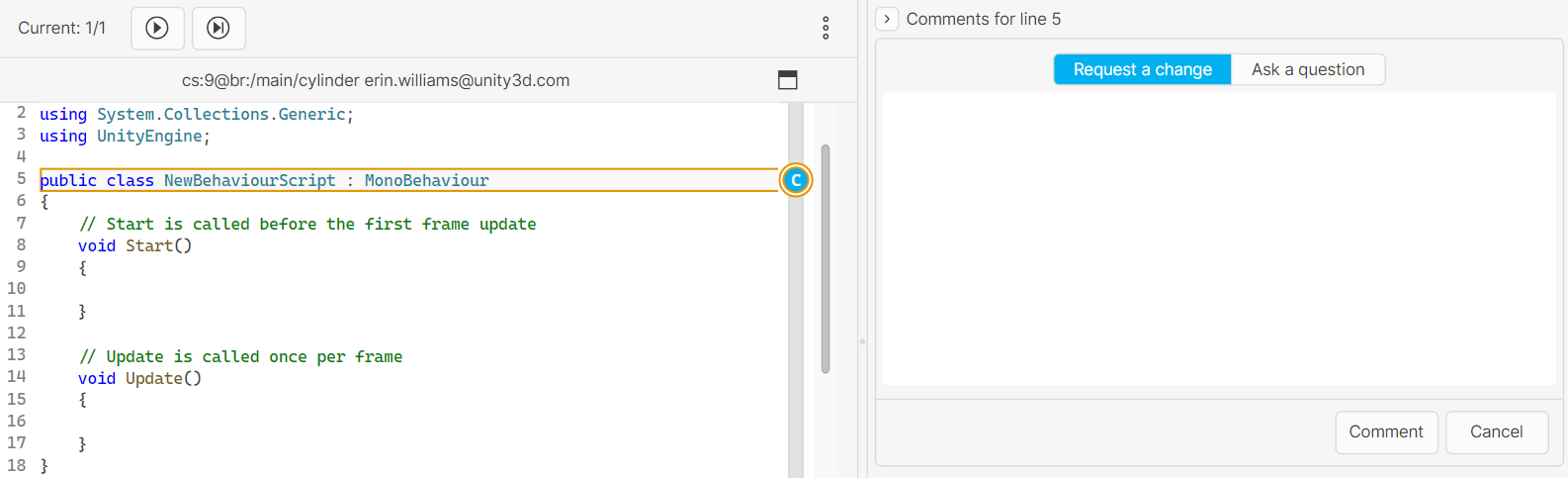
An example diff file, with the ninth line selected. The line shows a circular icon with the letter 'c' in it, that indicates that a change has been requested. To the right is the comment panel, which shows the two options for 'Request a change' or 'Ask a question', with the former option selected. There is an empty text field, with two buttons underneath that read 'Comment' and 'Cancel' respectively.
- A file that belongs to a different repository.
- An Xlink file.
- An unsupported file type, such as an image or directory diff.
Apply requested changes
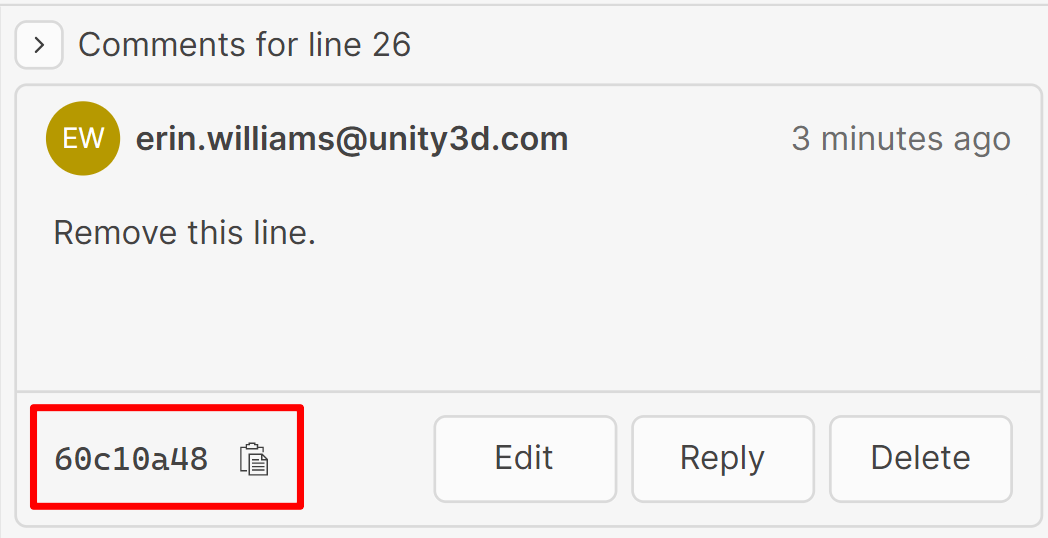
A screenshot of a request change comment, with the GUID and copy symbol highlighted.
- Copy the GUID from the change request comment.
- Make your changes to the file.
- In the Pending changes tab, enter a comment in the following format:
[apply-change:{commentID}] - Enter the rest of the comment as normal and select Check in.
[apply-change:{commentID}]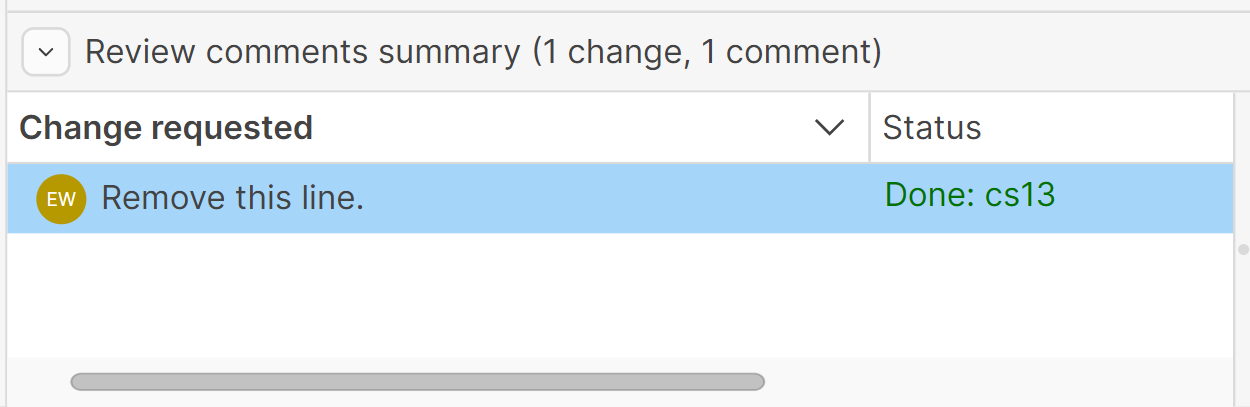
A screenshot of a change requested comment in the Review comments summary panel, with the status as 'Done, cs13'.