Configure Source bidding
Configure your User Acquisition campaigns to bid for specific publishers only.
Read time 3 minutesLast updated 3 months ago
To start using source bids from the Unity User Acquisition dashboard:
- From the Apps page, select the app that has the campaign that you want to modify. The Campaigns page for this app appears.
- Select the campaign you want to modify, or create a new campaign.
- Scroll to the Source bids section, then select Export template.
- After exporting the template, populate the spreadsheet as described in the next section.
- Return to the Source bids section of the campaign menu, then select Import to upload your modified spreadsheet.
Once you have successfully imported your configuration, the Source bids section displays a list view of the countries you're targeting, and the bid amounts imported from your spreadsheet. A green icon indicates that Source Bidding is enabled and active.
Select Clear all to clear any imported bids and disable Source Bidding for the campaign. Alternatively, you can pause or stop the campaign.
Source bid templates
To specify your source bids, open the exported template and populate the fields according to the following guidelines:
|
|
|
|---|---|---|
| The two-letter (Alpha 2) ISO country code representing the source's geographic location. Note: Using three-letter country codes causes an error. |
|
| The Unity identifier for the source app, the | |
| The amount you're willing to spend in U.S. currency. This field supports up to three decimal places. |
|
Errors
The Source bids section of the campaign menu details a Any errors when importing your spreadsheet. Some examples of potential errors include:
- Missing column headers
- Blank values
- Incorrect values (such as three-character country codes, or bids with the wrong number of decimal places)
- Unpopulated fields from a row
- Mismatch in format. For example, is a 12-character alphanumeric case-sensitive string.
source_app_ID
If there are multiple errors, a detailed explanation of all errors appears:
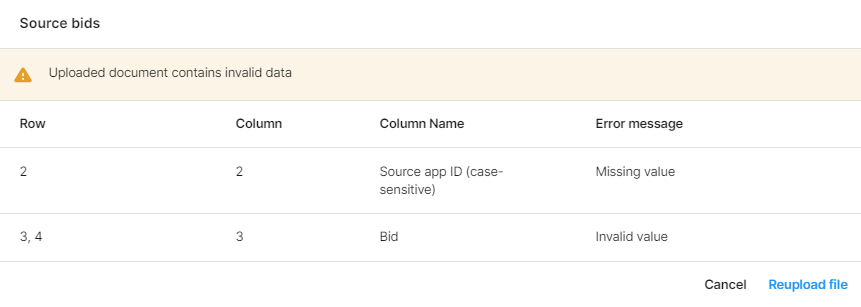
Fix the issues in your spreadsheet, and re-import the file.
Updating source bids
To update source bids, revise your spreadsheet and re-import it. As a validation check, your previous bids appear crossed out for you to preview. For additional validation, an alert appears if a bid changes by a substantial amount.
App targeting and Source Bidding
Allowlisting and Source Bidding are separate campaign targeting tactics. You must clear any allowlisted apps from a campaign in order to use source bids in that campaign. You can still use app blocking (blocklisting) in tandem with Source Bidding.